SVAIFF KOREA 2026 · Step-by-Step Illustrated Entry Guide
From start to “Entry received”, then editing, locking for judging and withdrawing · screens as of 2026-10-24
- Screens in this guide were captured on 2026-10-24 with test names and test emails (@example.com). The live screens may differ slightly.
- The entry period is Oct 25 – Nov 25, 2026 (Wed) 24:00 KST. Before entries open, the start page shows “Entries open on Oct 25.” and no Start button.
- The full entry guidelines and entry rules are on the official site korea.svaiff.com.
- The pictures come from a test screen, so the robot check area looks empty. On the live screen a “Verify you are human” box appears under the email field, in step 9 and on the review page; tick it to continue.
- SVAIFF KOREA 2026 is a public-interest event with no entry fees, paid seats or merchandise sales. Entry is free.
1. What to prepare
On the start page press Start → choose adult or minor → tick each item below on the check what you need page. The entry starts only when all are ticked, and nothing new is asked for during the entry.
| Email address | No password: you sign in with a 6-digit code sent by email. Your confirmation and edit link are sent to this address. |
|---|---|
| Video file | MP4 upload only (no YouTube or other links). Recommended H.264 · 1080p, up to 10 GB. Length includes end credits and must fit the category limit. If the upload is interrupted, choose the same file again and it resumes. |
| Poster or key image | JPG or PNG, up to 10 MB, about 1400 px on the long side recommended. |
| English subtitles | If the dialogue is not in English, check in advance whether the video has English subtitles (the form asks). |
| Pre-fill Form (optional) | A form for writing the long text fields (logline, synopsis, director bio, creative statement, etc.) offline on your own computer. Get it with Download Pre-fill Form on the start page, the check page or in step 1; upload the finished Completed Form with Upload Completed Form in step 1 to fill the text fields at once. Video and photo uploads and consents are done on the entry page. |
| Stills · director photo (optional) | Up to 3 stills (long side 1920 px or more, 16:9 landscape recommended, no subtitles or logos) and 1 director photo (long side 1200 px or more). Used in the programme book and press materials if selected or awarded. |
| Project information | Title (original and English), a one-sentence English logline (25 words max), synopsis (about 300 Korean characters / 150 English words recommended), completion month (on or after Jan 1, 2025), country, language, director bio. |
| Credits | Key roles such as director and writer, with names. |
| Use of AI | AI tools used, the stages where AI was used, the approximate share (at least 50% of the visuals or key narrative elements), and what AI did versus what you did. |
| Creative statement | Theme, structure, artistic choices, research, failures and fixes, plus start/end times of 3 evidence scenes. For finished works you may write it looking back now. |
| Rights | AI service plan, music and source rights, and the source and license of any third-party material. |
| If anyone is under 19 as of Nov 25, 2026 | Guardian name, relationship and email for each such person. Enter them in the first step (Submitter) and a consent link goes to the guardian at once; you won't need to come back for it. If the lead entrant is under 14, a guardian fills in and submits the form (signing in with the guardian's email). Age as of Nov 25, 2026. |
2. Start page · adult or minor · check what you need · email verification
2-1. Start page
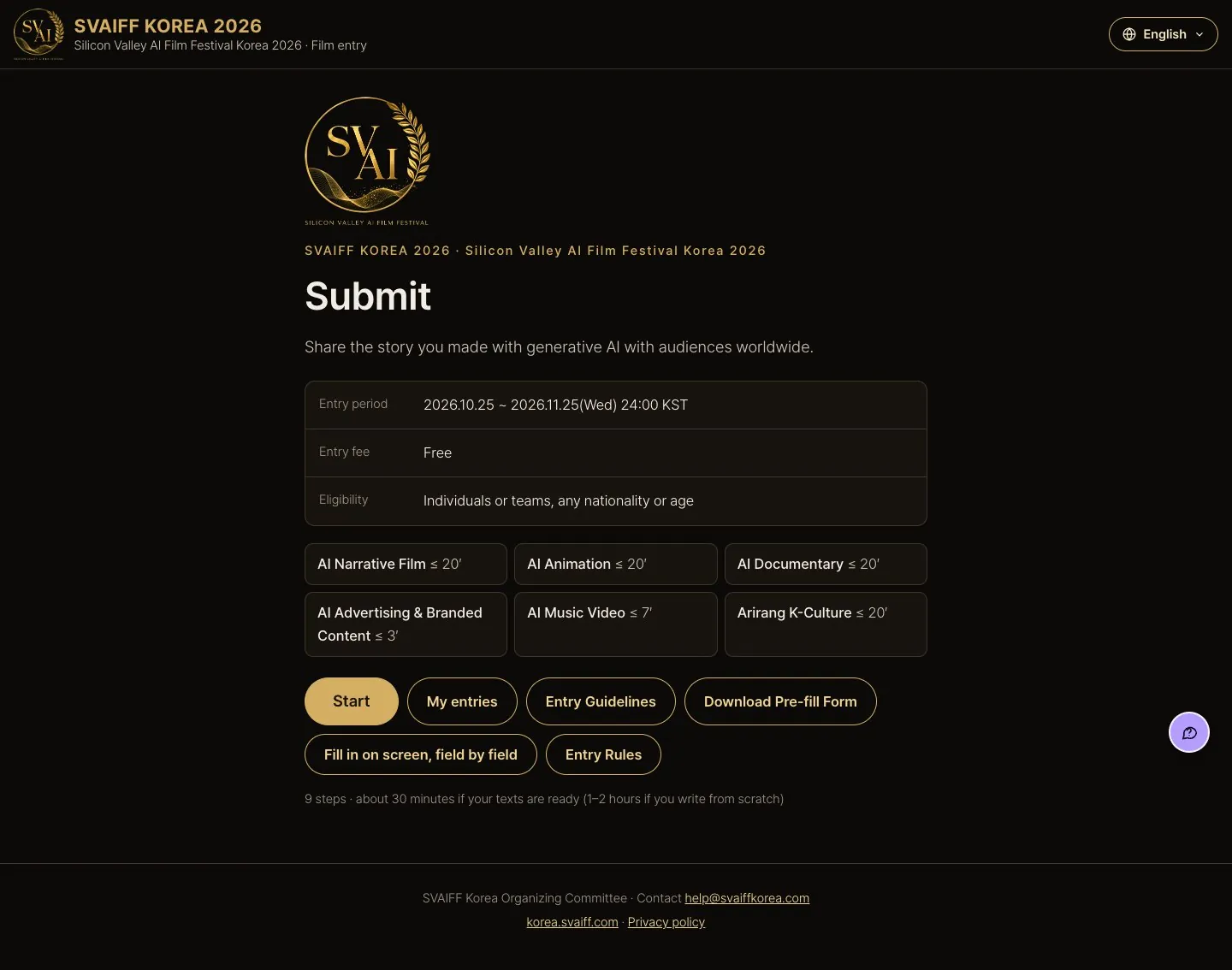
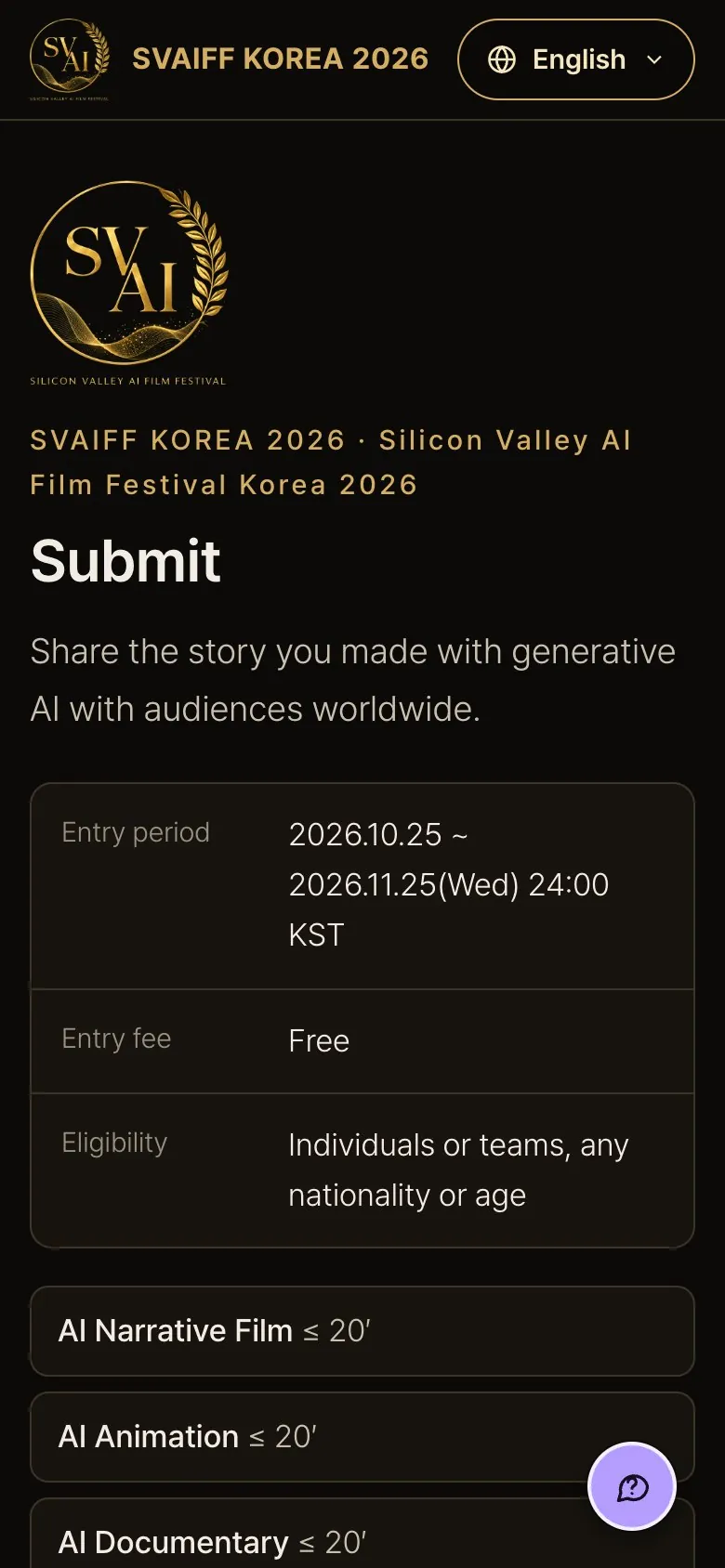
- Check the entry period, fee (free) and categories.
- Start takes you to entering with the form (section 3). To type directly on screen, press Fill in on screen, field by field (section 4).
- To see works you already entered, press My entries. Use the language menu (🌐) at the top right to change the language.
2-2. Adult entry / Entry by a minor
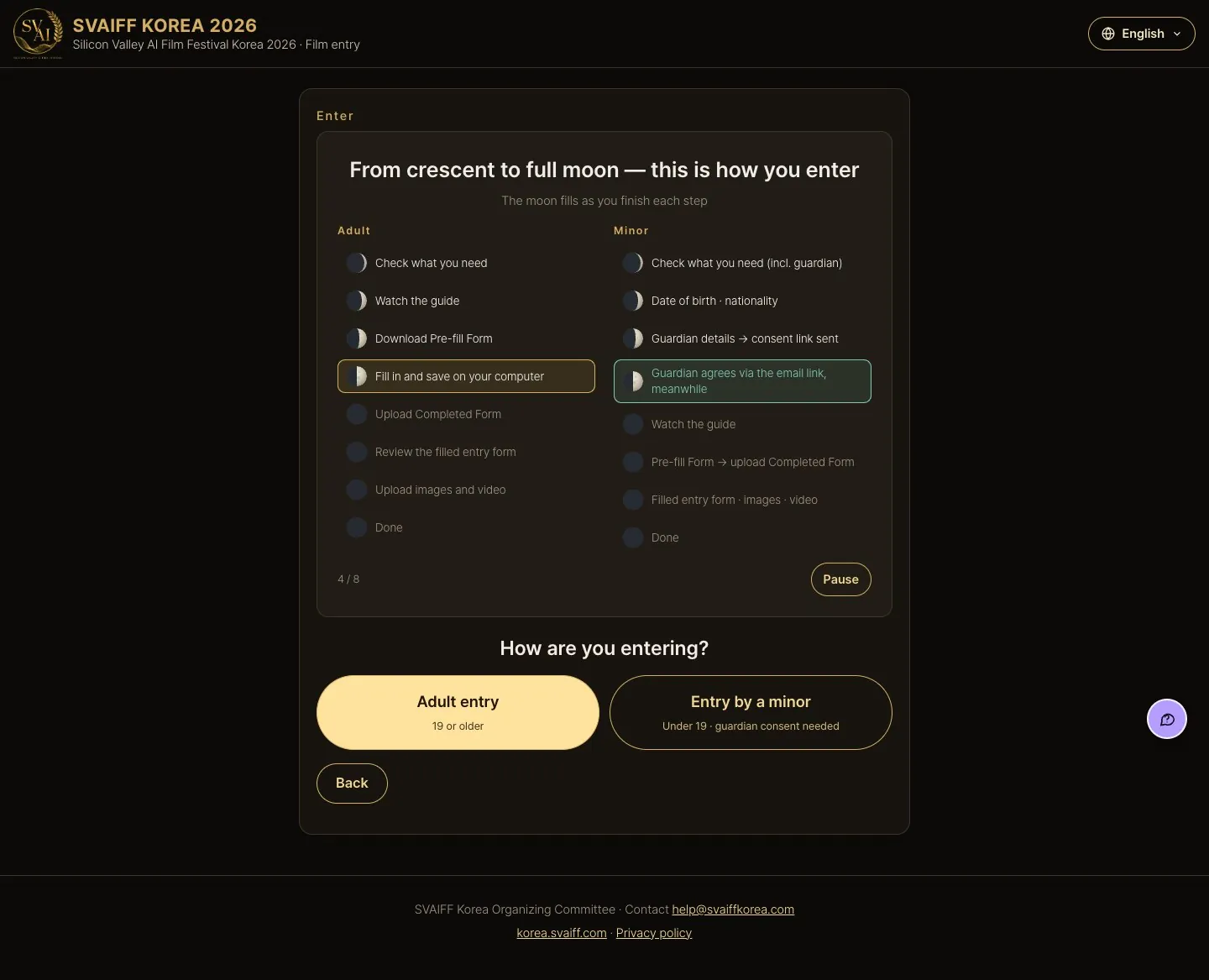
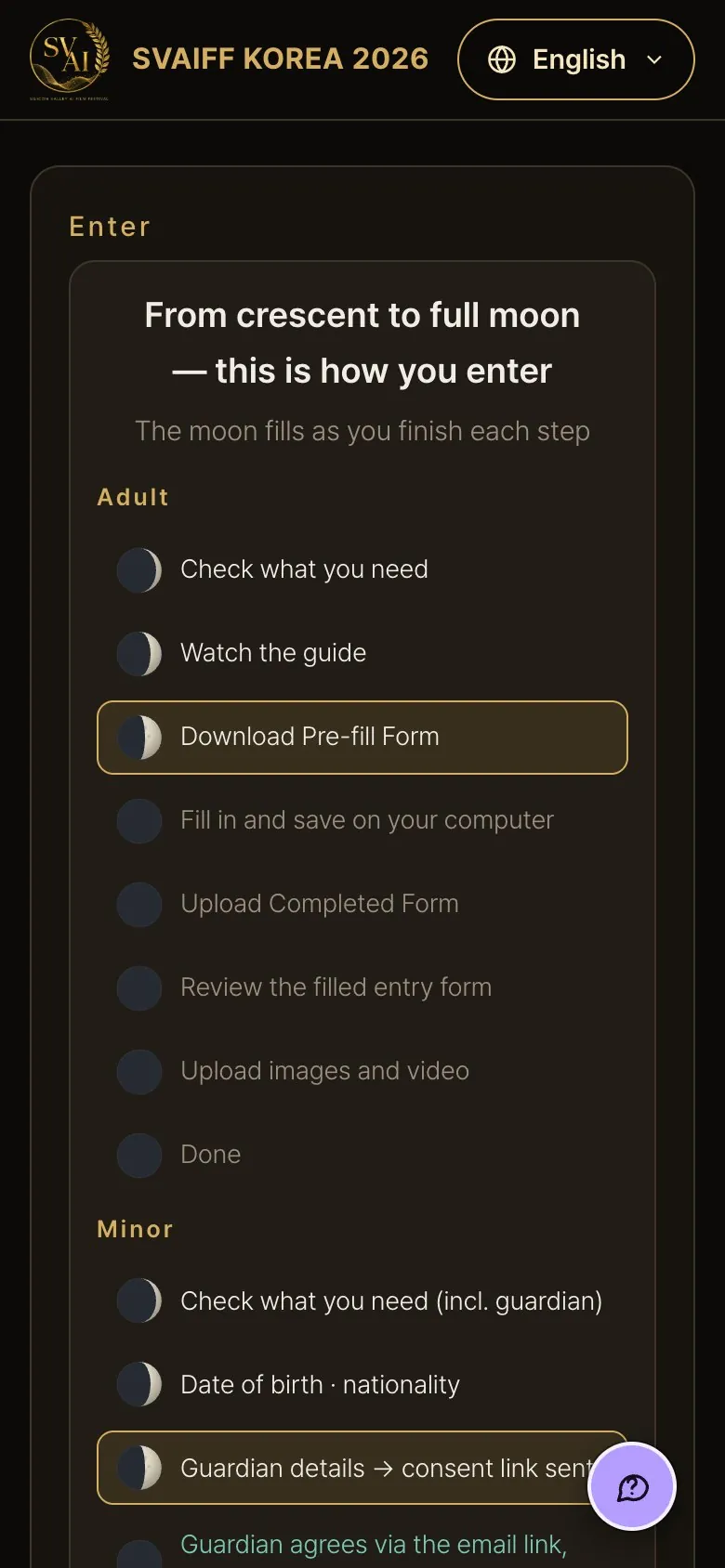
- The picture shows the order of the entry. The moon fills as you finish each step.
- If the lead entrant is 19 or older, press Adult entry; if under 19 (as of the deadline, Nov 25, 2026), press Entry by a minor (section 7).
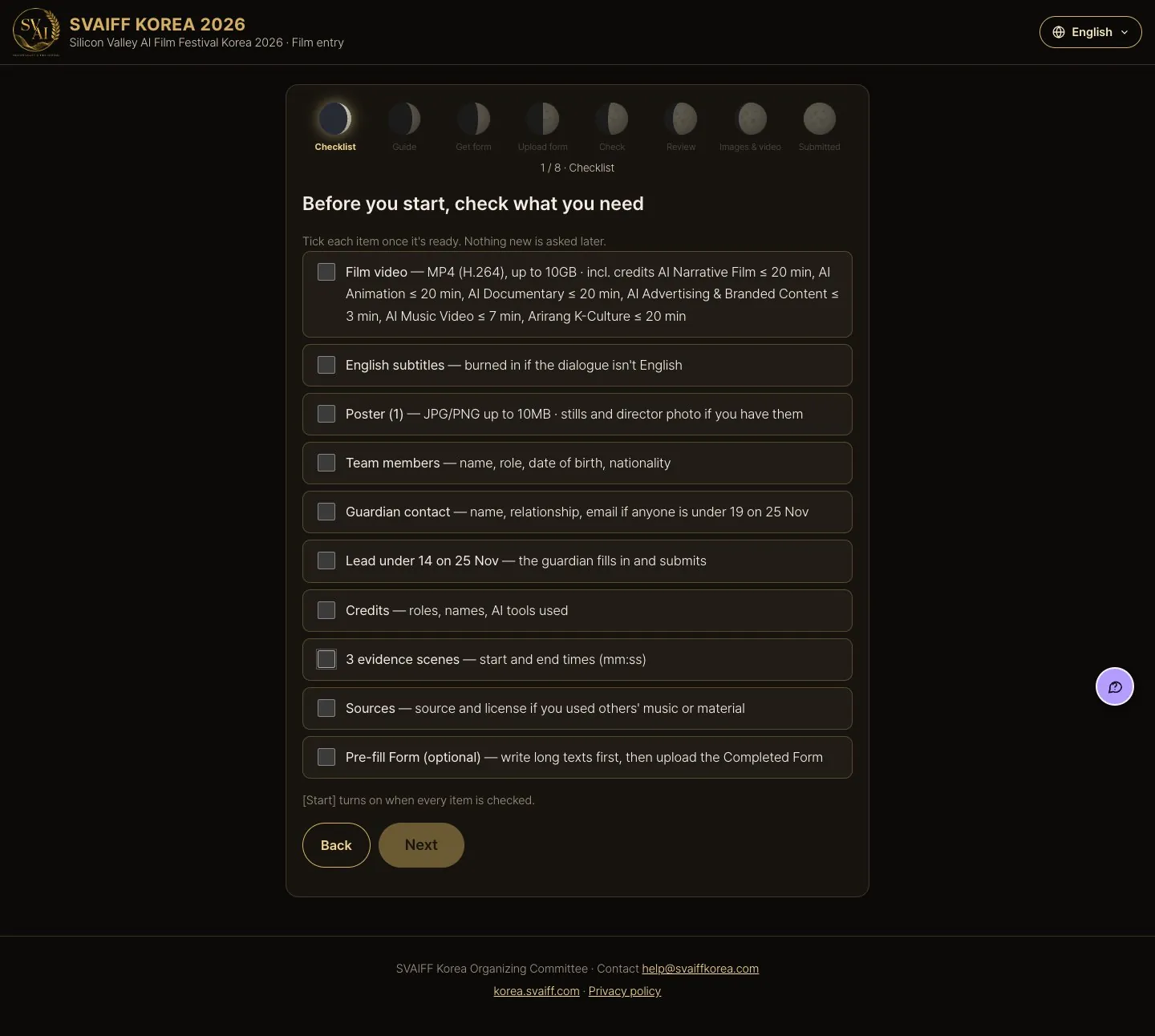
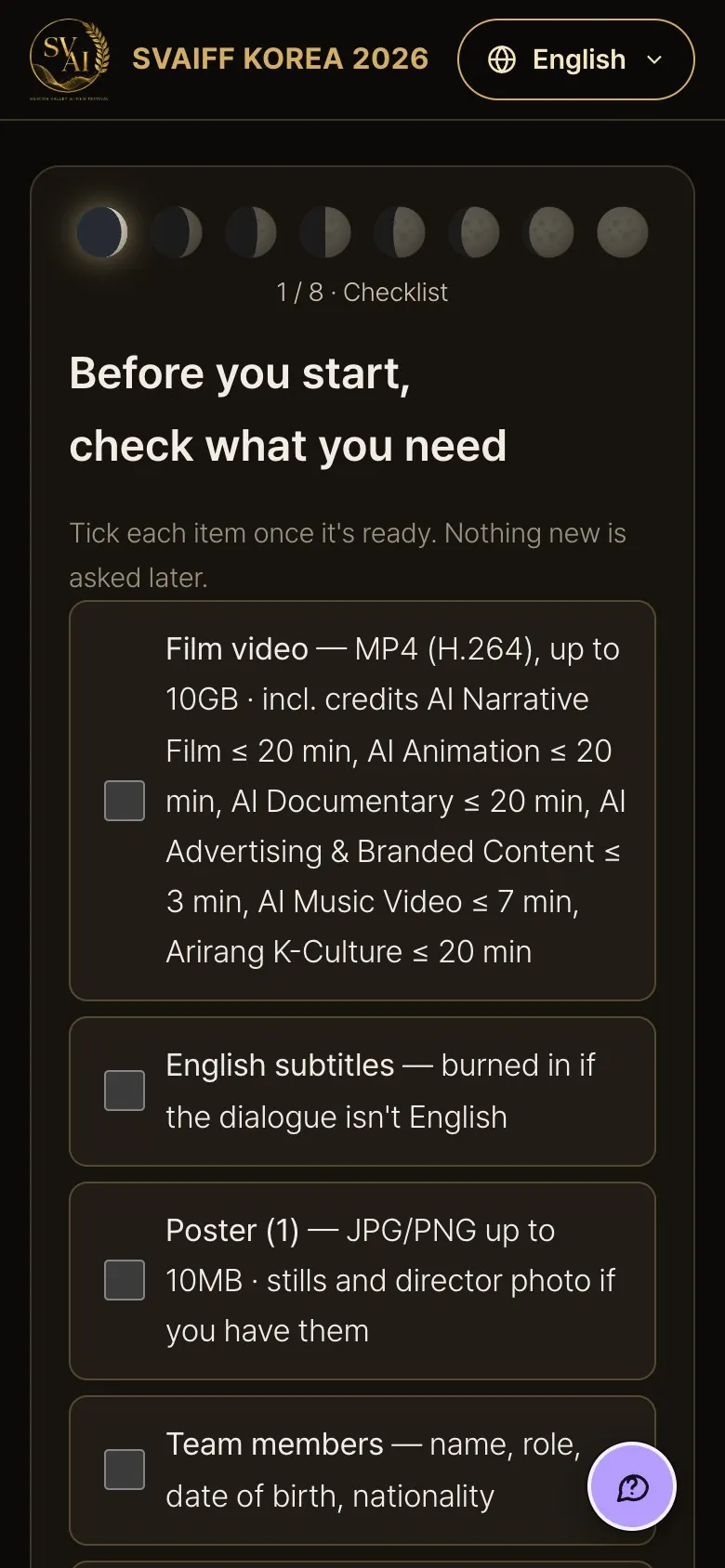
2-3. Check what you need
- Everything you need is listed. Tick each item you have ready and Next turns on.
- Download Pre-fill Form lets you write the long texts in advance.
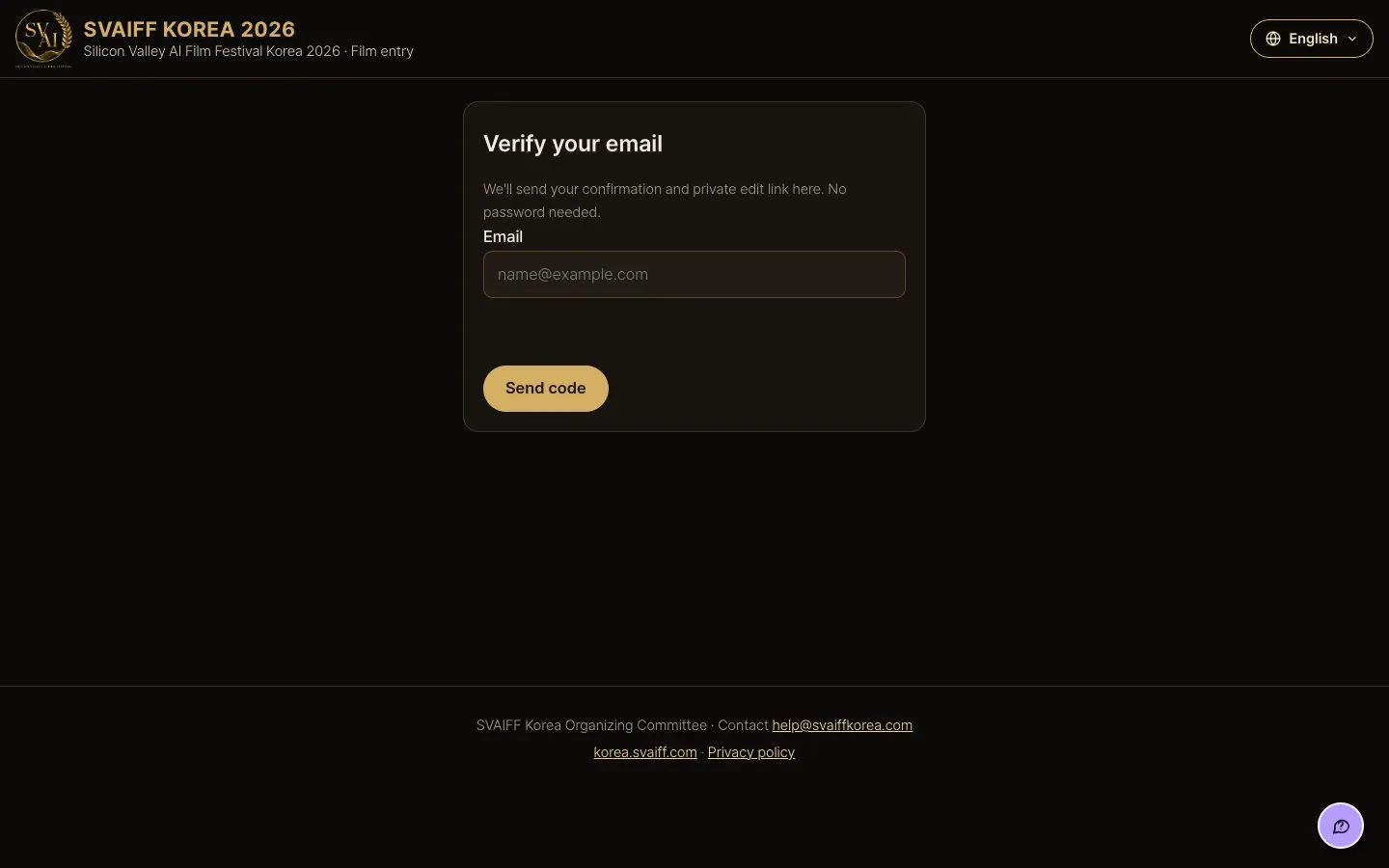
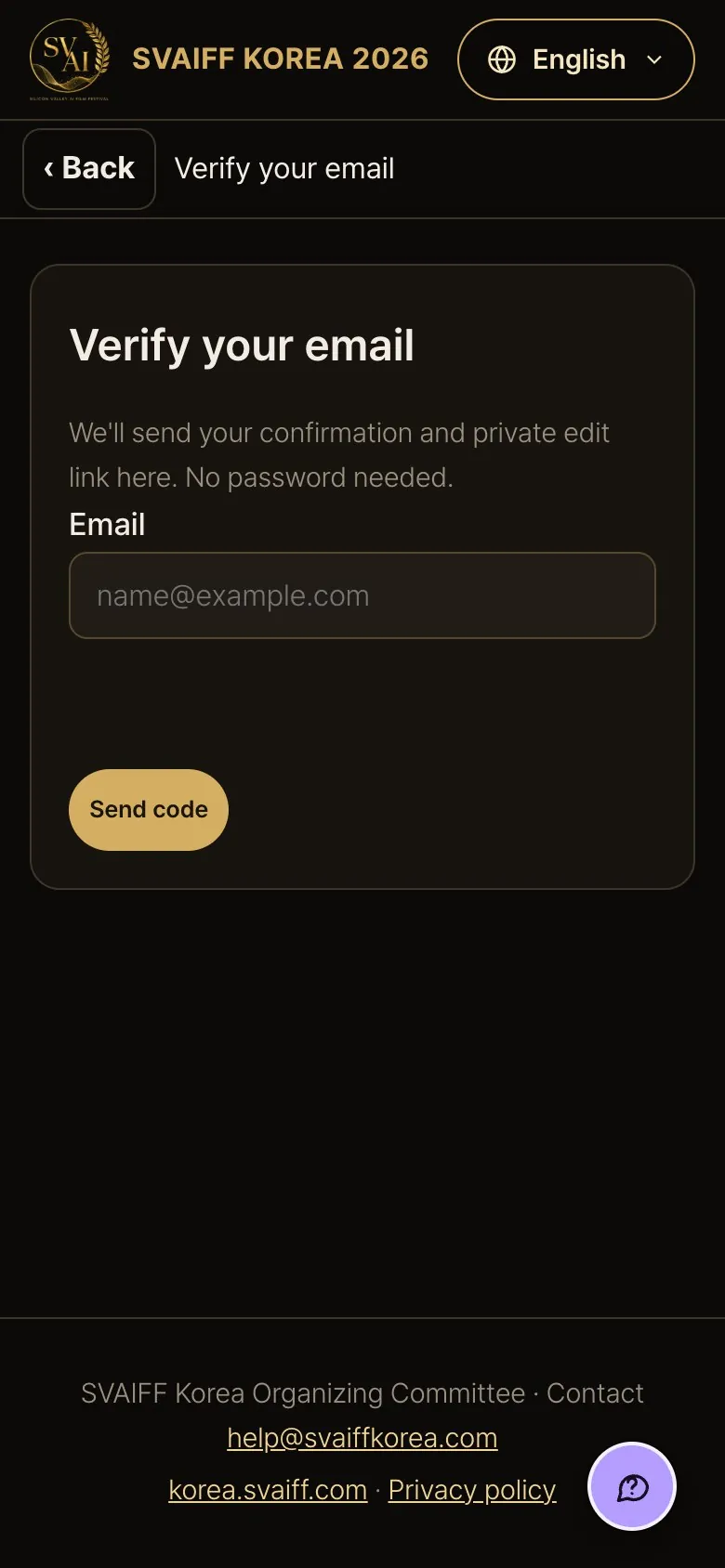
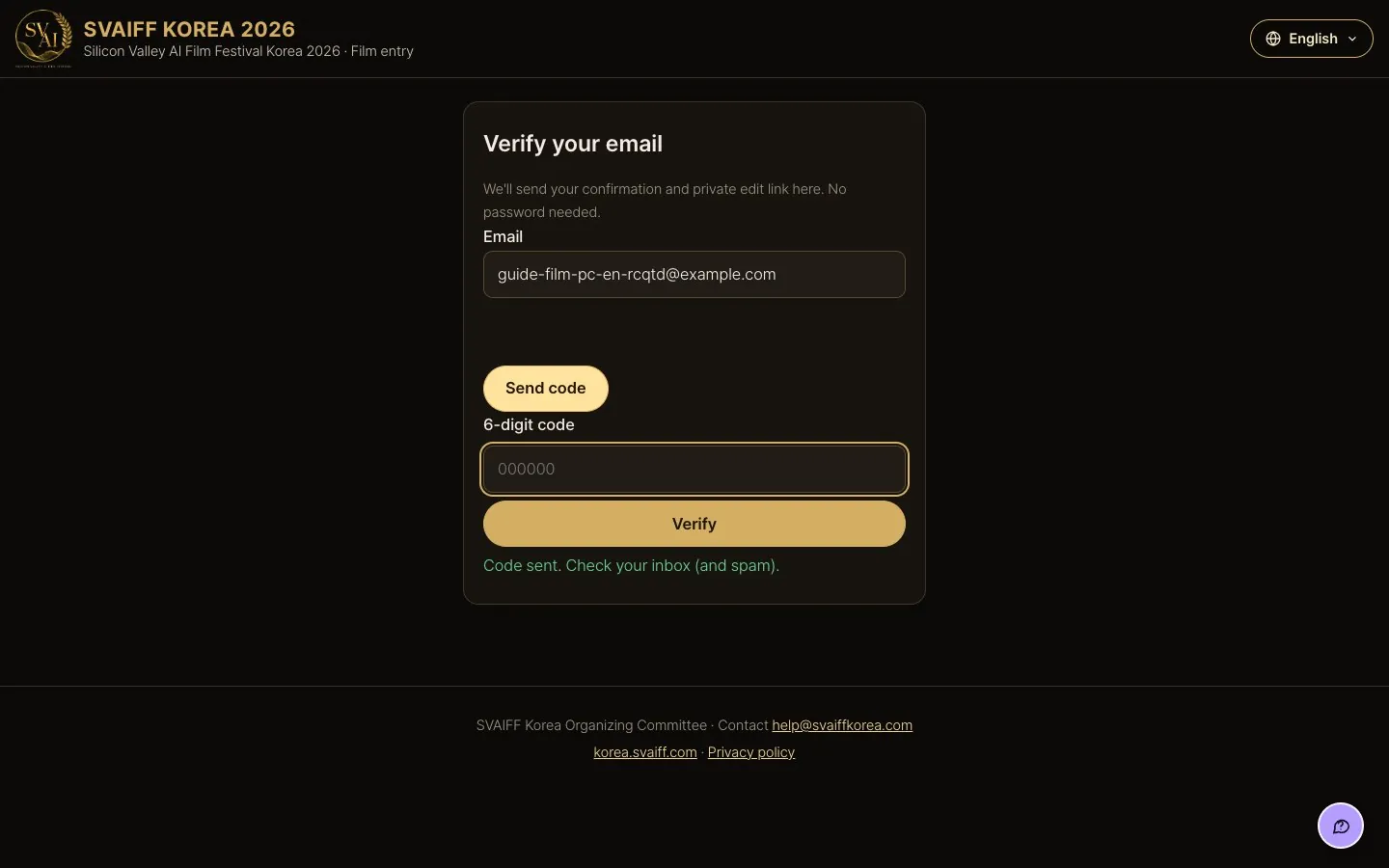
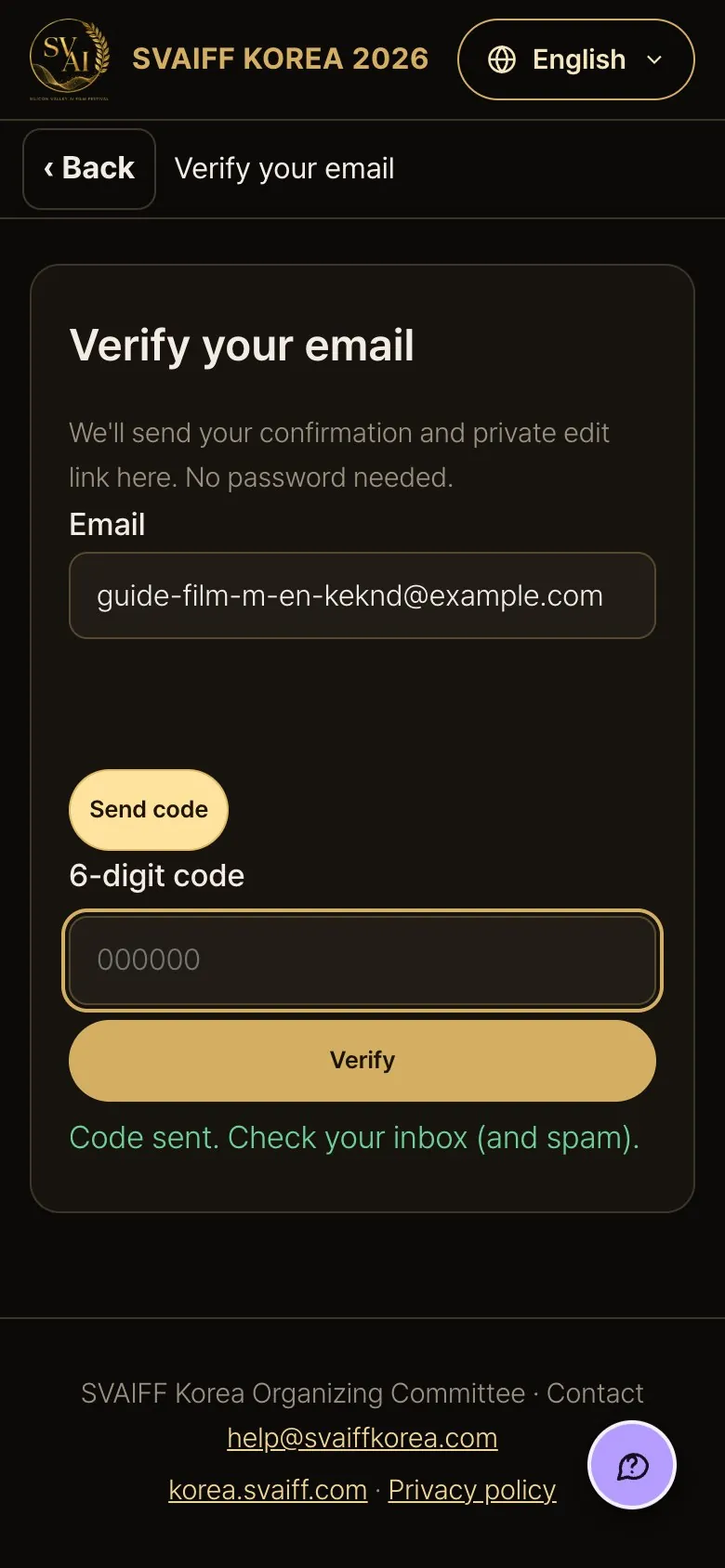
2-4. Enter your email and get a code
- Type your email, then tick the “Verify you are human” box below it (it looks empty in the picture).
- Press Send code.
2-5. Enter the code
- Enter the 6-digit code from the email and press Verify.
- If you can't find the email, check your spam folder.
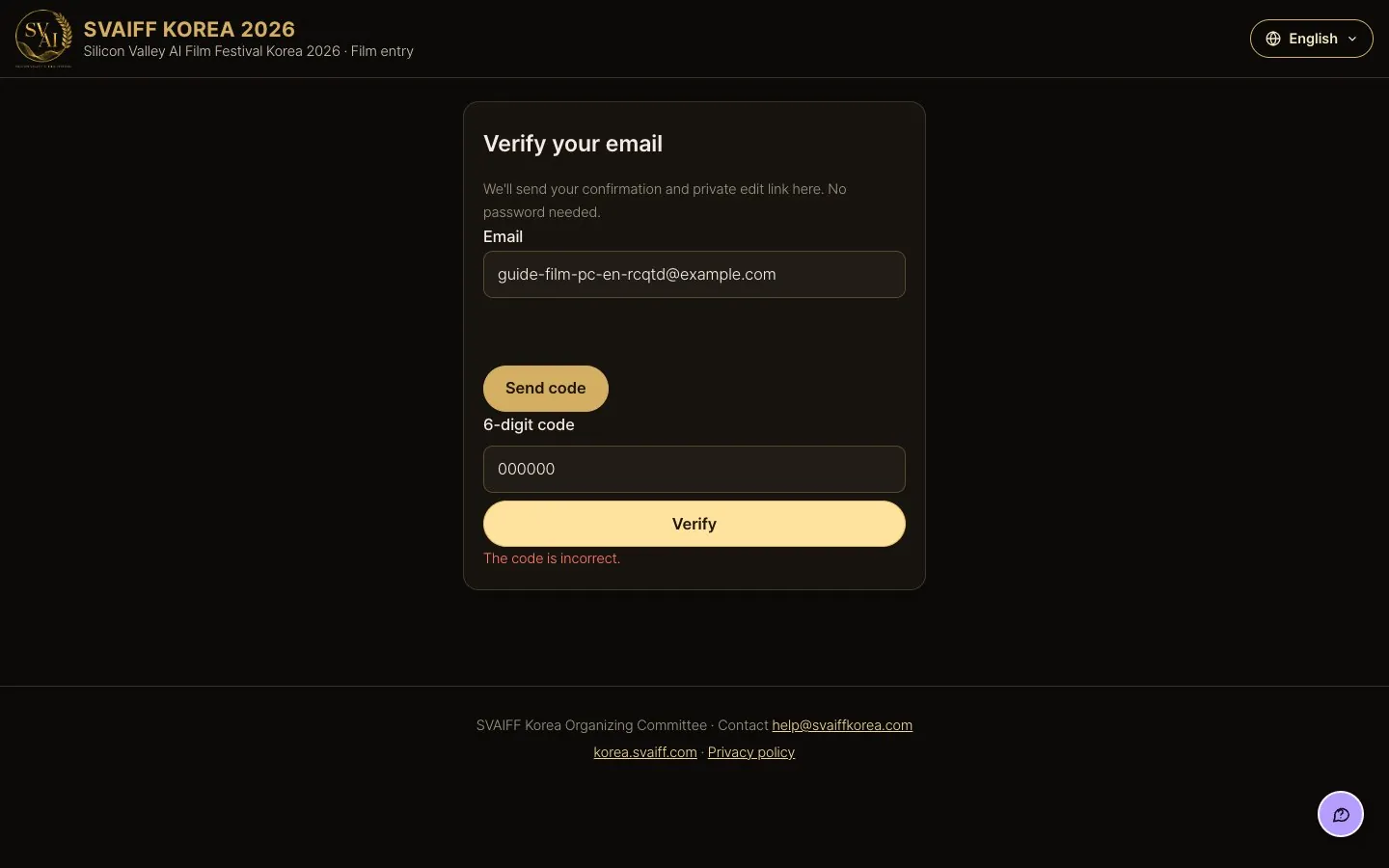
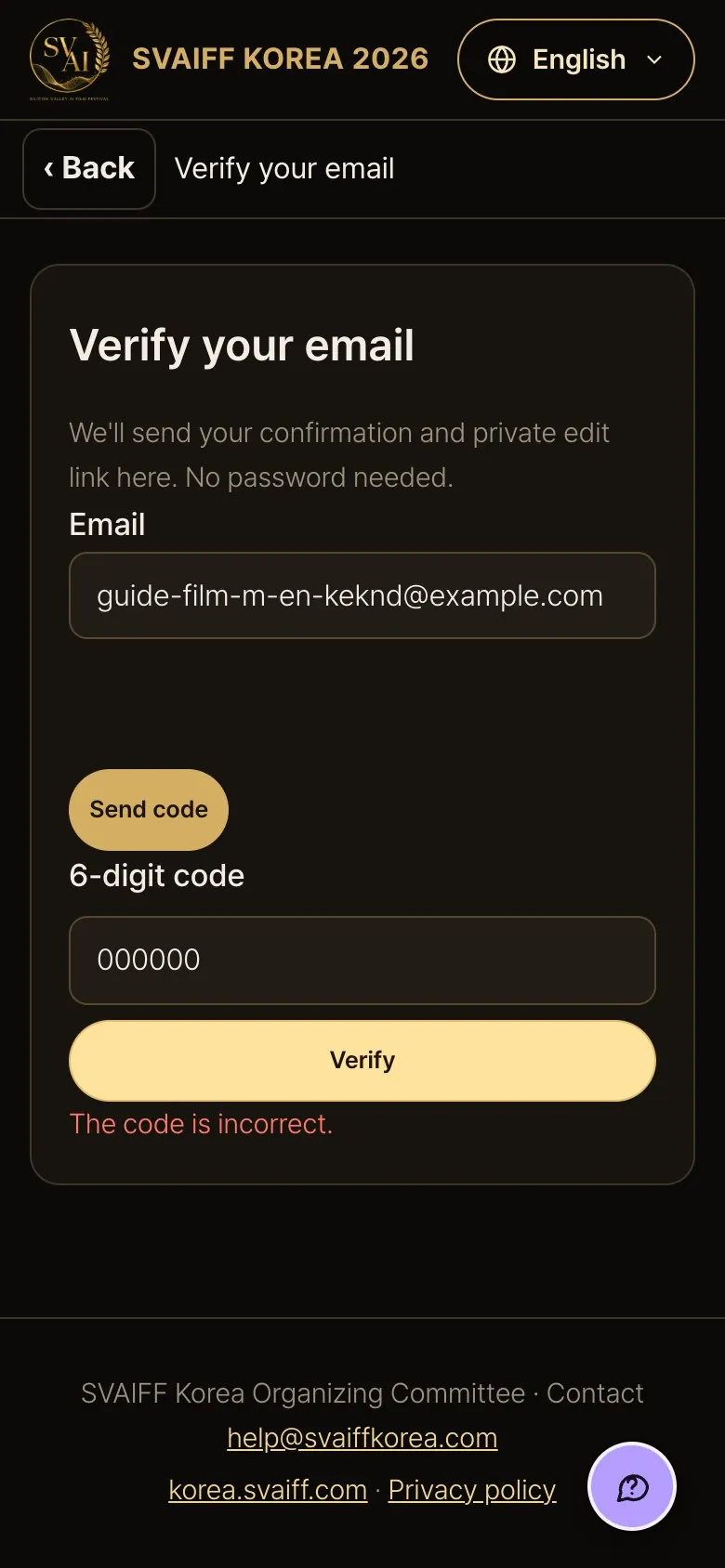
If the code is wrong
- If you see an error, check the code in the email again. If the code is old, press Send code again.
3. Entering with the form (default)
Write the long texts in the form on your own computer first, then upload the finished Completed Form to fill everything in at once. Then upload images and video, consent, and you're done.
3-1. Get the Pre-fill Form
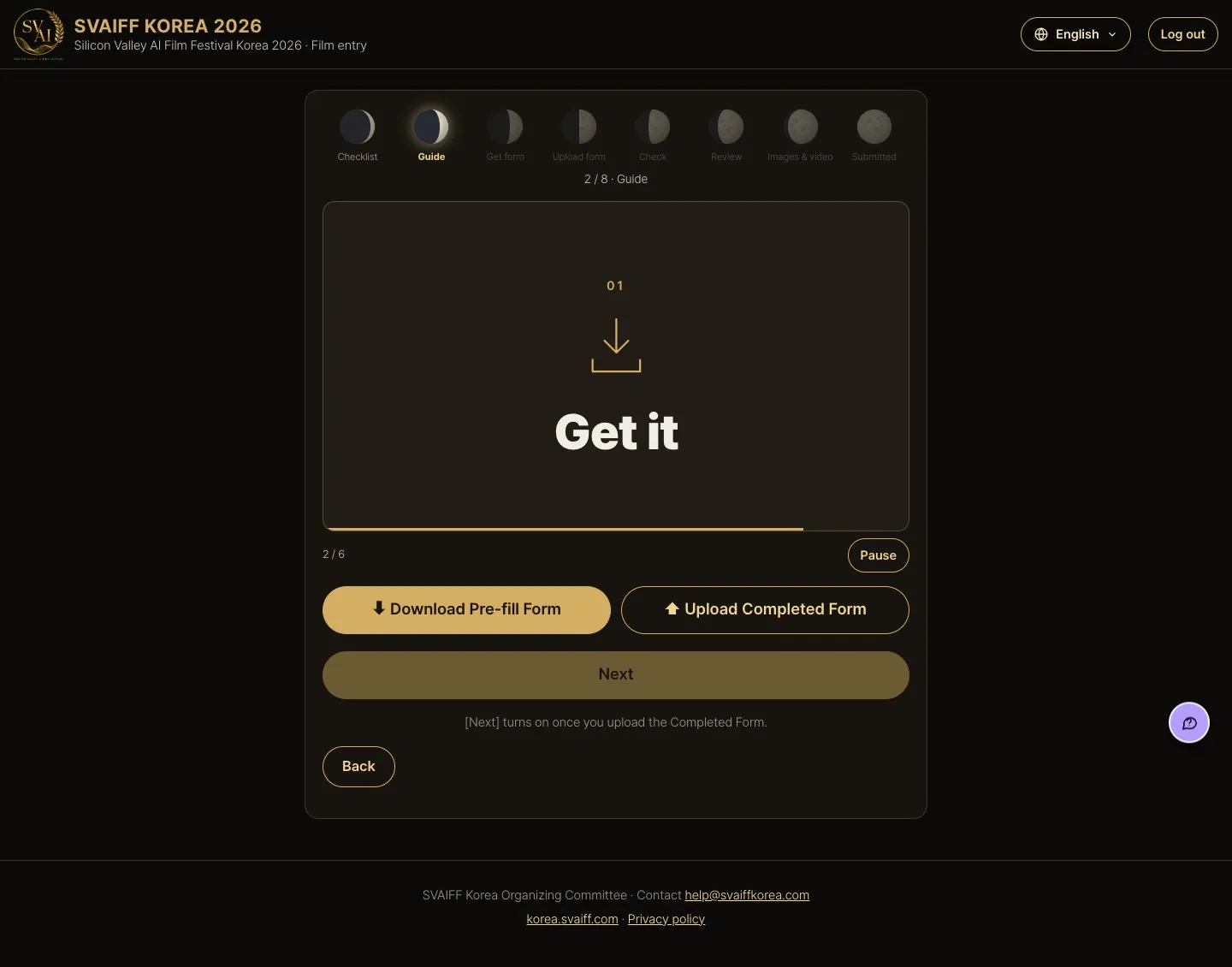
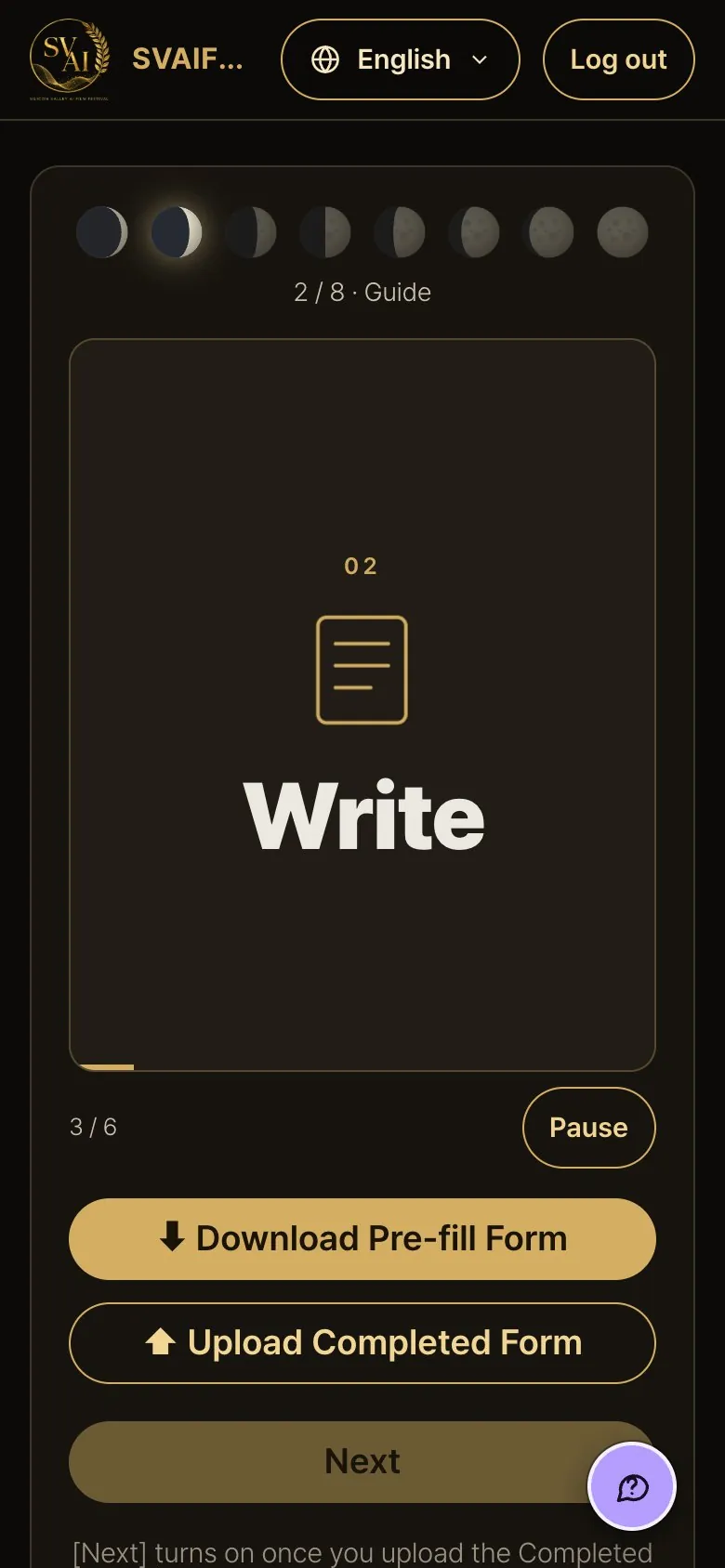
- The picture shows the order: get it → write → save → upload.
- Press Download Pre-fill Form to save the form file (HTML) to your computer.
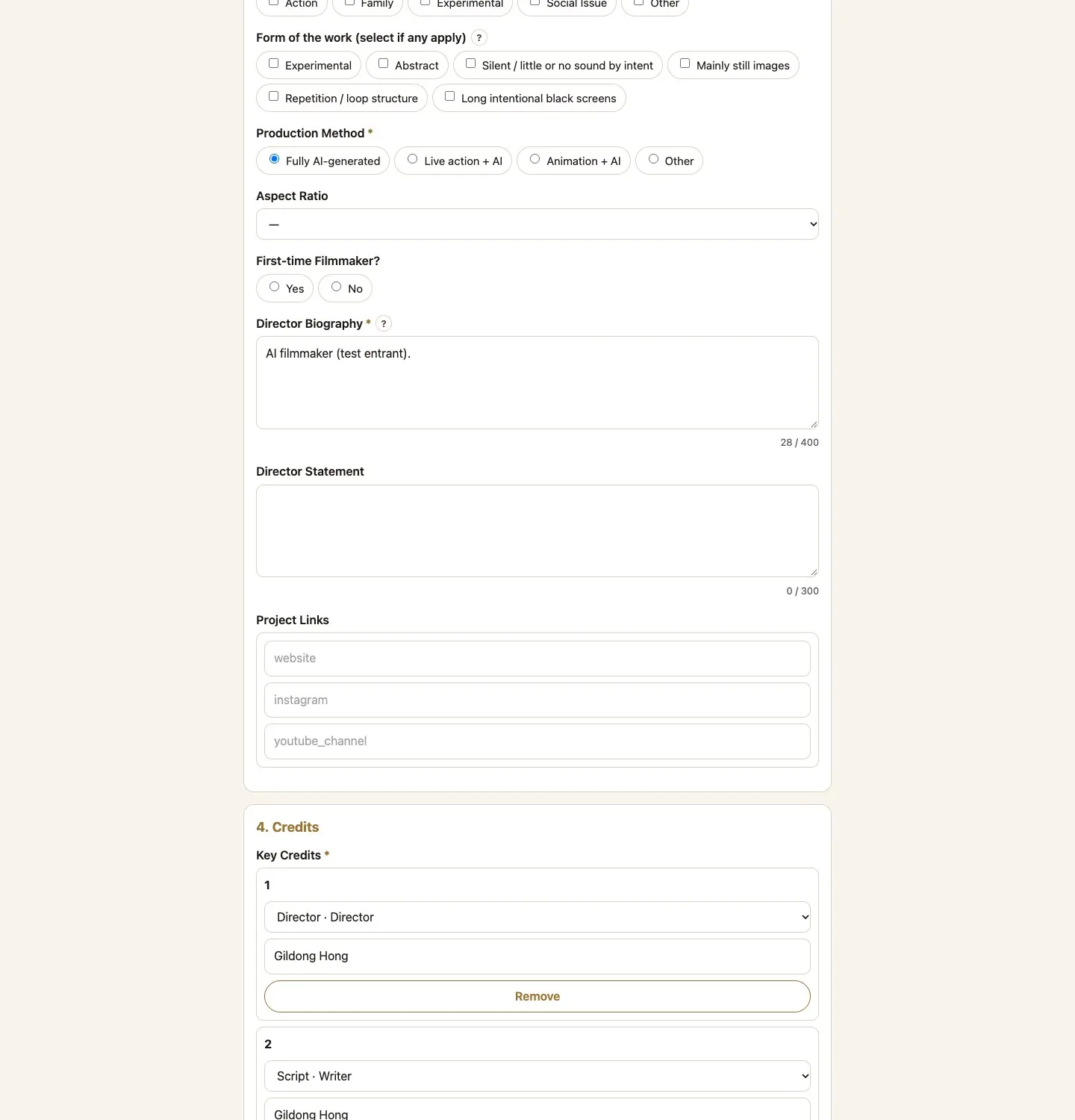
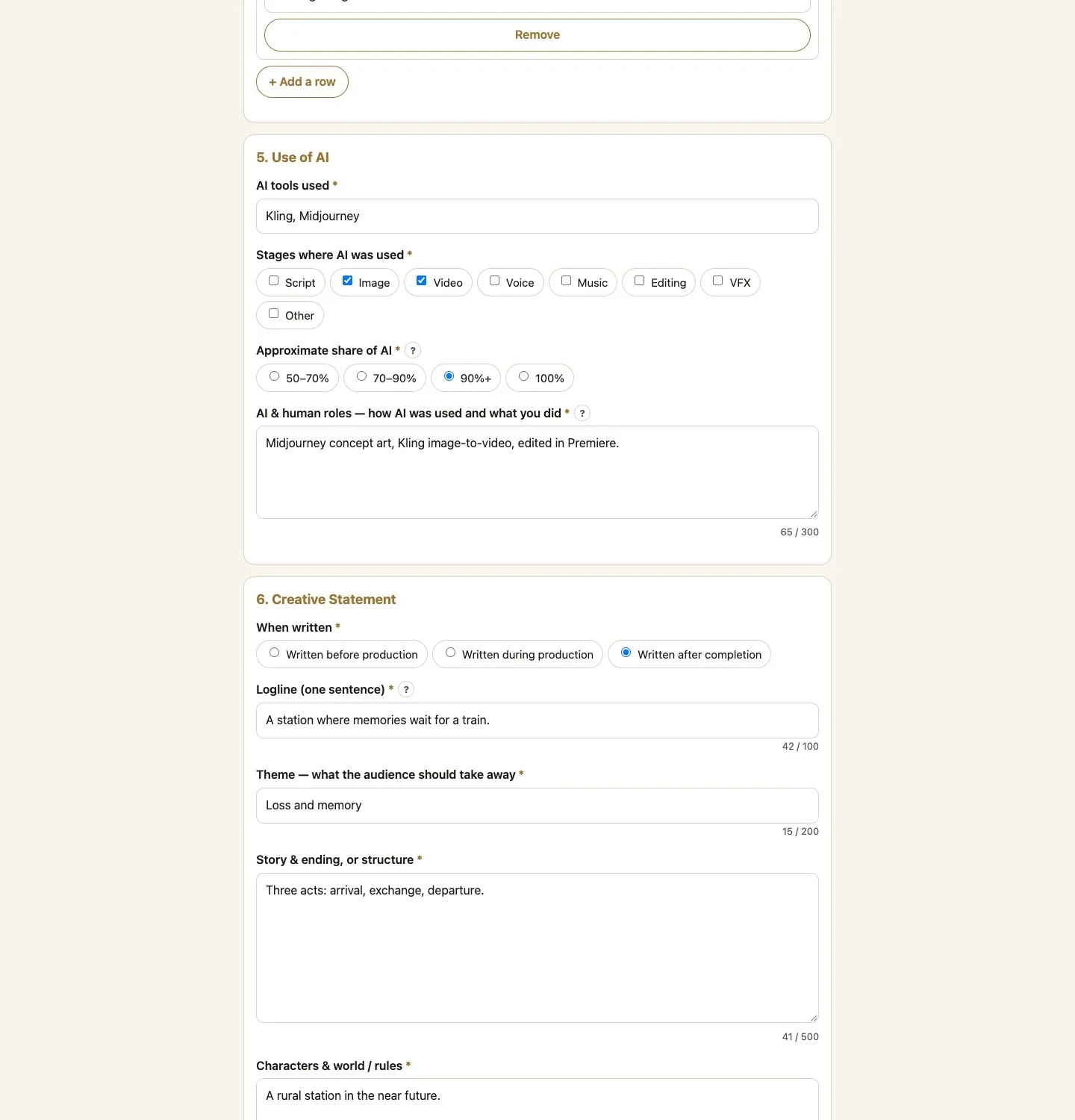
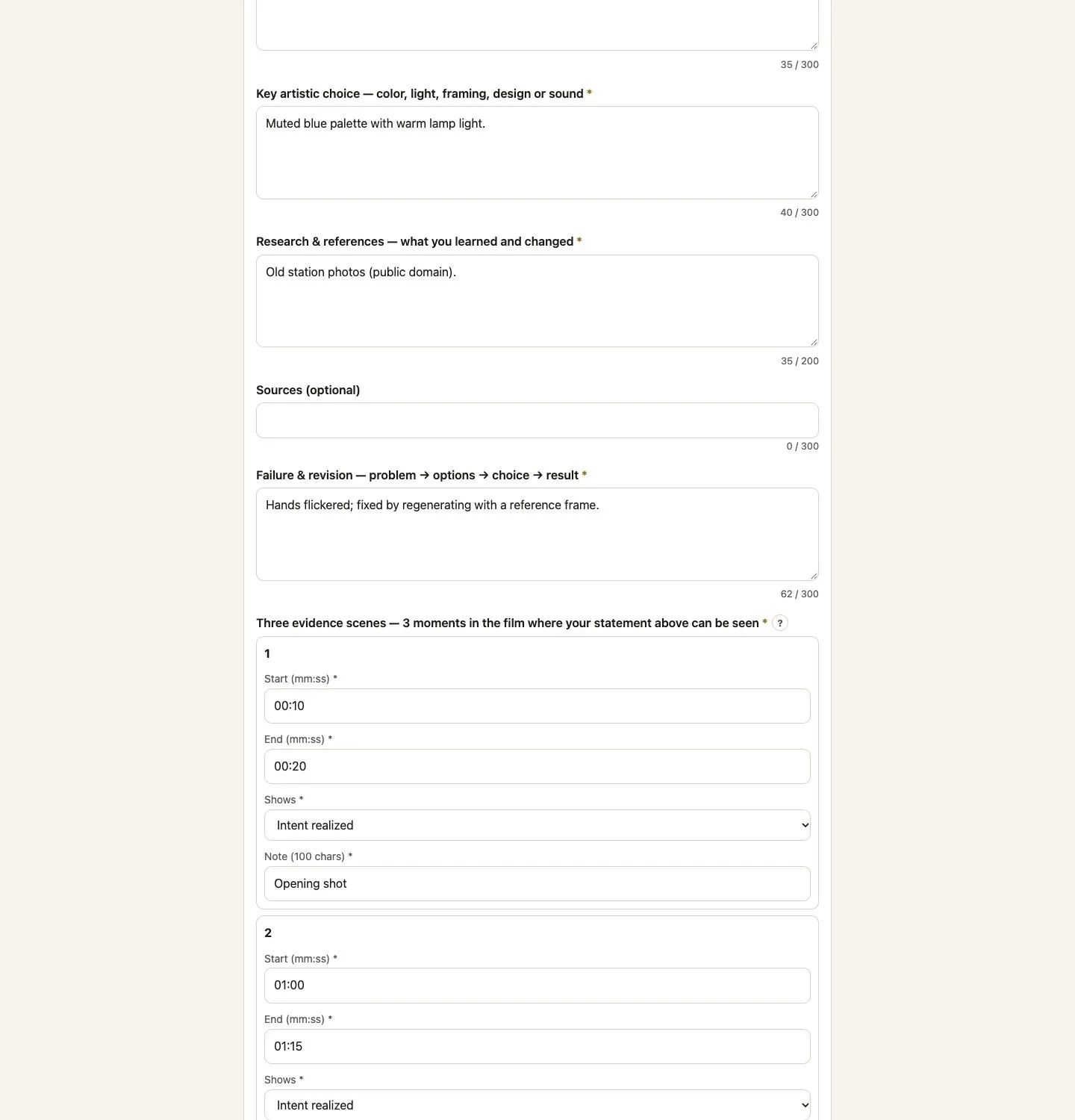
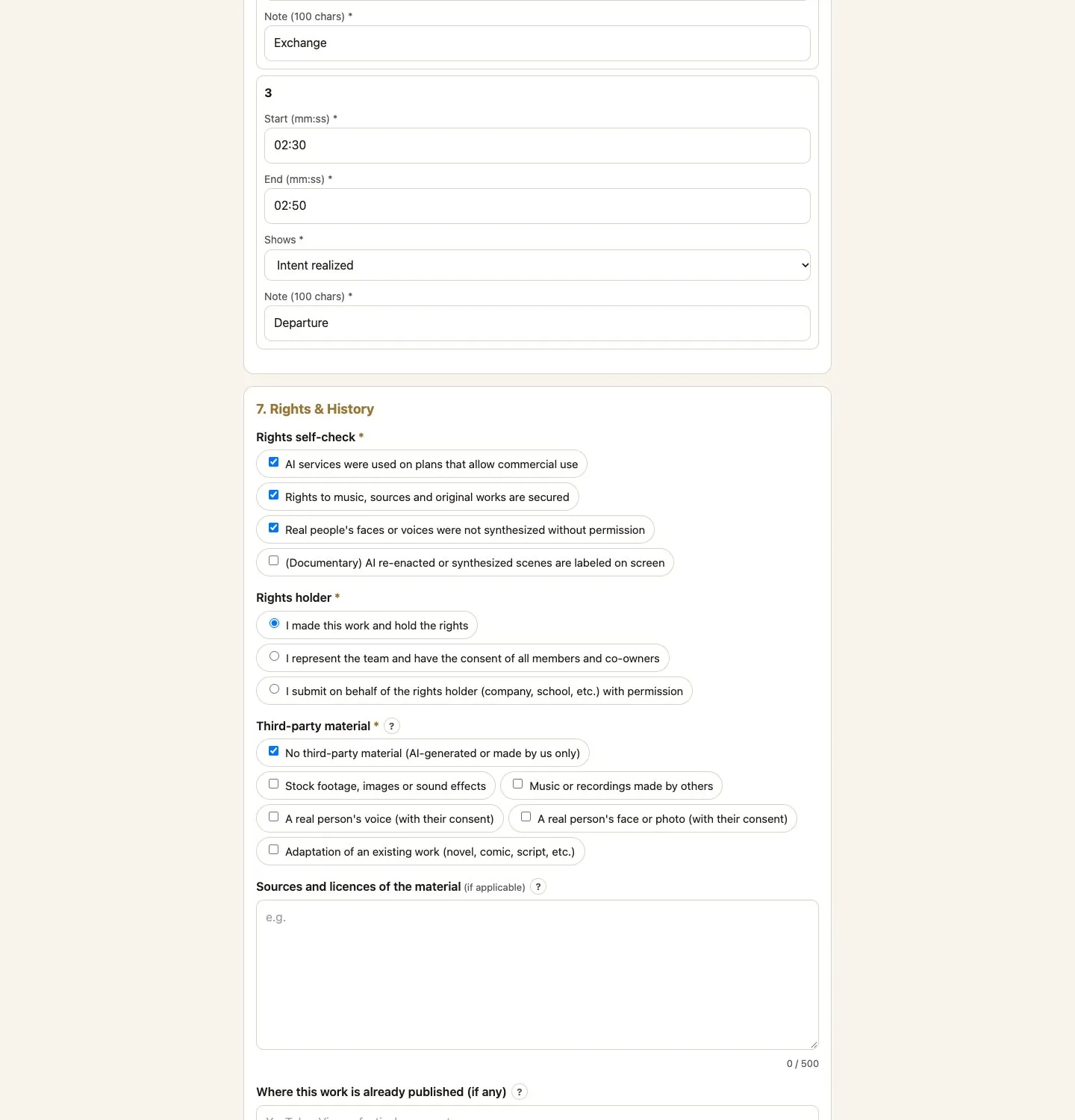
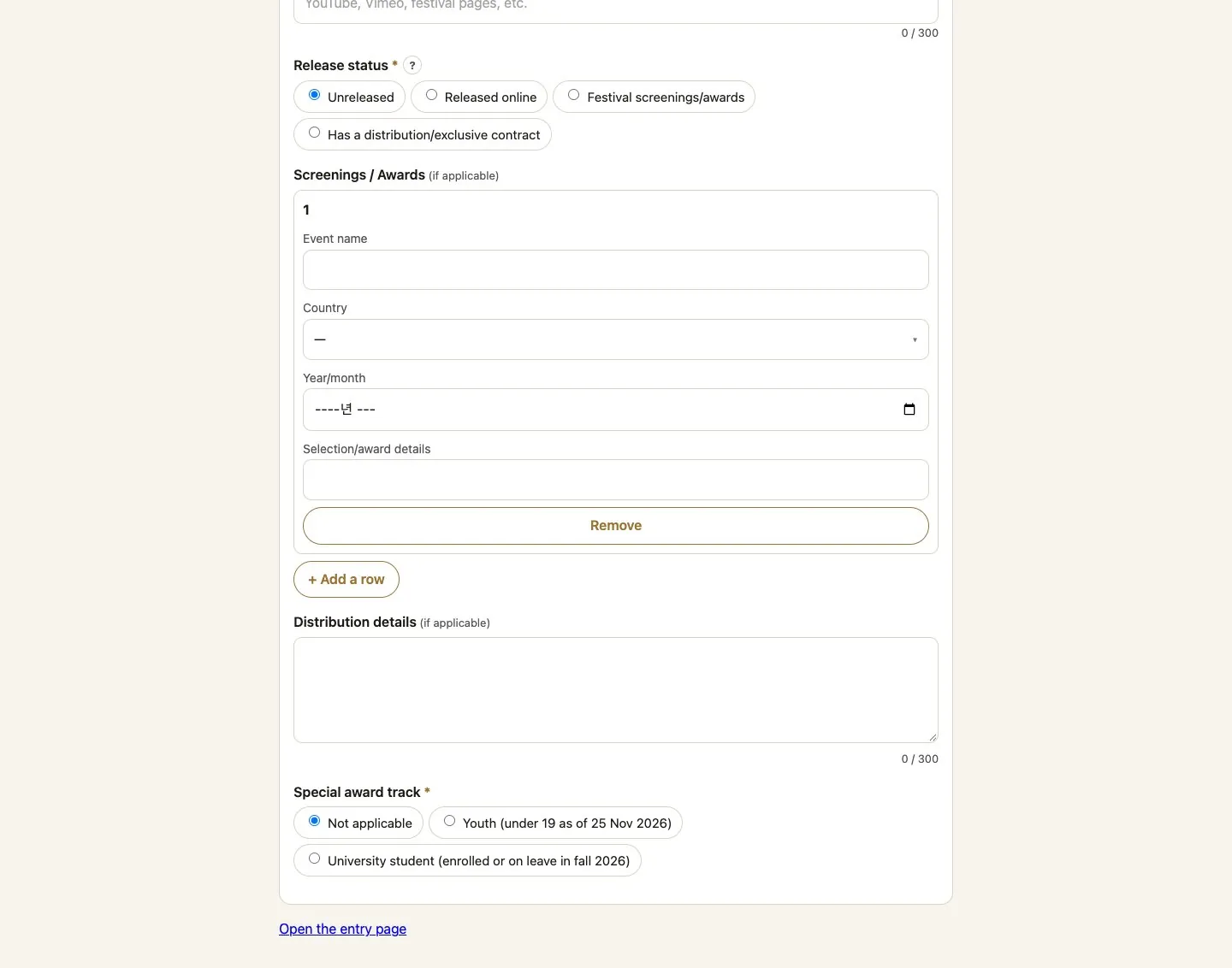
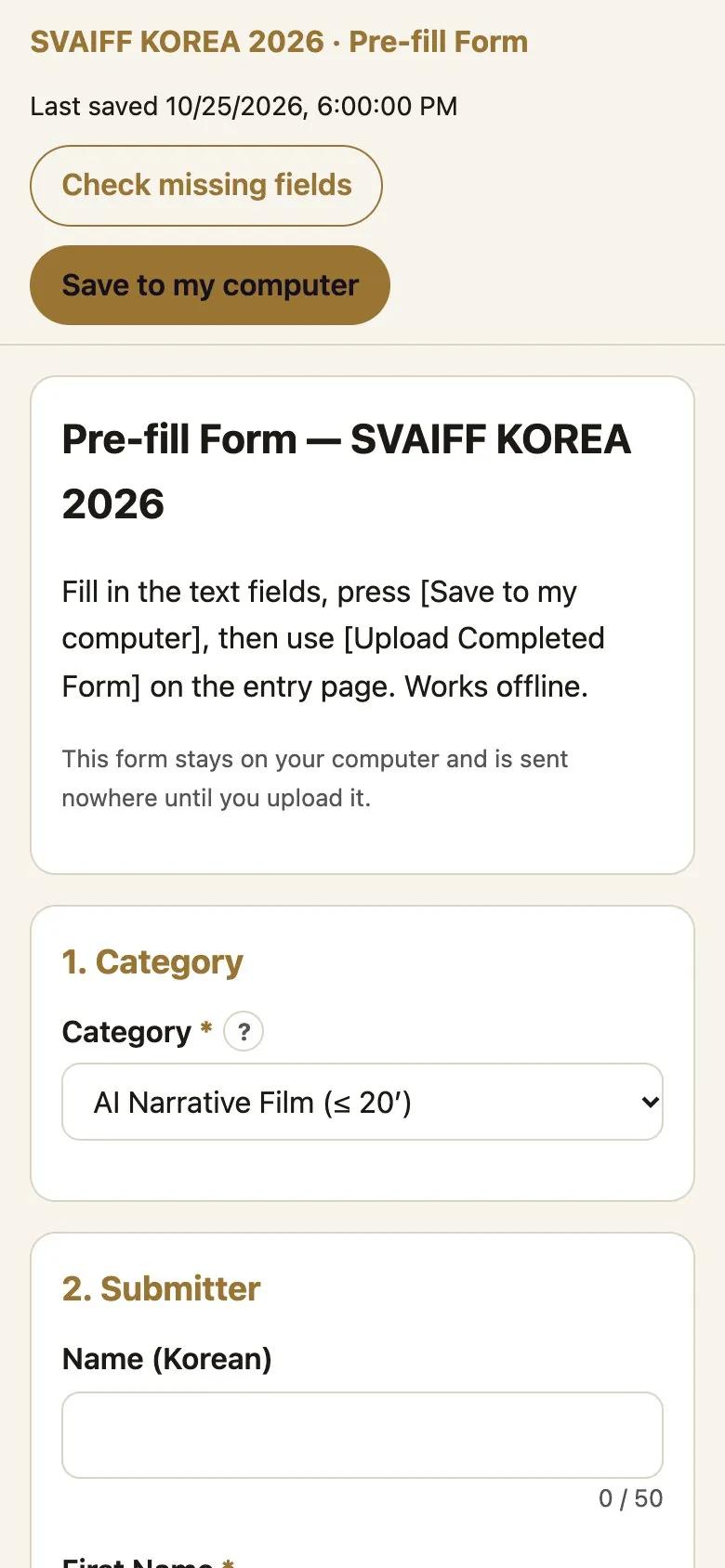
3-2. Fill in and save the form on your computer
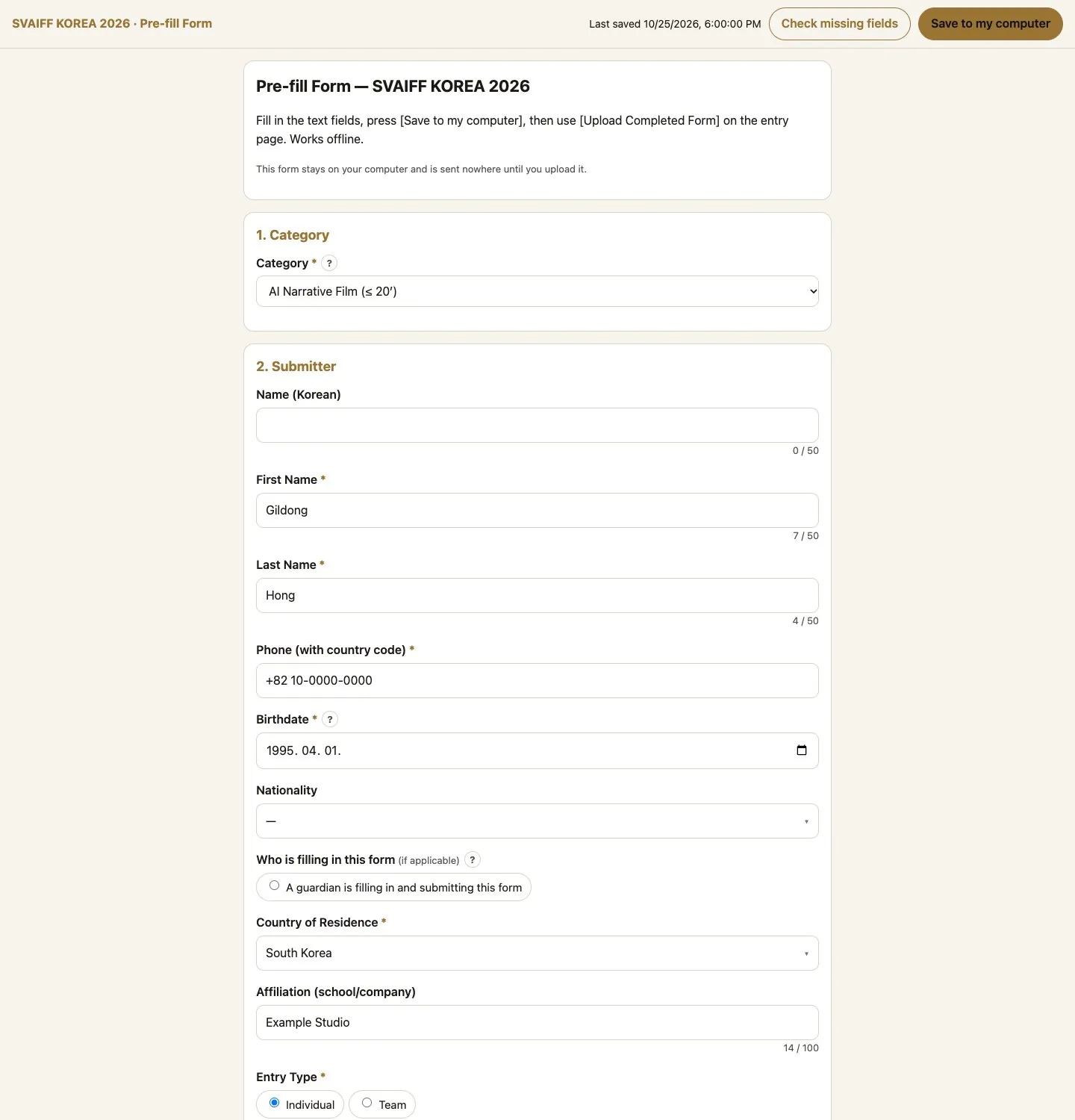
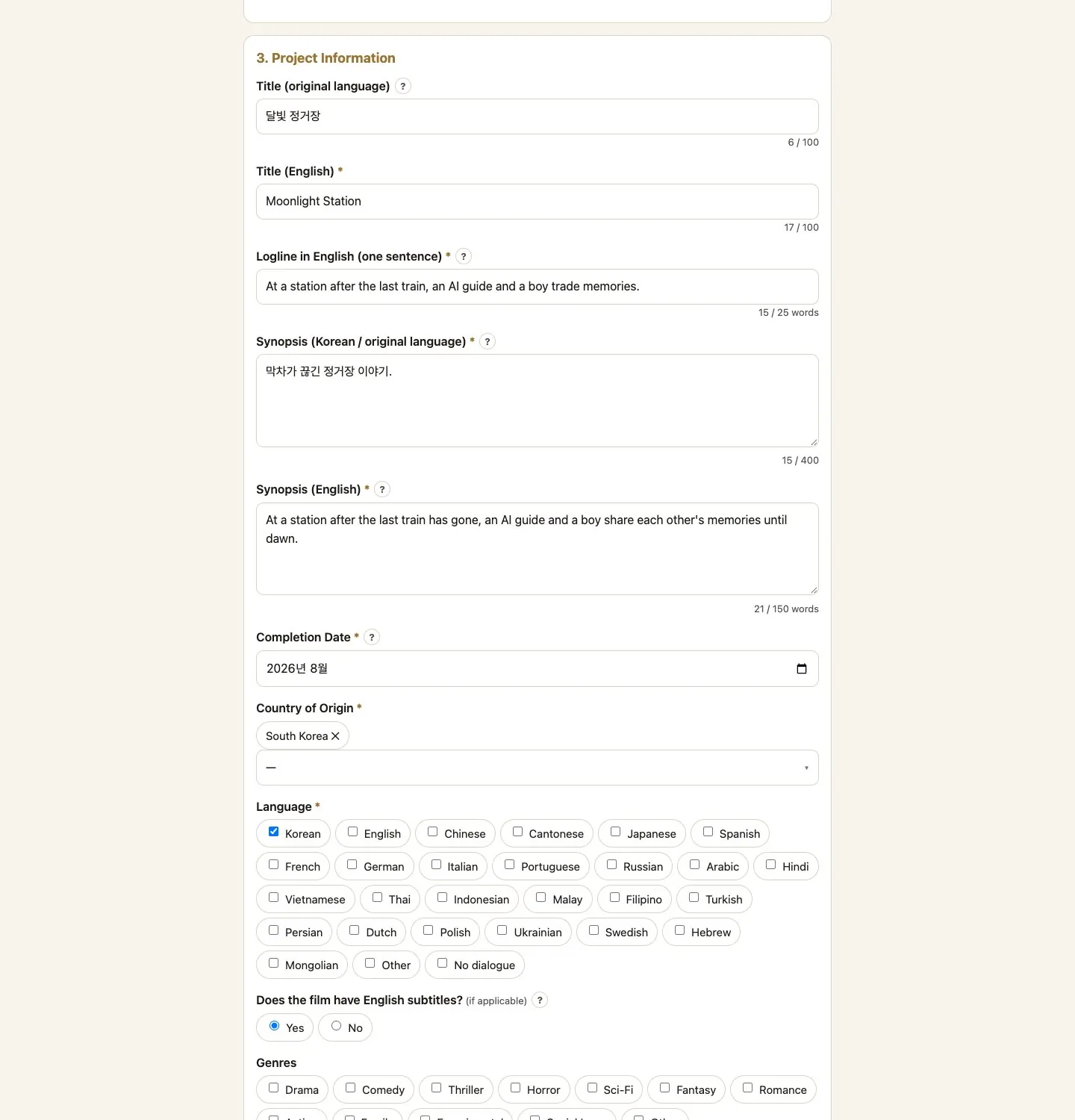
- Open the file in your browser. You can work offline.
- Each field has a [?] with tips. Check missing fields finds empty or too-long fields.
- When done, press Save to my computer. The saved file is your Completed Form. It is sent nowhere until you upload it.

3-3. Upload the Completed Form
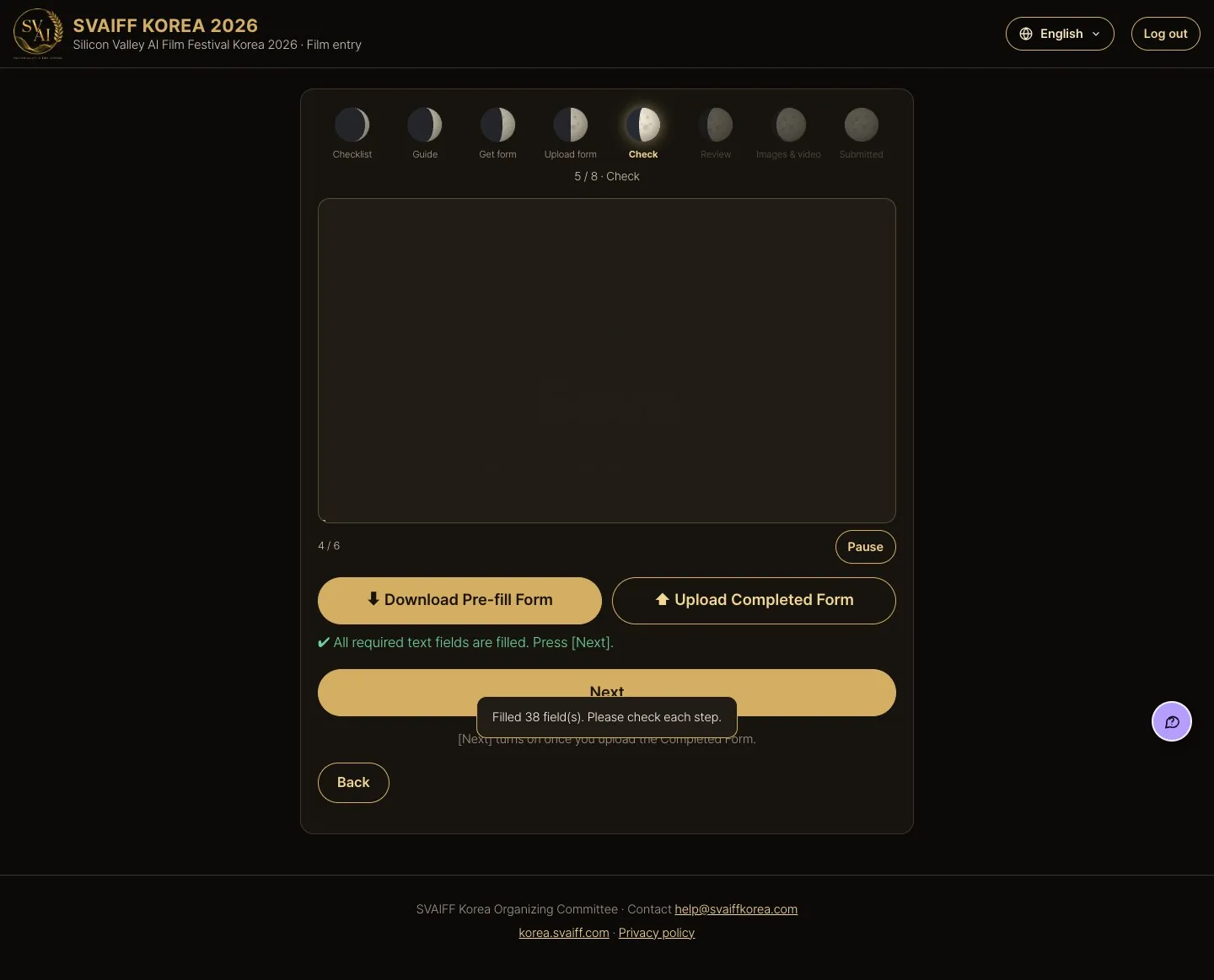
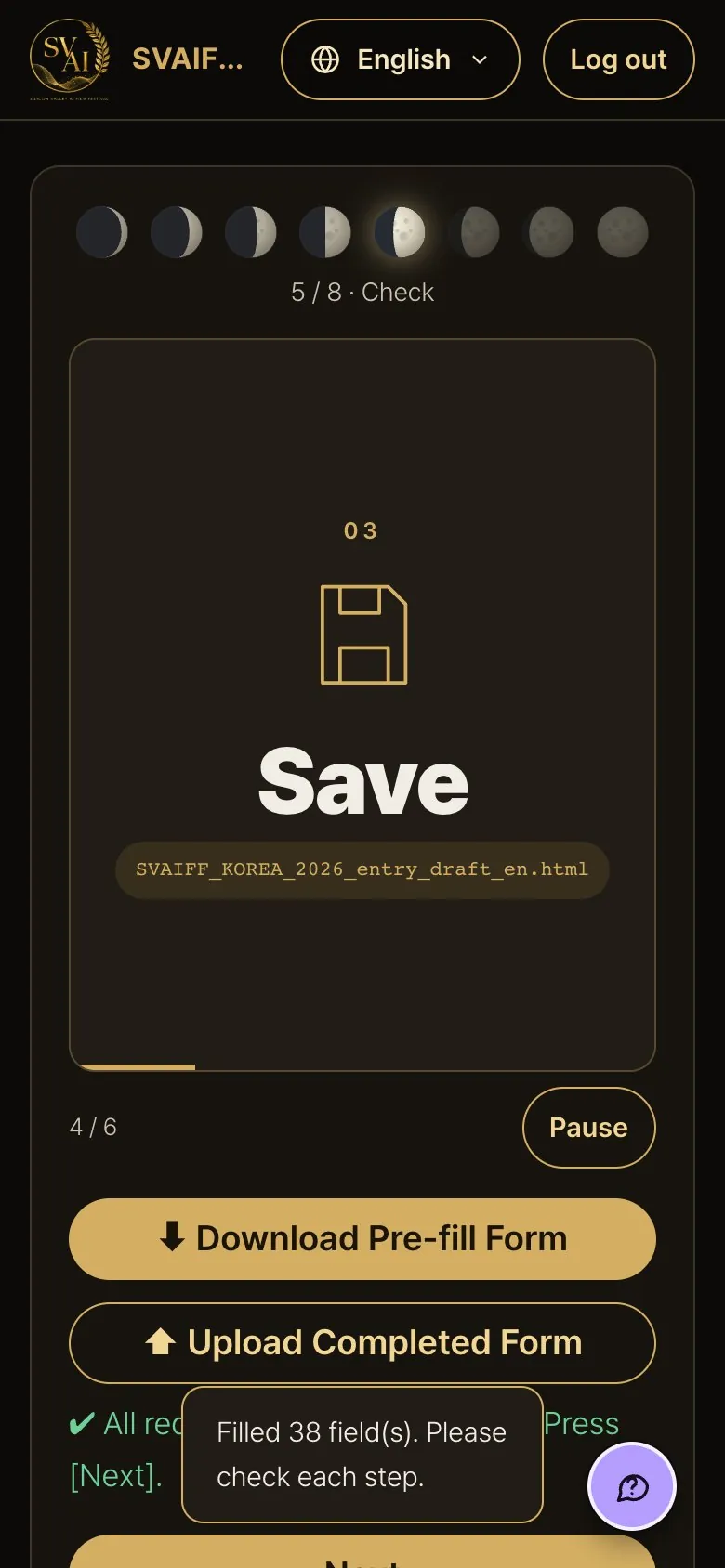
- Press Upload Completed Form and choose the saved file; the text fields fill in at once.
- If a required field is empty, it appears right below. Fill it in there, or fix the Completed Form and upload it again.
- When all required text fields are filled, Next turns on.
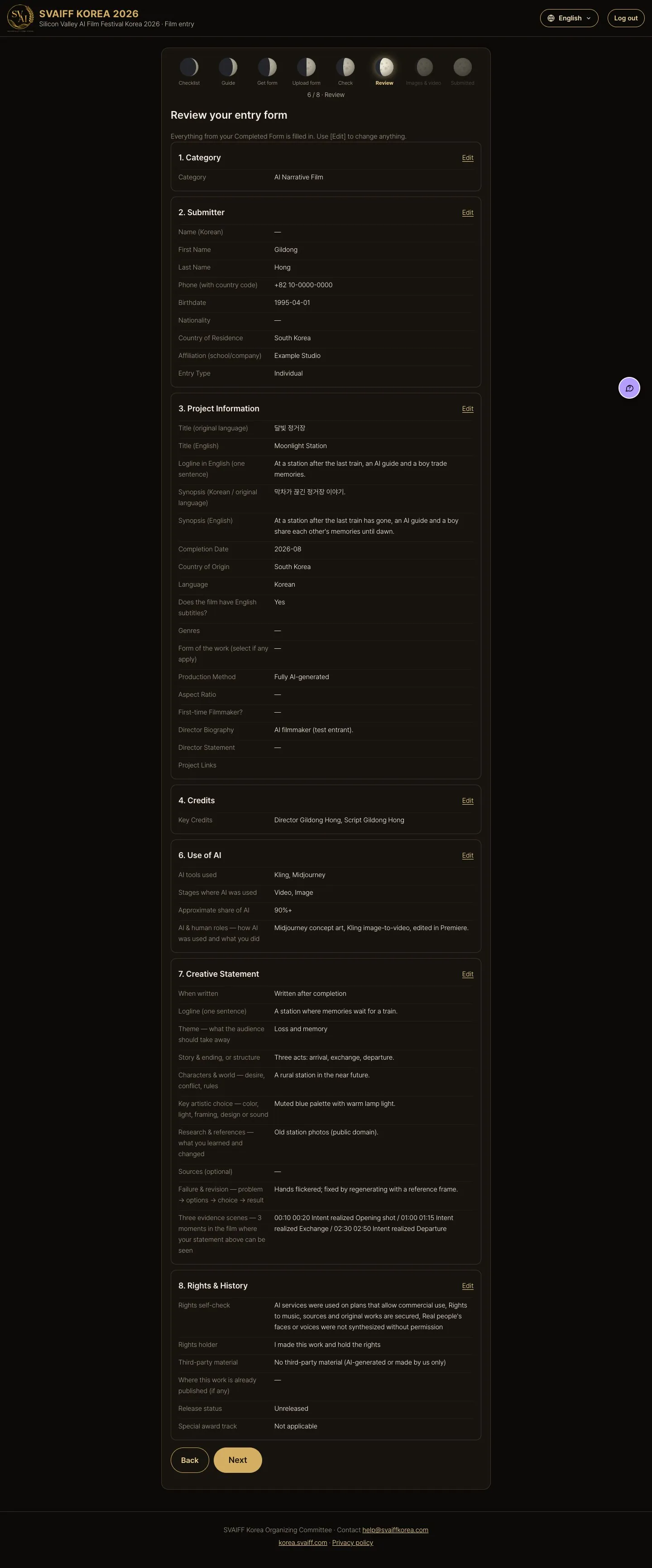
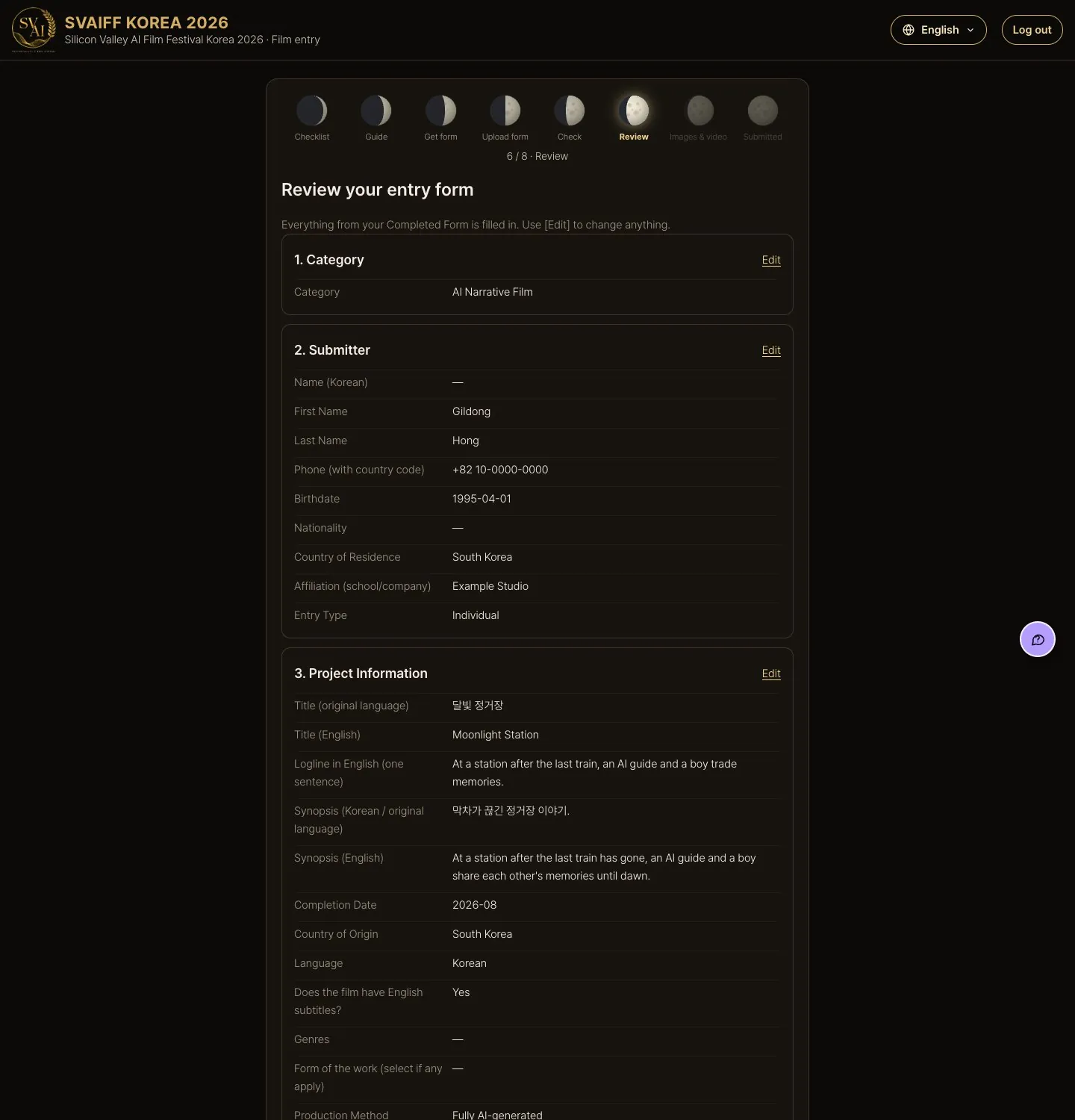
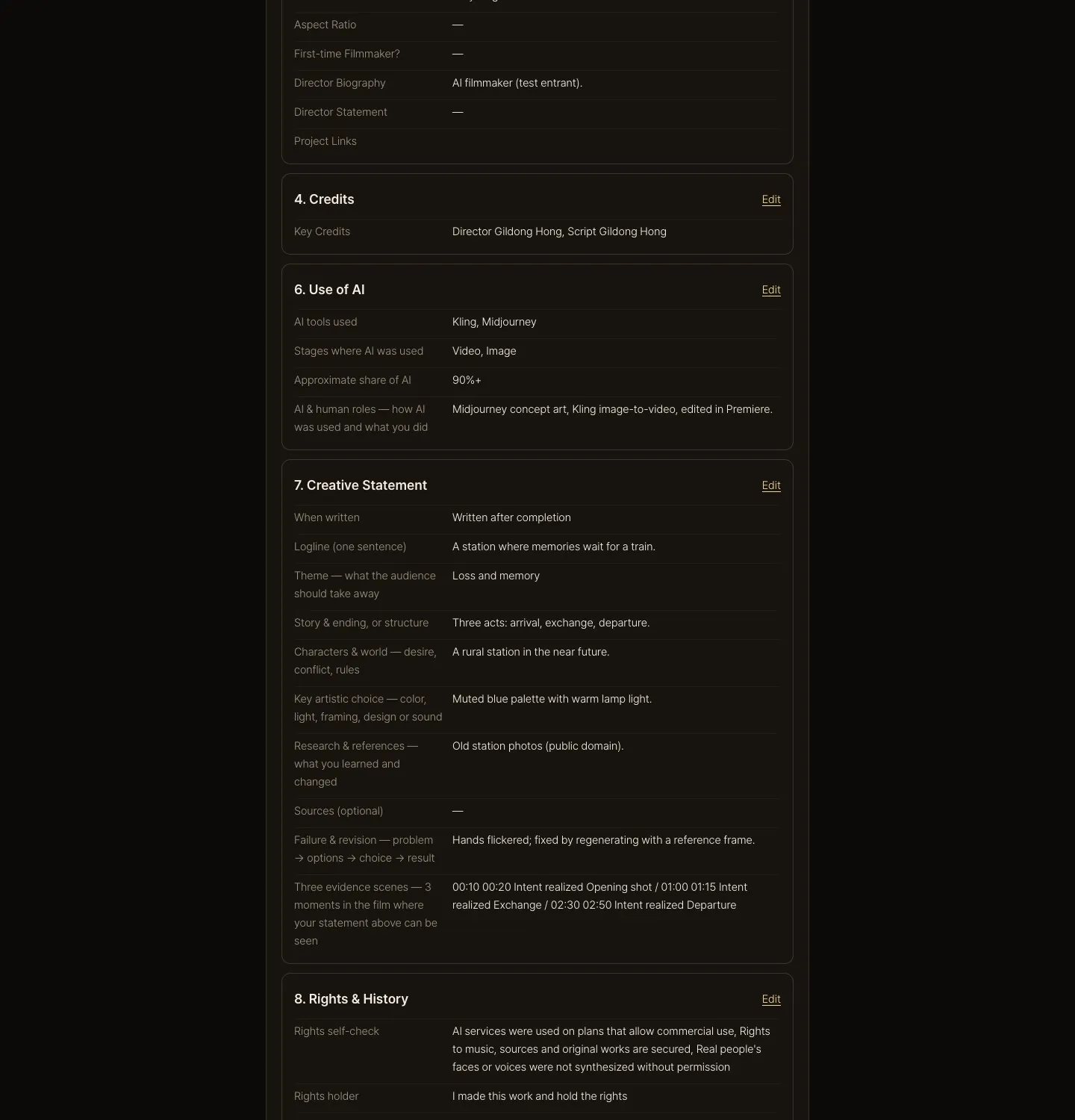
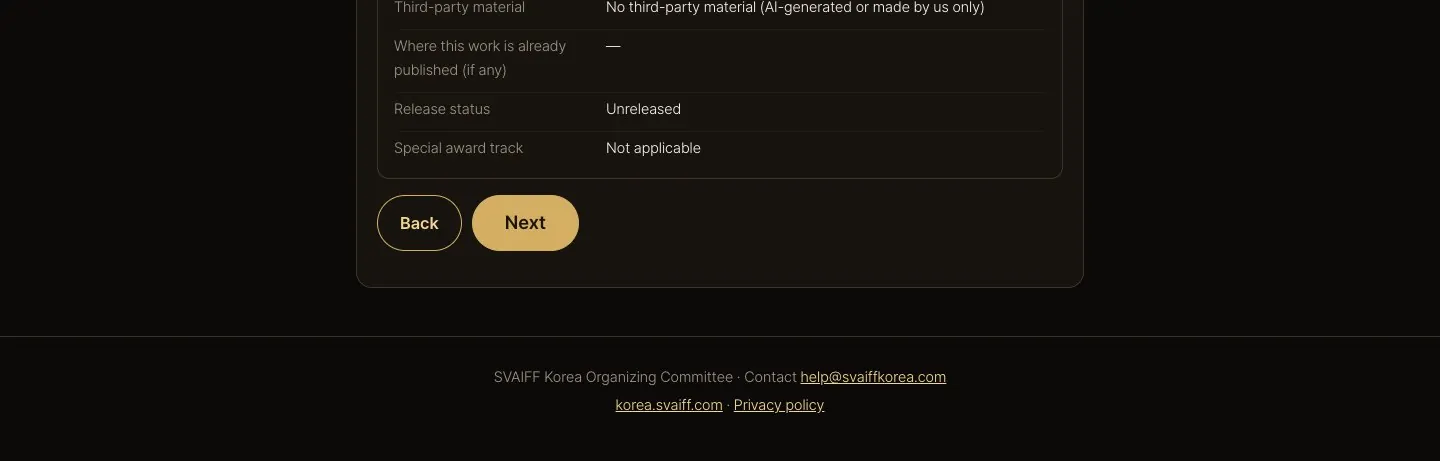
3-4. Review your entry form
- Everything from your Completed Form is in the entry form. Use Edit on the right to change anything.

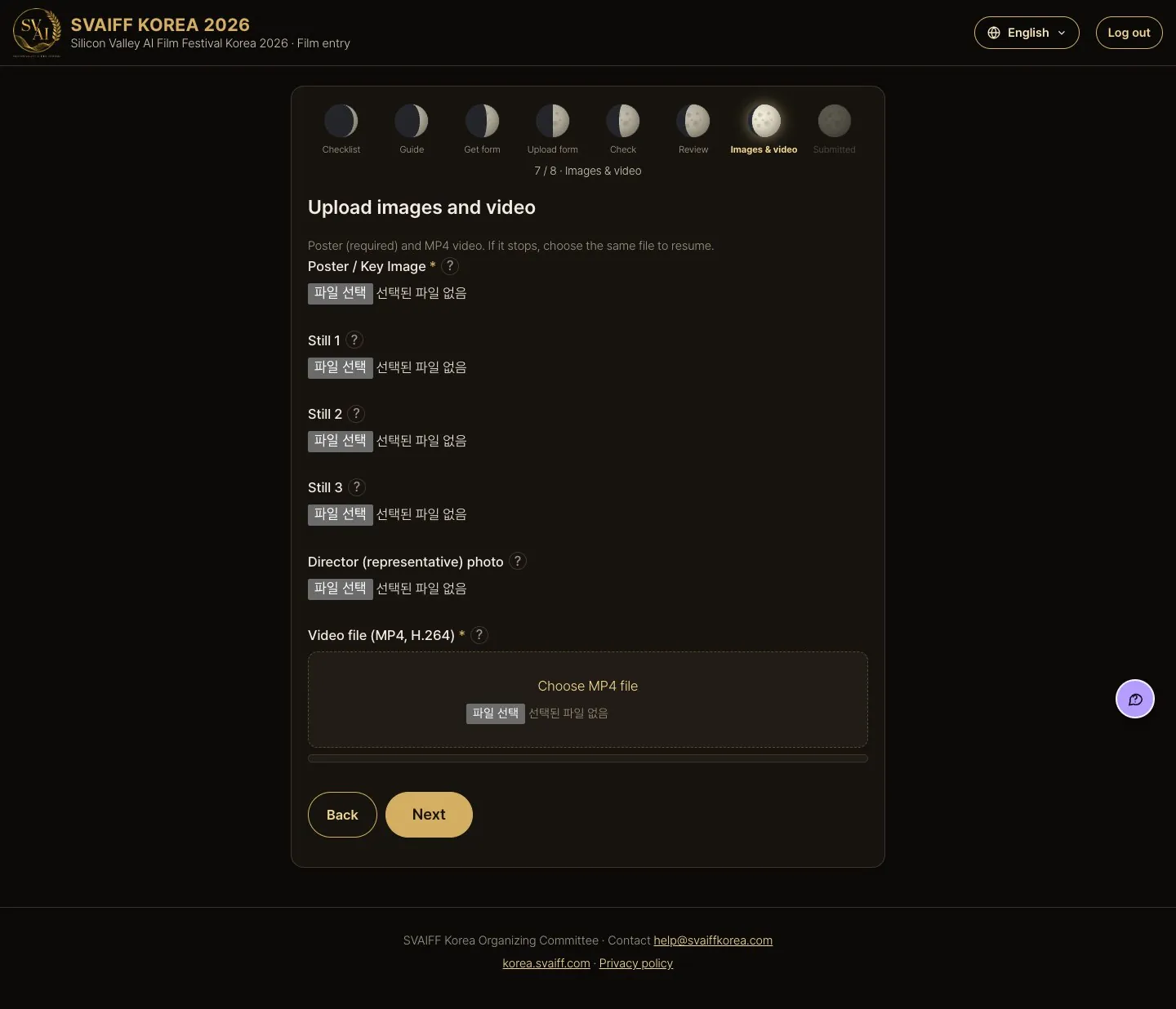
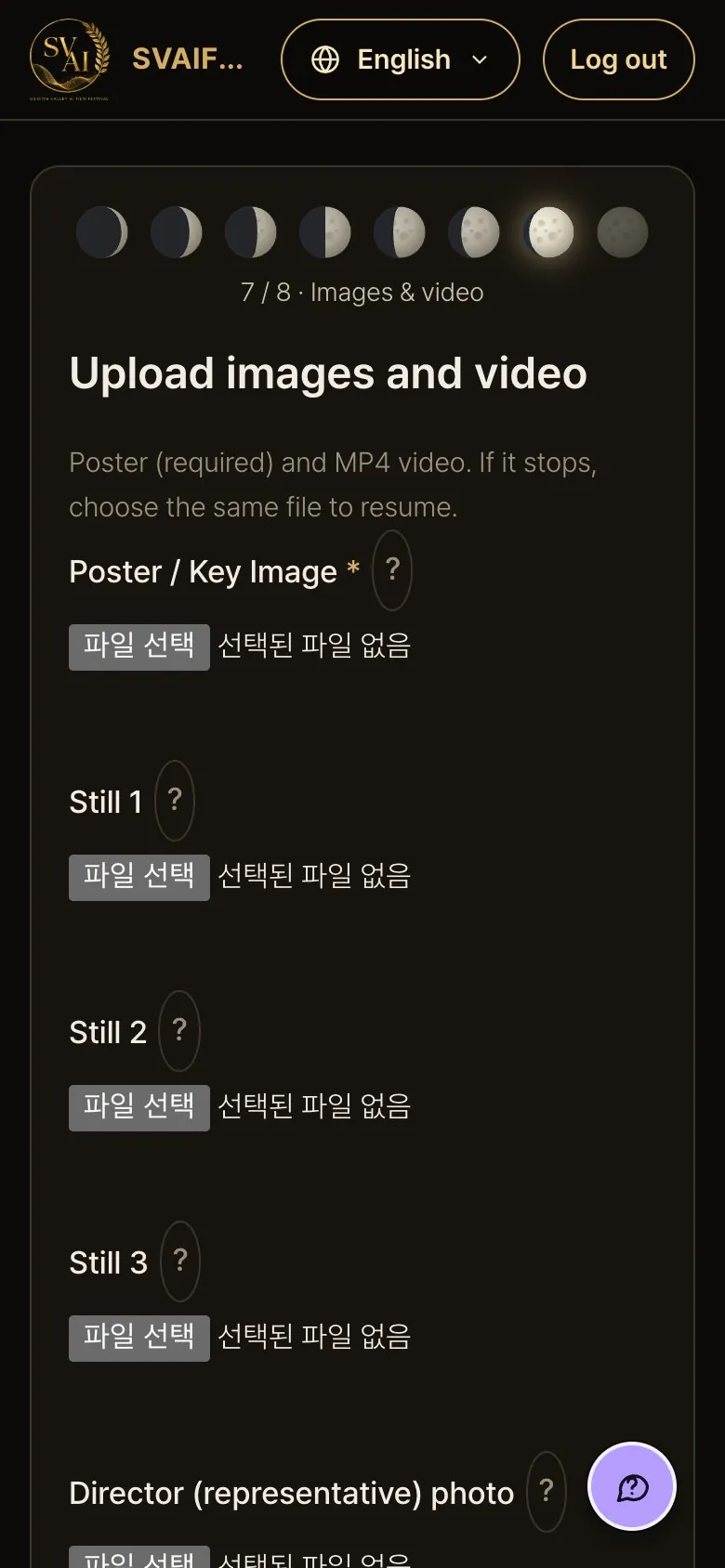
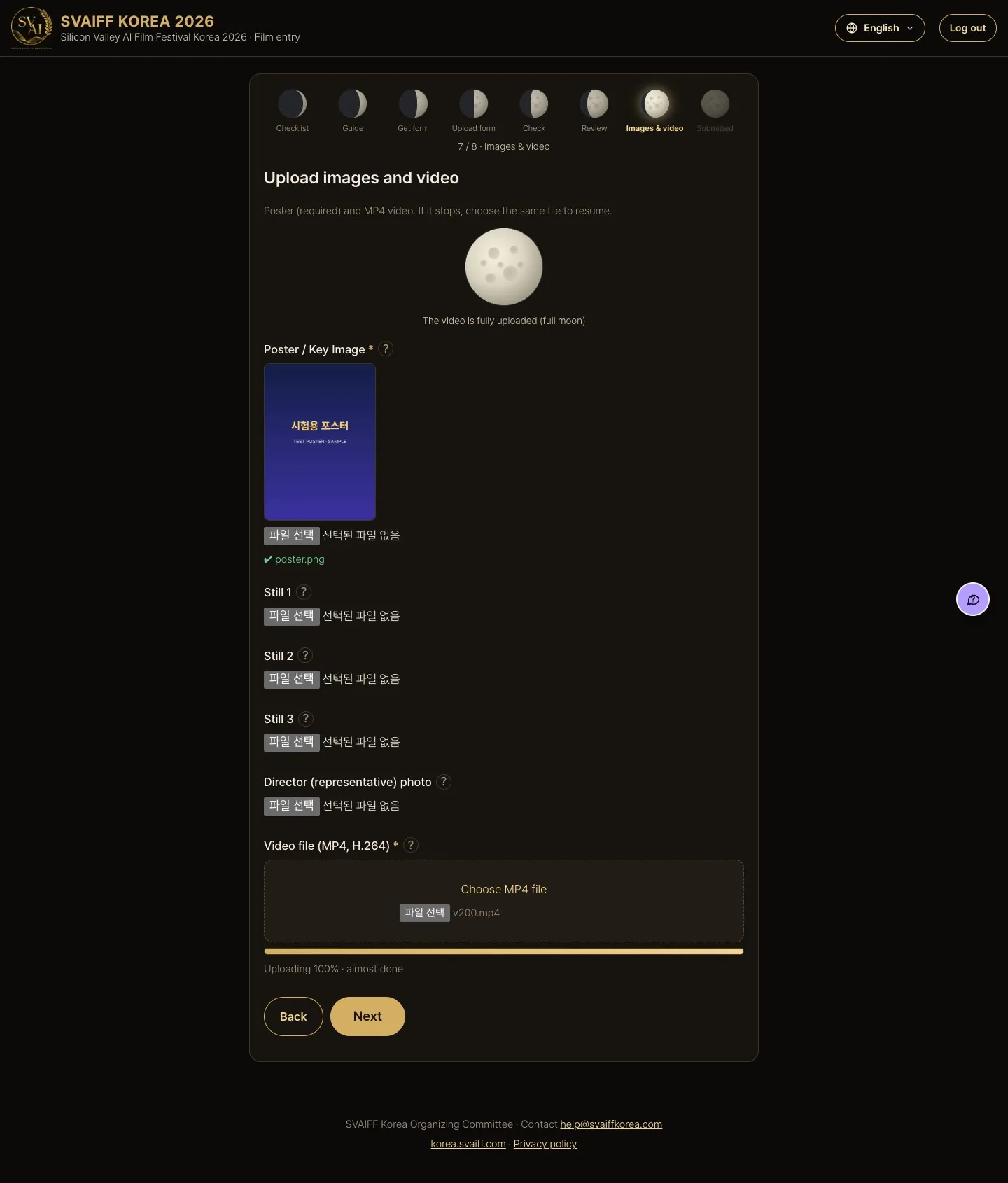
3-5. Upload images and video
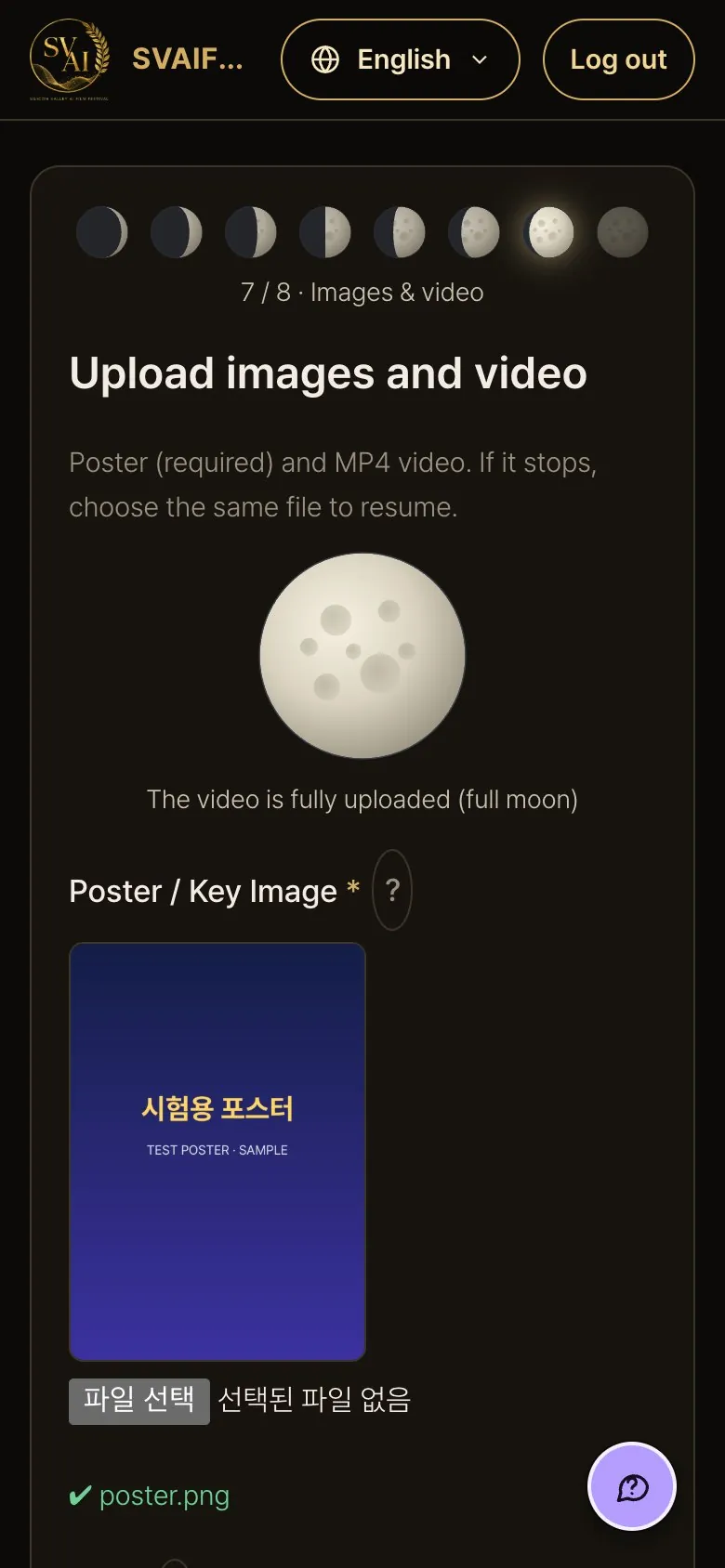
- Choose the poster (required) and the MP4 video. Stills and director photo are optional.
- Video: MP4 (H.264 recommended), up to 10 GB. If it stops, choose the same file again to resume.
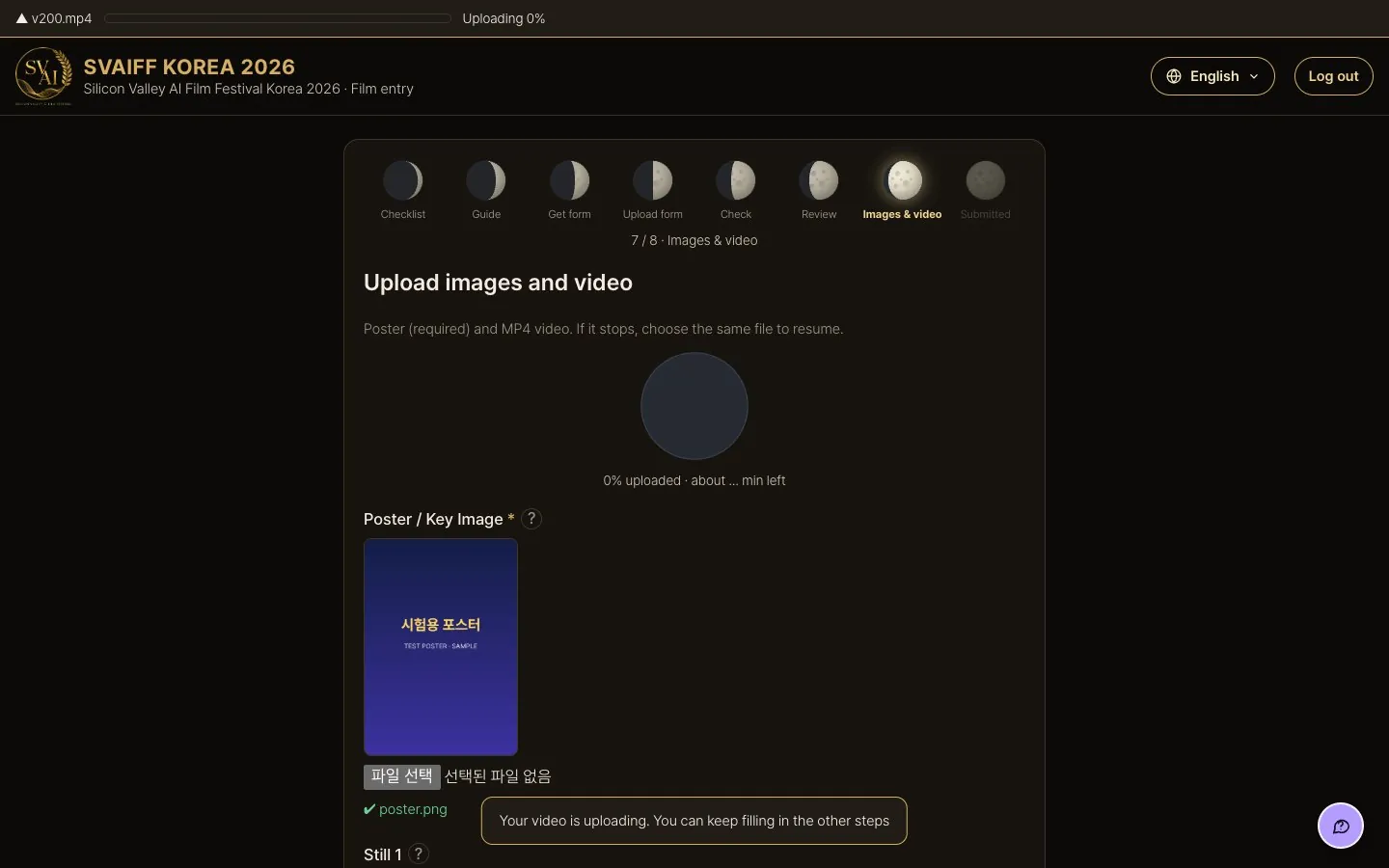
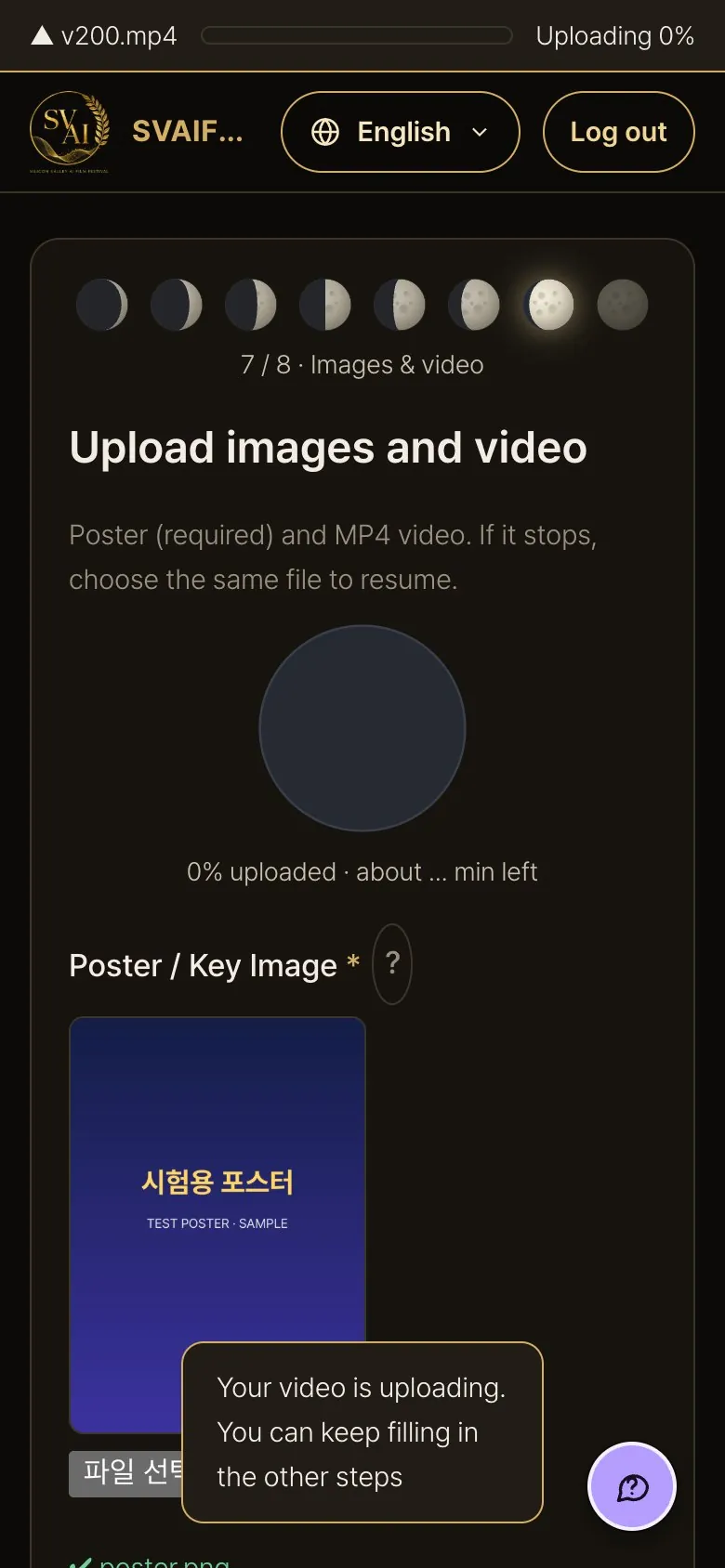
While the video uploads
- The moon fills, showing the % uploaded and time left. Don't close the window.
After uploading
- A full moon means the video is fully uploaded. The server reads the running time from the file. Press Next.
3-6. Consent and submit
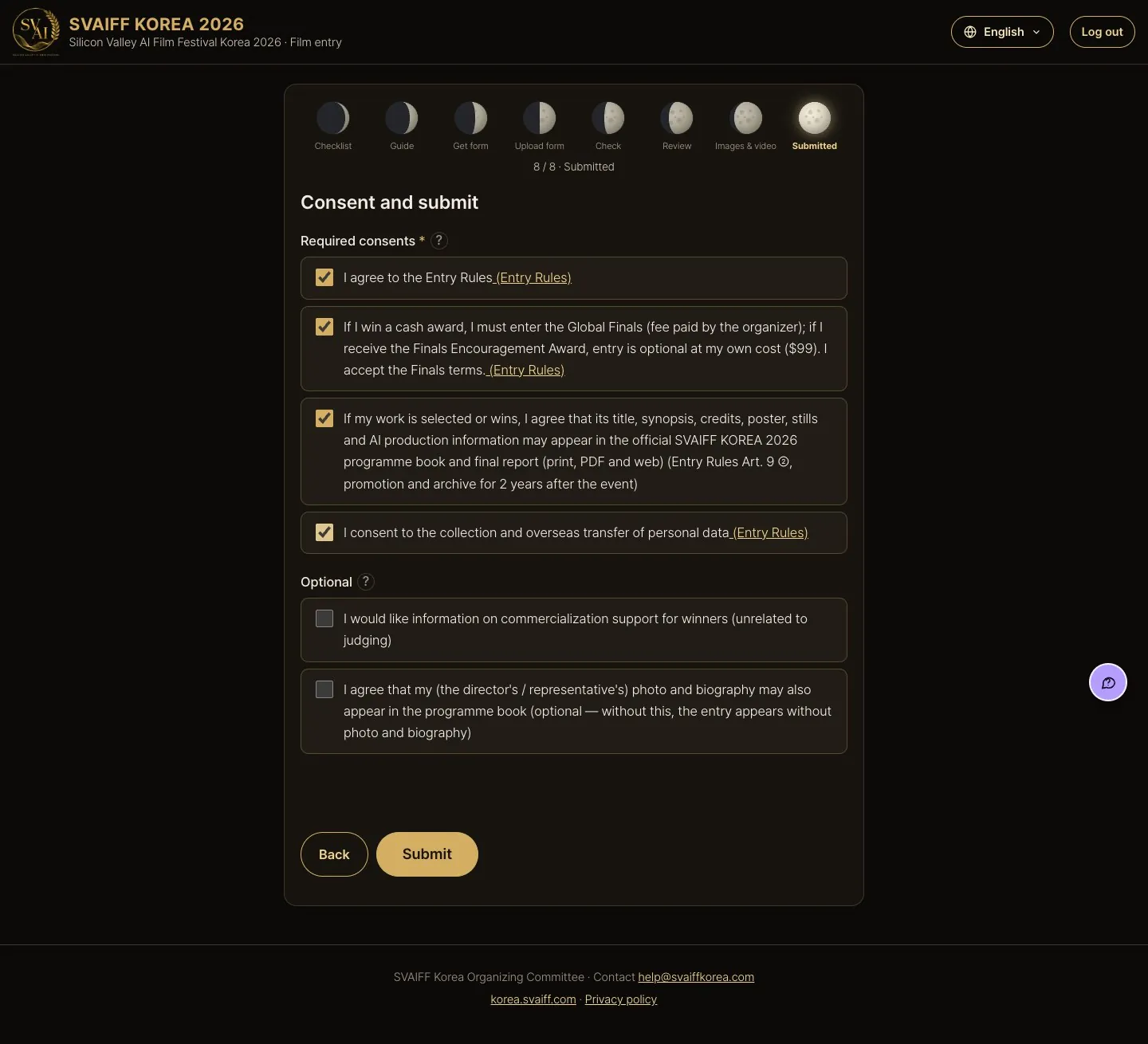
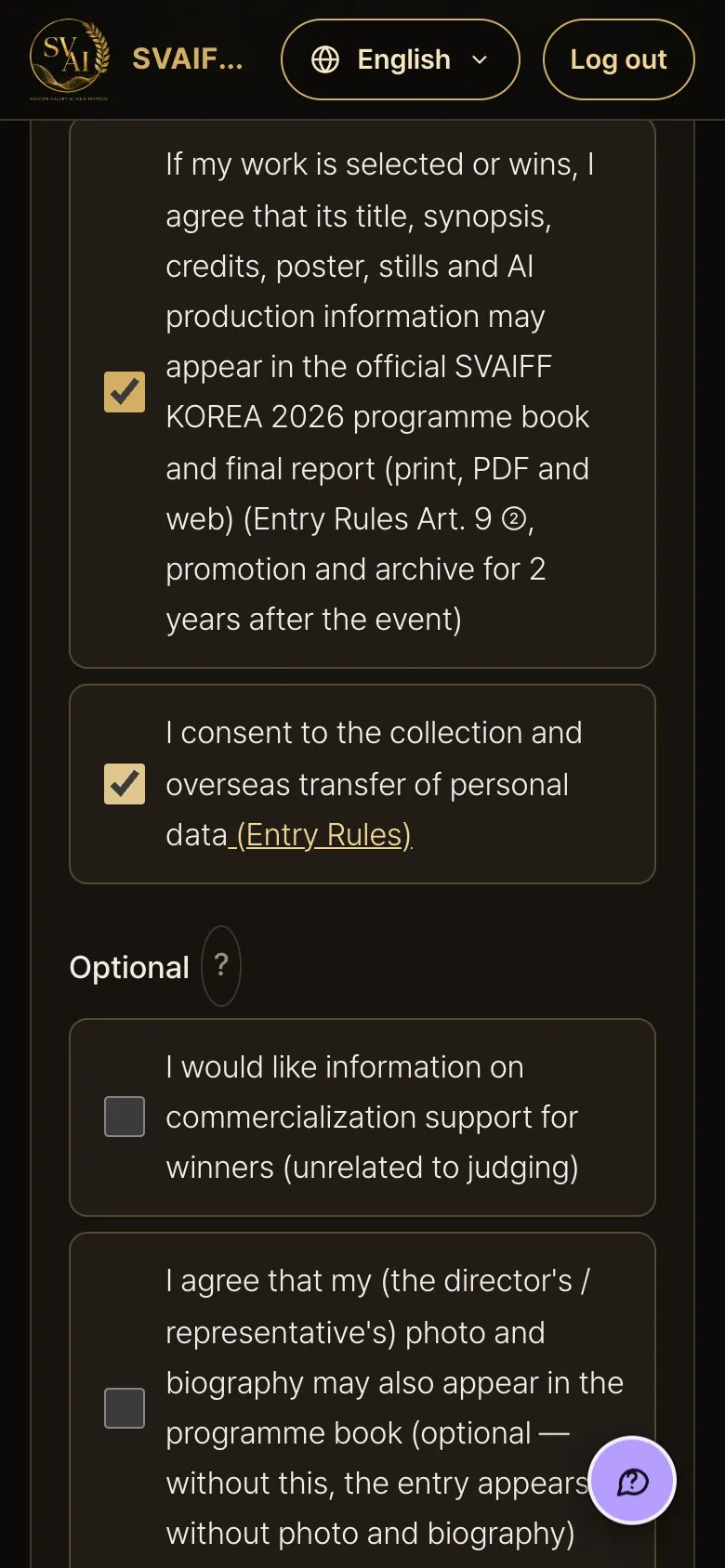
- Tick the 4 required consents and the “Verify you are human” box, then press Submit (the box looks empty in the picture).
3-7. Entry received
- Your tracking number appears and a confirmation email follows. Editing, locking and withdrawing work as in section 6.
4. Fill in on screen, field by field (film · 9 steps)
Press Fill in on screen, field by field on the start page: after choosing how you enter, the check page and email verification, you fill in the entry form step by step on screen. The circles 1–9 are the steps, and input saves automatically in this browser. Fields marked * are required.
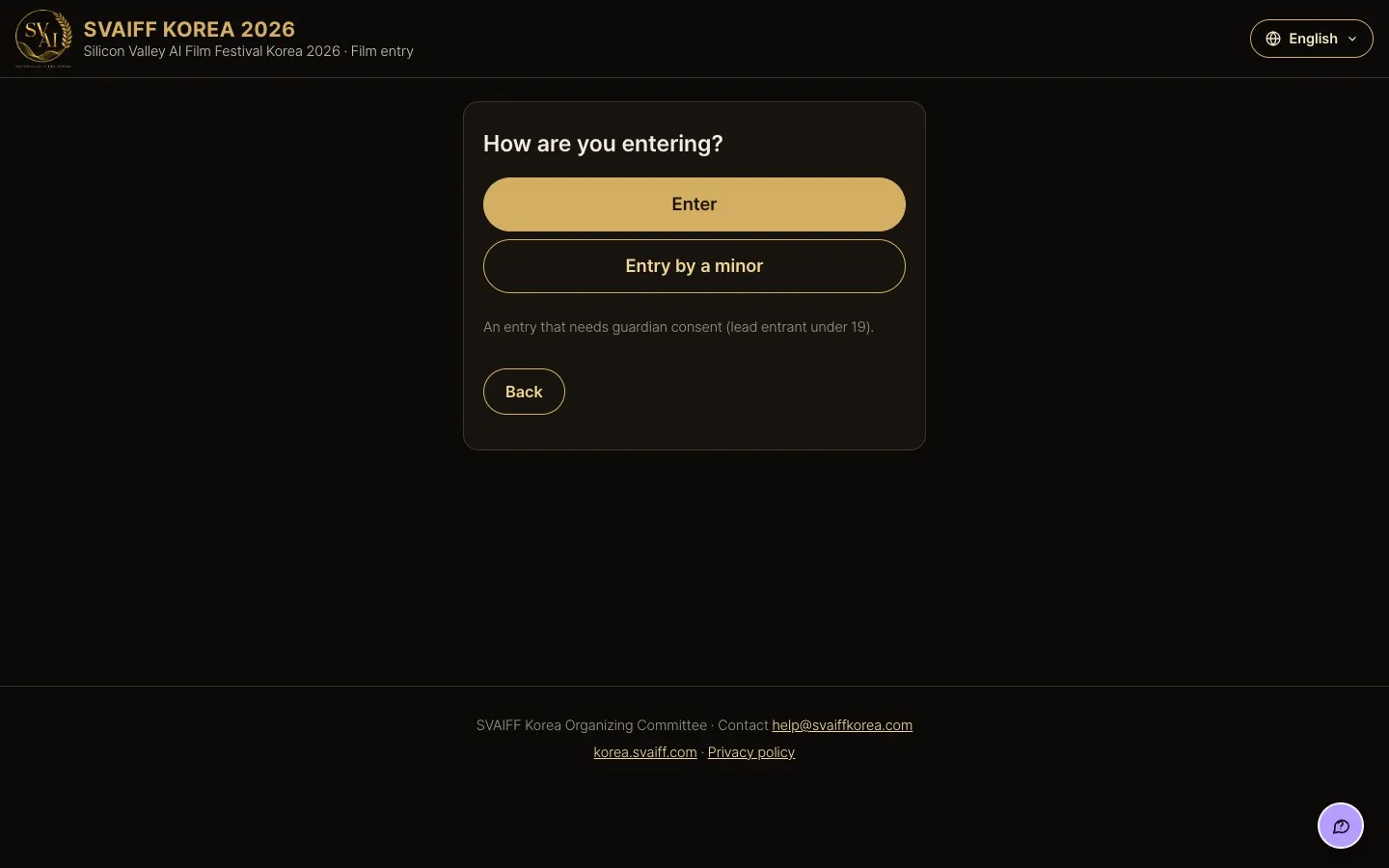
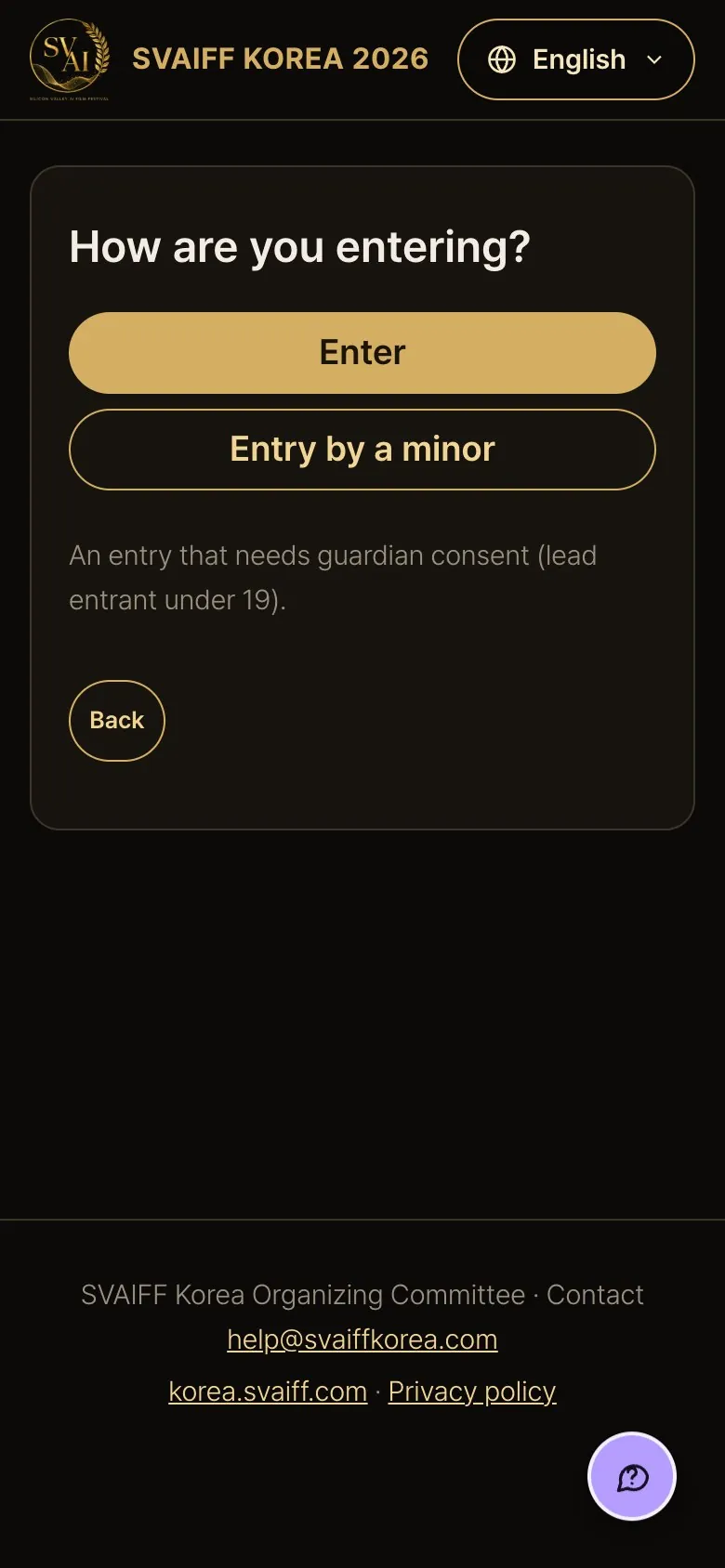
How are you entering?
- Usually press Enter.
- If the lead entrant is under 19, press Entry by a minor. It continues as an entry that needs guardian consent (section 7).
Check what you need
- Everything you need is listed. Tick each item you have ready.
- Download Pre-fill Form lets you write the long texts in advance.
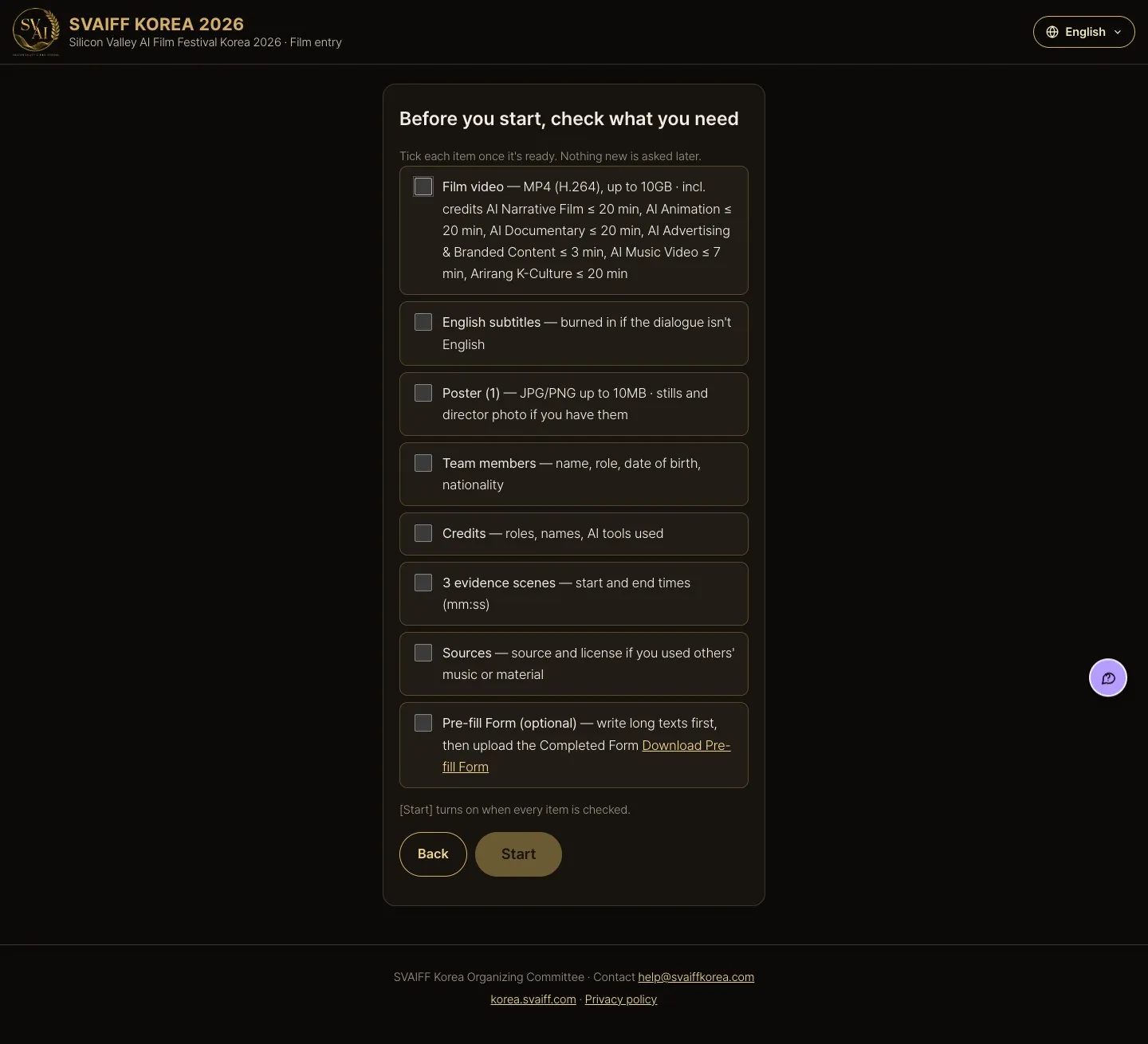
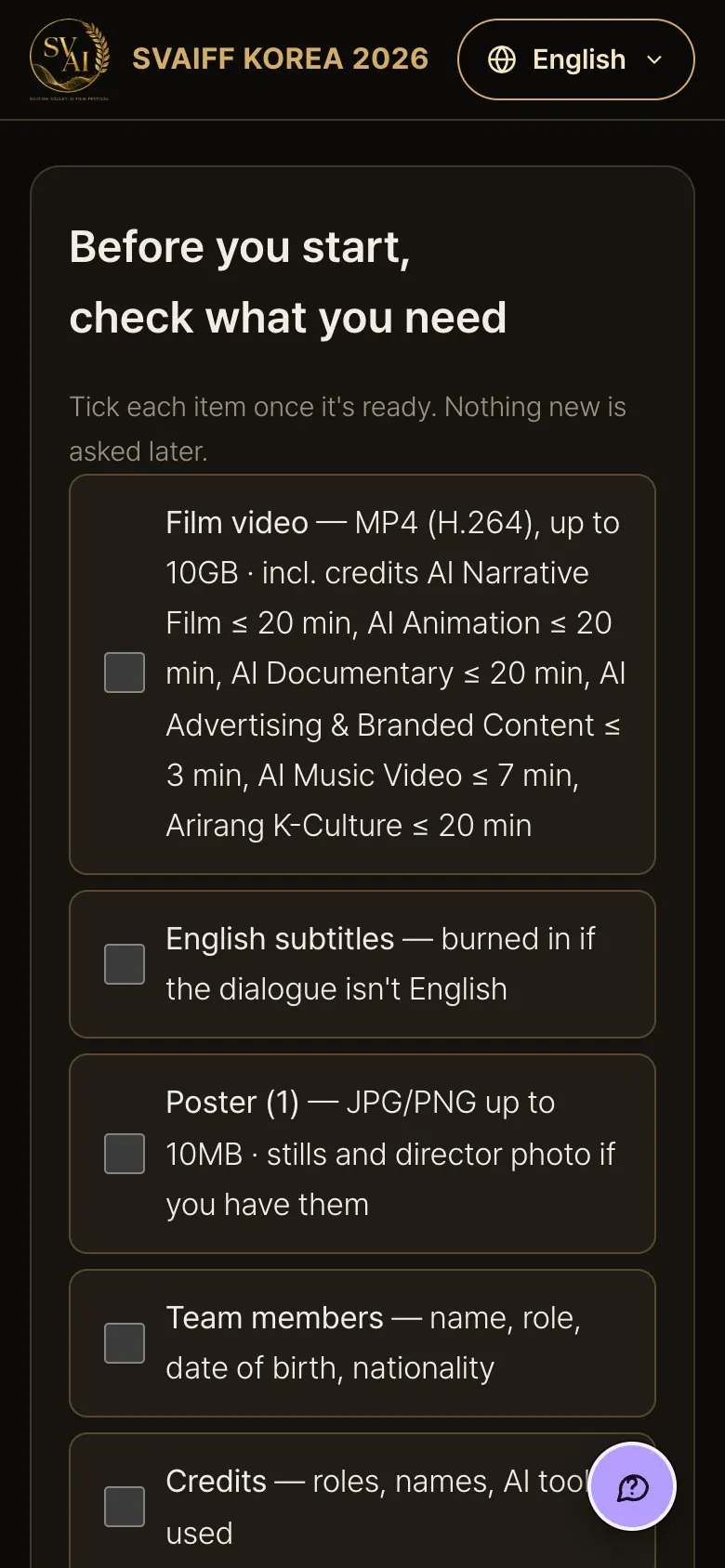
When everything is ticked
- When all items are ticked, Start turns on. It takes you to email verification.
- Once done, this page is skipped next time in the same browser.
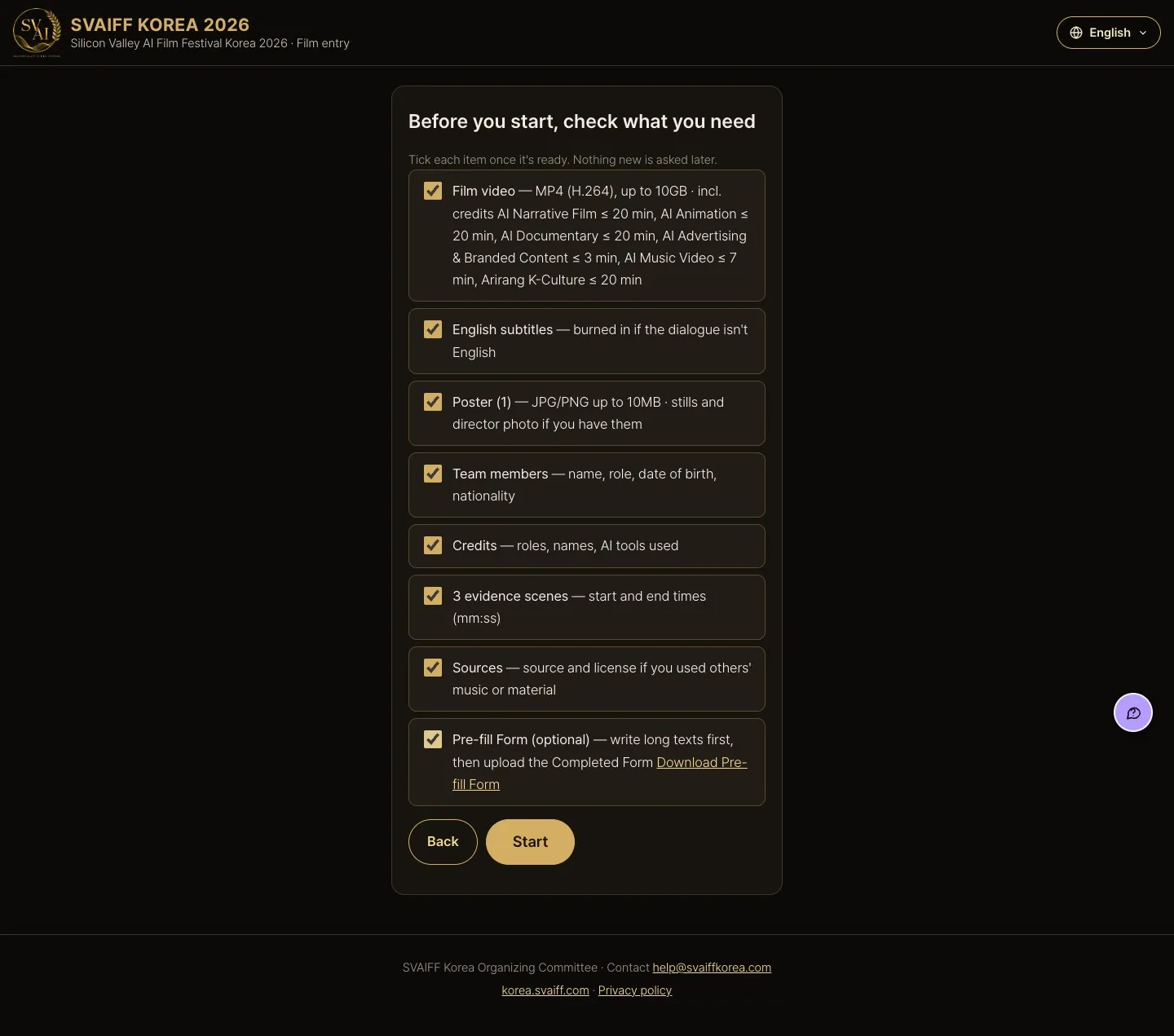
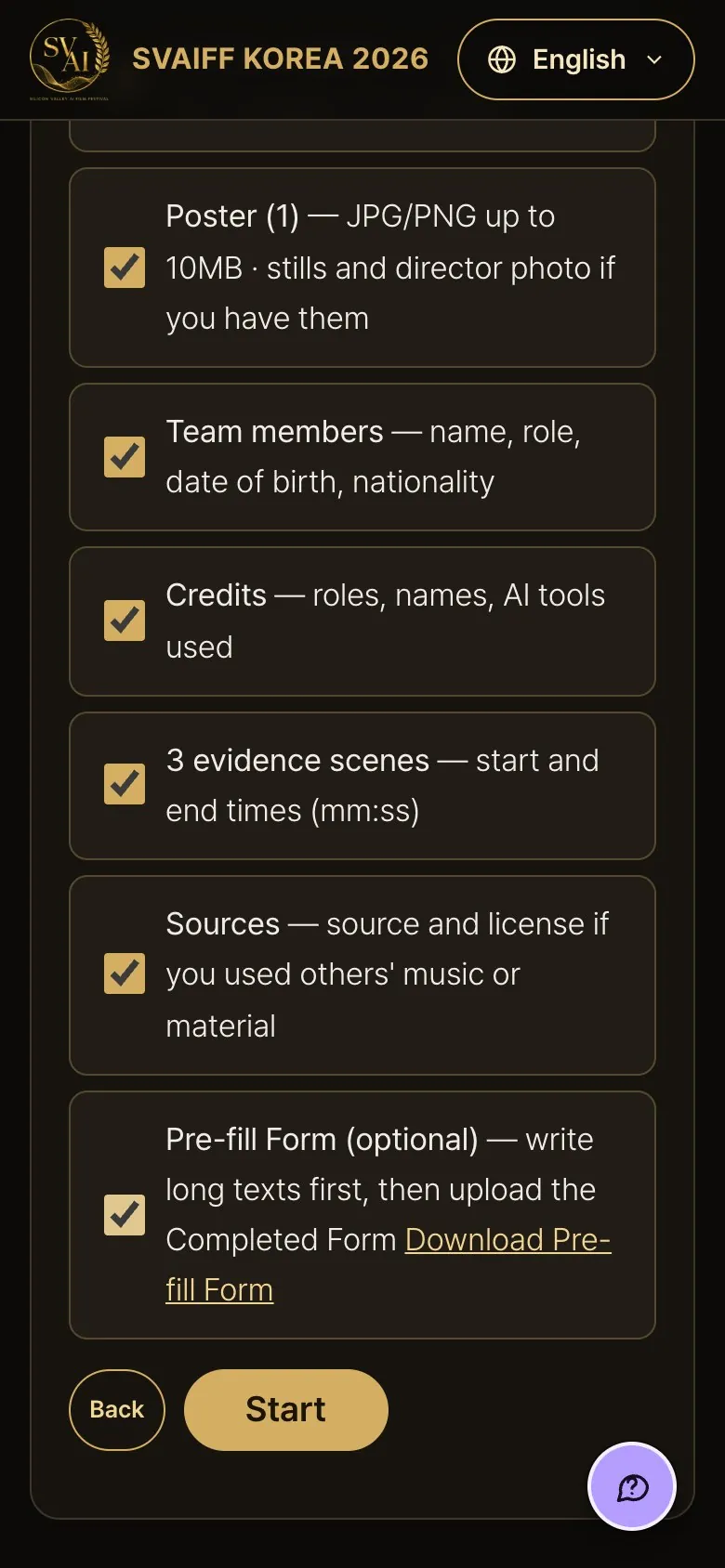
The note you see first
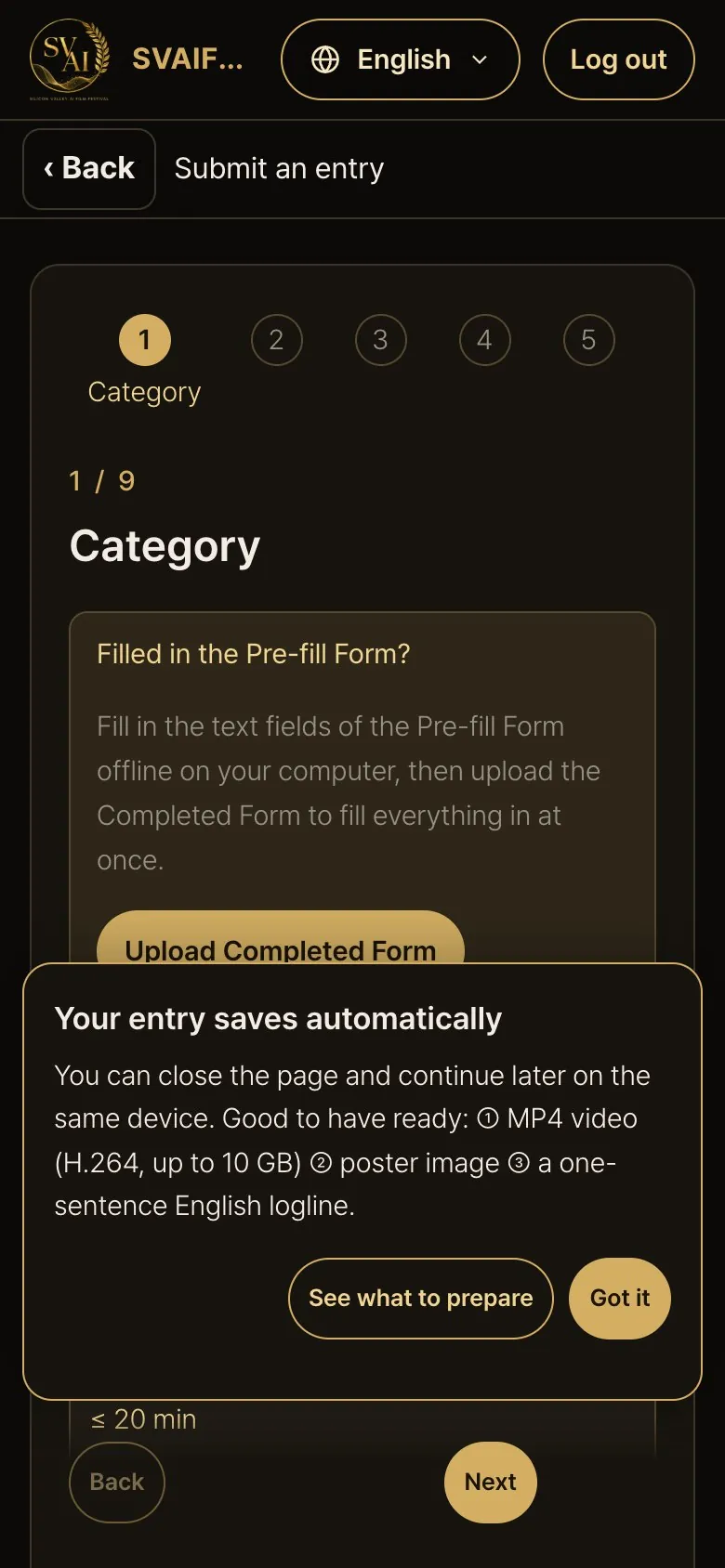
- When you first open the form, a note “Your entry saves automatically” slides up once at the bottom.
- Press Got it or tap outside to close it. See what to prepare opens the preparation section of this guide.
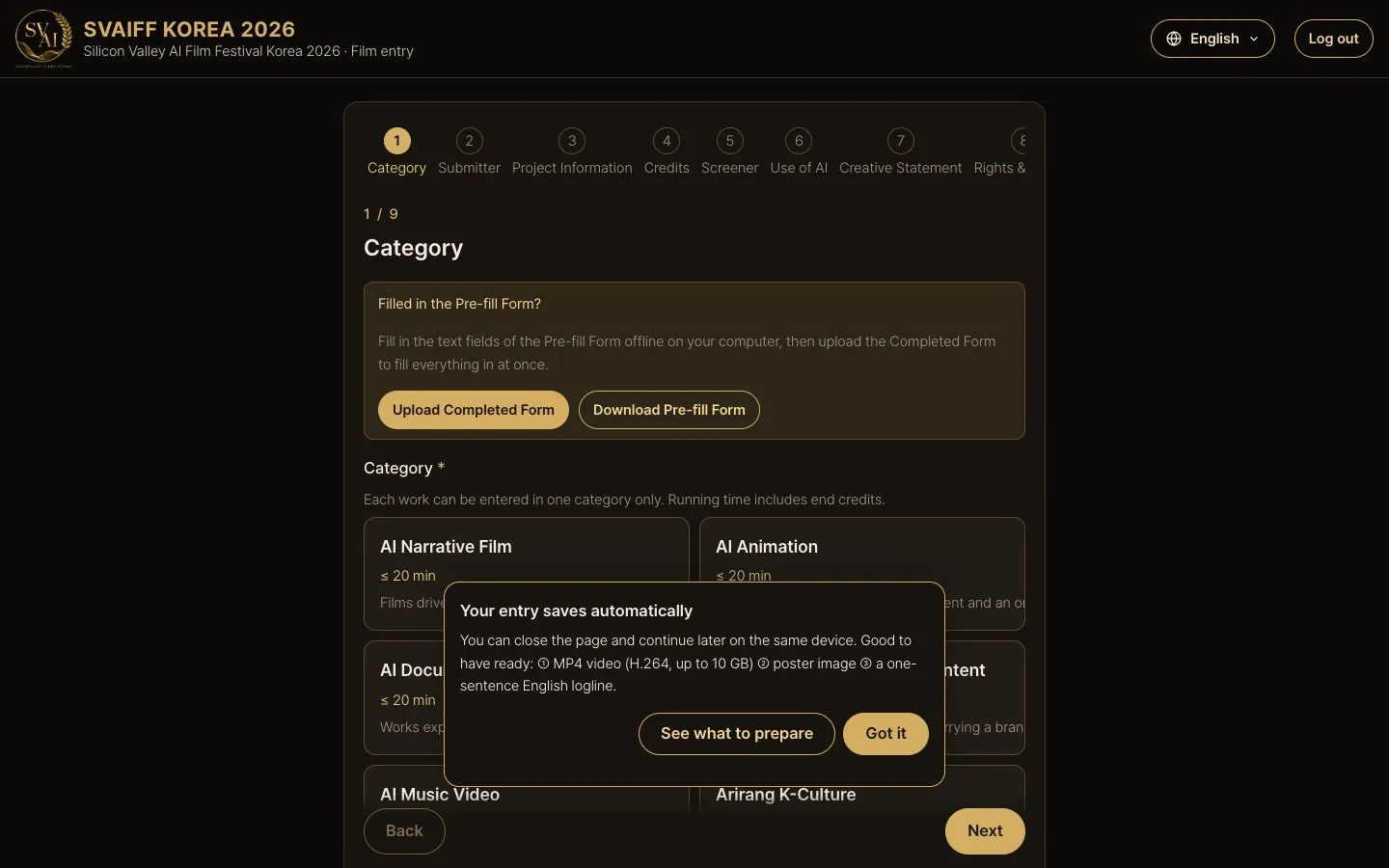
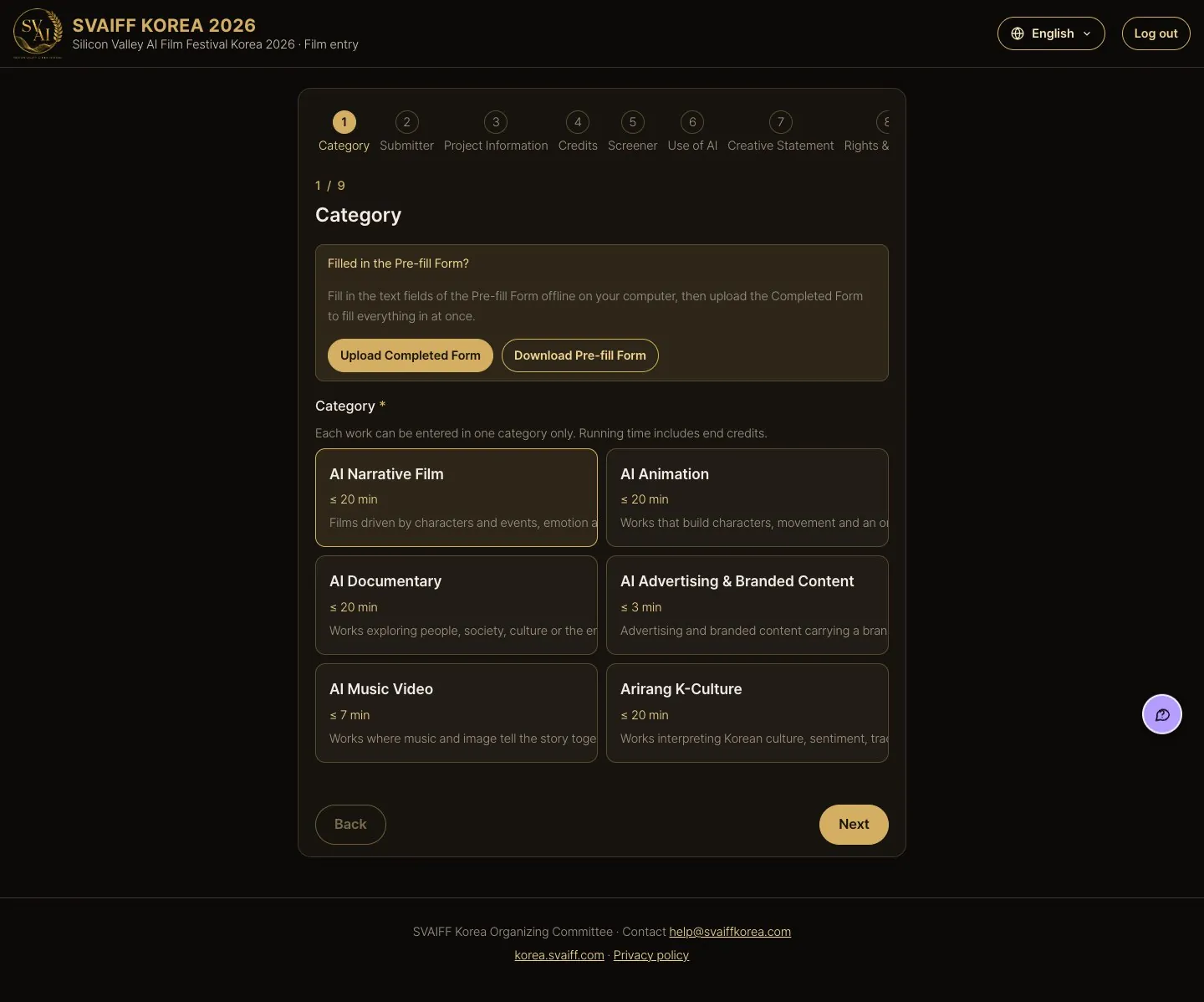
Step 1 · Category
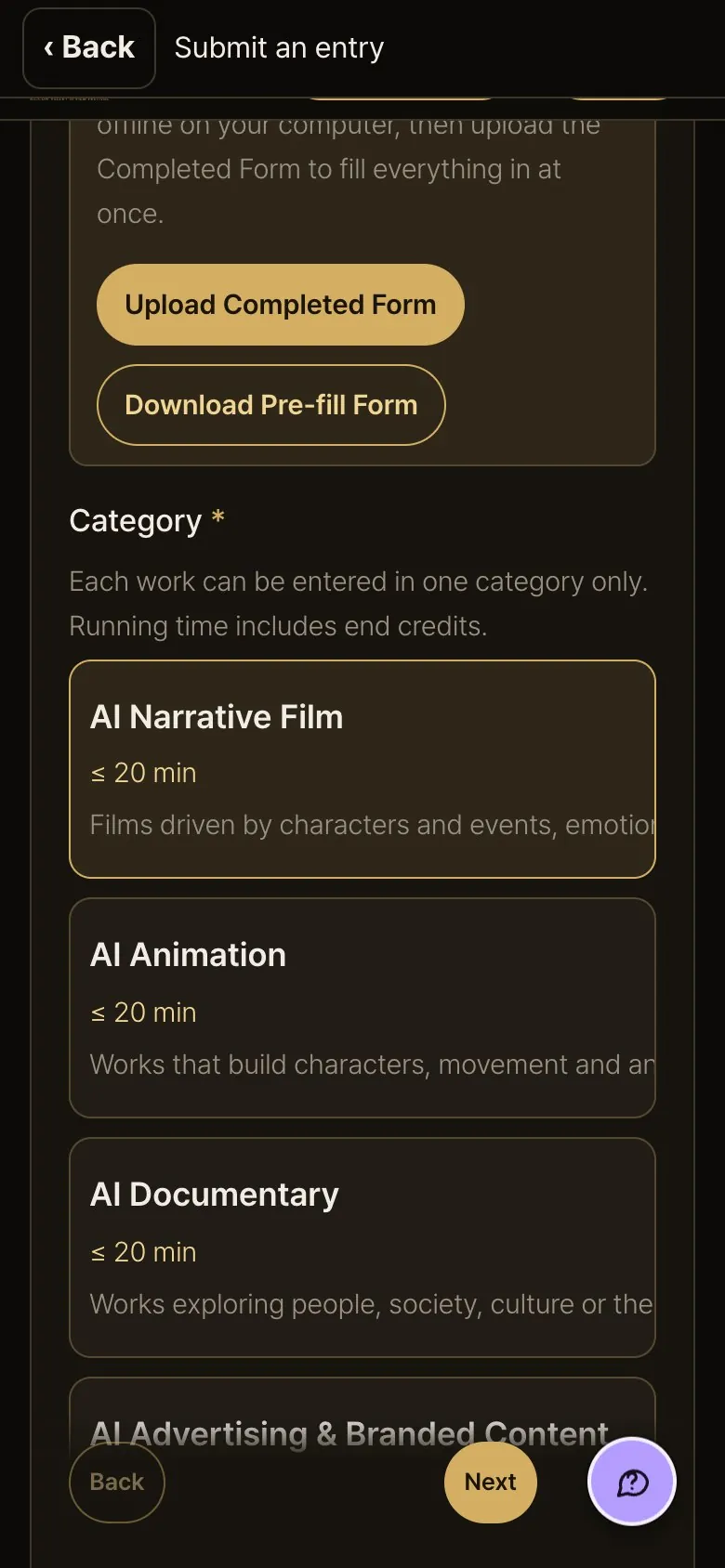
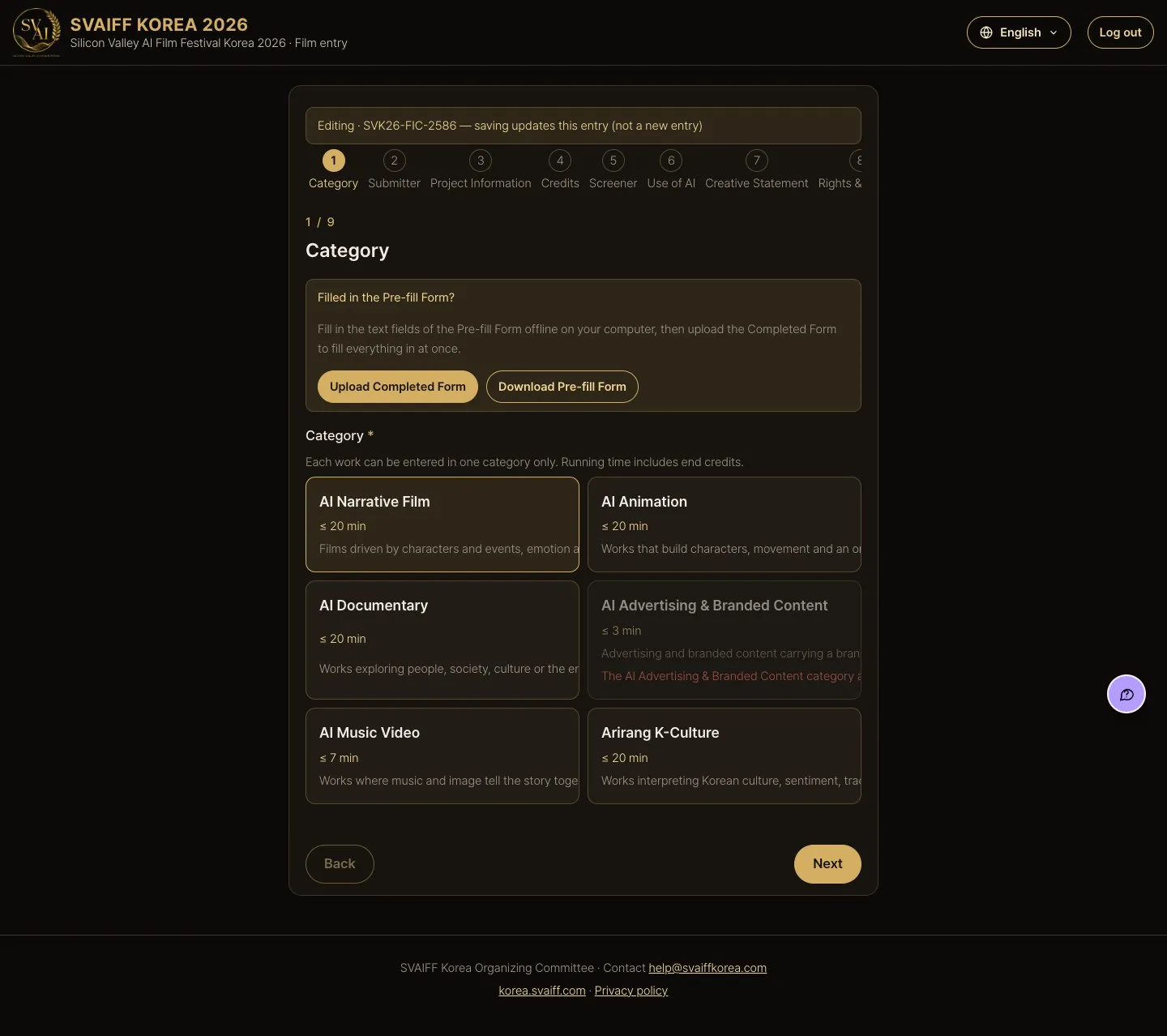
- Press one category card that fits your work (gold border = selected).
- Each card shows its length limit. If you already uploaded the video, categories it is too long for are greyed out.
- In the “Filled in the Pre-fill Form?” box at the top of step 1, press Upload Completed Form to fill the text fields at once. No form yet? Download Pre-fill Form.
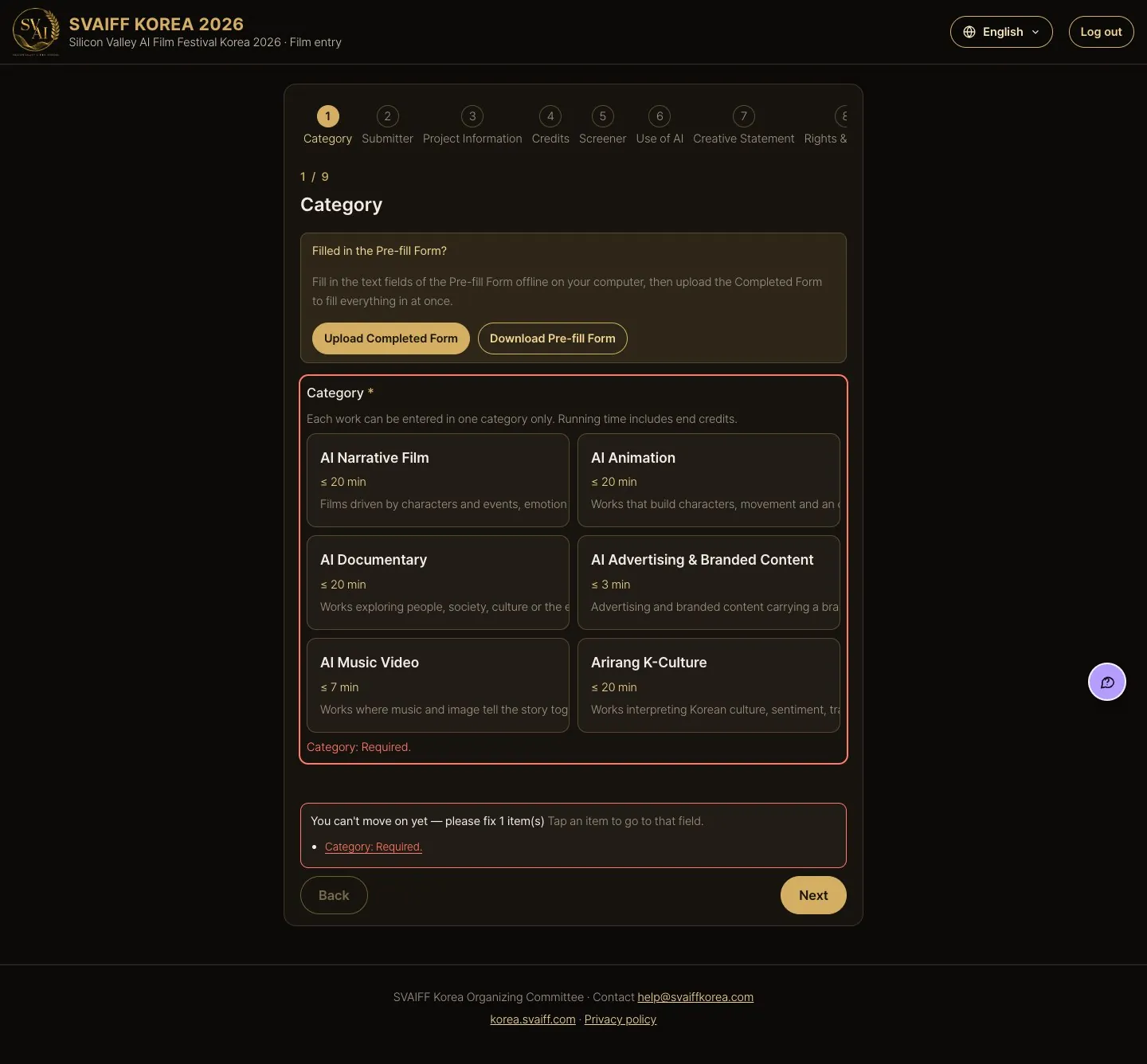
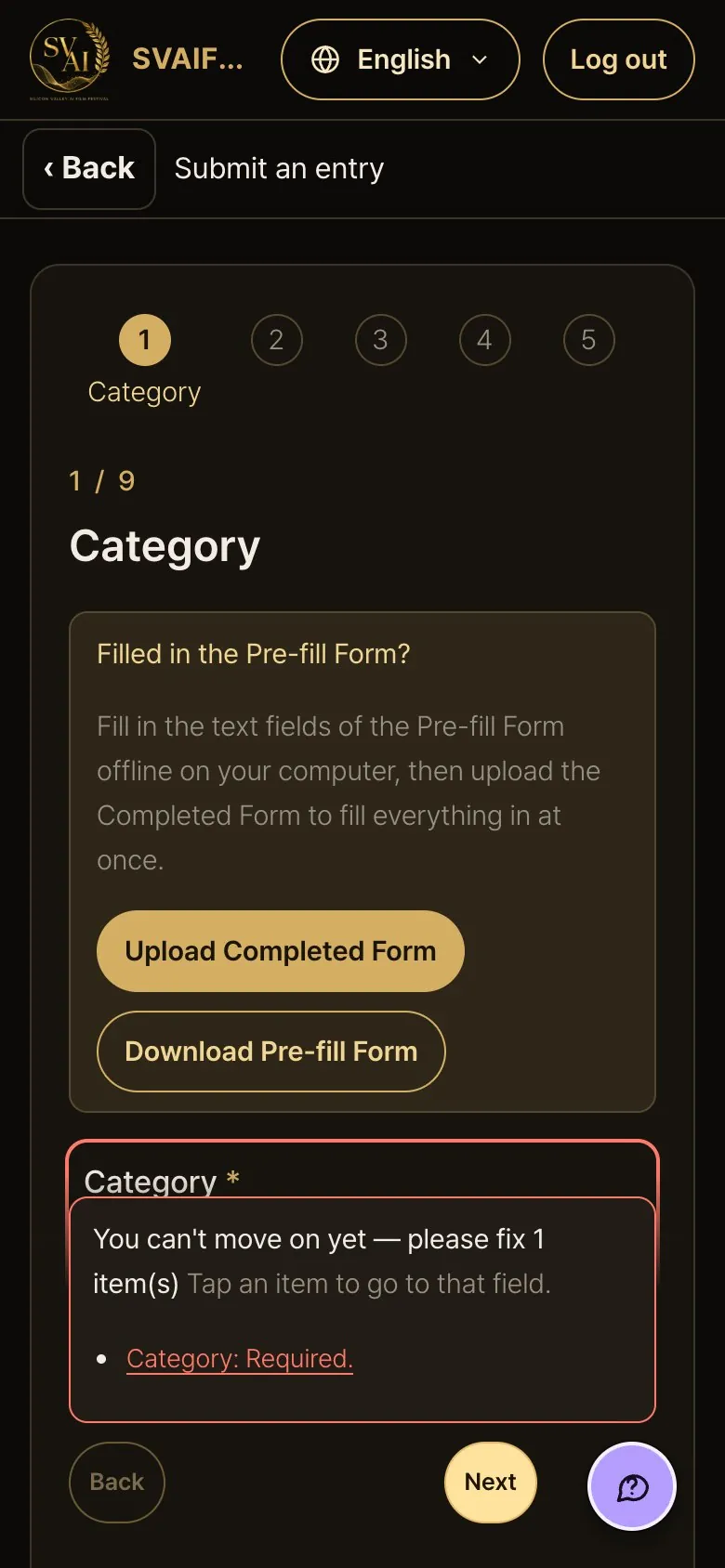
If you press Next with a required field empty
- Red text tells you what is missing and the page moves to that field. Fill it in and press Next again.
If Next keeps failing
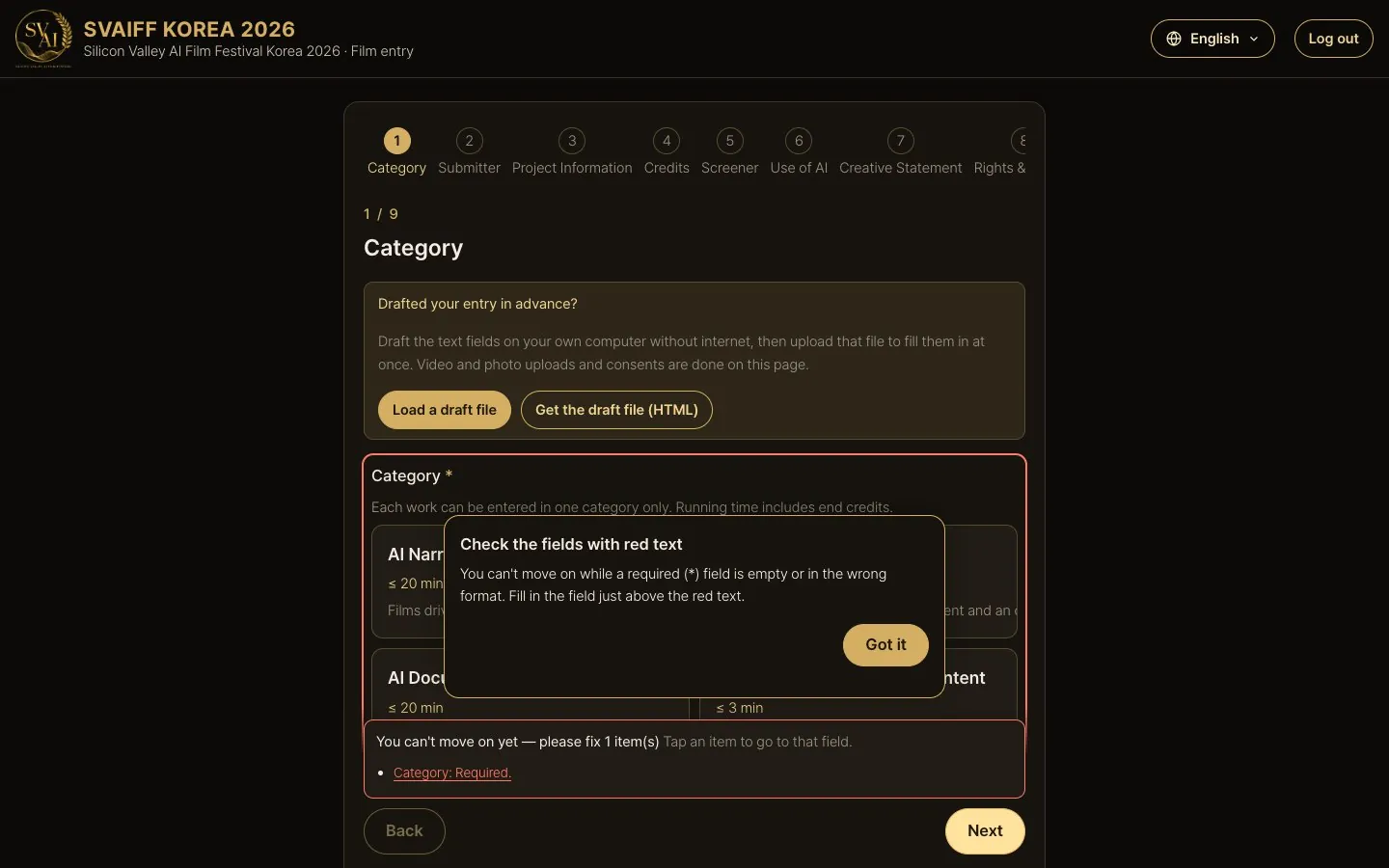
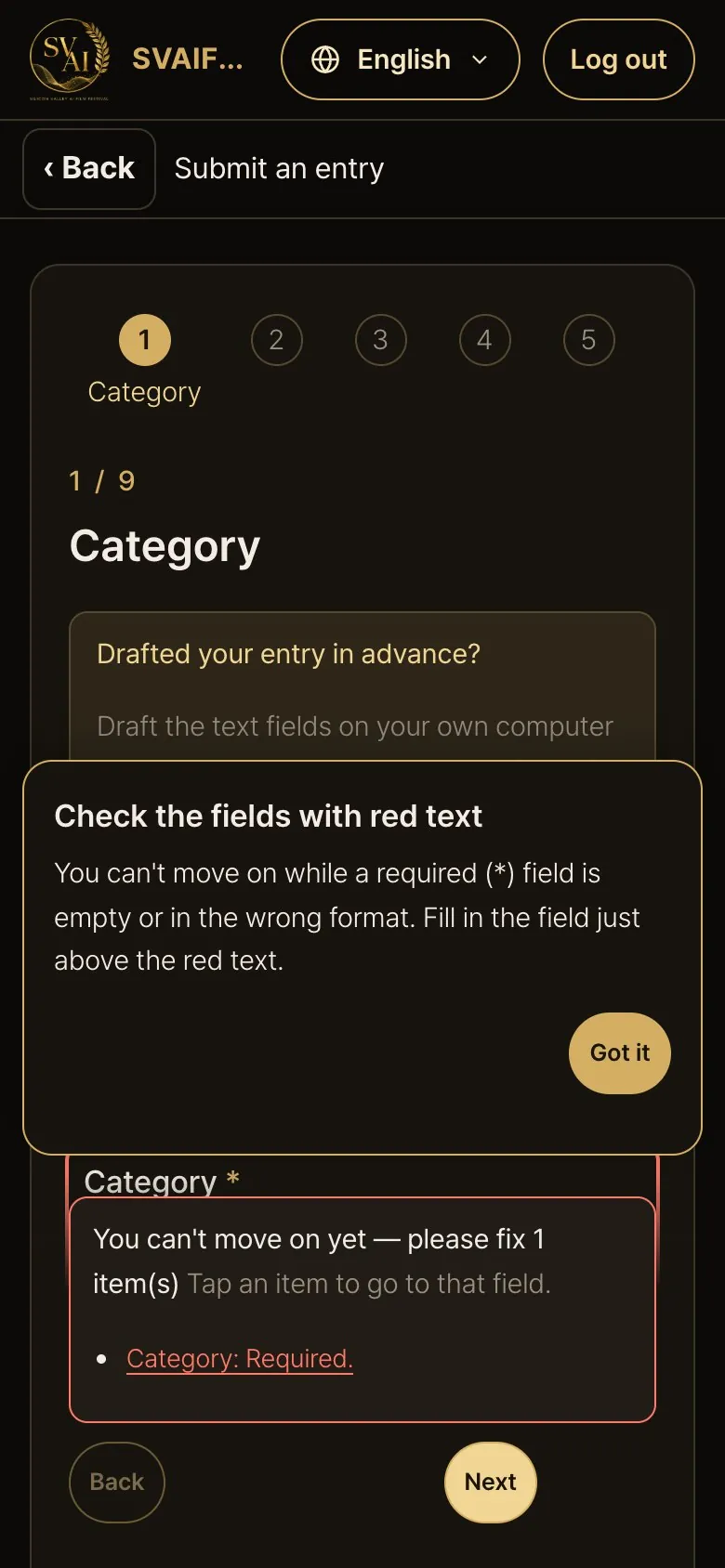
- If Next fails several times on the same step, a note “Check the fields with red text” appears.
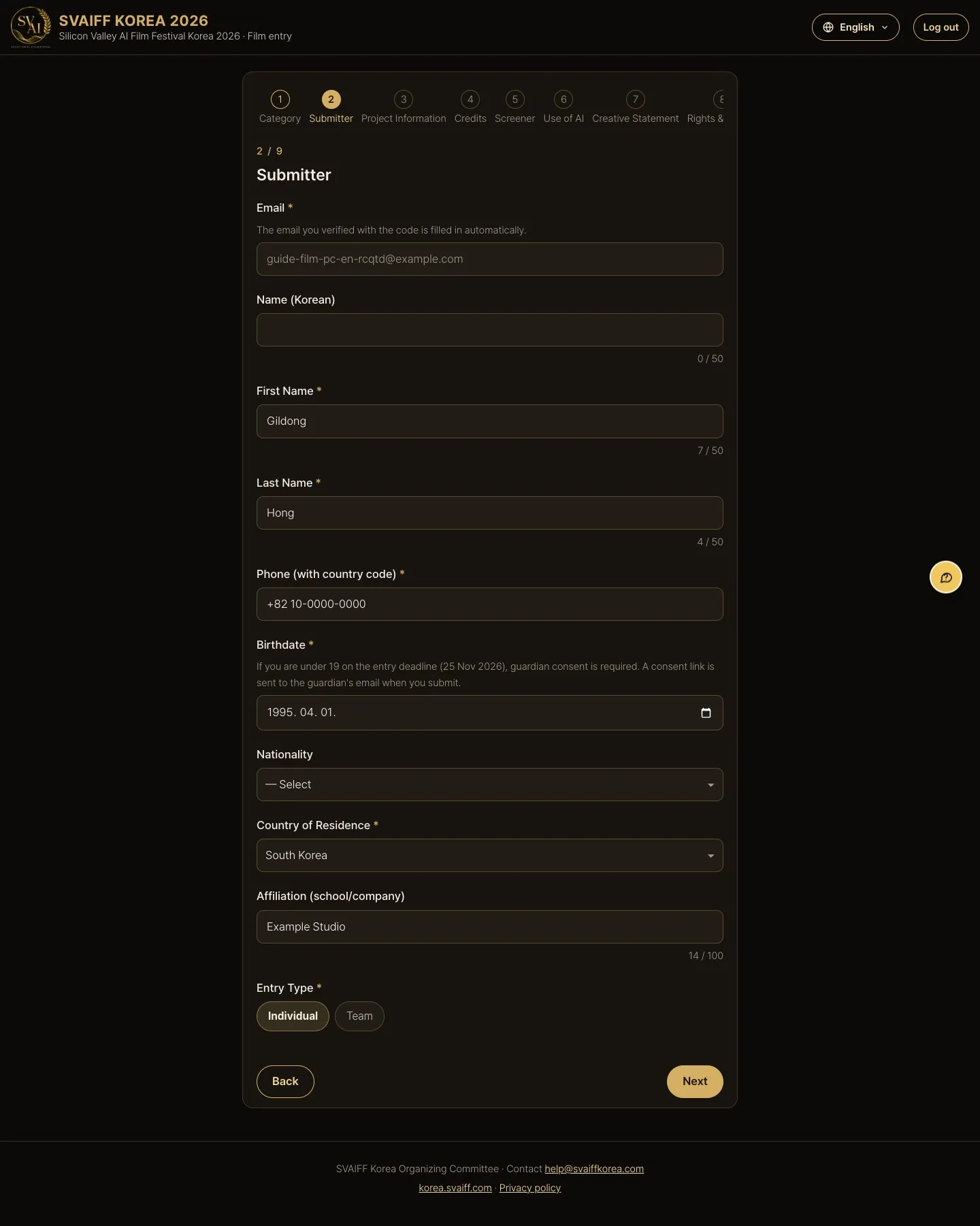
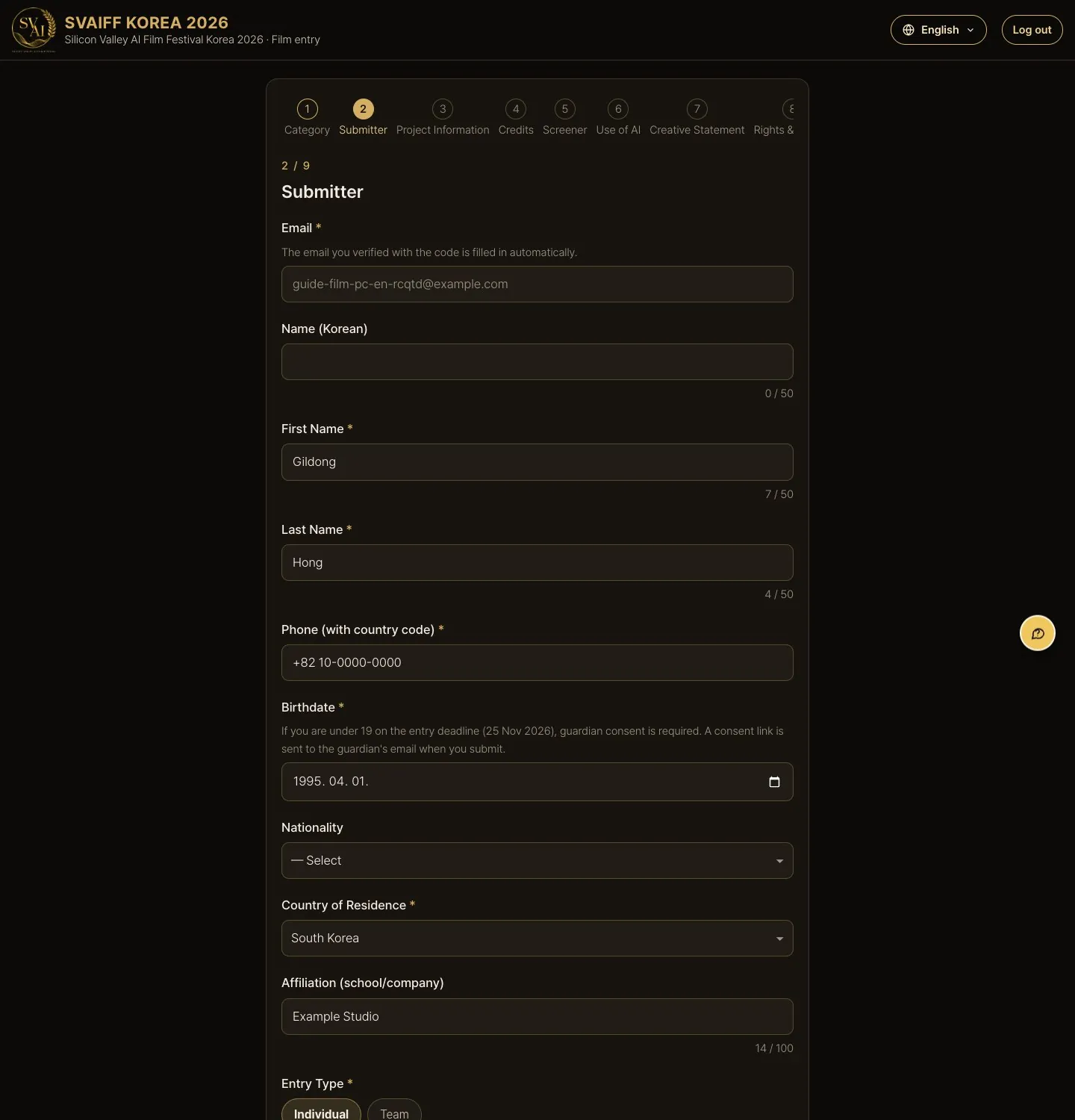
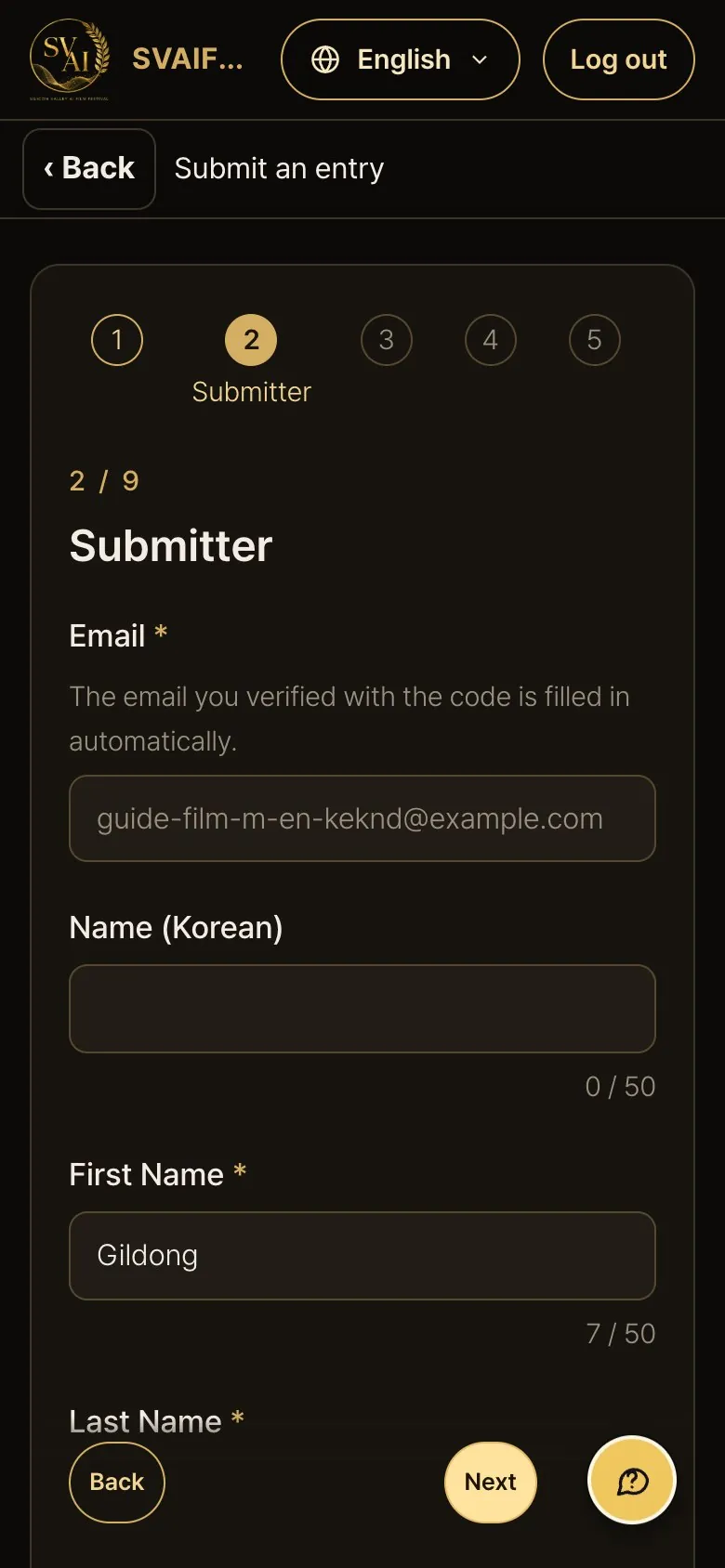
Step 2 · Submitter
- Your verified email is filled in automatically.
- Enter first and last name in English, phone with country code, date of birth and country of residence.
- Nationality (lead entrant), just below the date of birth, is optional.
- Choose individual or team. For a team, add members (each member under 19 as of Nov 25, 2026 needs guardian consent).

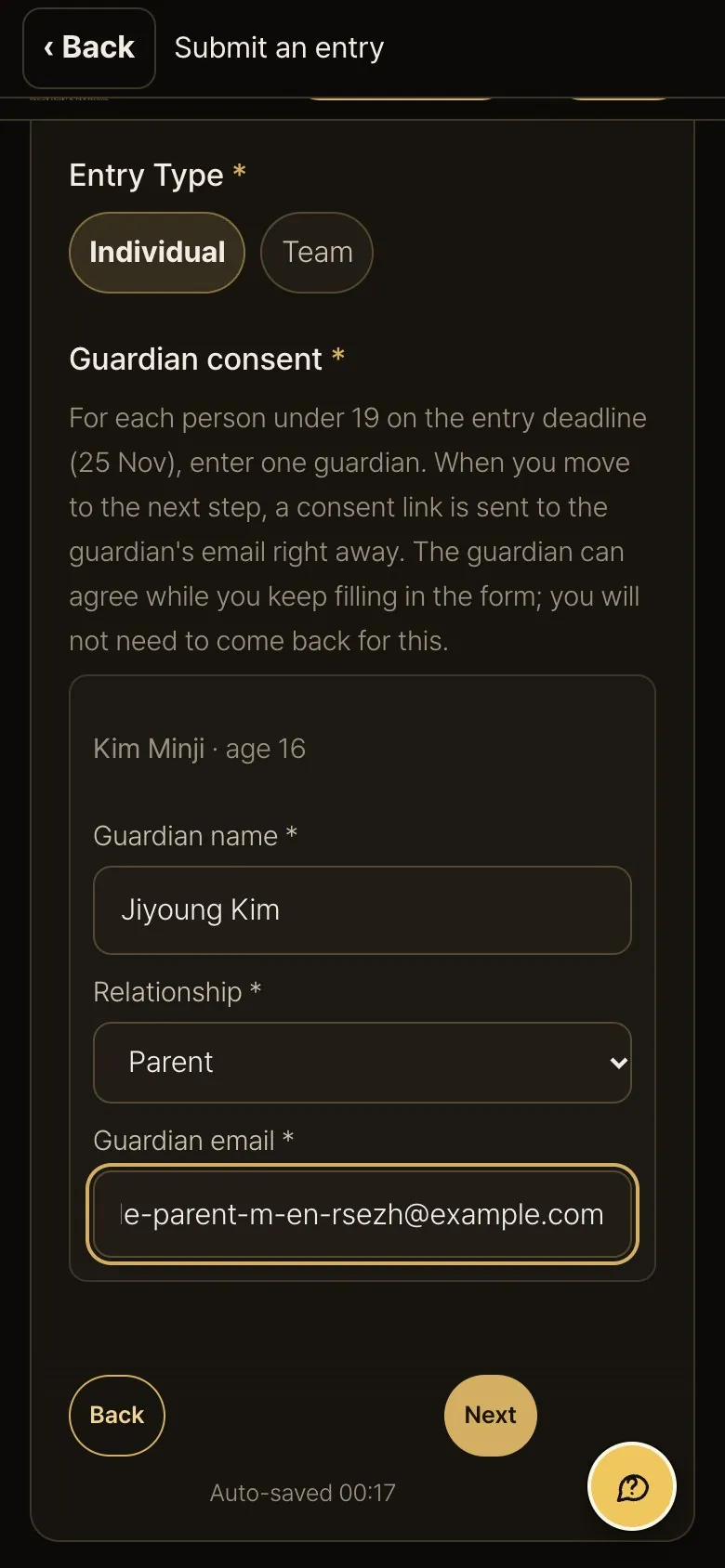
If someone is under 19 · guardian fields
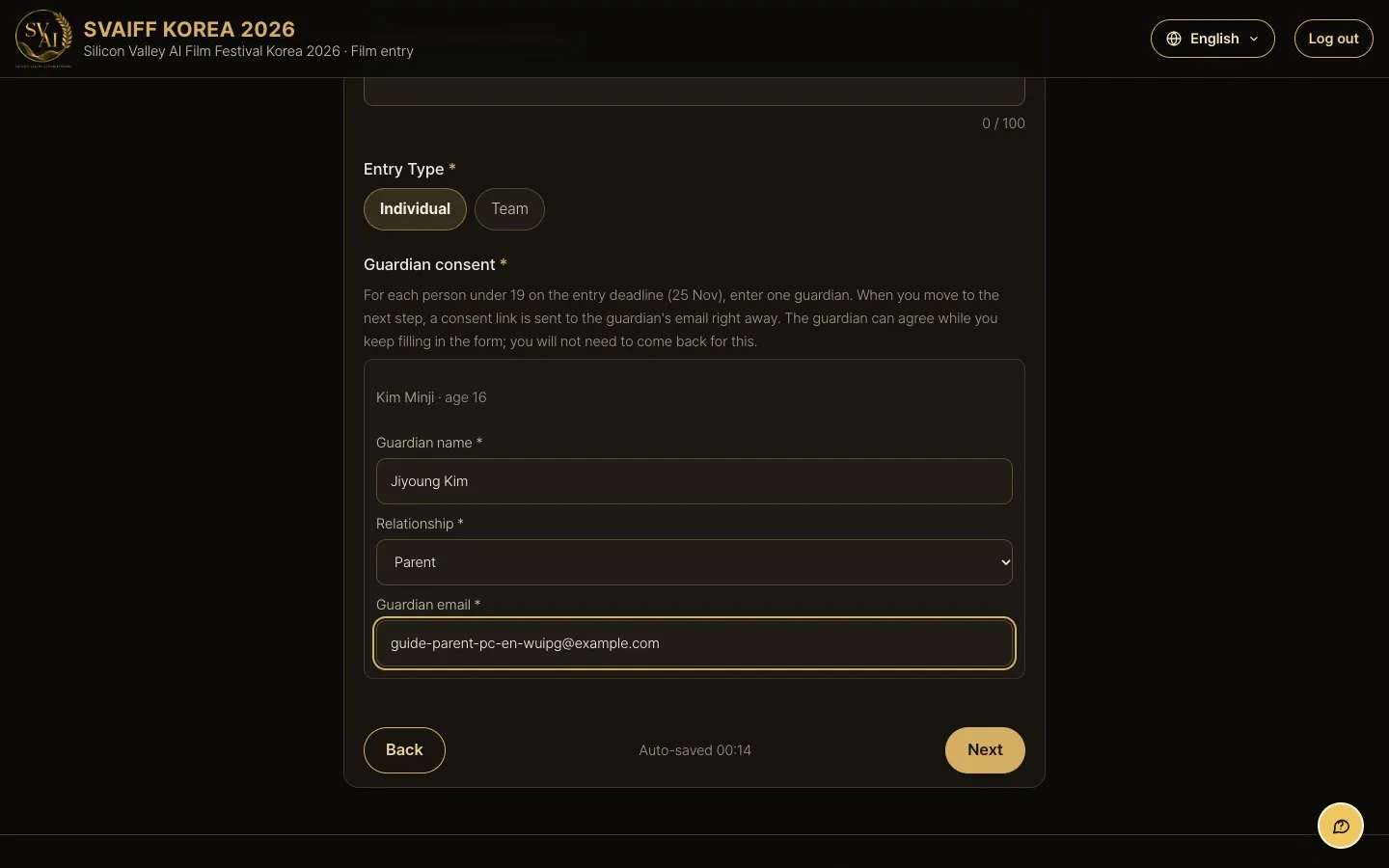
- If the lead or a team member is under 19 as of the entry deadline (Nov 25, 2026), a Guardian consent field appears.
- Enter the guardian's name, relationship and email for each such person.
A consent link goes to the guardian
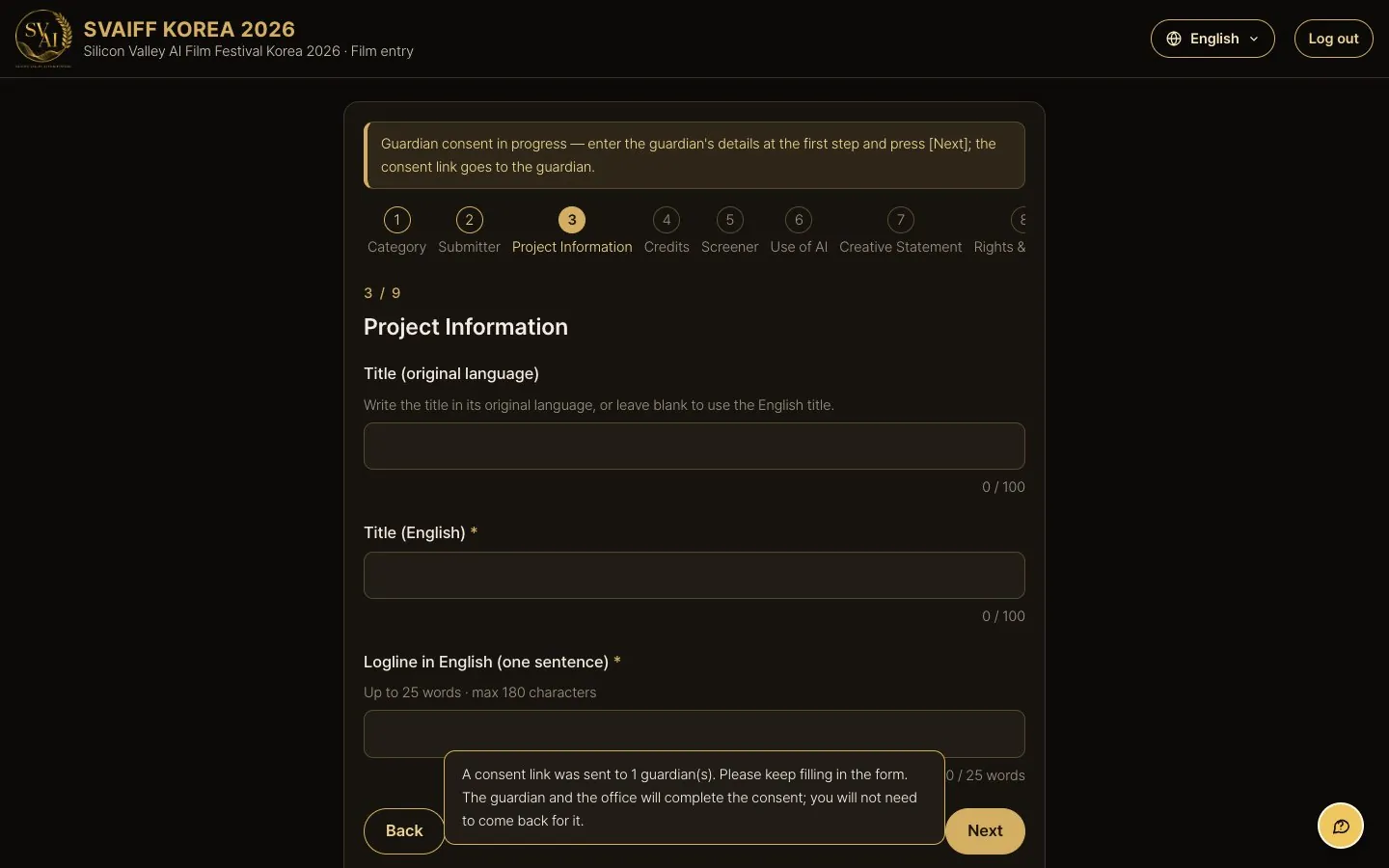
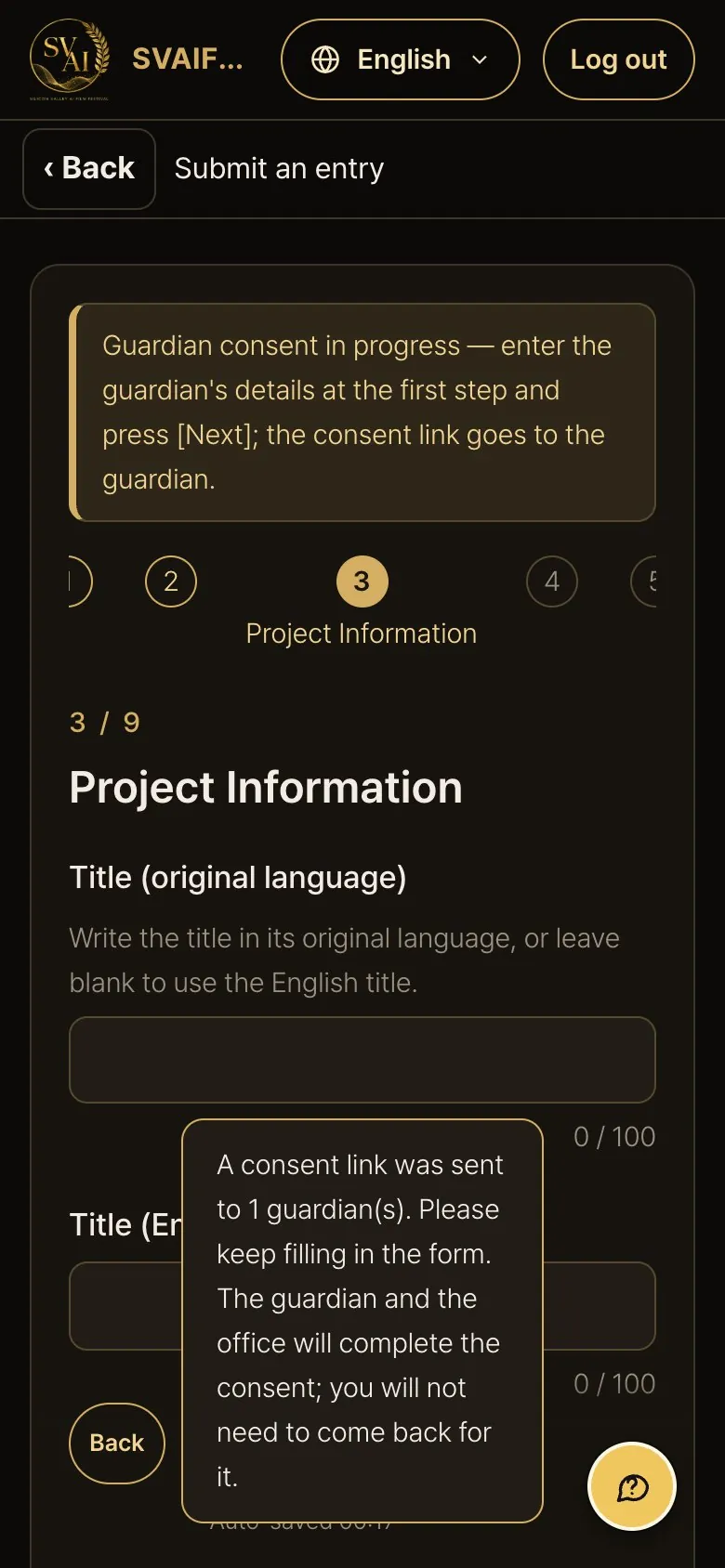
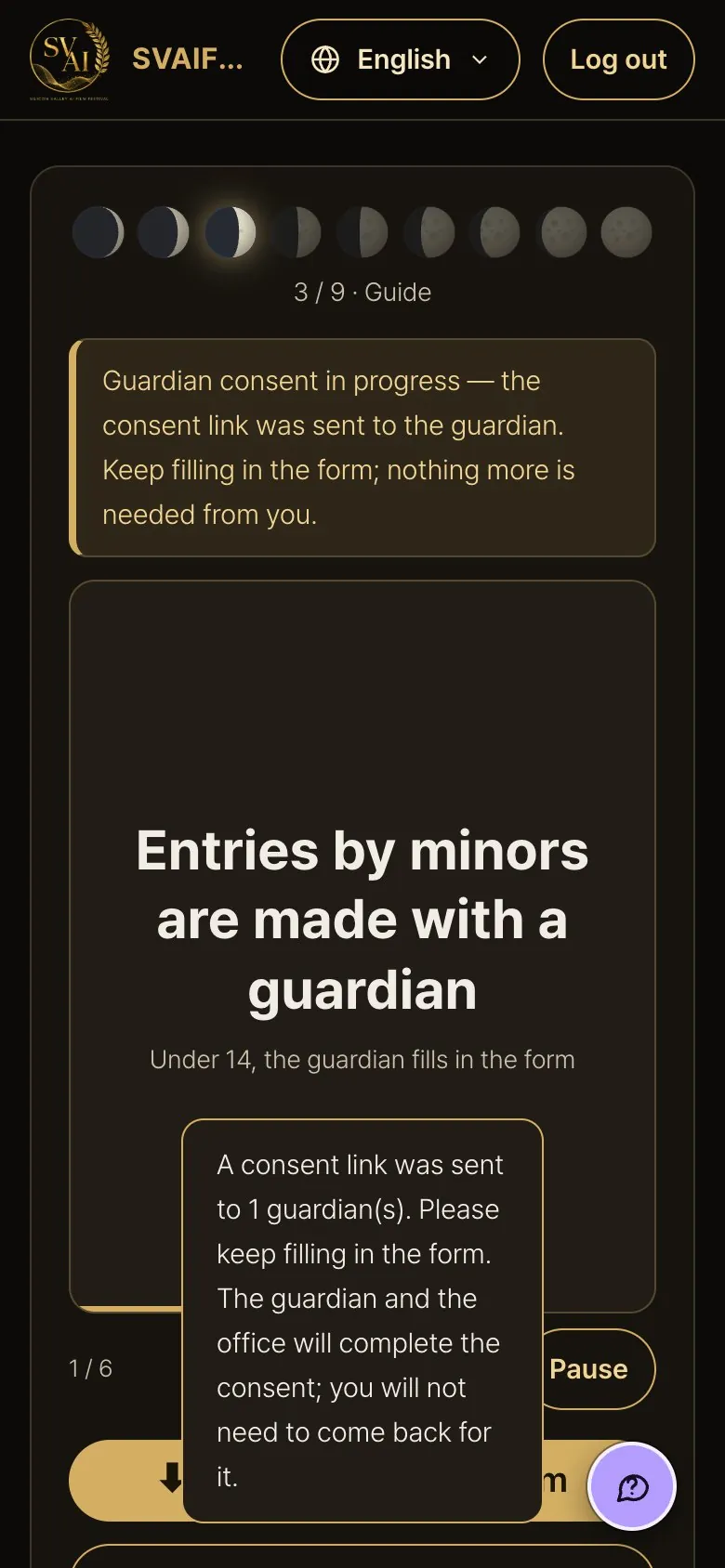
- When you press Next, a consent link goes to the guardian at once and a note “A consent link was sent to n guardian(s)” appears.
- Keep filling in the form. The guardian and the office complete the consent; you won't need to come back for it.
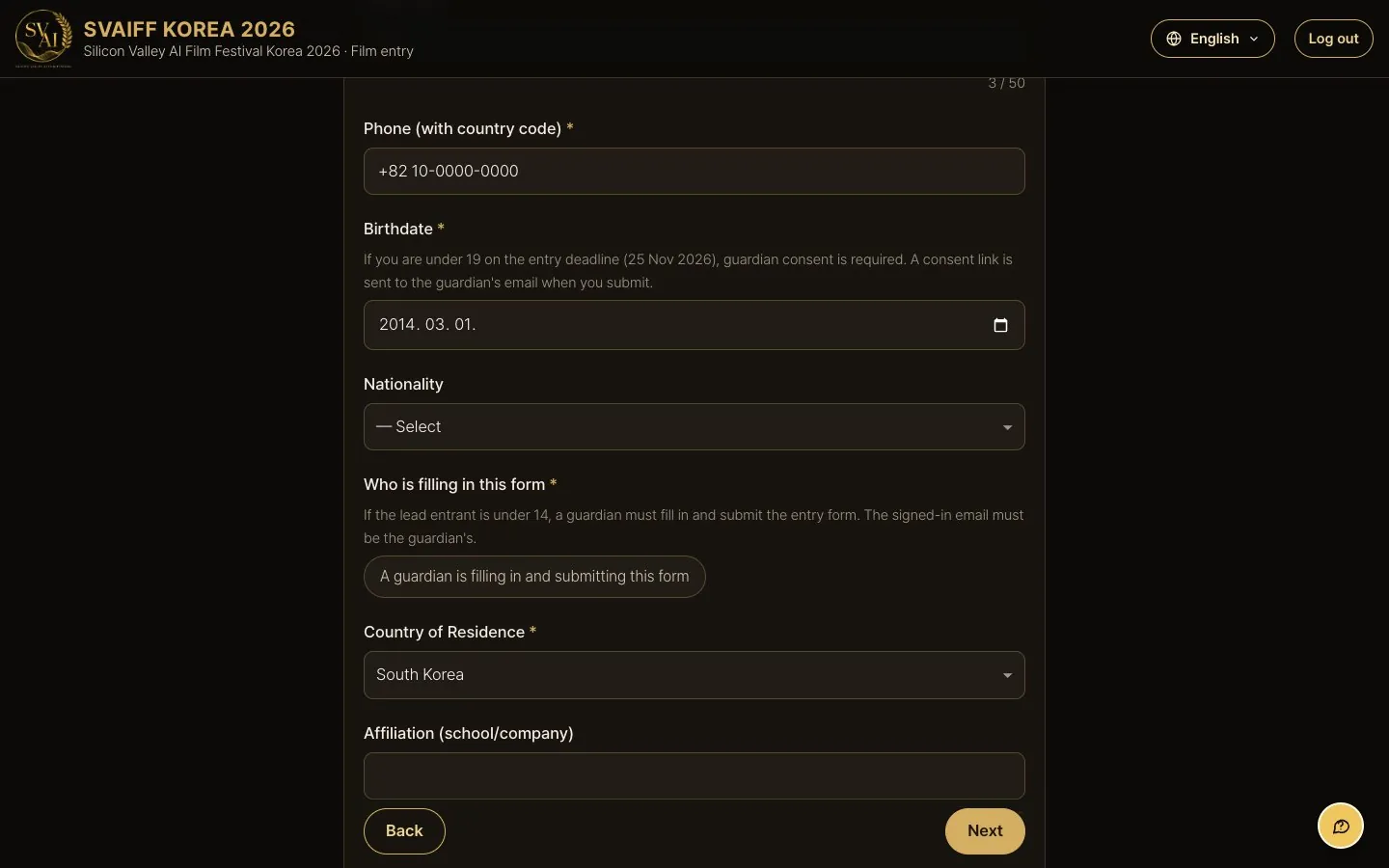
If the lead entrant is under 14
- A Who is filling in the form field appears. A guardian must fill in and submit the form, signing in with the guardian's email.
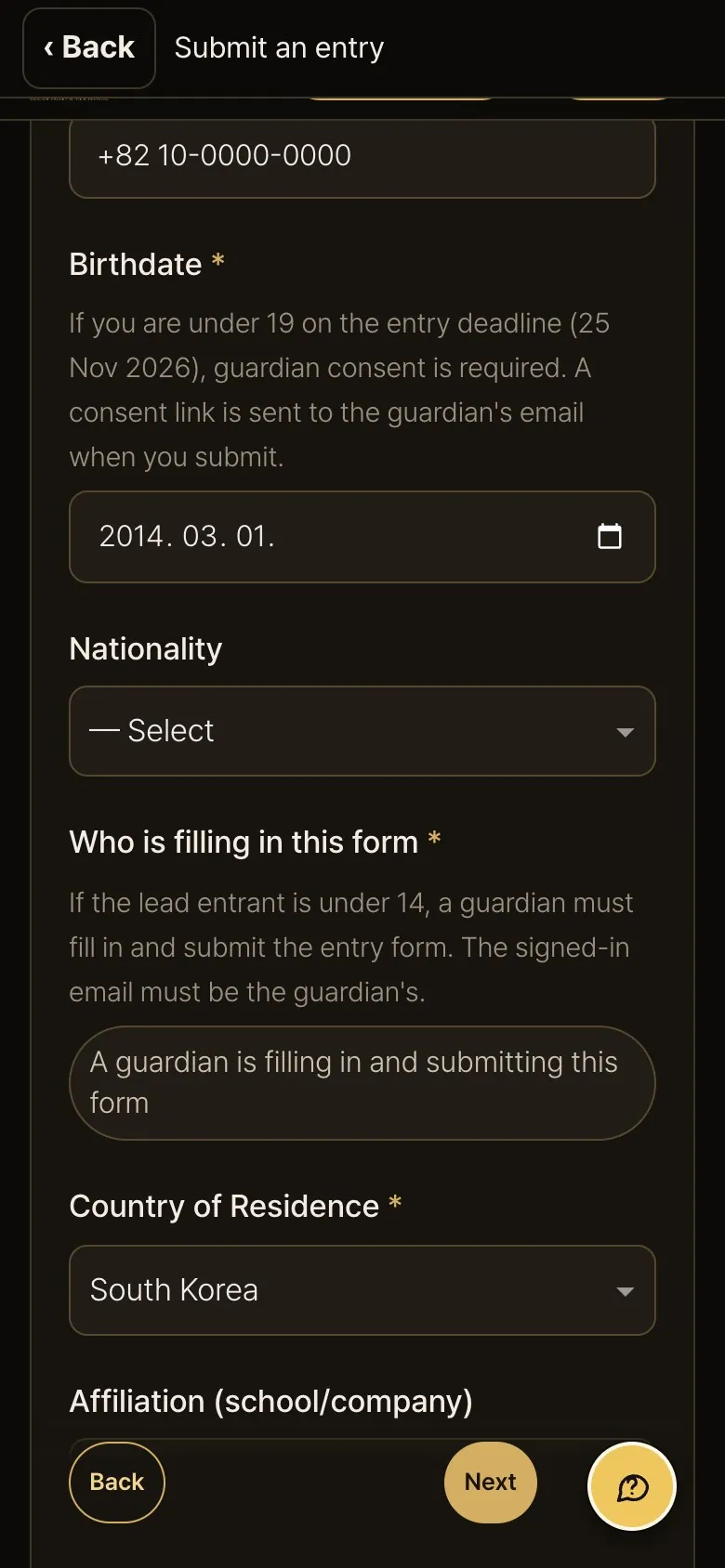
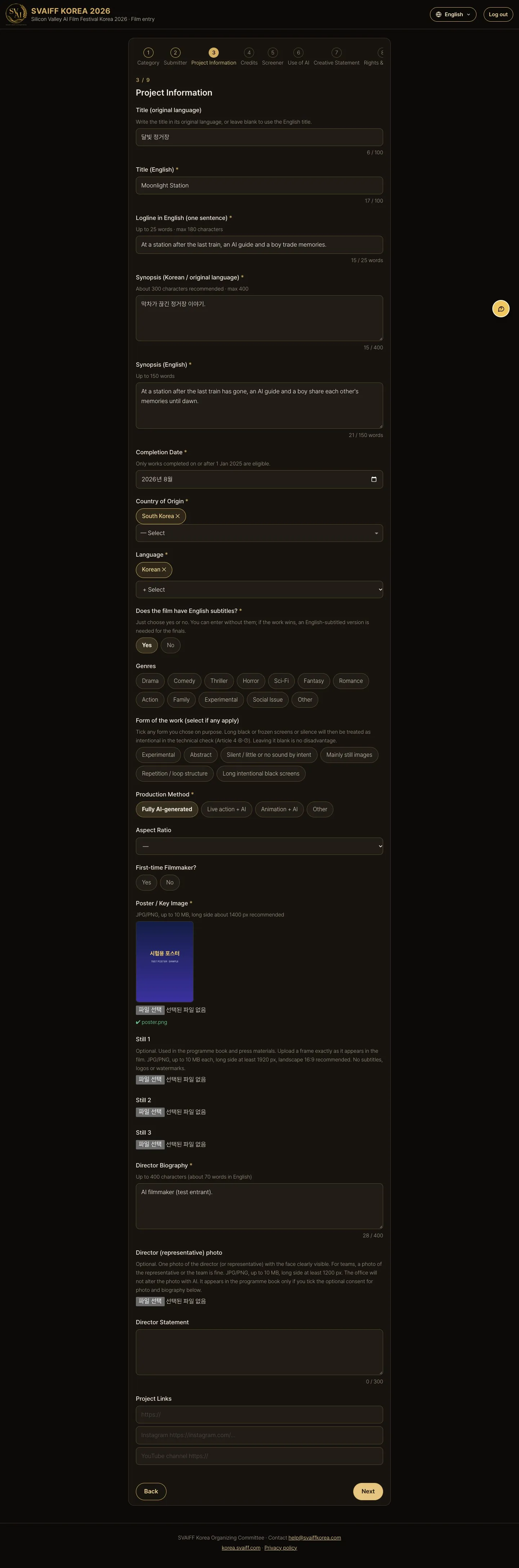
Step 3 · Project information · poster
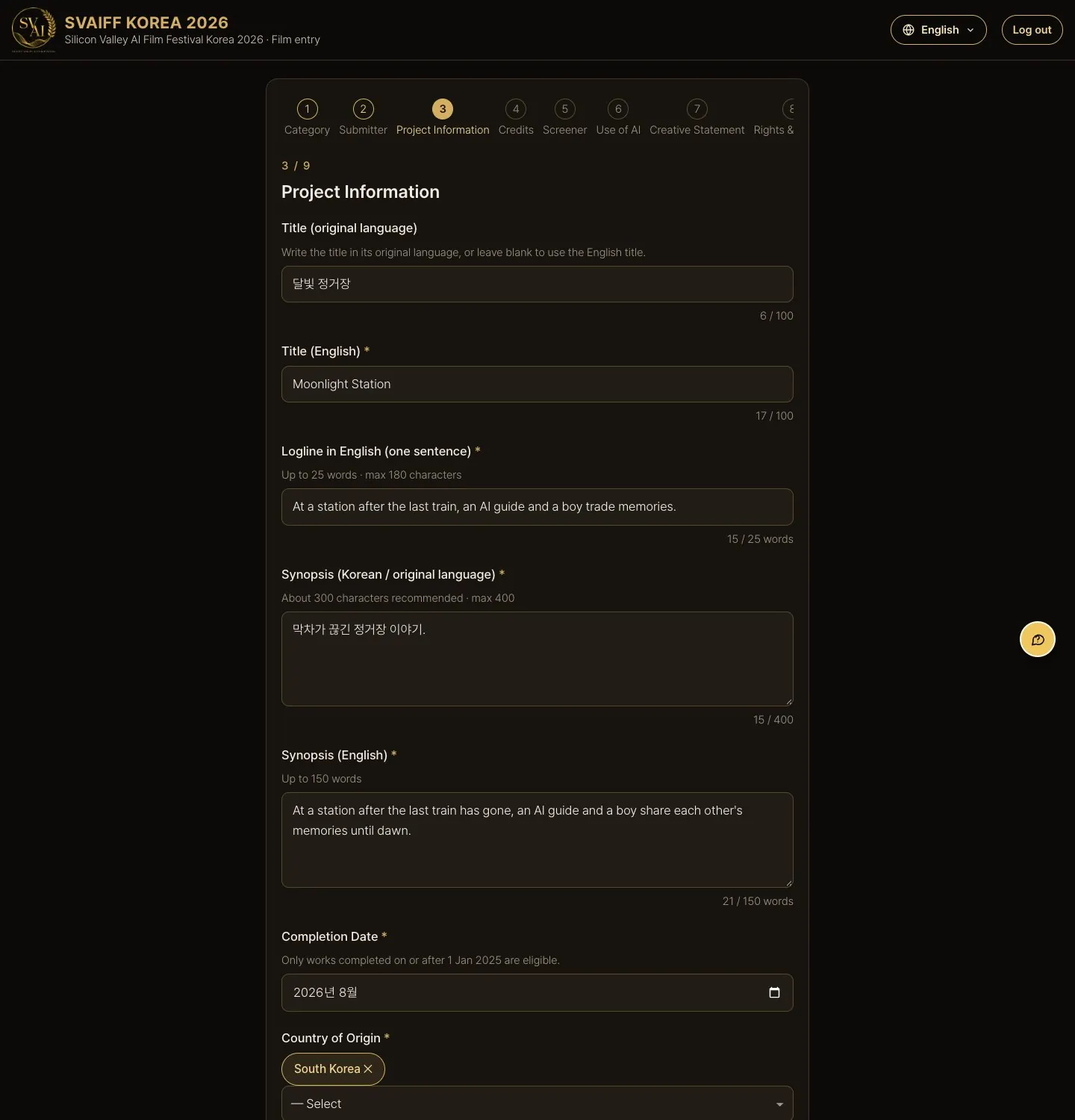
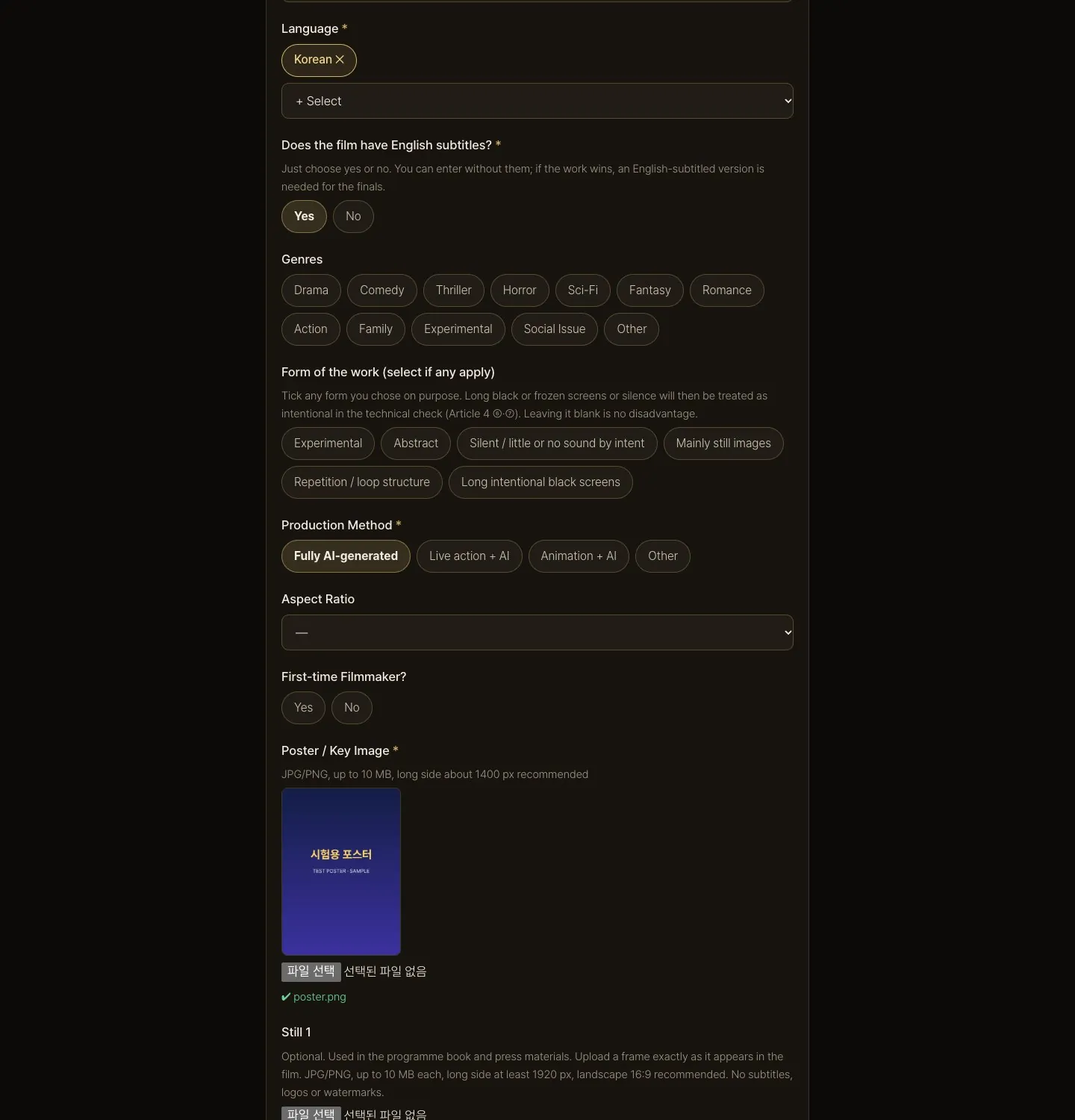
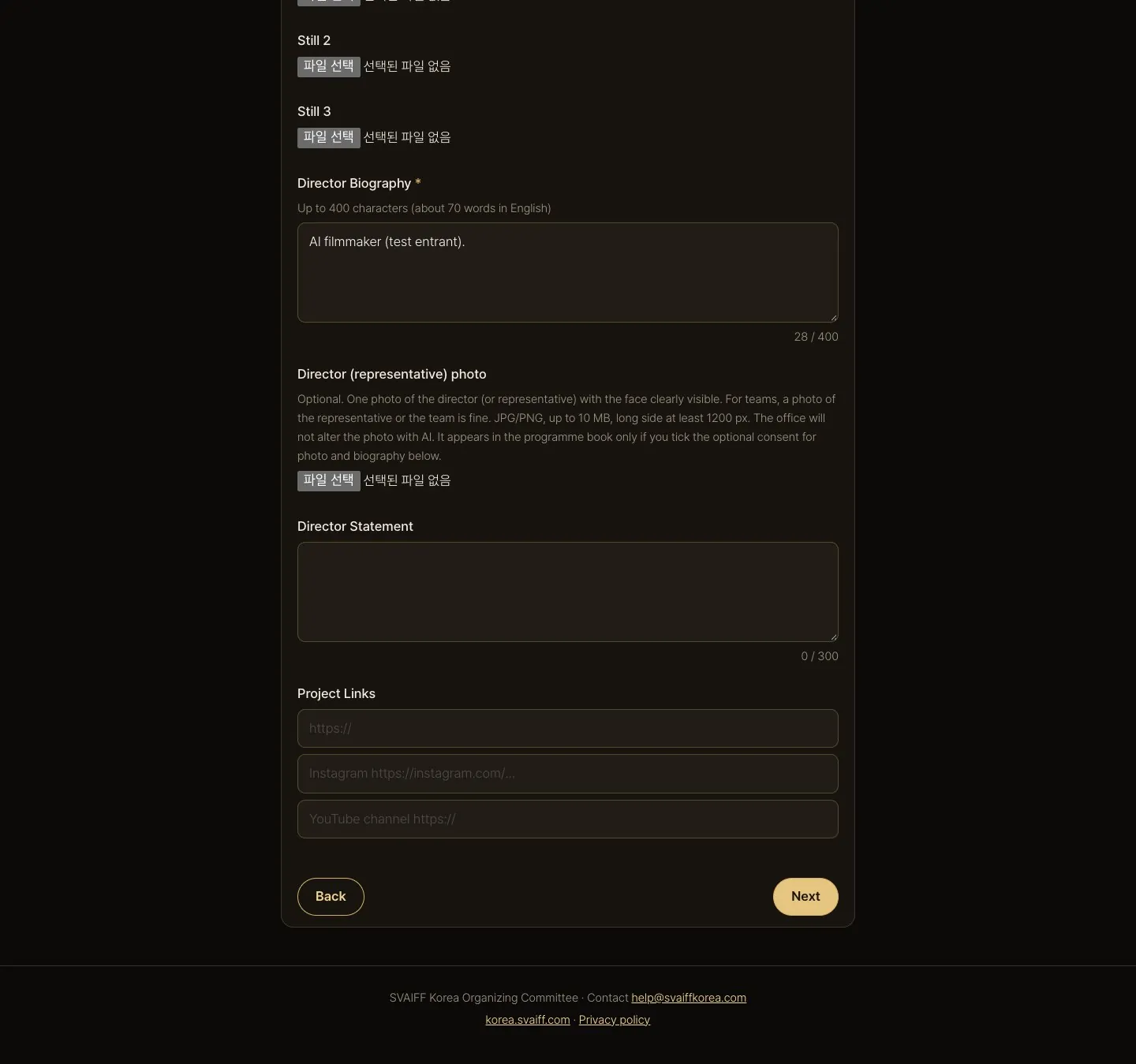
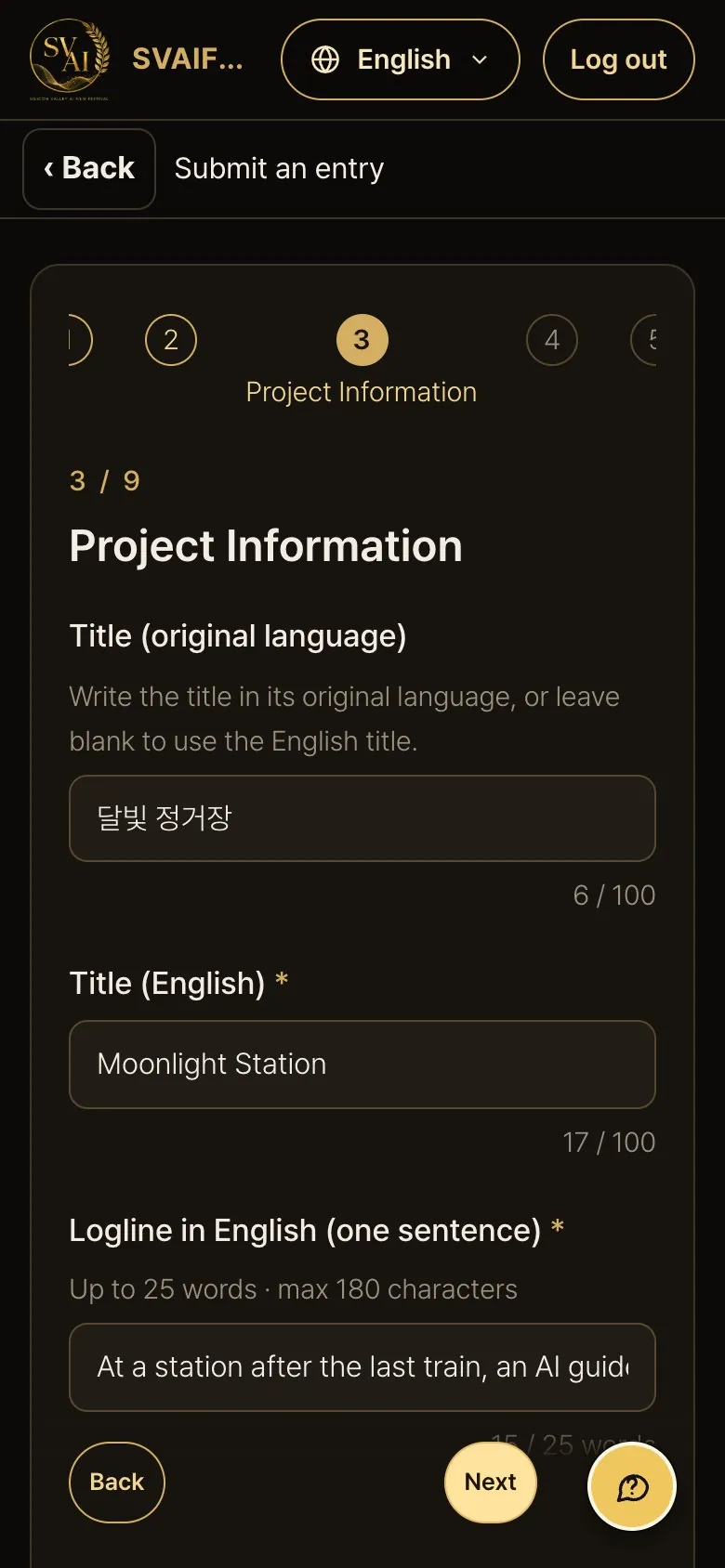
- Enter title, English logline, synopsis, completion month, country, language and production method. Character/word counts appear under each field.
- Choose a file under Poster or key image: it uploads at once and shows a preview and ✔ file name.
- Stills 1–3 and the director photo are optional; they are used in the programme book and press materials if your work is selected or wins.
- Genre, aspect ratio, director's statement and links are optional.
Step 4 · Credits
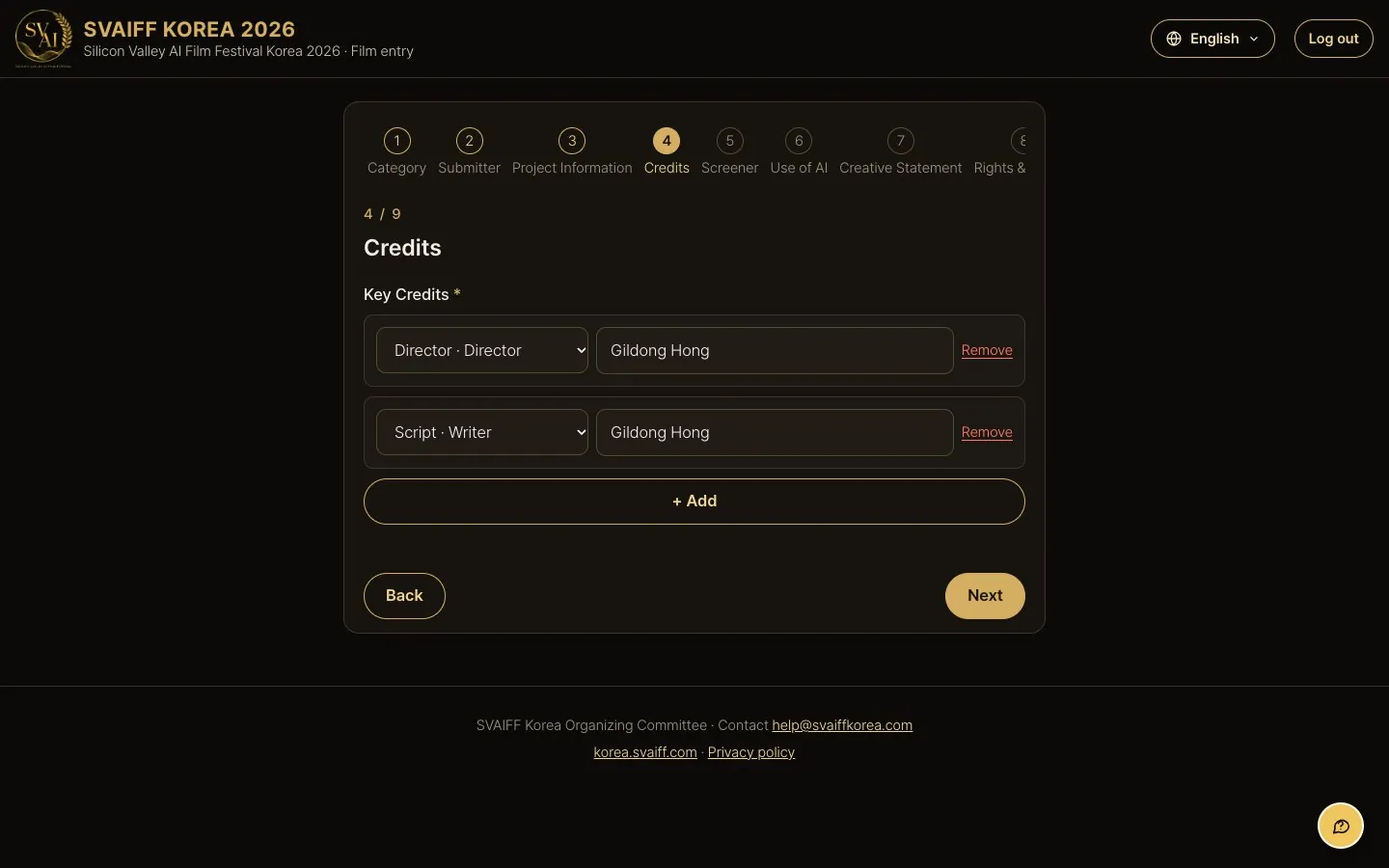
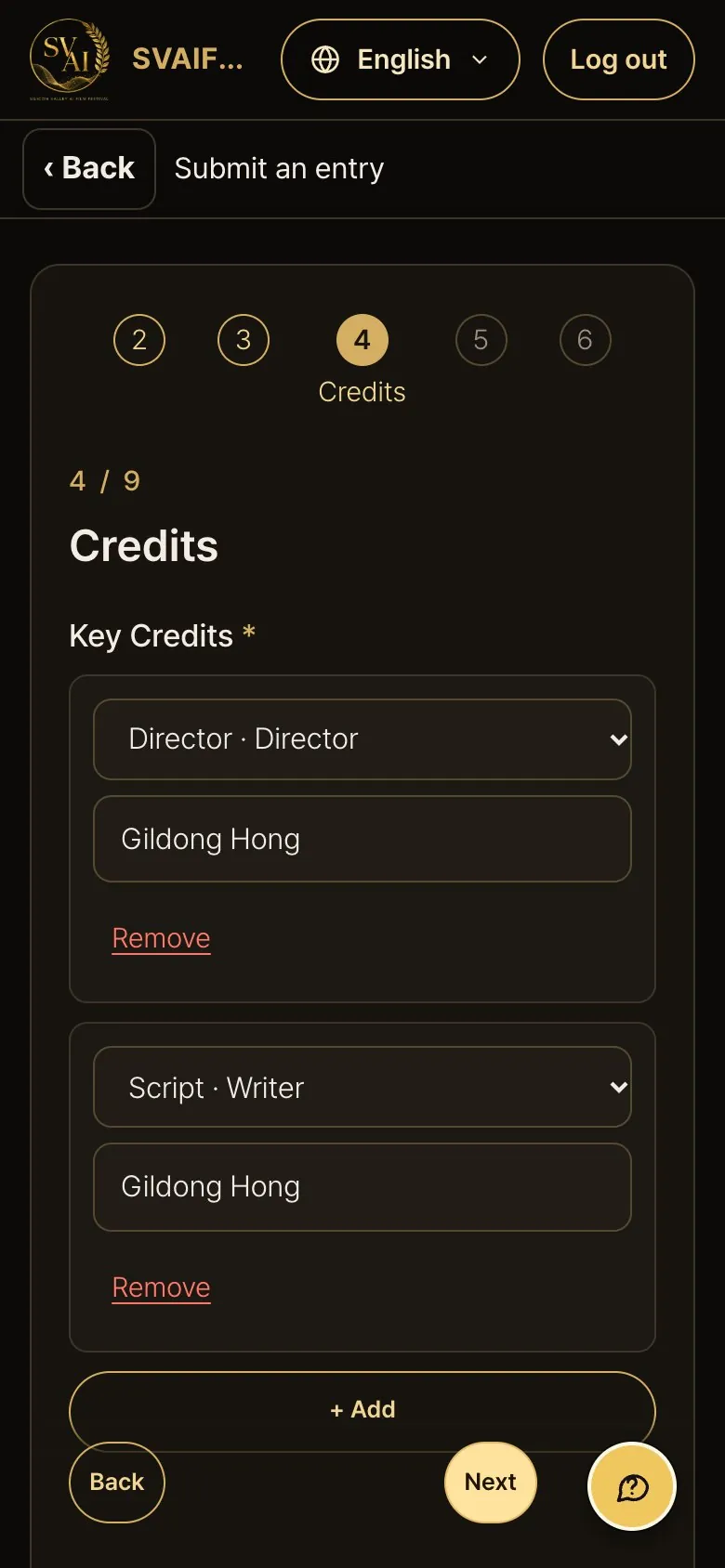
- Choose a role and type the name. Add rows with + Add; remove a wrong row with Remove.
Step 5 · Screener (MP4 upload)
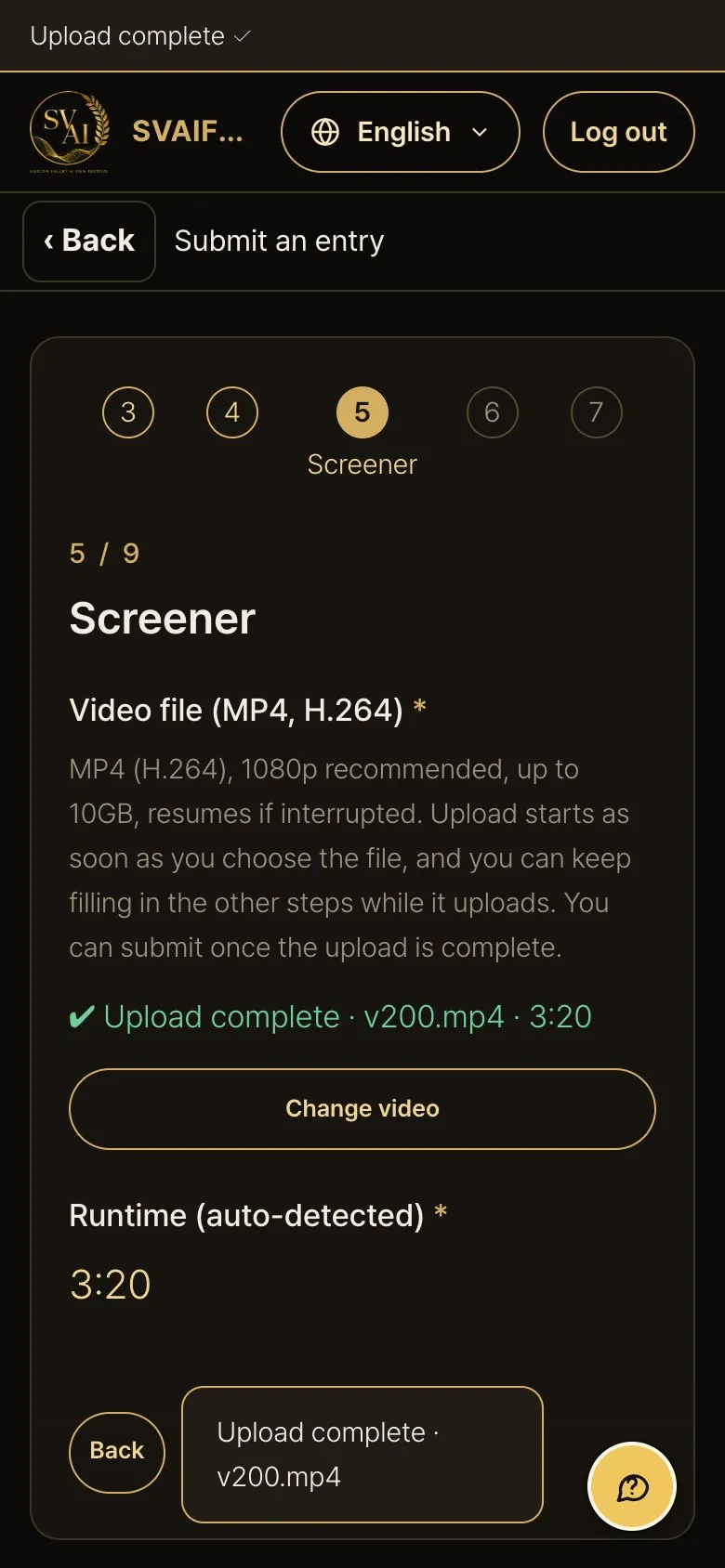
- Press Choose MP4 file and select your video. Uploading starts immediately.
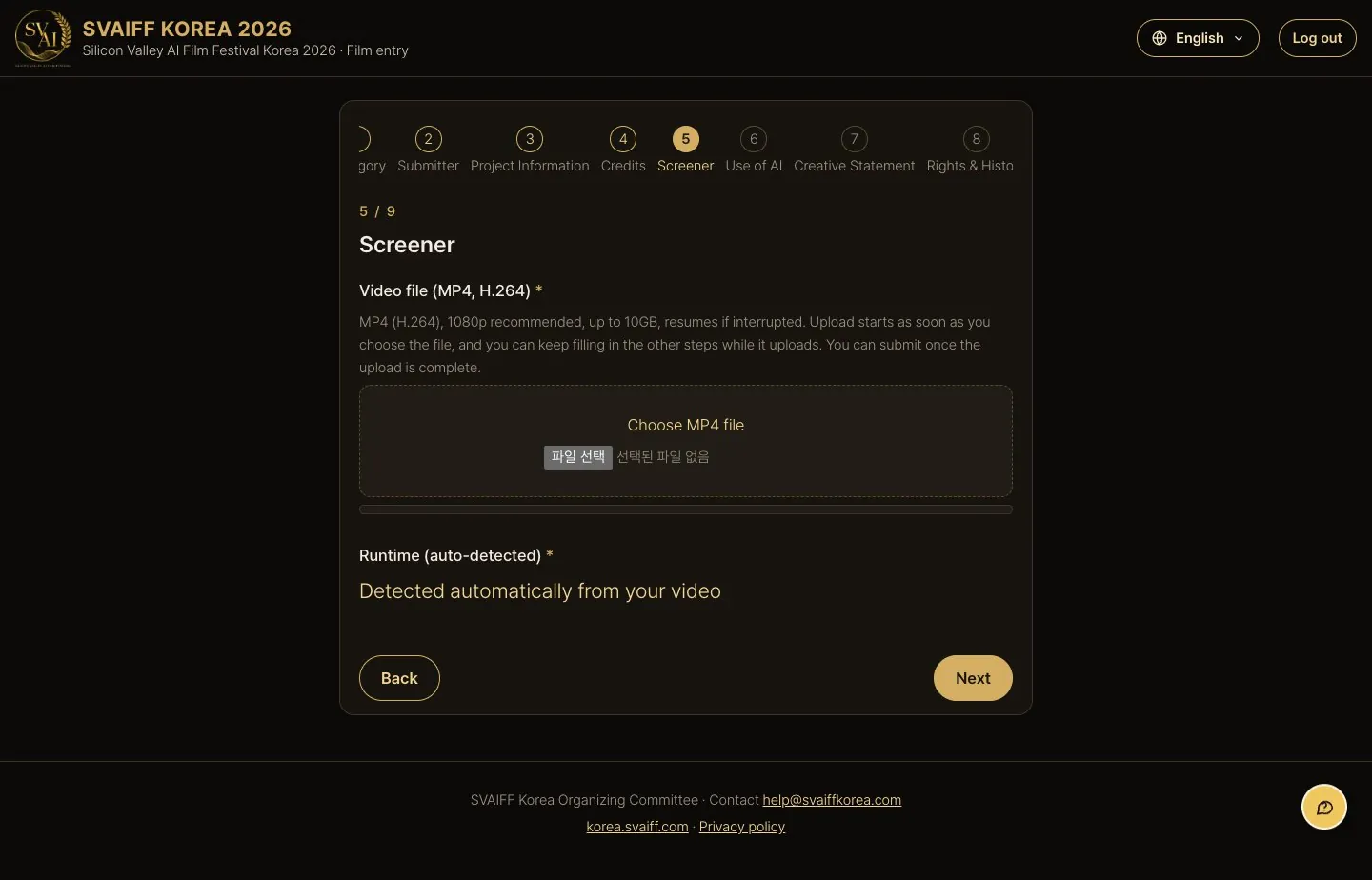
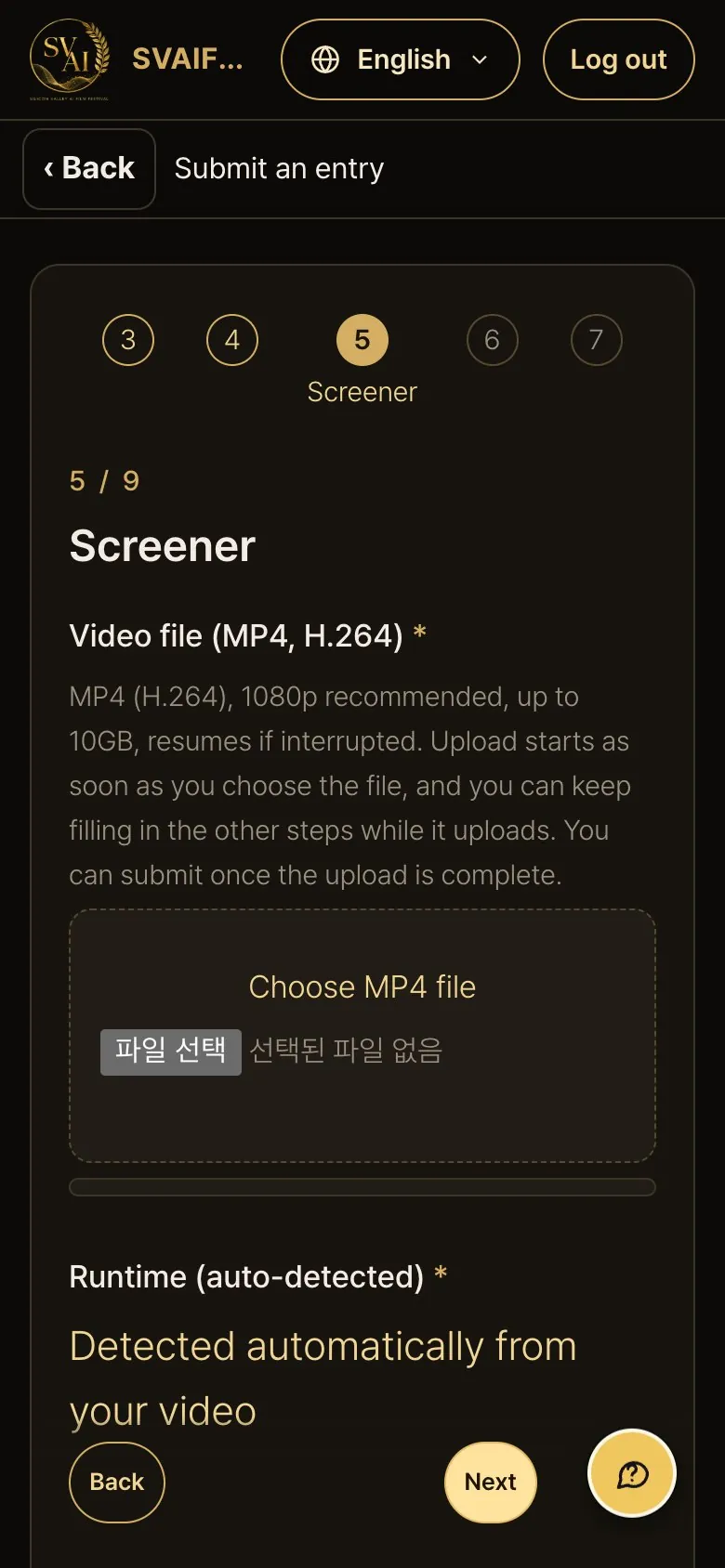
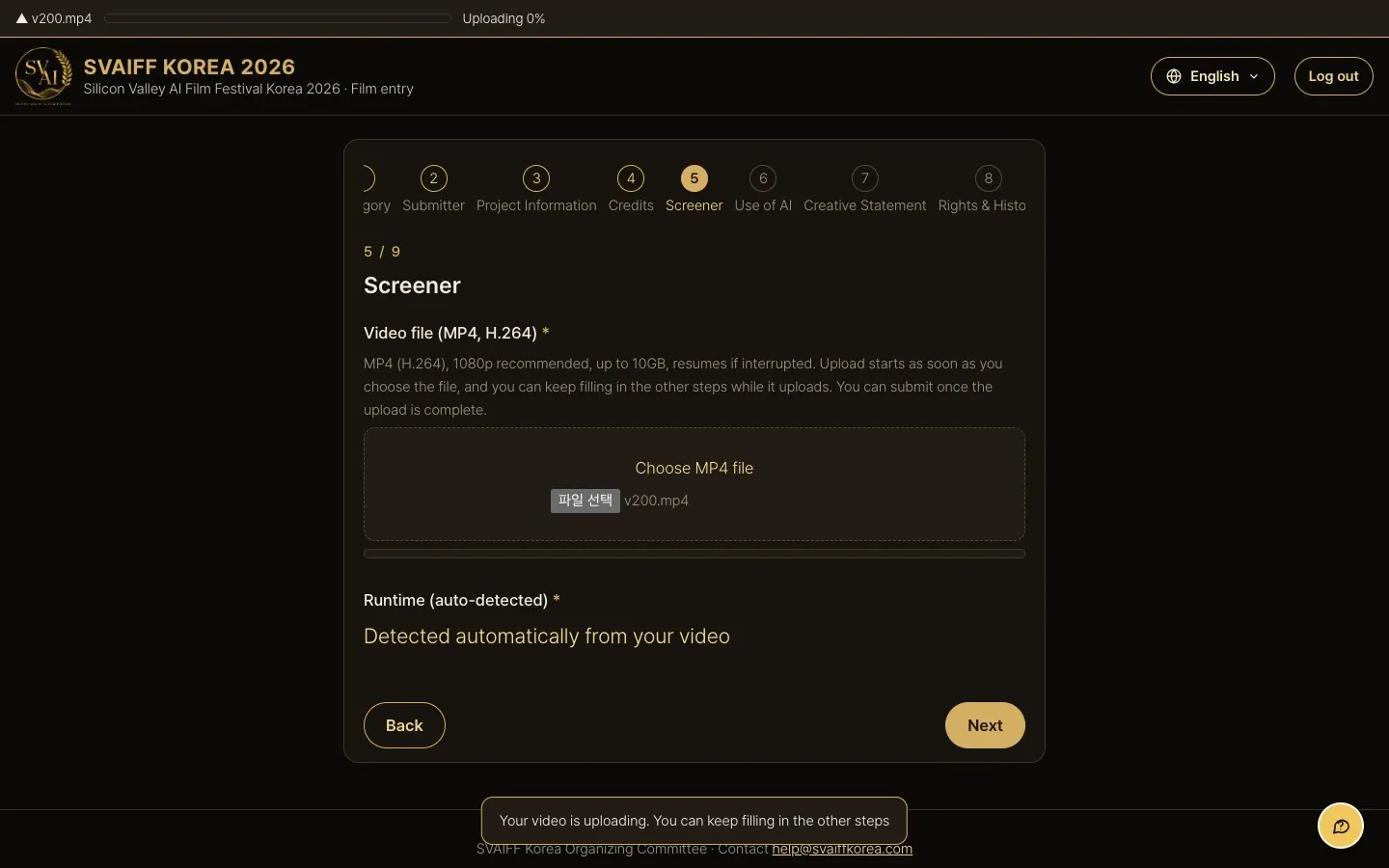
While the video uploads
- The bar at the very top shows the file name and upload %.
- You can keep filling in other steps while it uploads. Just don't close the window.
- If the connection drops or the window closes, choose the same file again: it resumes from what was already uploaded.
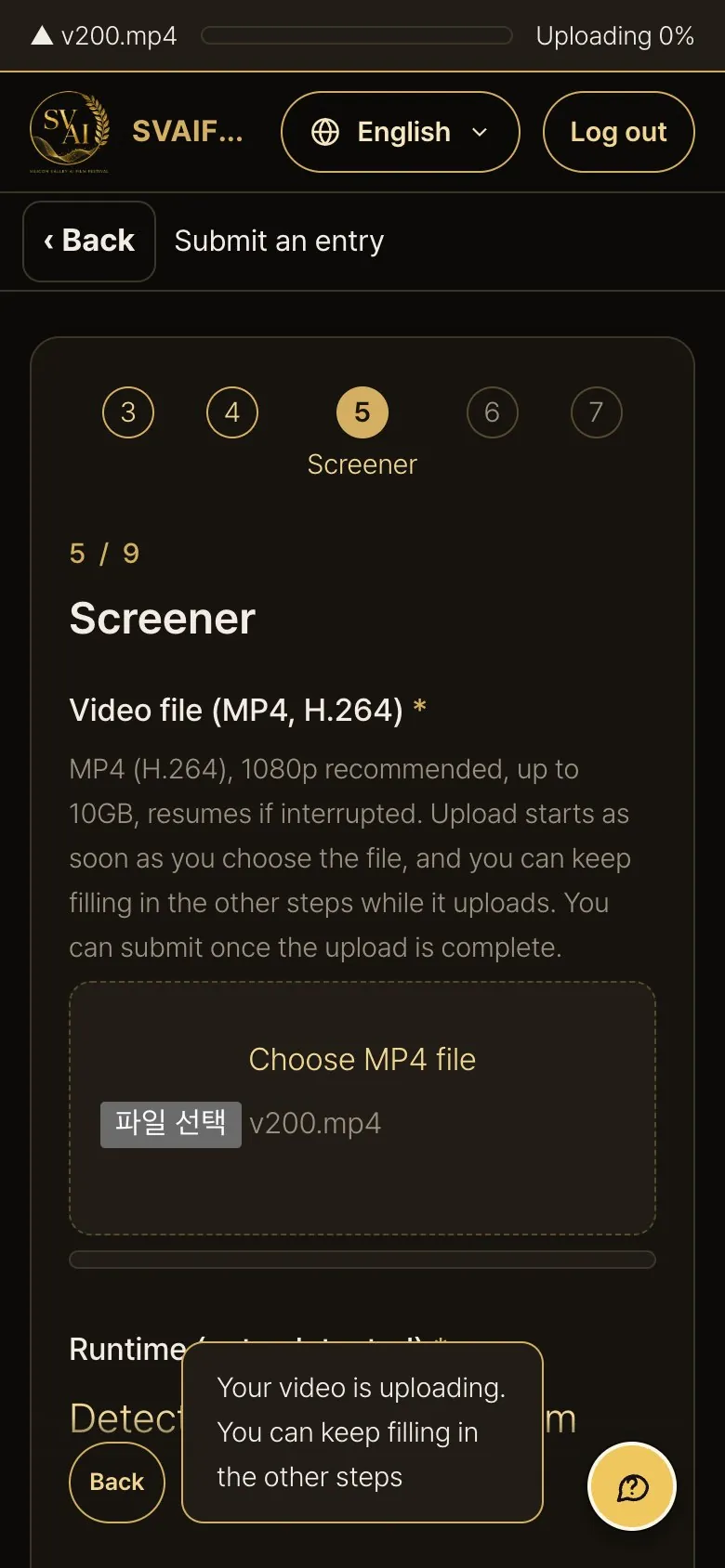
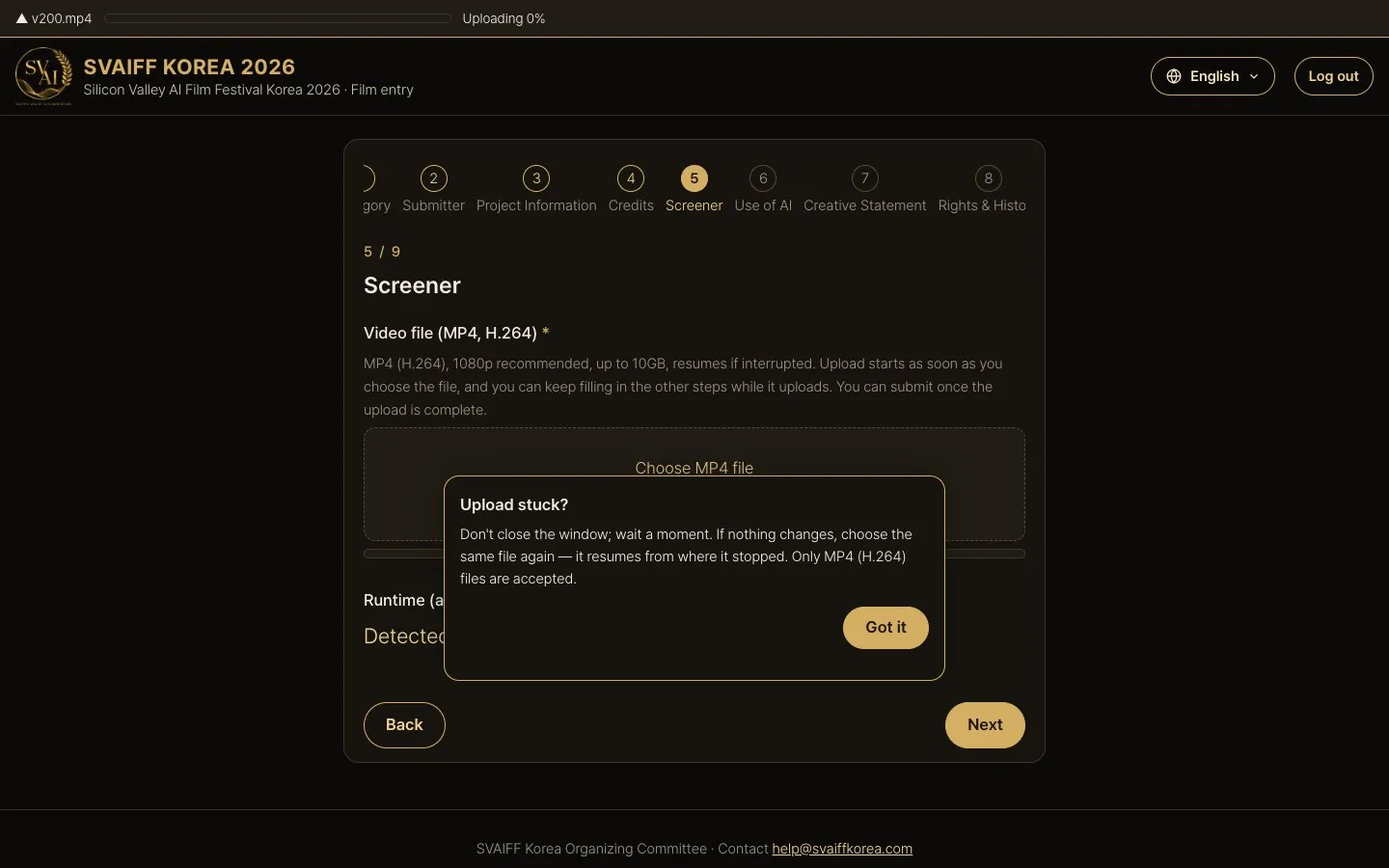
If the upload stops
- If the upload stays at 0% for over 30 seconds or is cut off, a note “Upload stuck?” appears. Choose the same file again to resume.
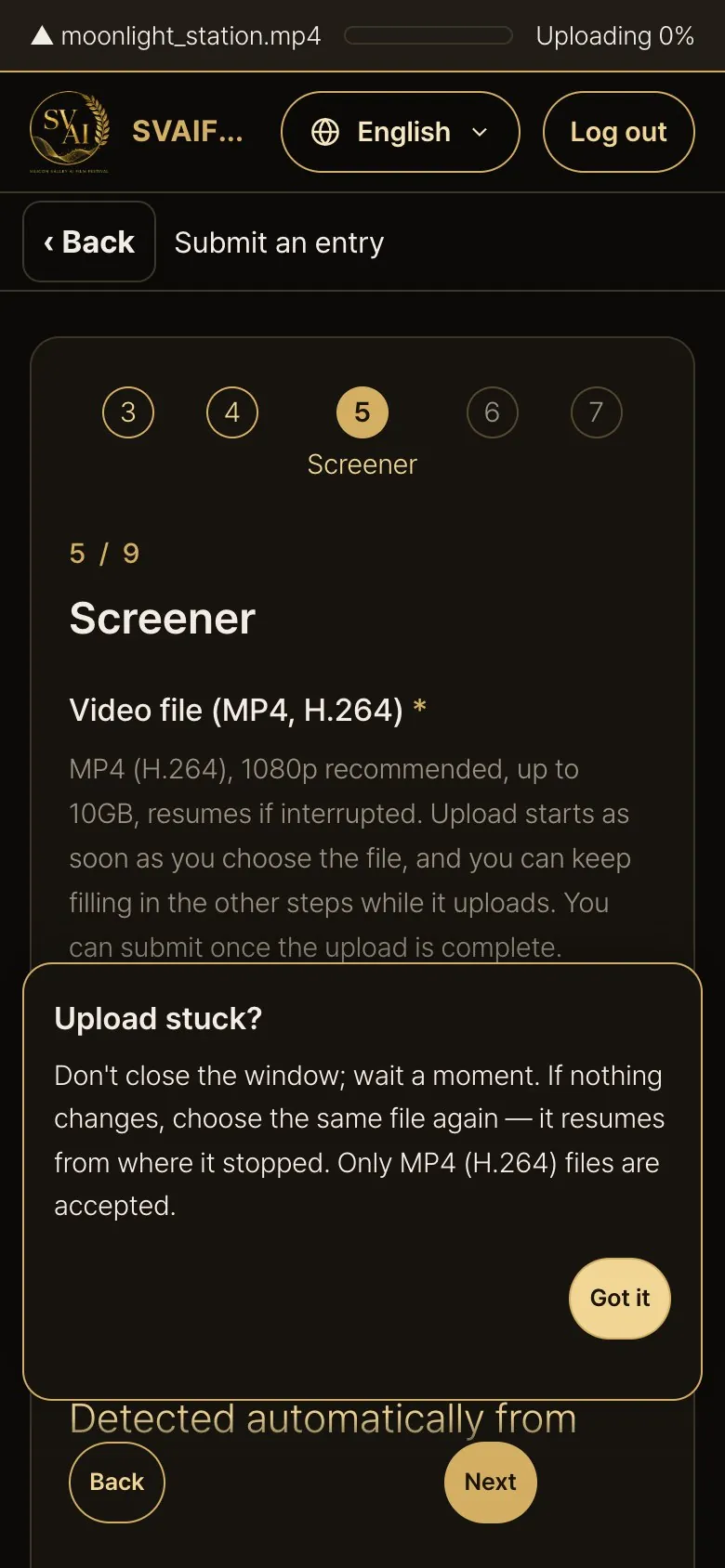
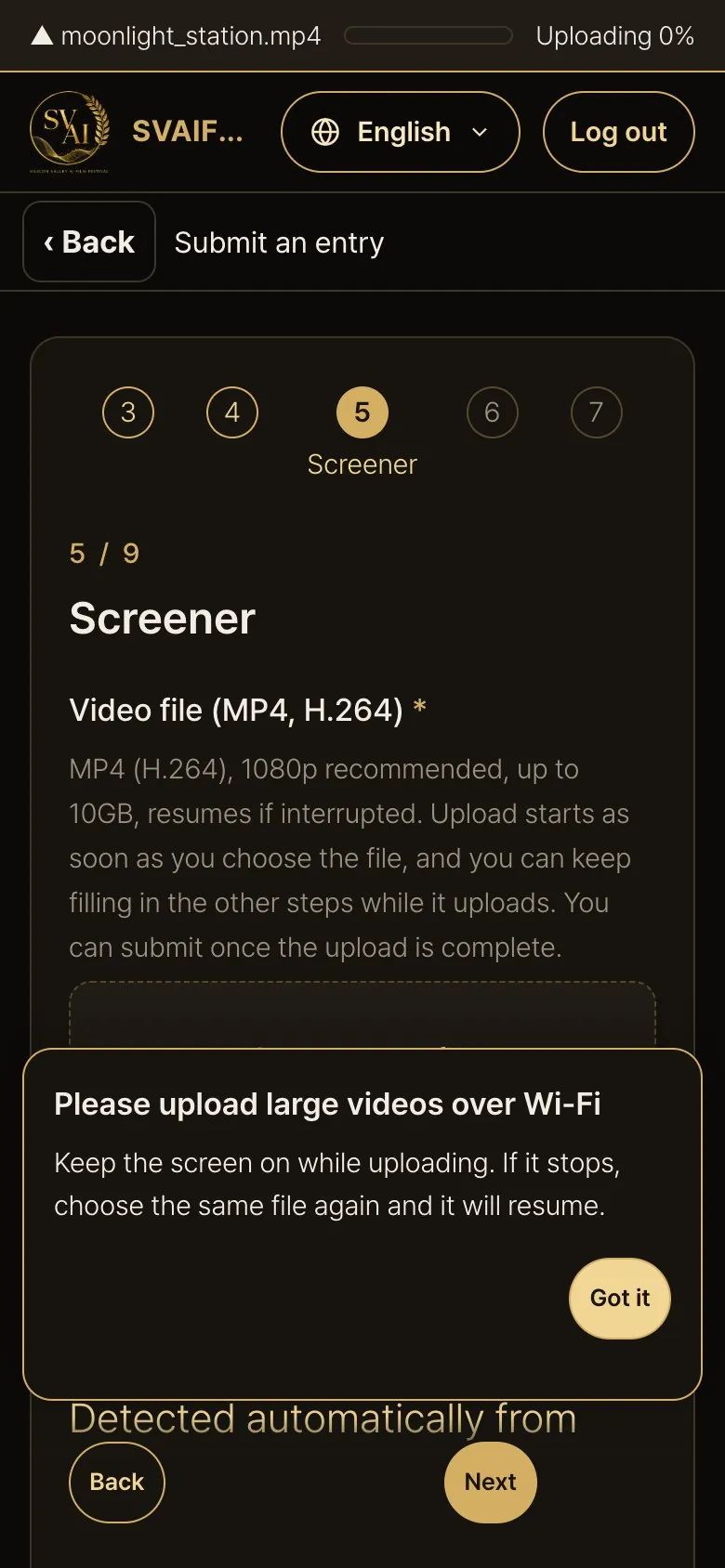
Choosing a large video on a phone
- If you choose a video over 1 GB on a phone, a note “Please upload large videos over Wi-Fi” appears. Keep the screen on while uploading.
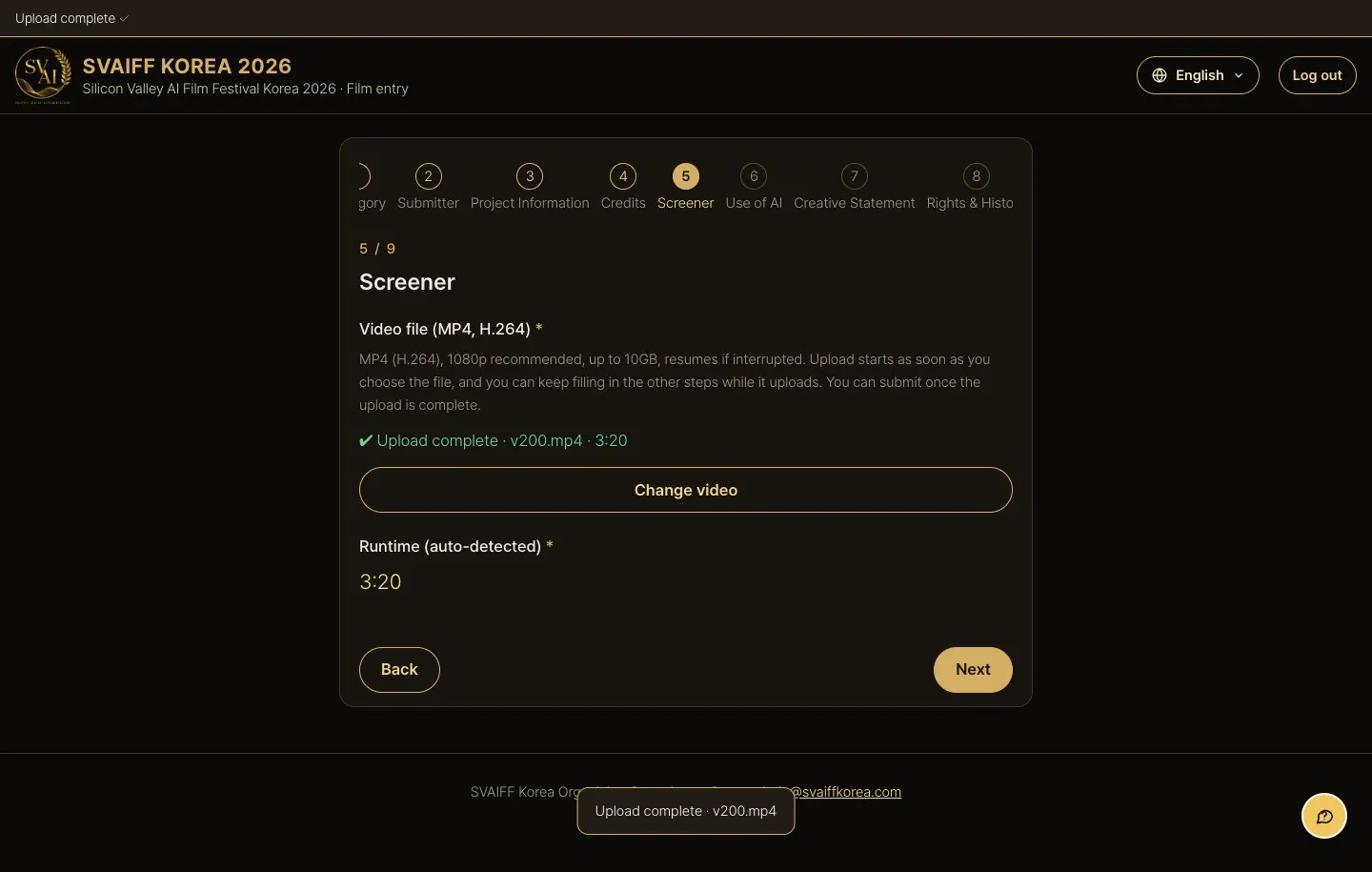
When the upload is complete
- You see ✔ Upload complete · file name · length. The running time is read from the file by the server (you don't type it).
- To use a different file, press Change video.
- If you're told the length could not be read, re-export the video as MP4 (H.264) and upload again.
Step 6 · Use of AI
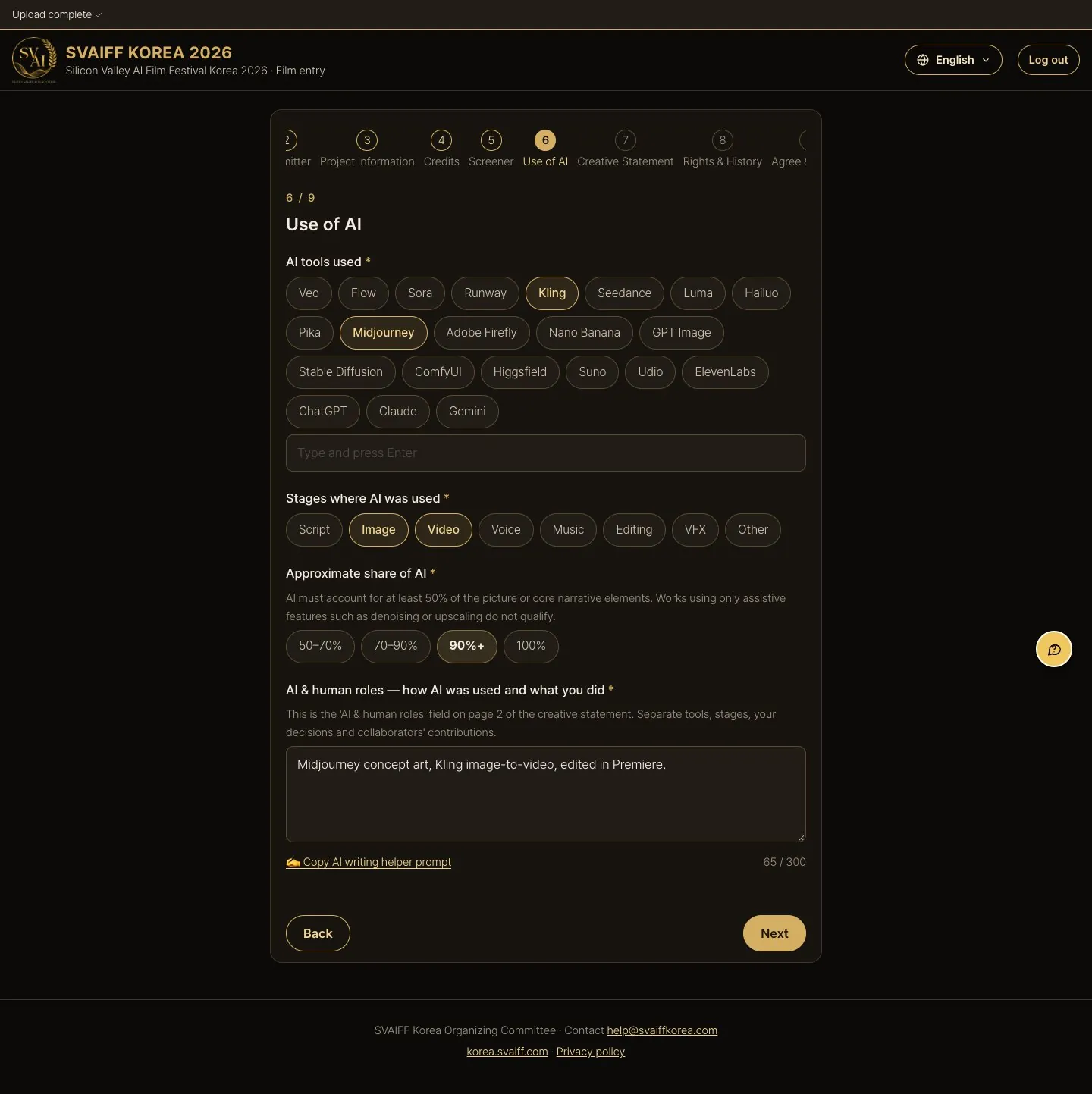
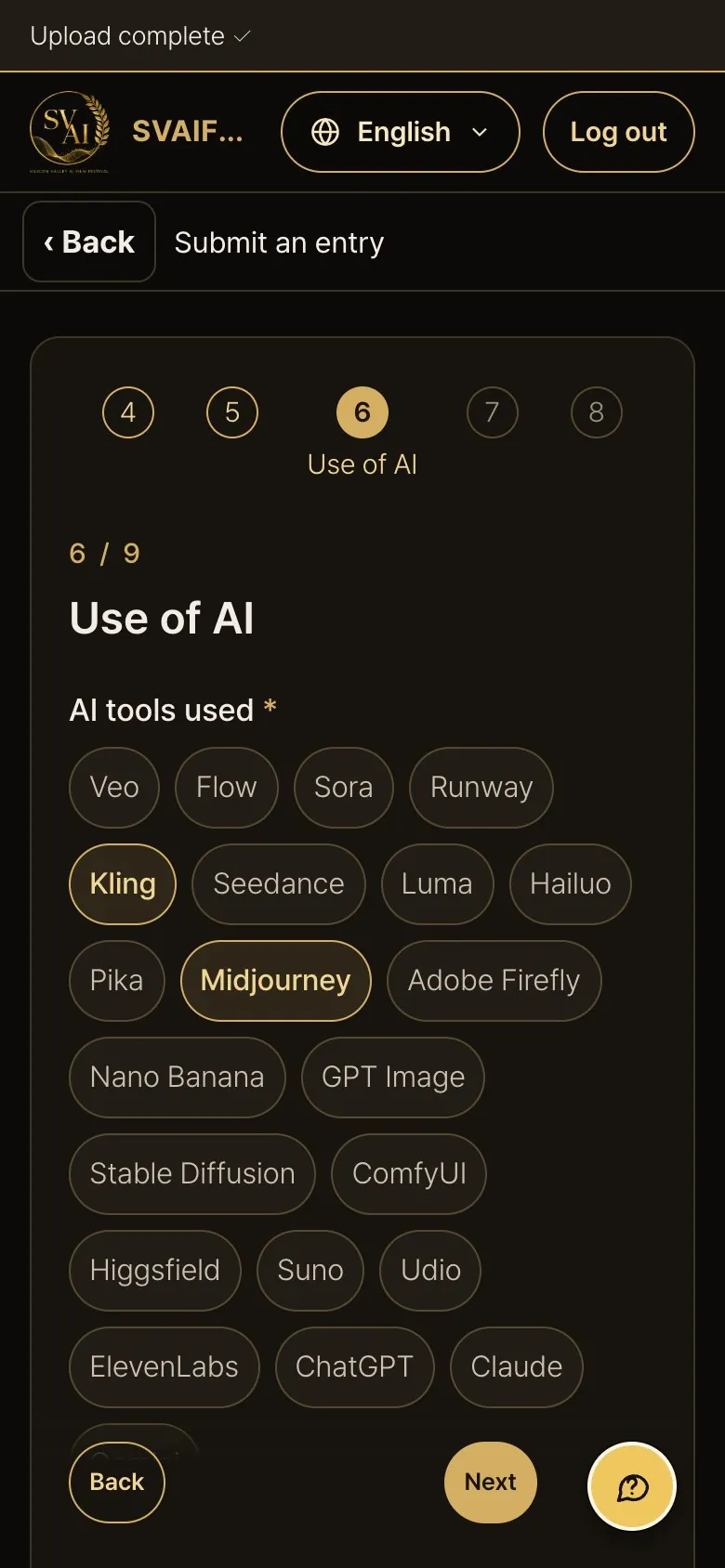
- Press all AI tools you used (type any that aren't listed), then choose the stages and approximate share.
- In the AI / human roles field, describe what each AI tool did and what decisions and work you did yourself.
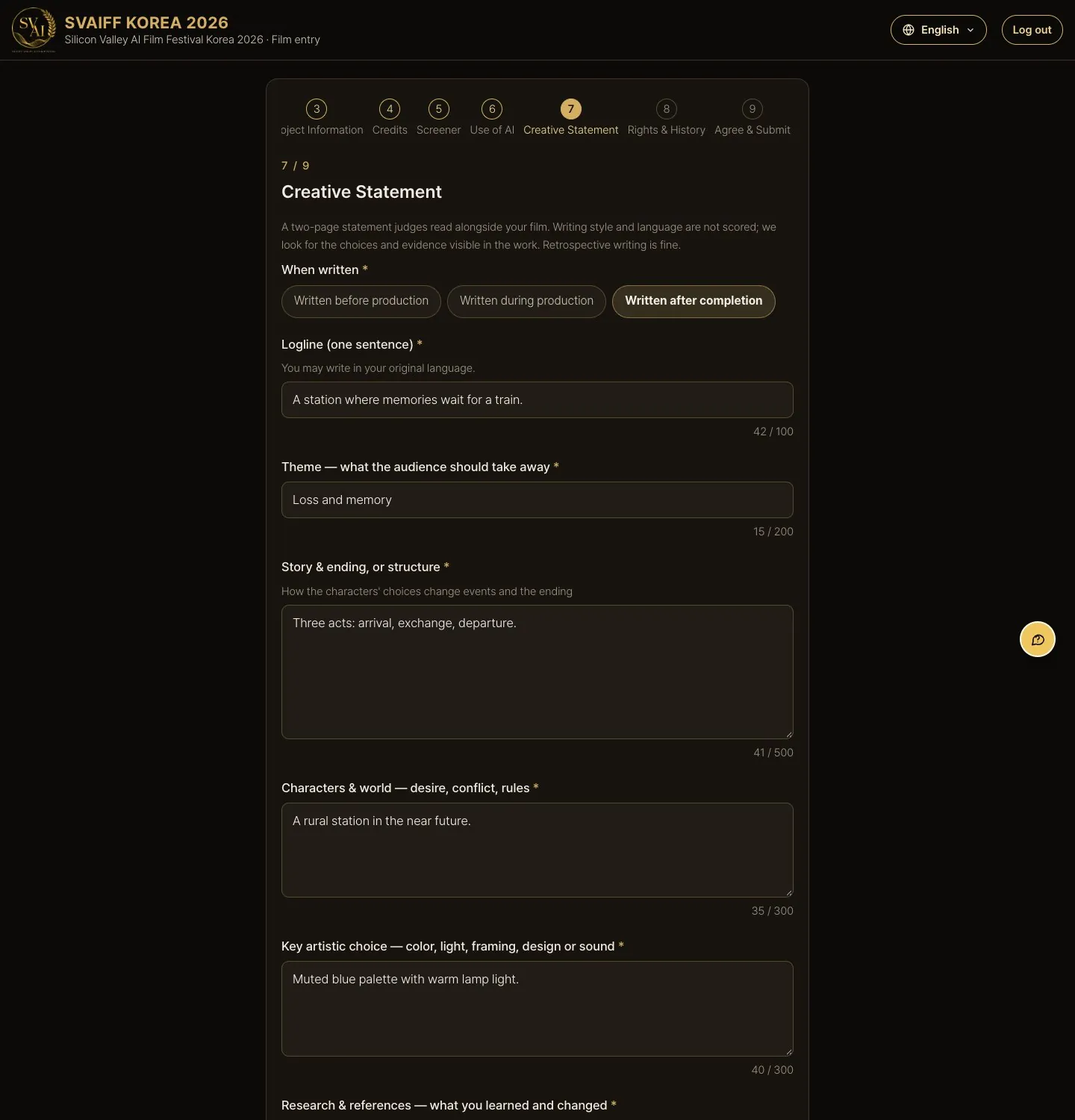
Step 7 · Creative statement
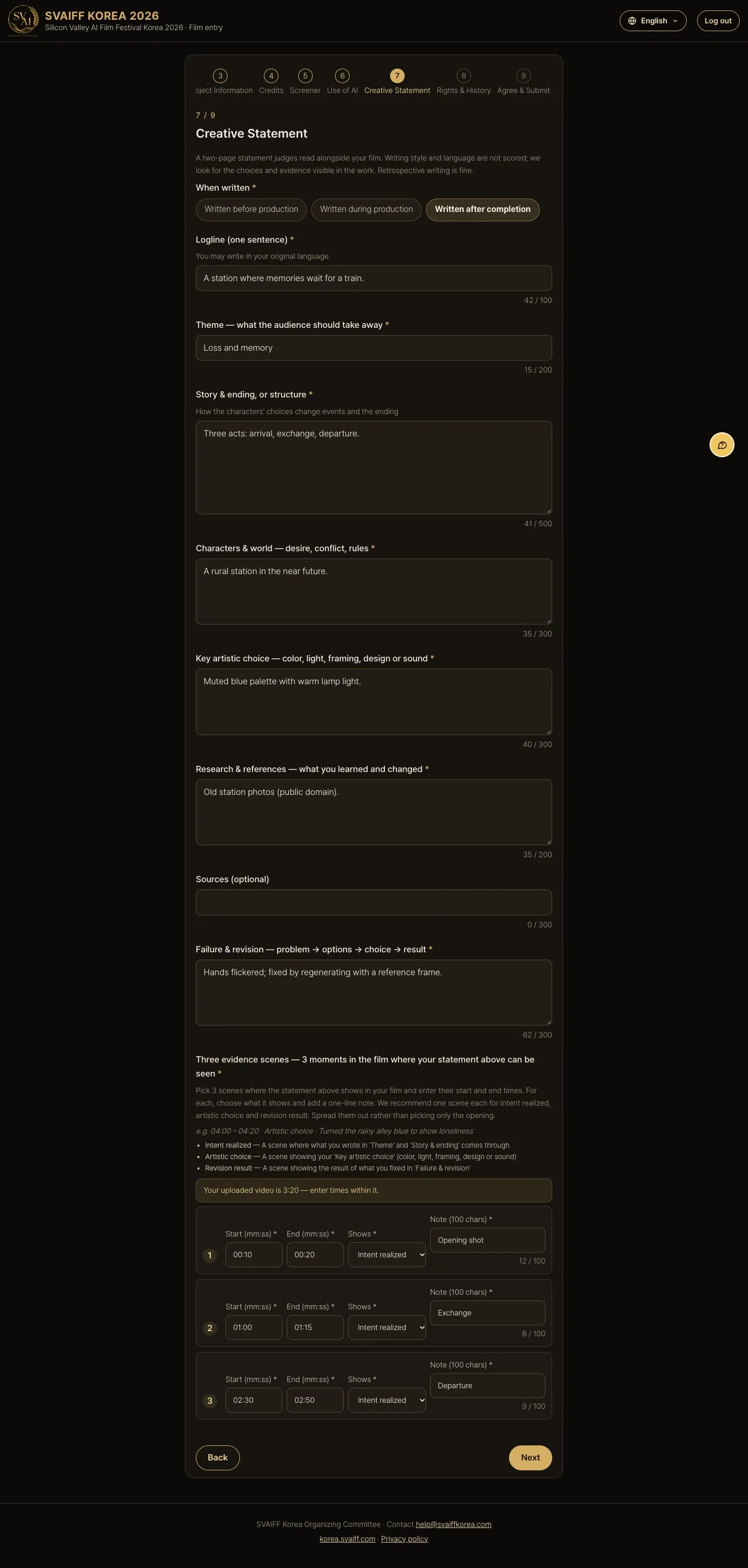
- Judges read this together with the film. Writing skill, design and foreign-language ability are not scored.
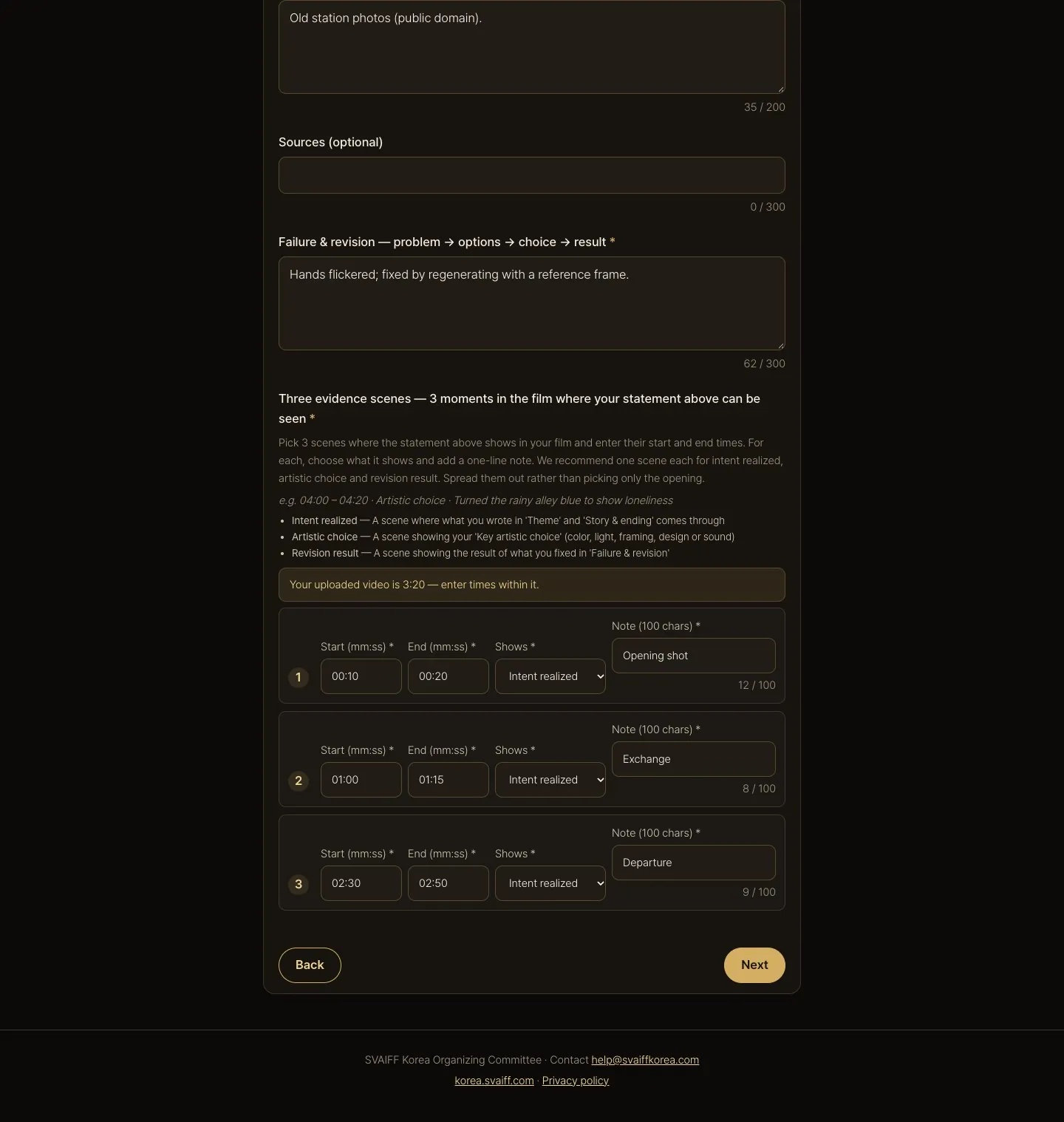
- Choose when it was written, then fill in logline, theme, structure, characters and world, artistic choices, research, and failures and fixes.
- 3 evidence scenes: start/end times (e.g. 01:00–01:15) of scenes that actually show what you described — spread across the beginning, middle and end.
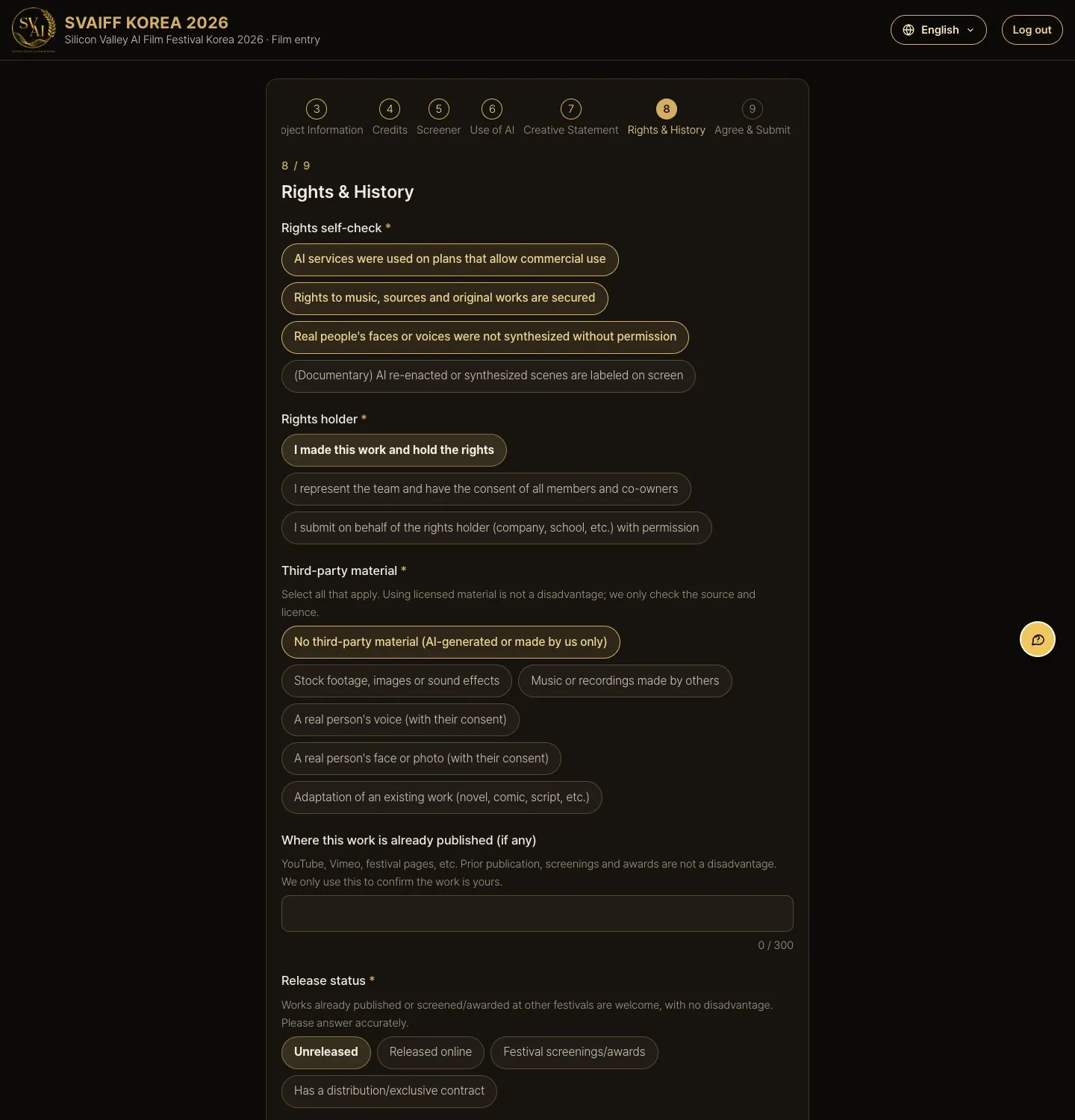
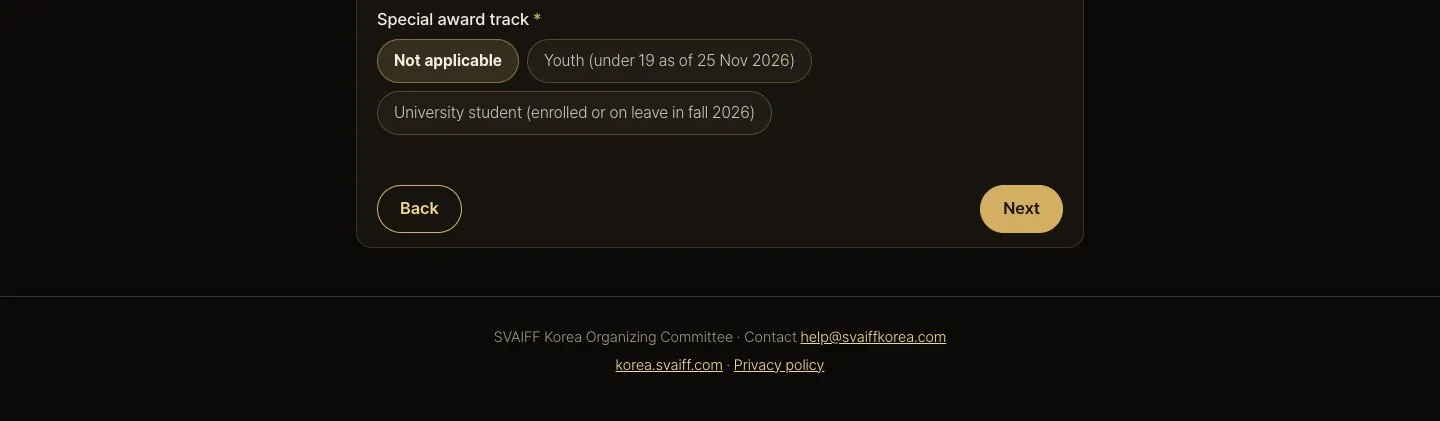
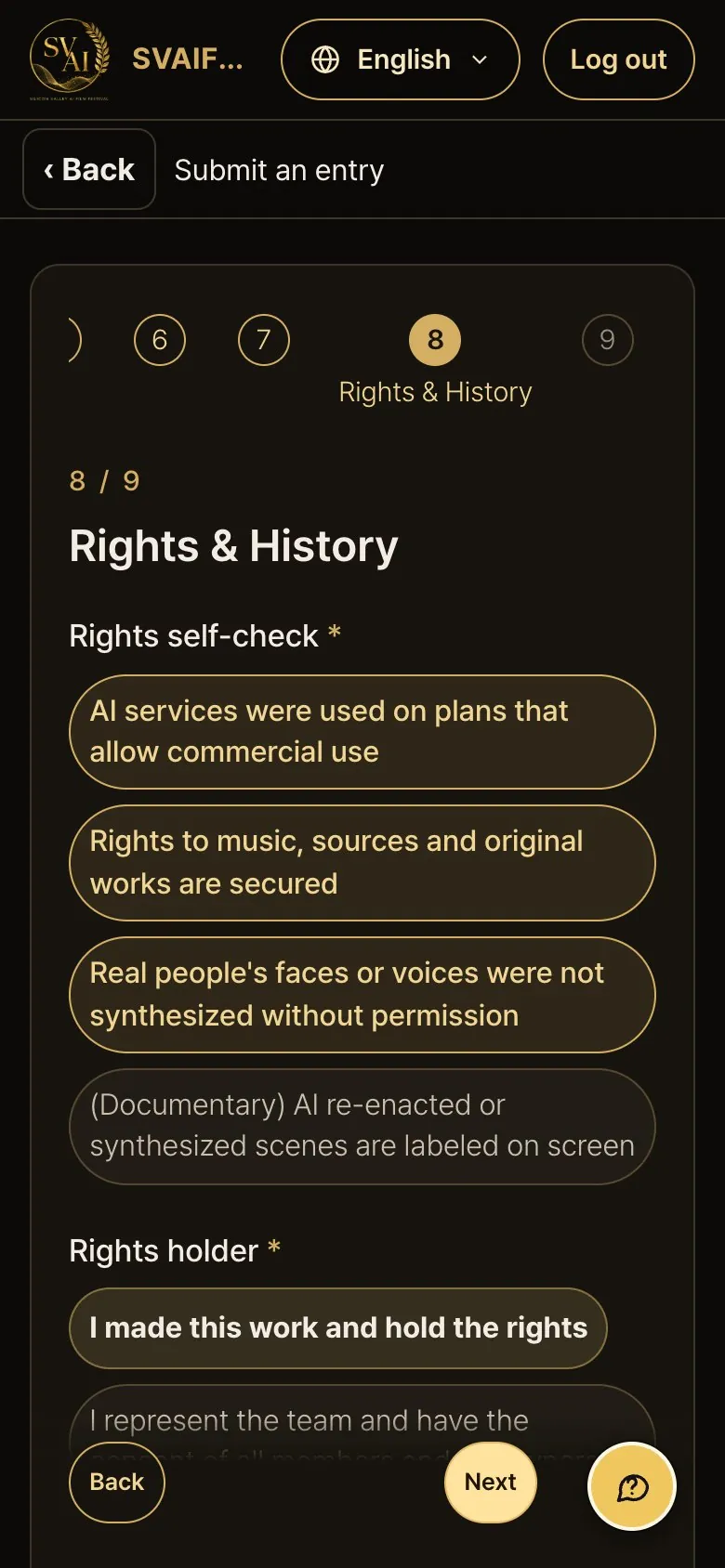
Step 8 · Rights & history
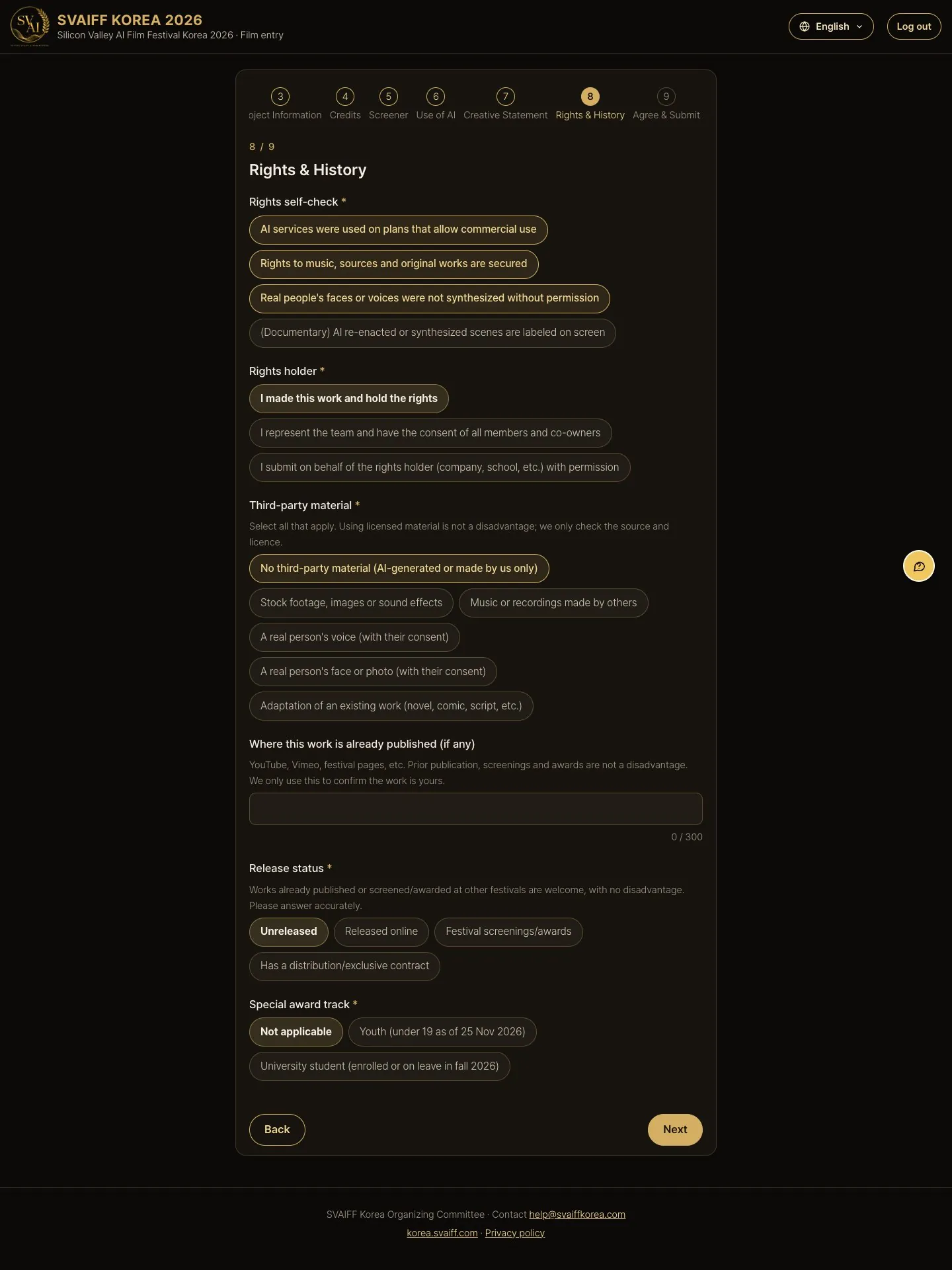
- Press every rights self-check item that applies.
- Answer rights holder, third-party material (source and license if used) and release/contract status truthfully. Works already released, screened or awarded are not penalized.
- The guardian consent link was already sent in step 1. The signed consent file in this step is optional.
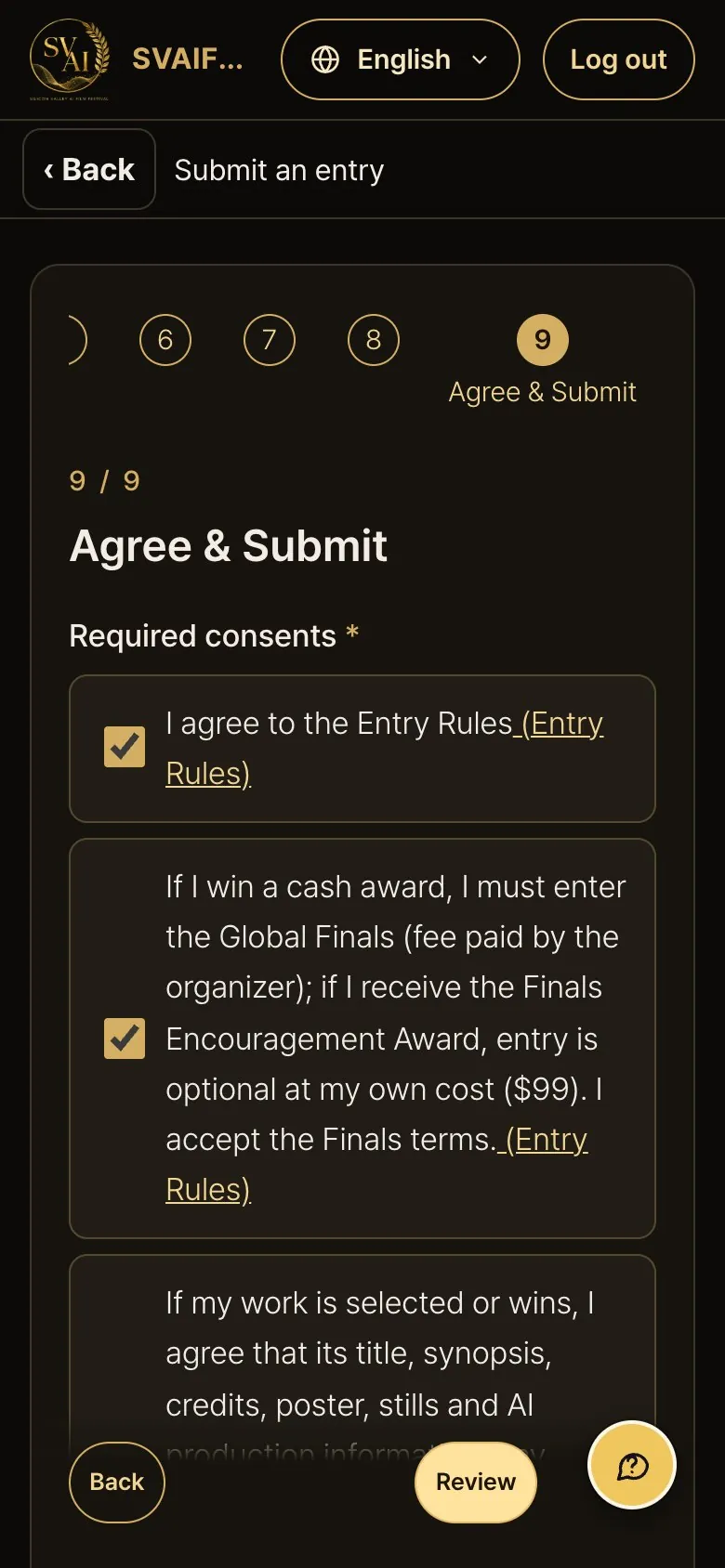
Step 9 · Agree & submit
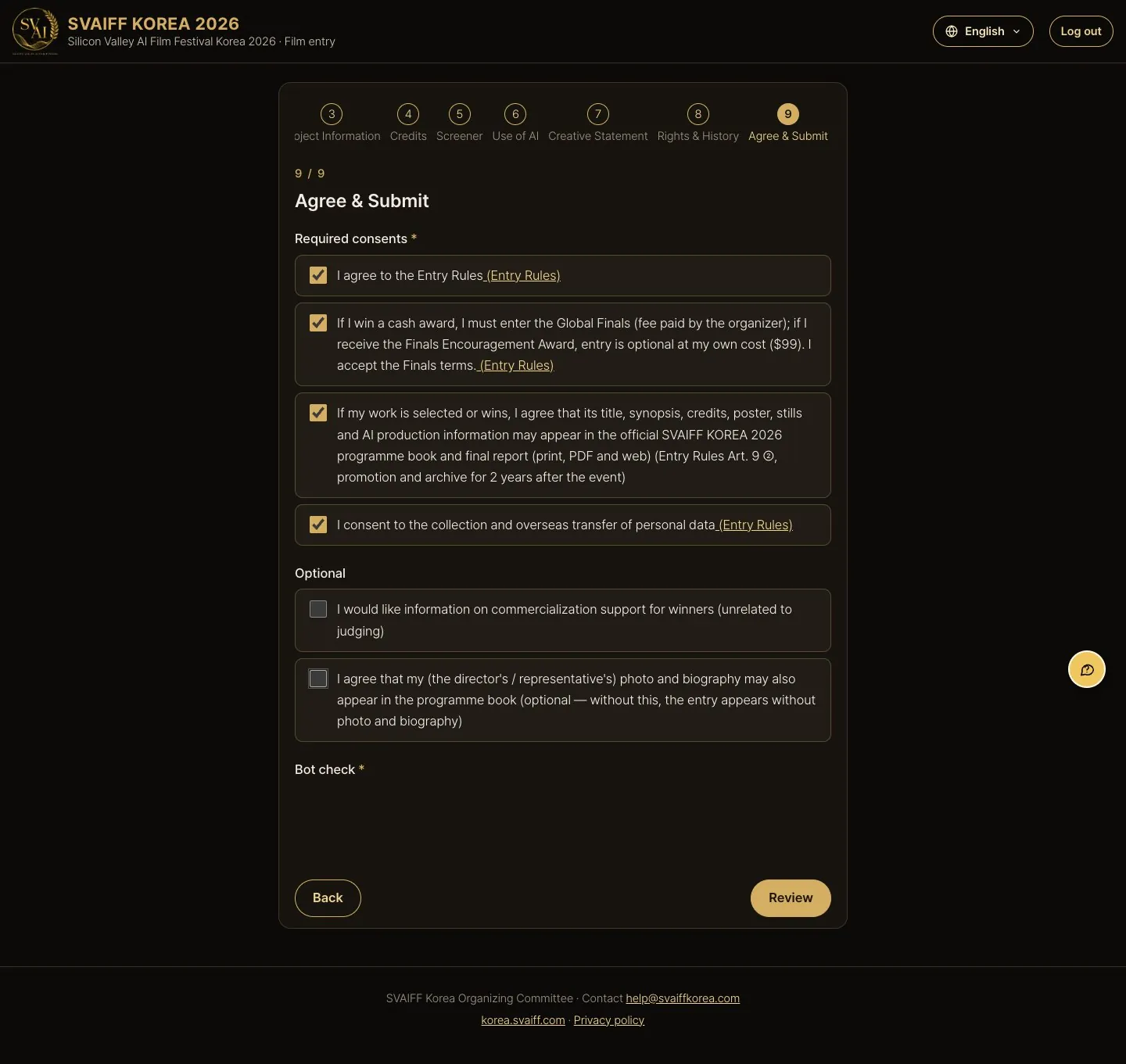
- Read and tick the 4 required consents (Entry Rules · Global Finals terms · programme book listing if selected or awarded · privacy). The “Entry Rules” links open the original text.
- Optional consents (business support information, director photo and bio in the programme book) may be left unticked.
- Tick the “Verify you are human” box, then press Review.
5. Review → Entry received (field by field)
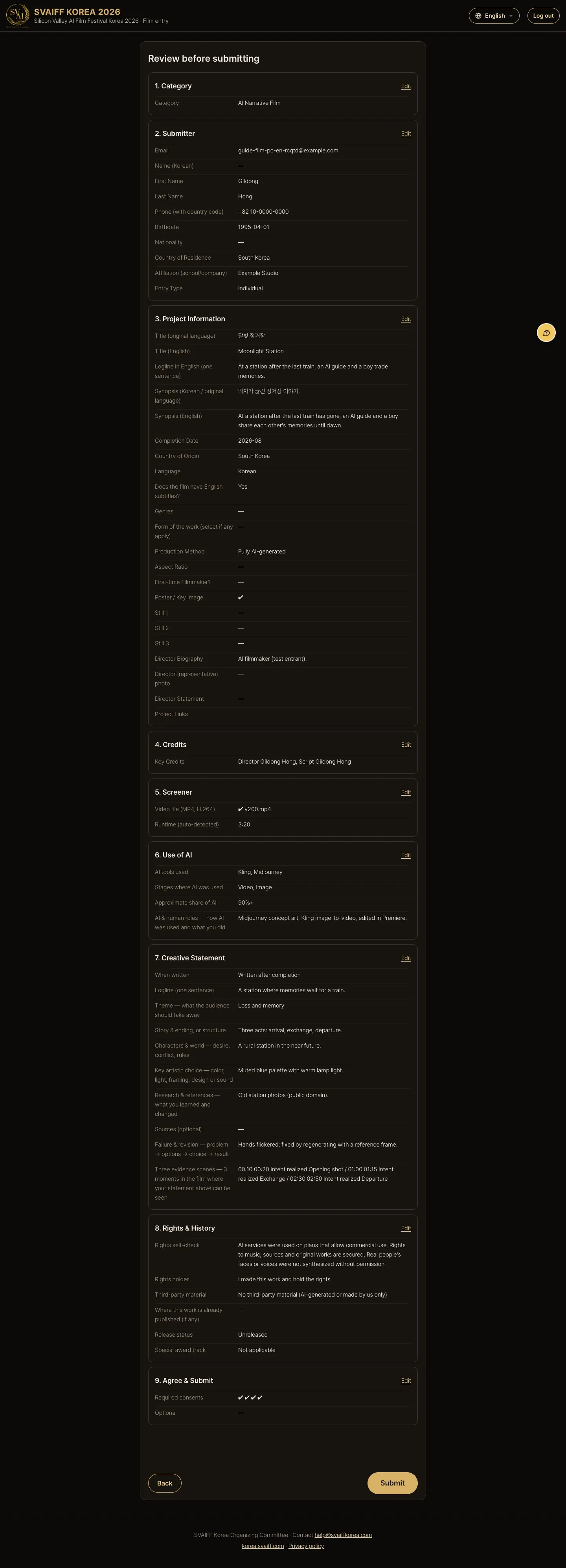
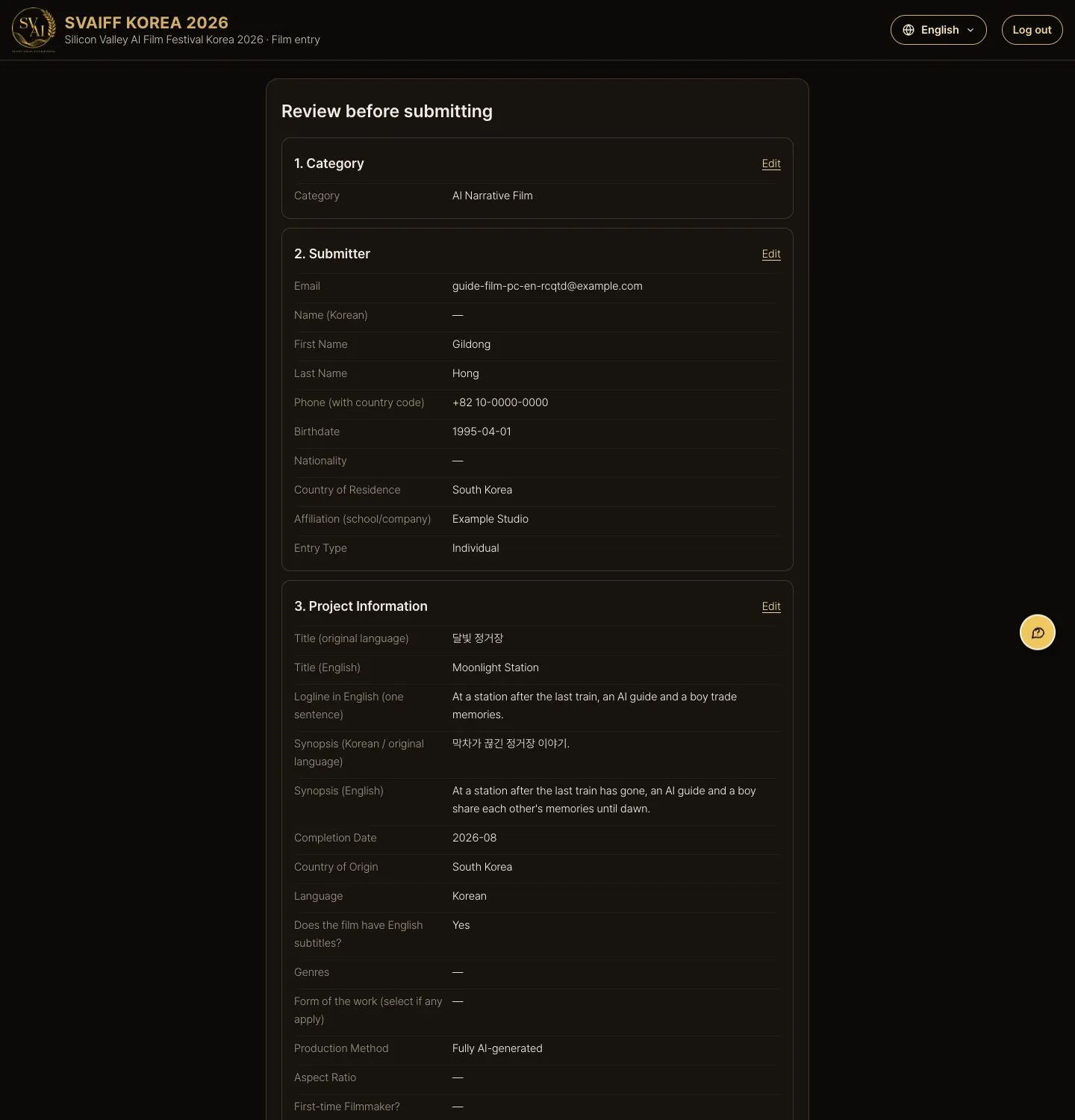
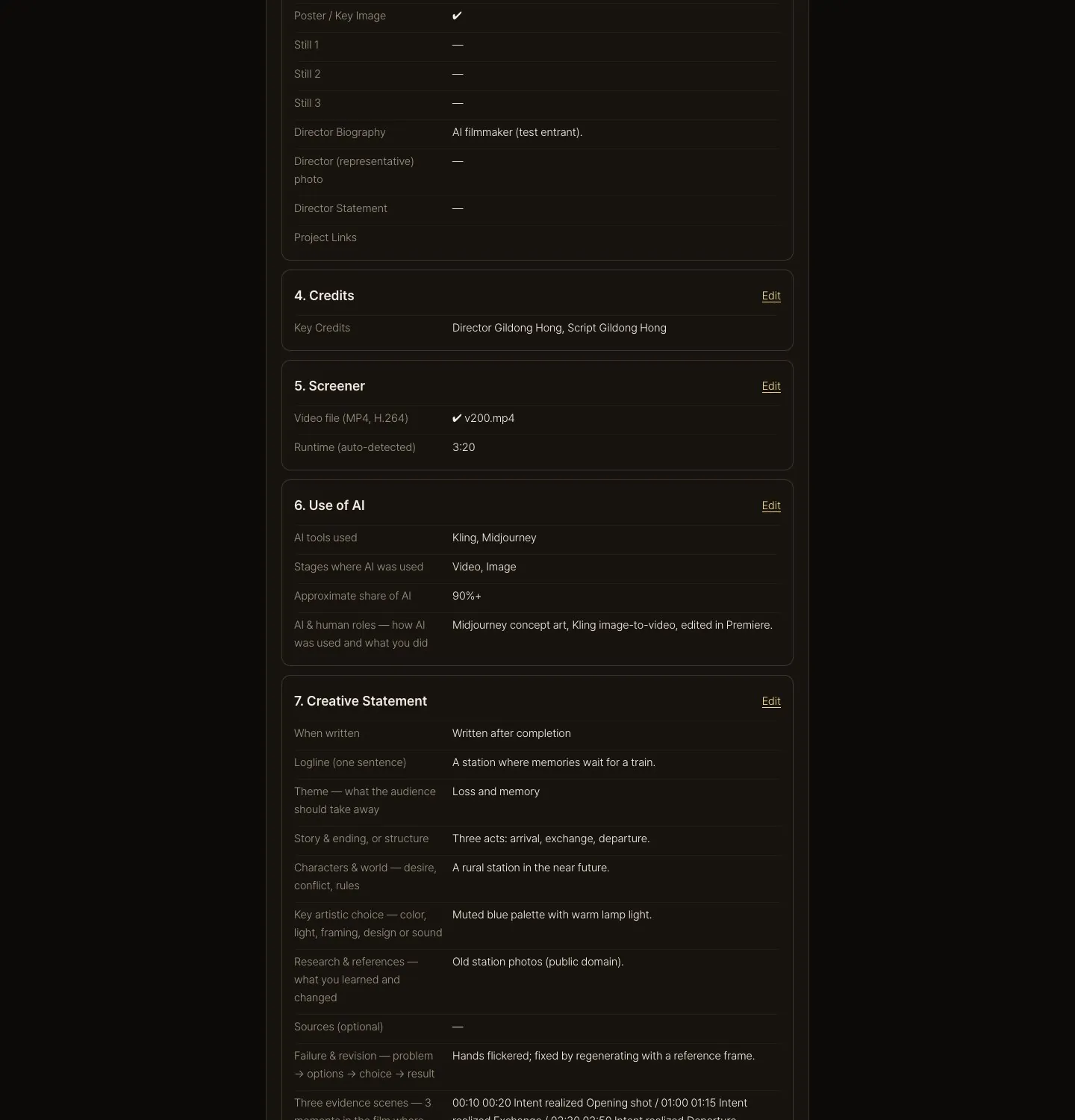
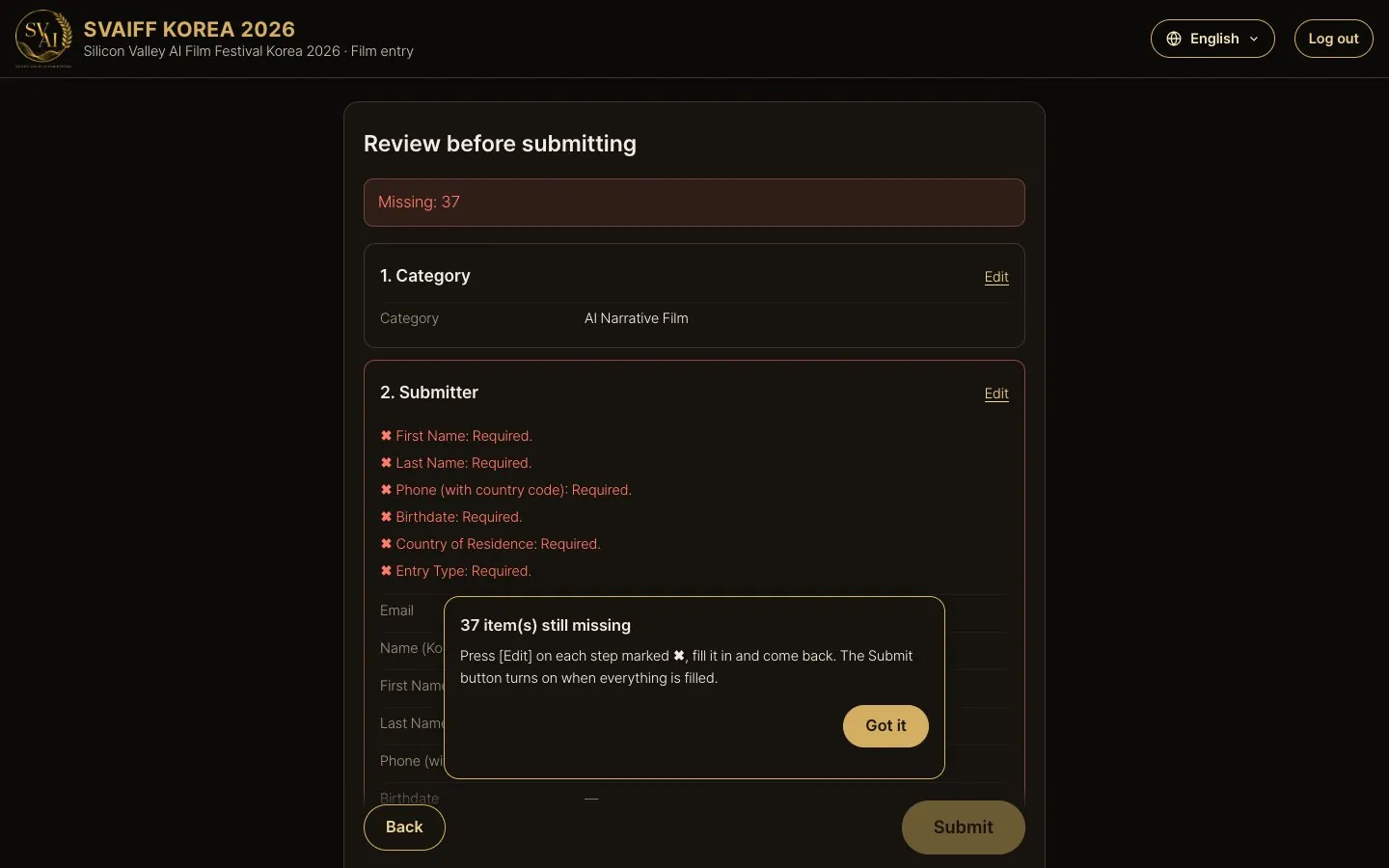
5-1. Review before submitting
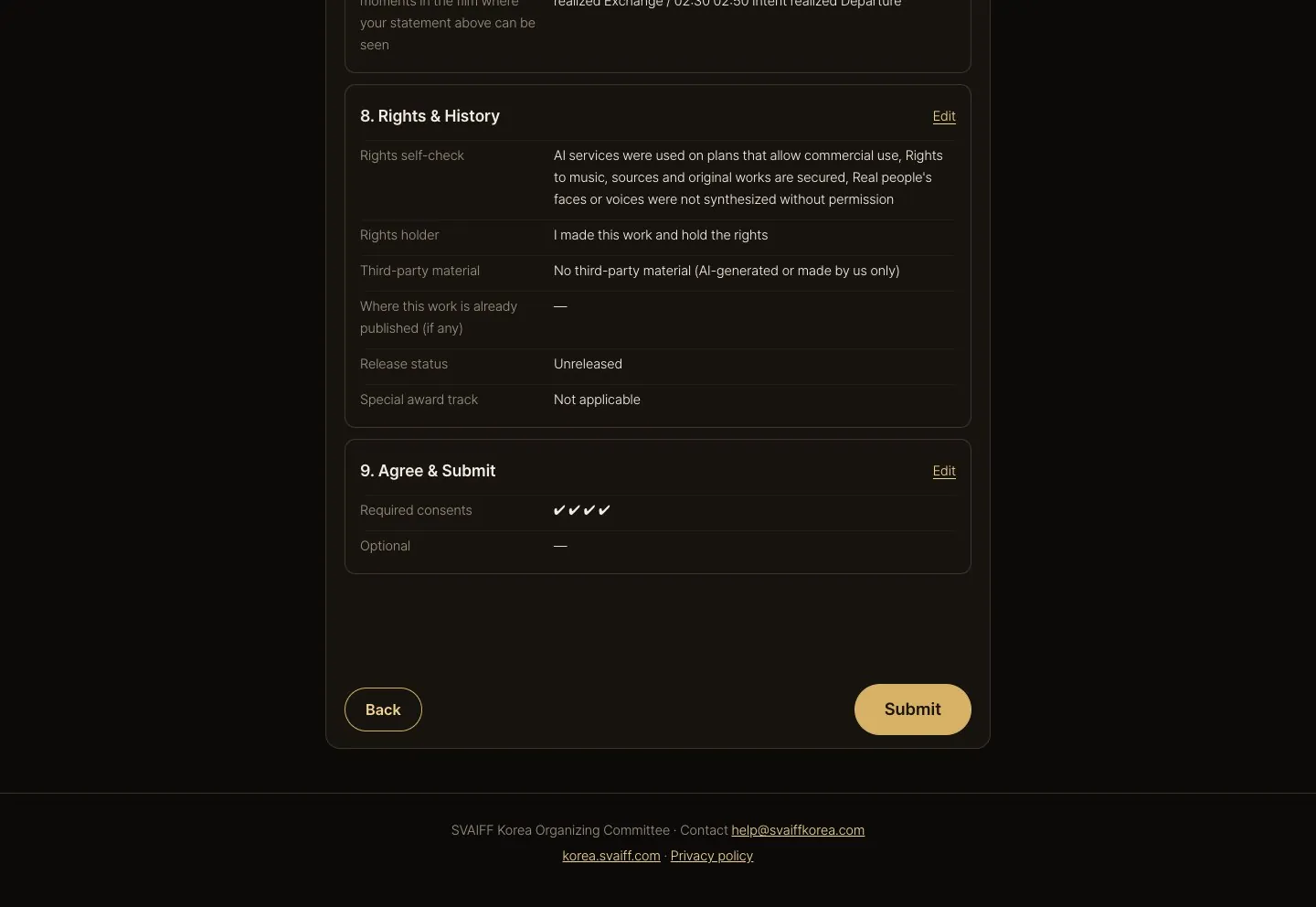
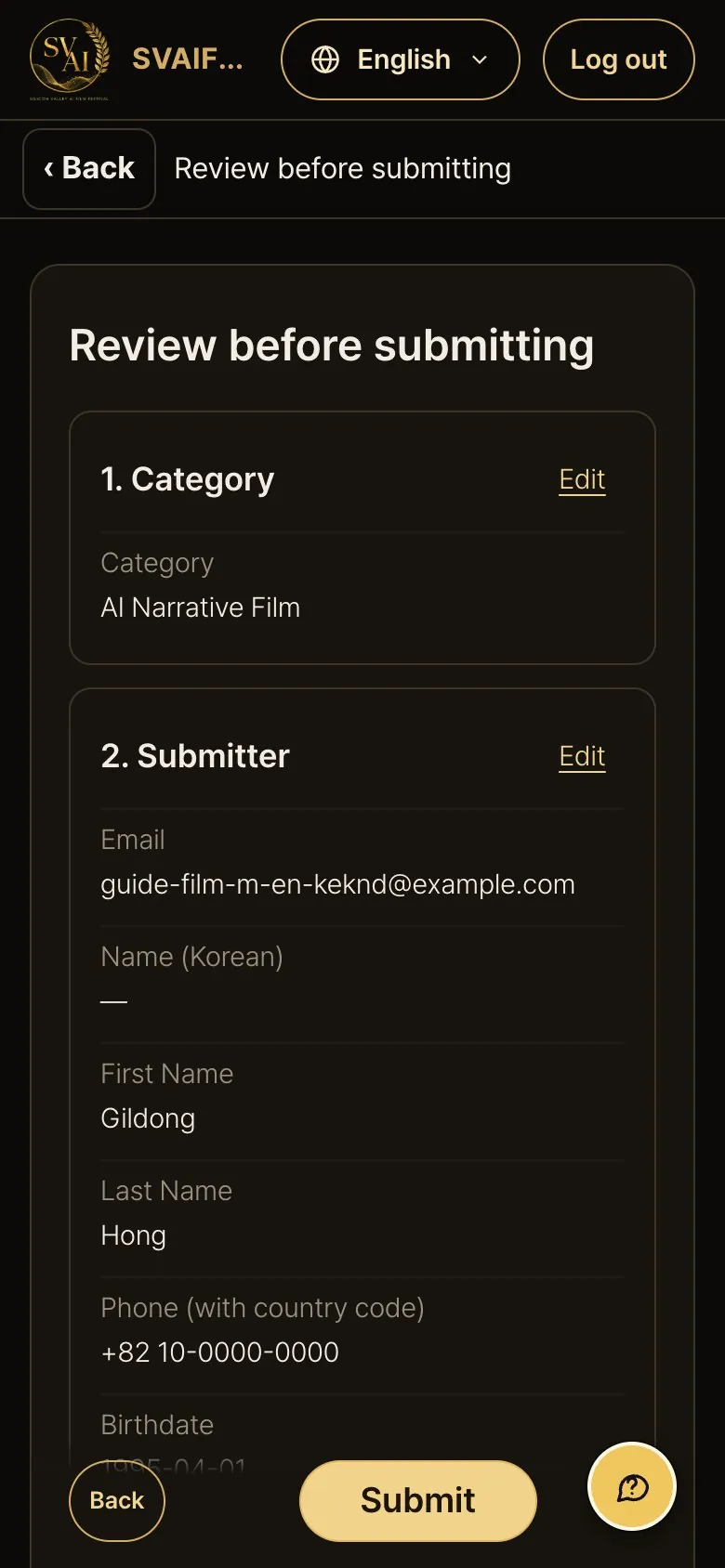
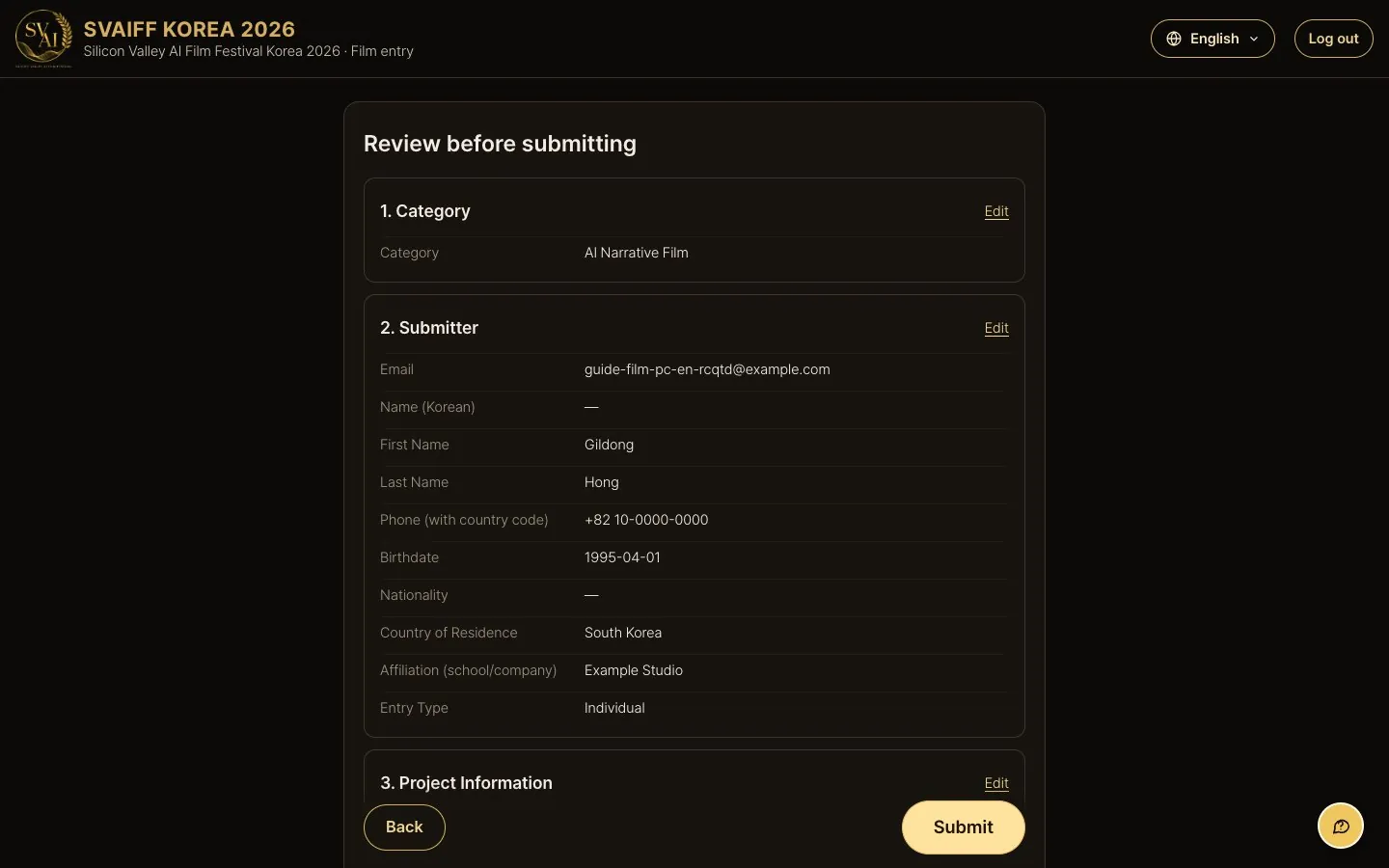
- Everything you entered is shown on one page. Press Edit on the right to change a step.
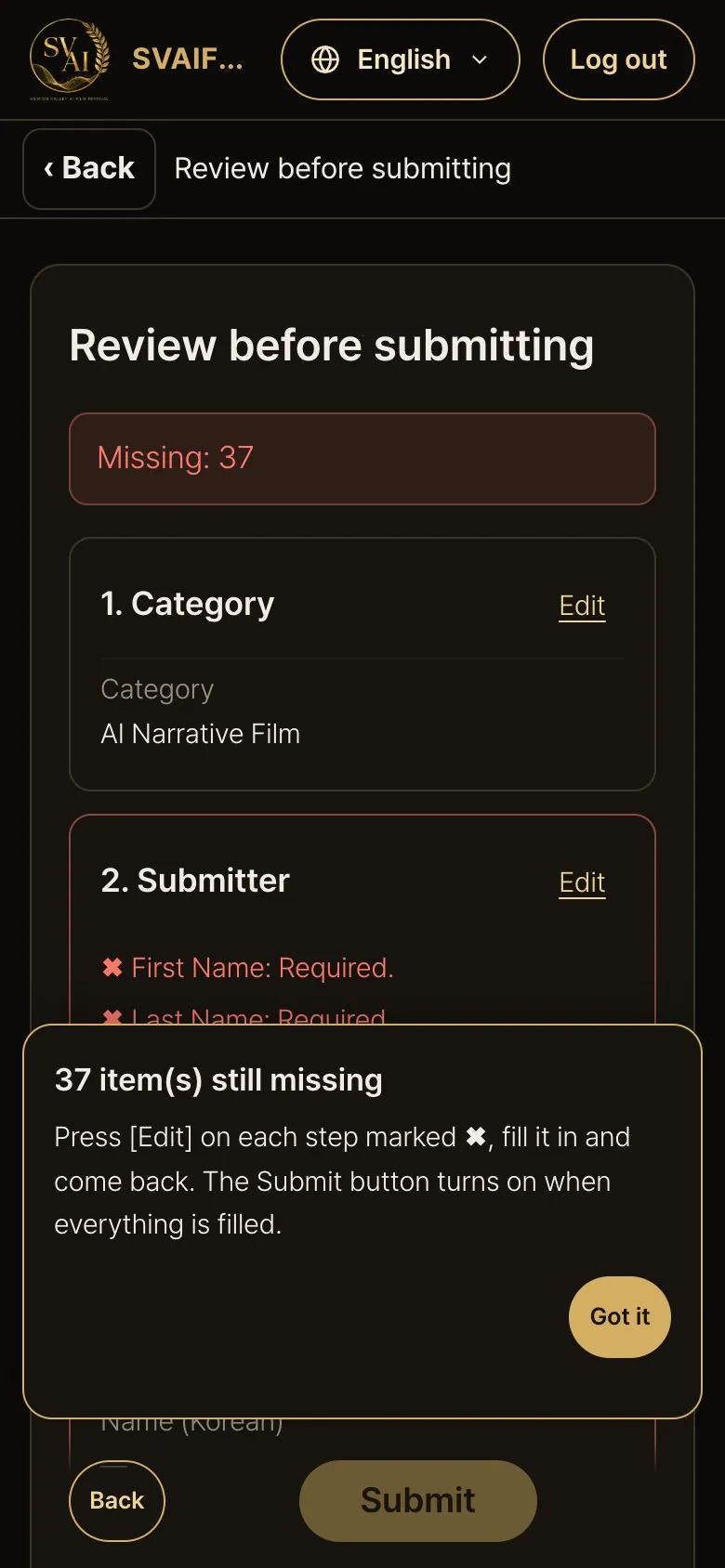
- If a required item is missing, you see “Missing: n” at the top and ✖ in that step, and the Submit button is disabled.
5-2. Submit
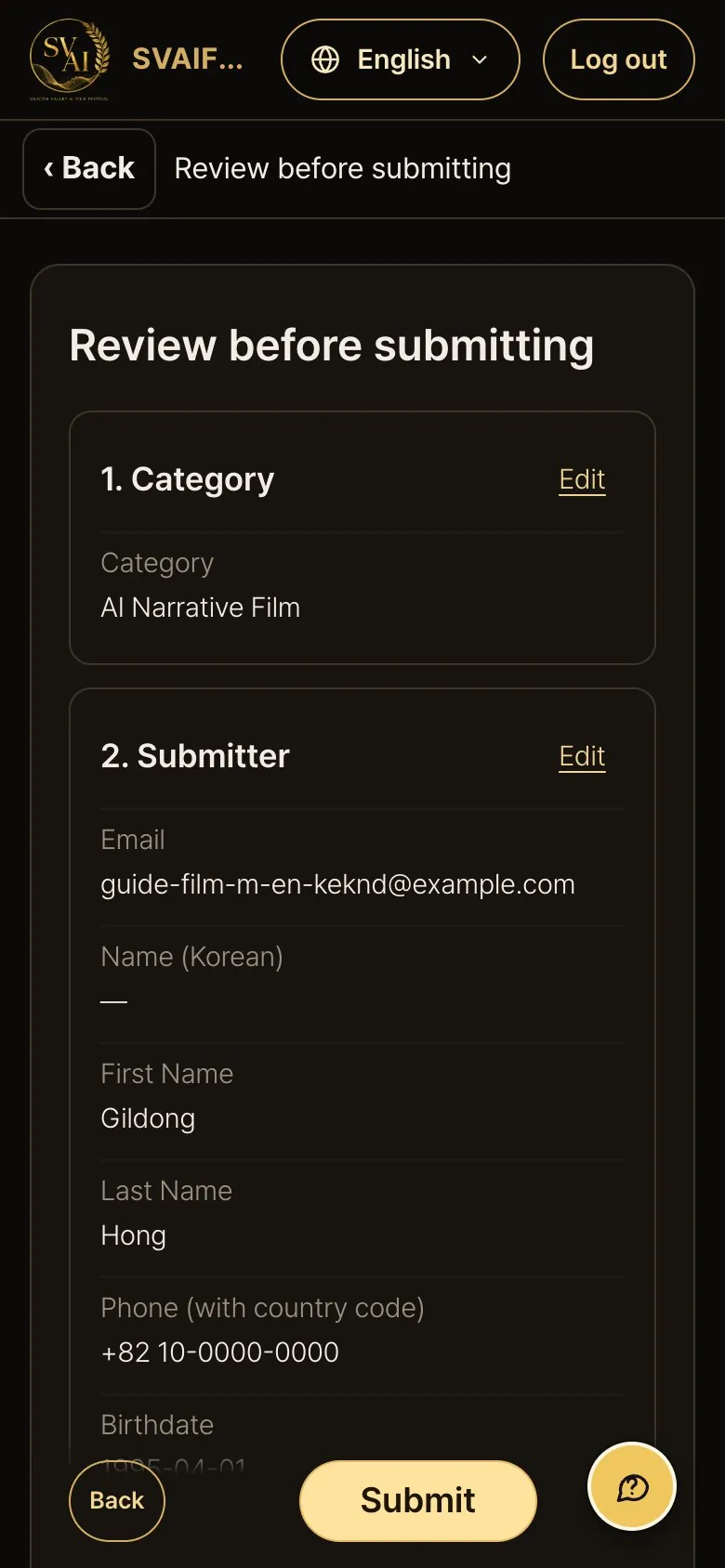
- Tick the “Verify you are human” box at the bottom and press Submit.
- If the video is still uploading, you can submit after it finishes.
If something is missing
- If items are missing on the review page, a note “n item(s) still missing” appears. Press Edit on each step marked ✖.
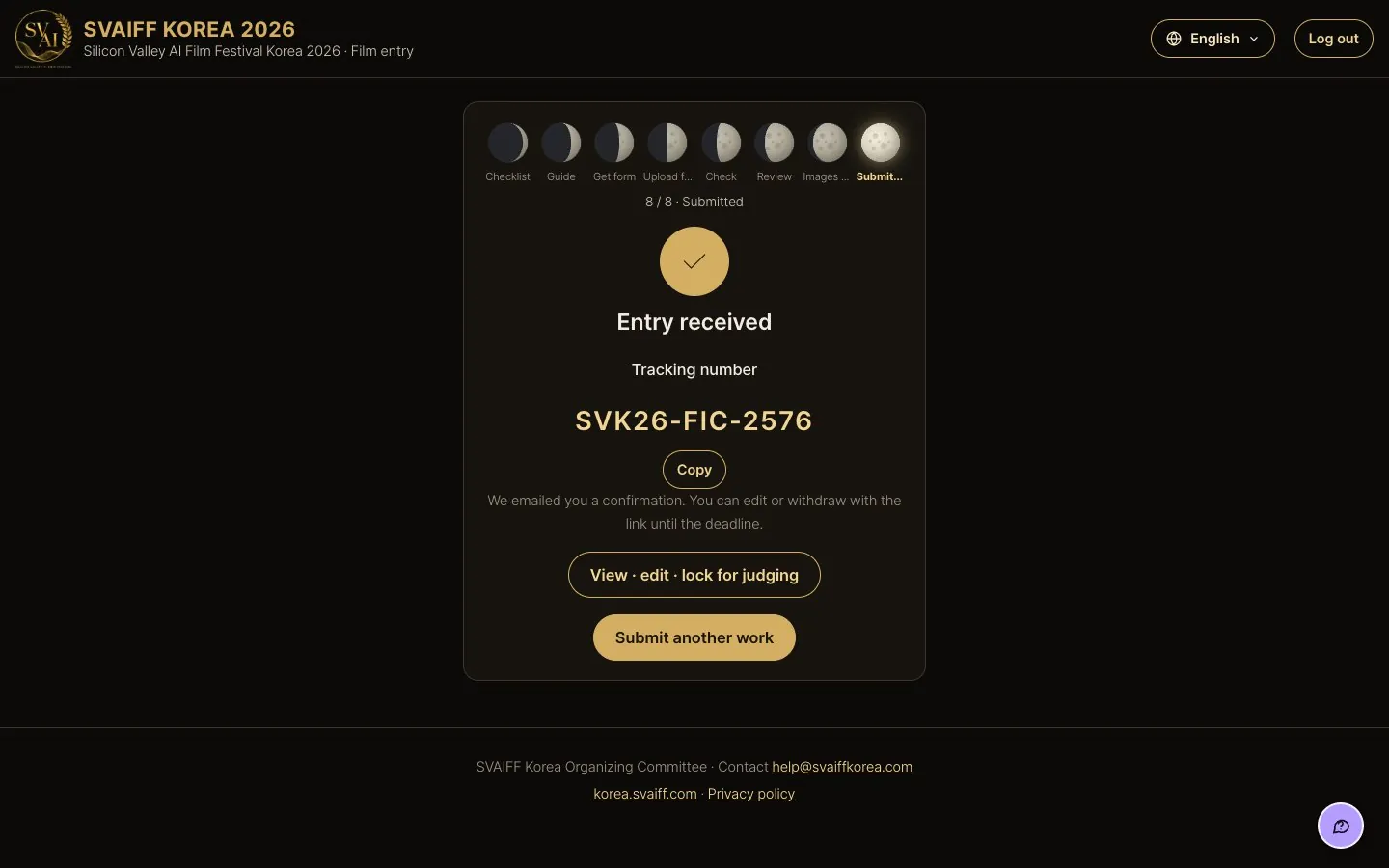
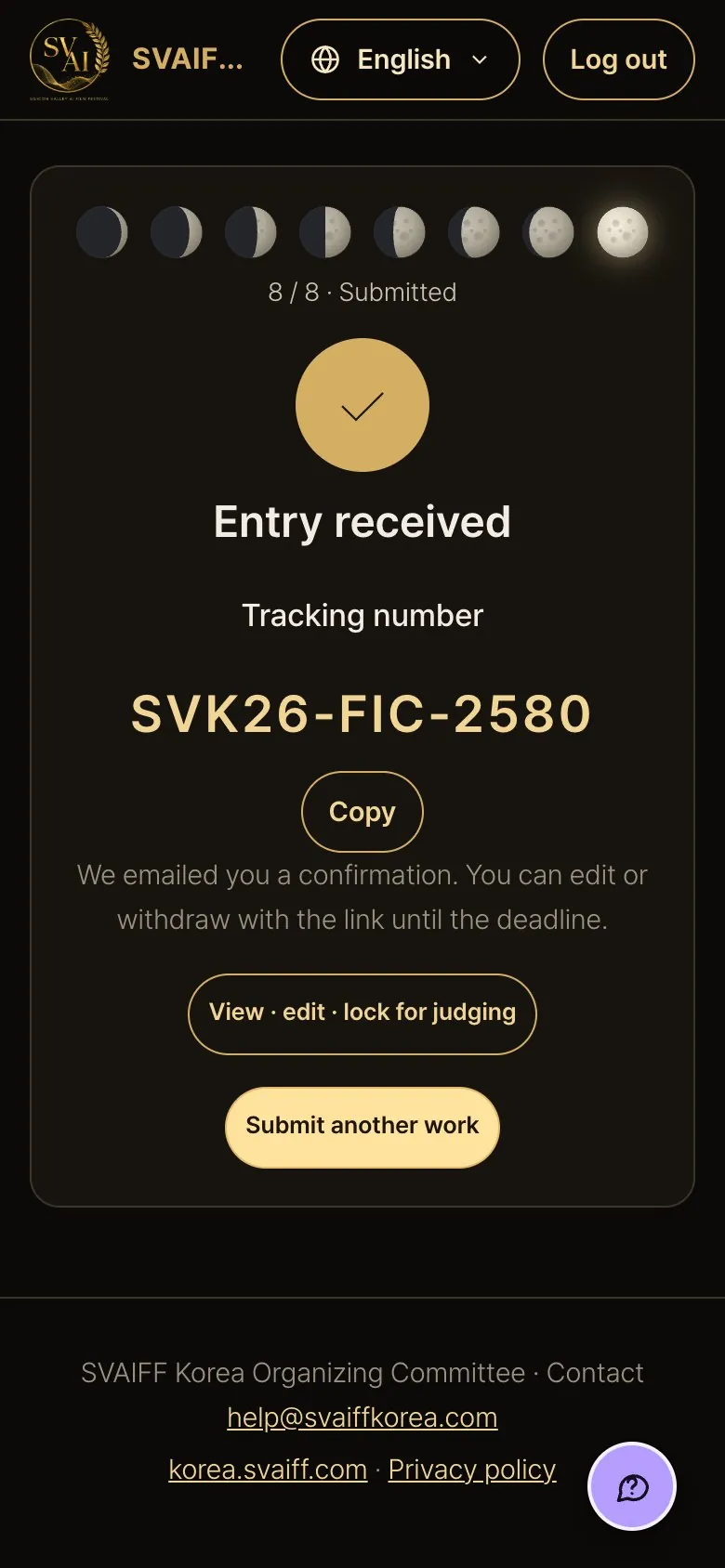
5-3. Entry received
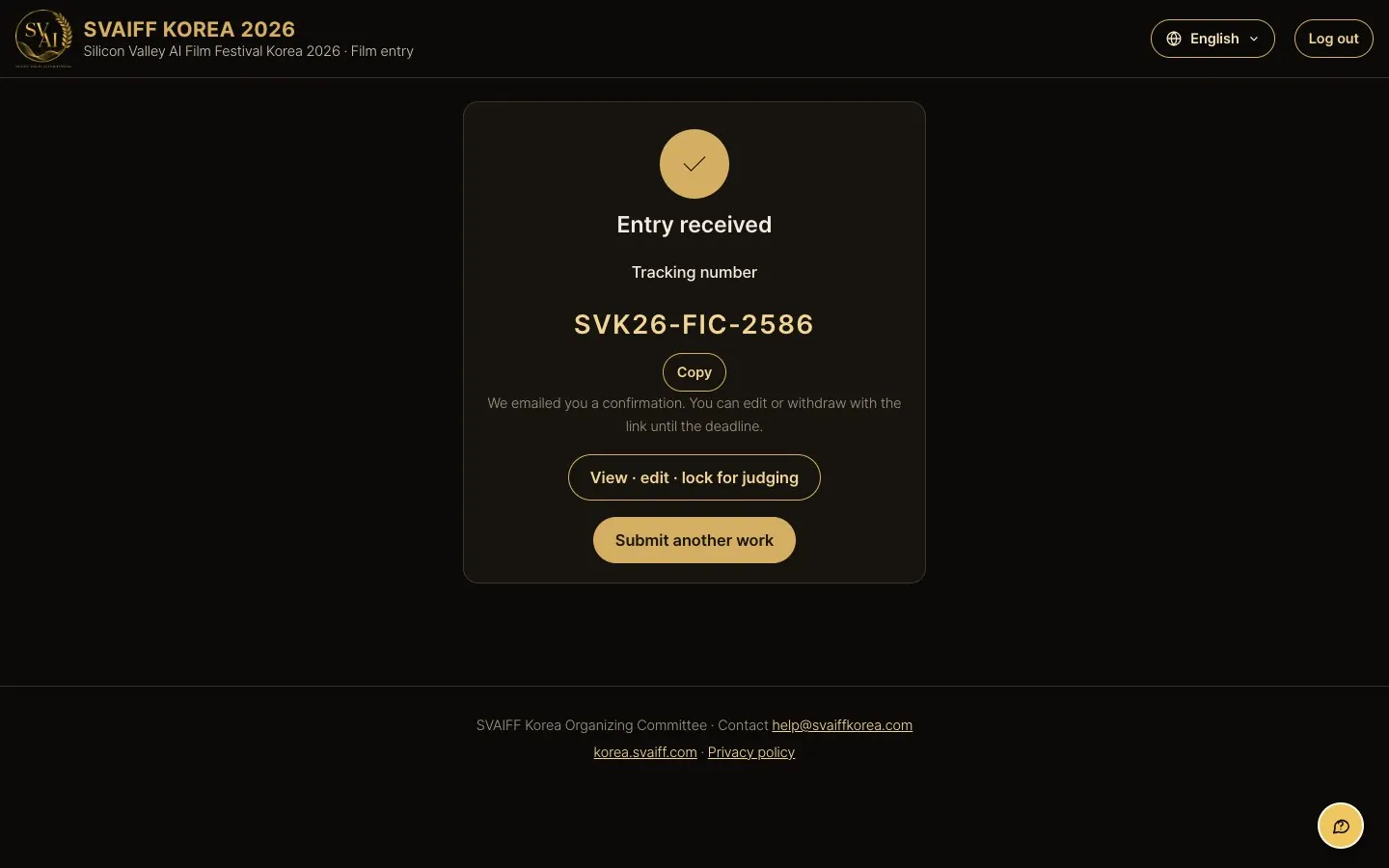
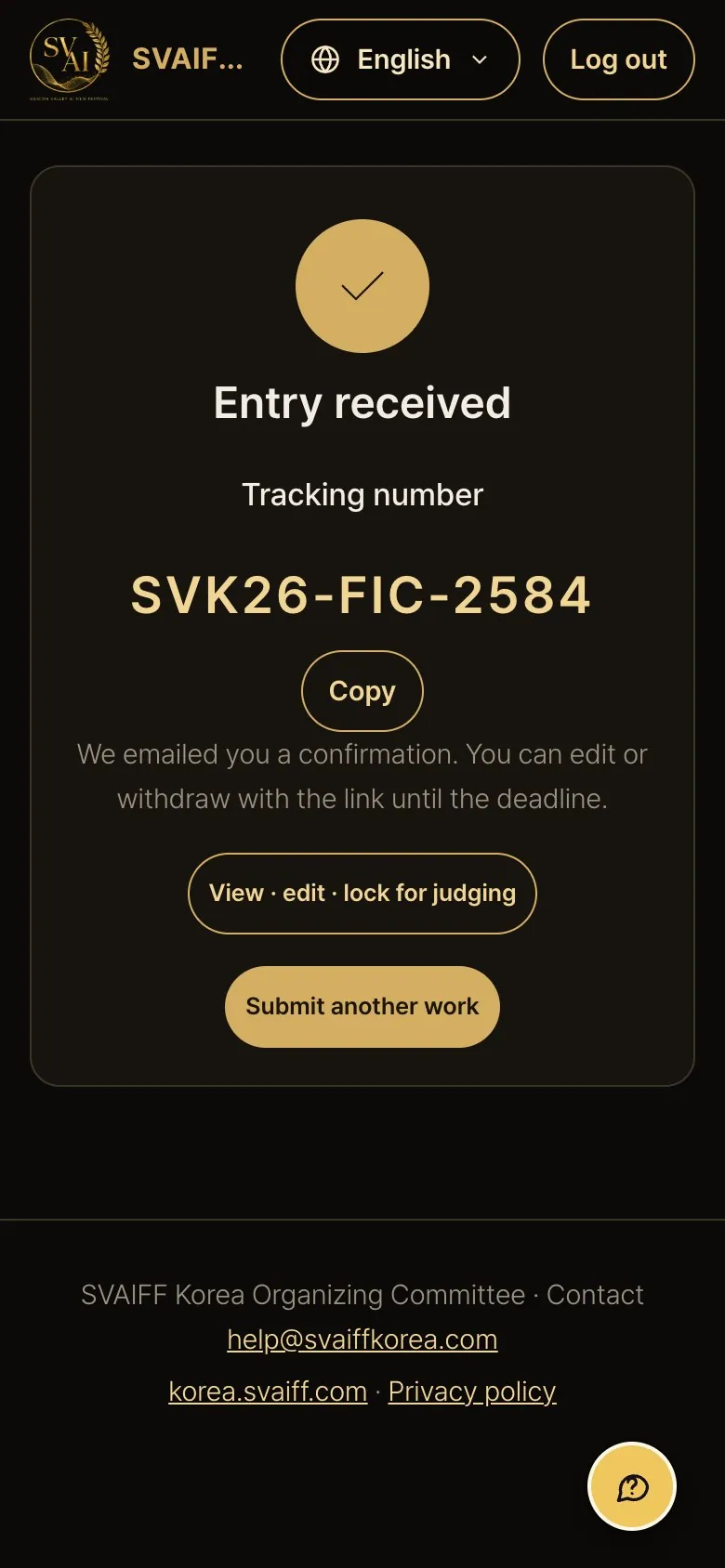
- Your tracking number (e.g. SVK26-FIC-0000) appears. Press Copy and keep it.
- A confirmation email follows; its link lets you edit or withdraw until the deadline.
- To enter another work, press Submit another work (your submitter details are kept).
6. After submitting: view · edit · lock for judging · withdraw
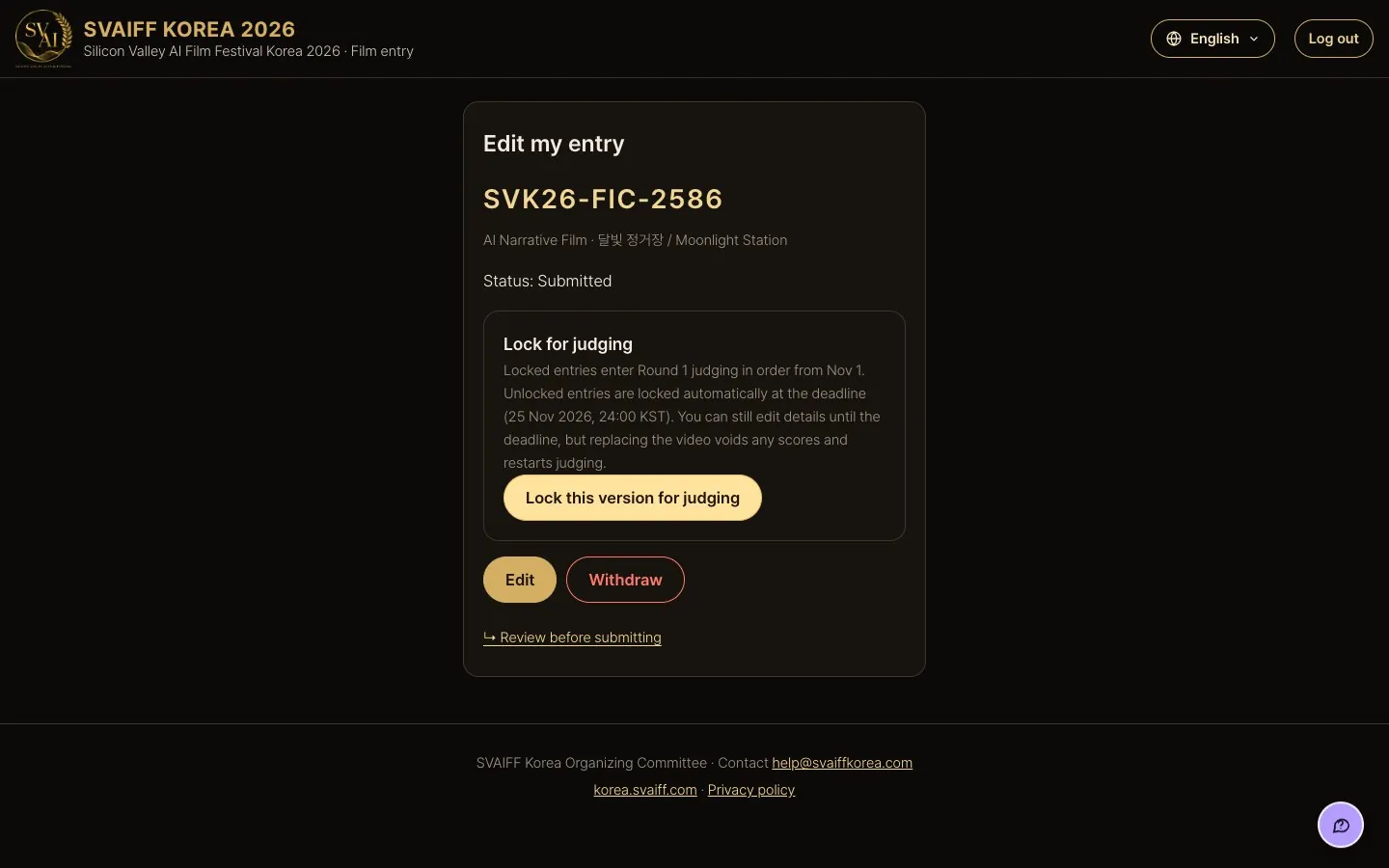
6-1. My entry
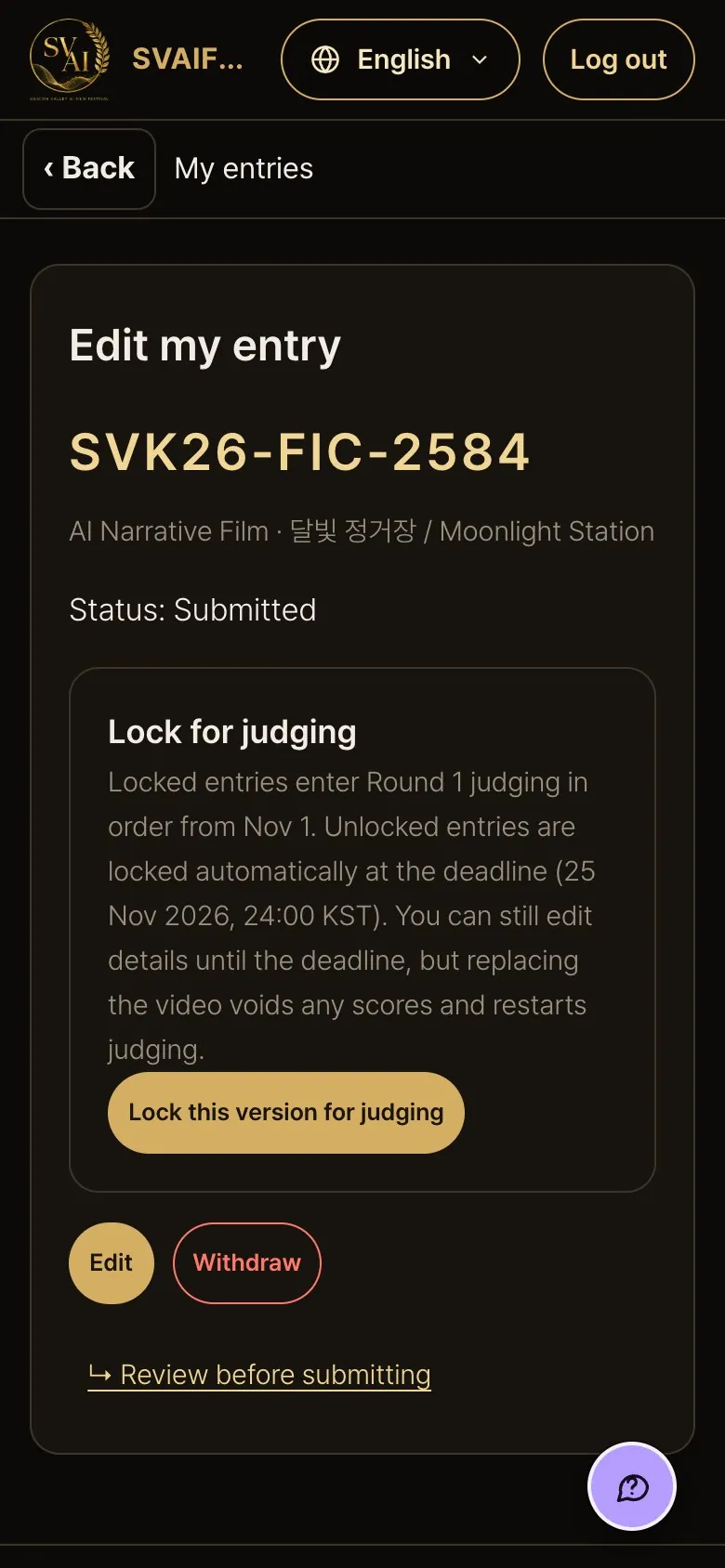
- Open it from the link in the confirmation email or View · edit · lock for judging on the confirmation page.
- It shows the tracking number, category, title and status.
6-2. Edit
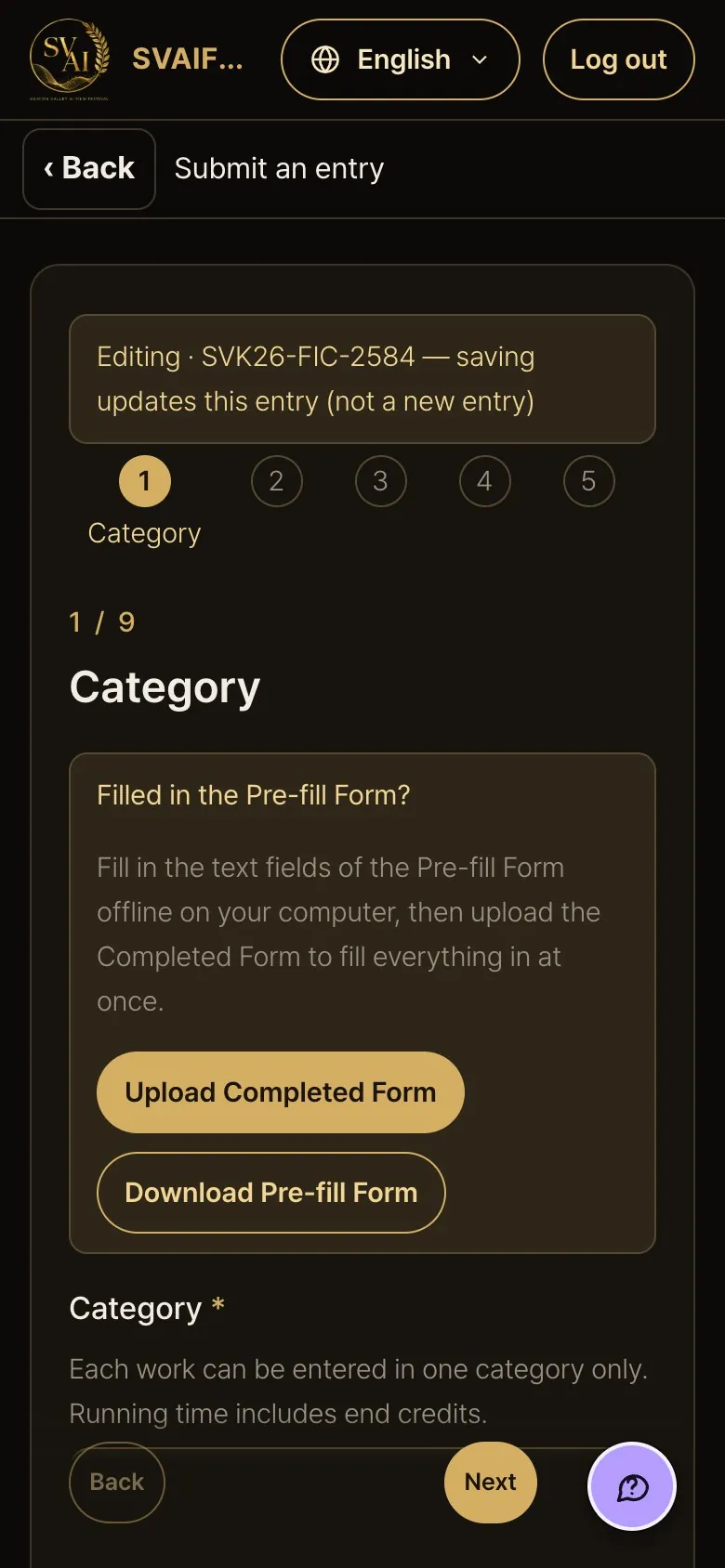
- Press Edit: a band at the top shows “Editing · tracking number”, and you can move freely between all steps.
- Press Save changes on the final review page to update the same entry (not a new entry). You can edit until the deadline.
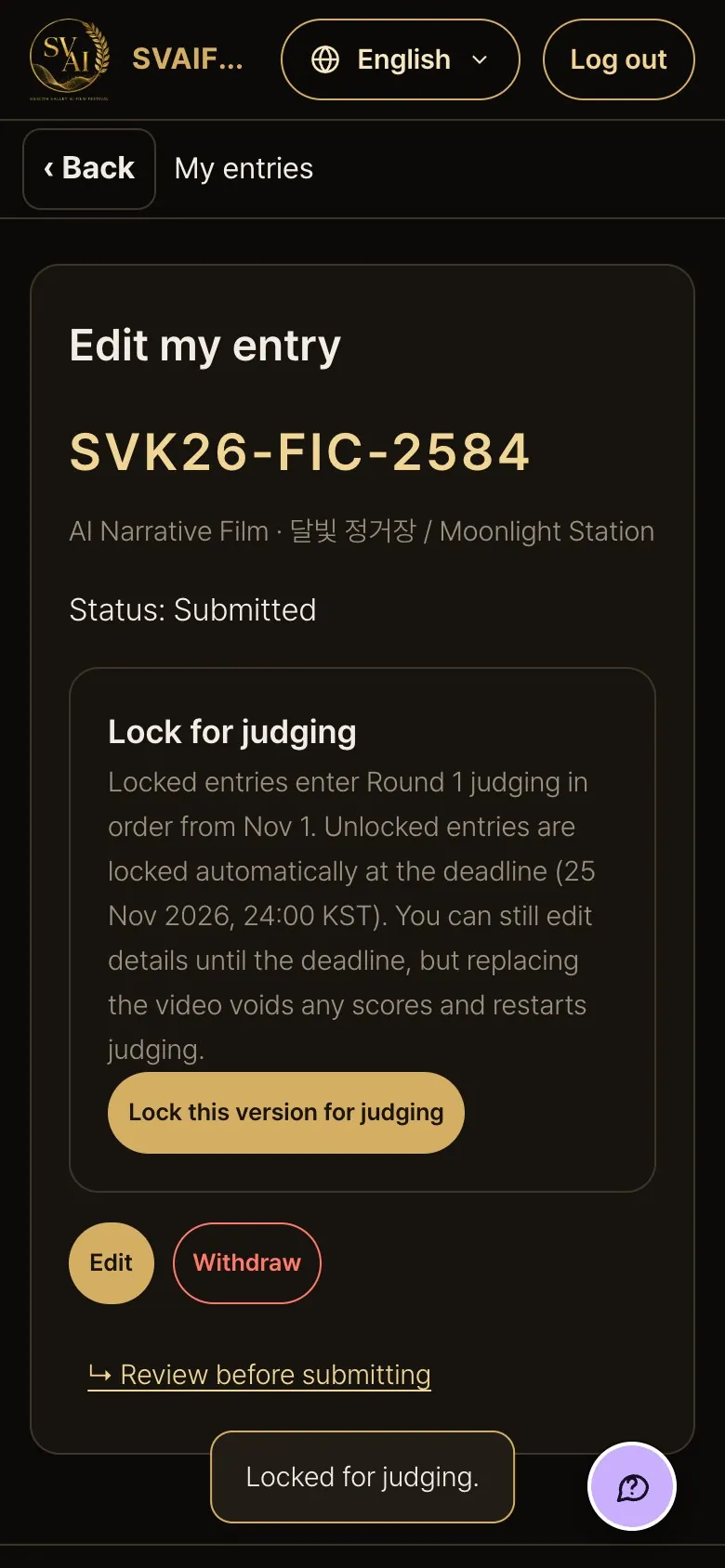
6-3. Lock for judging
- Preliminary judging starts on Nov 1 in the order entries are locked. Unlocked entries are locked automatically at the deadline (Nov 25, 2026 24:00 KST).
- Press Lock this version for judging, then Lock in the confirmation sheet.
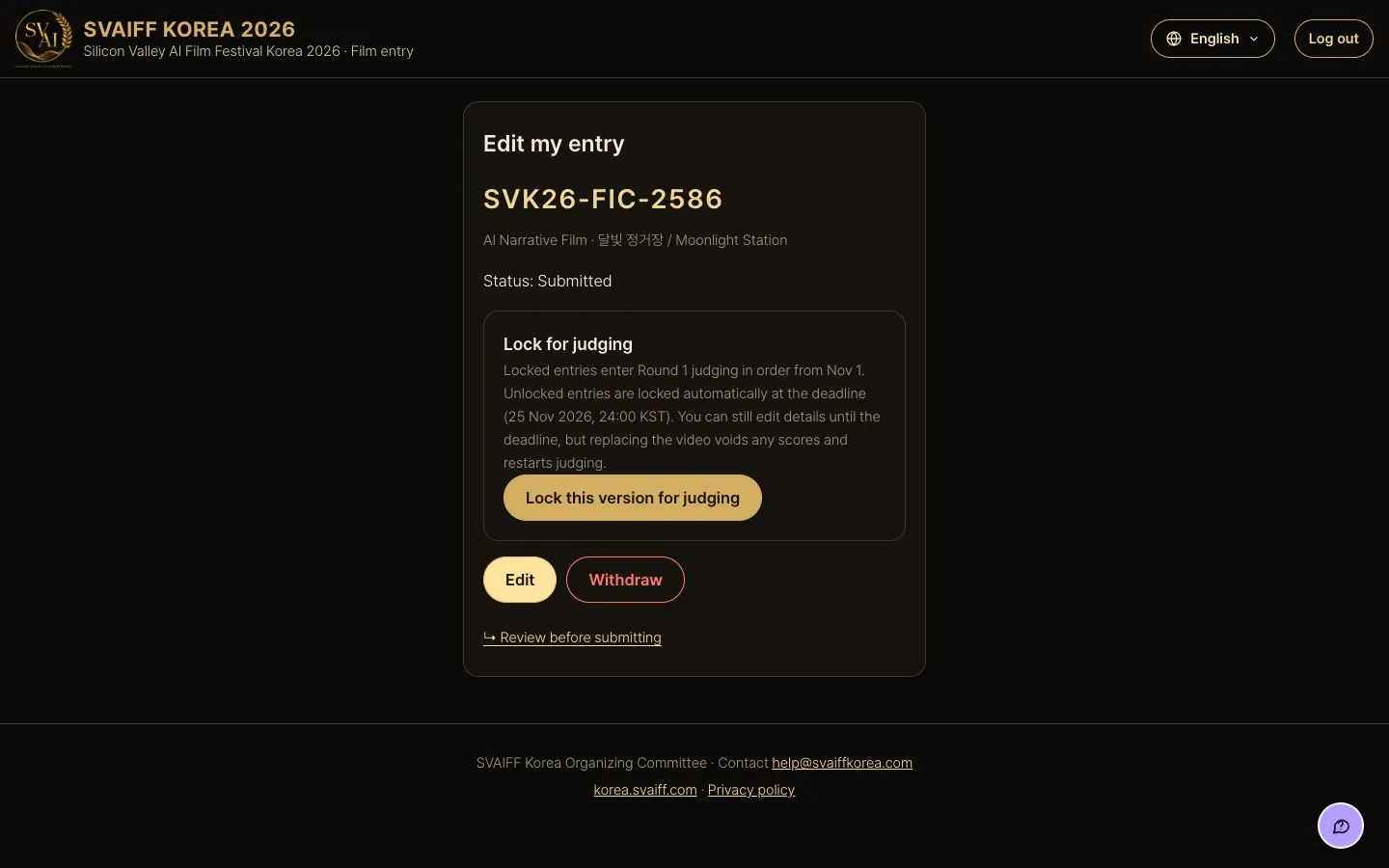
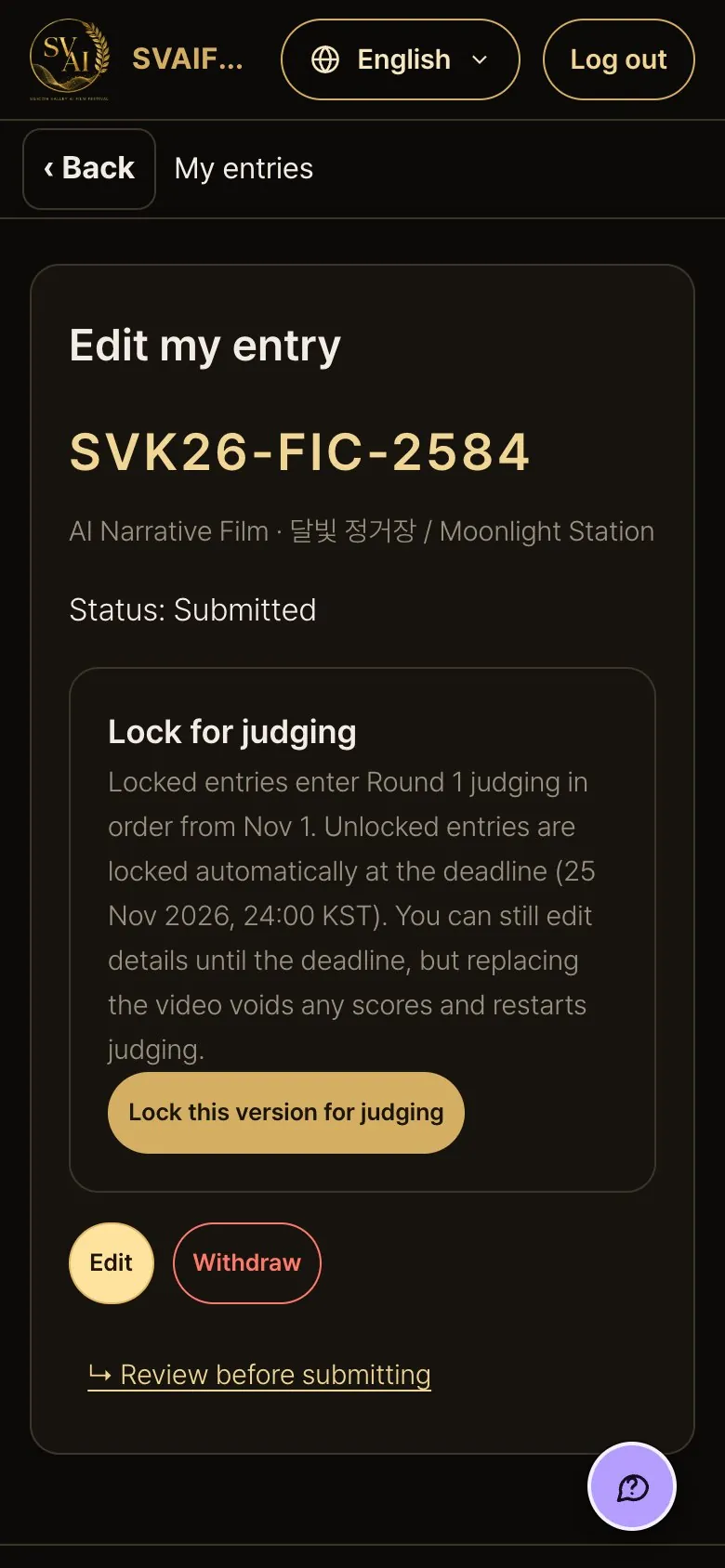
Confirming the lock
- Press Lock this version for judging and a confirmation sheet slides up. Read it and press Lock to lock, or Cancel to leave it as is.
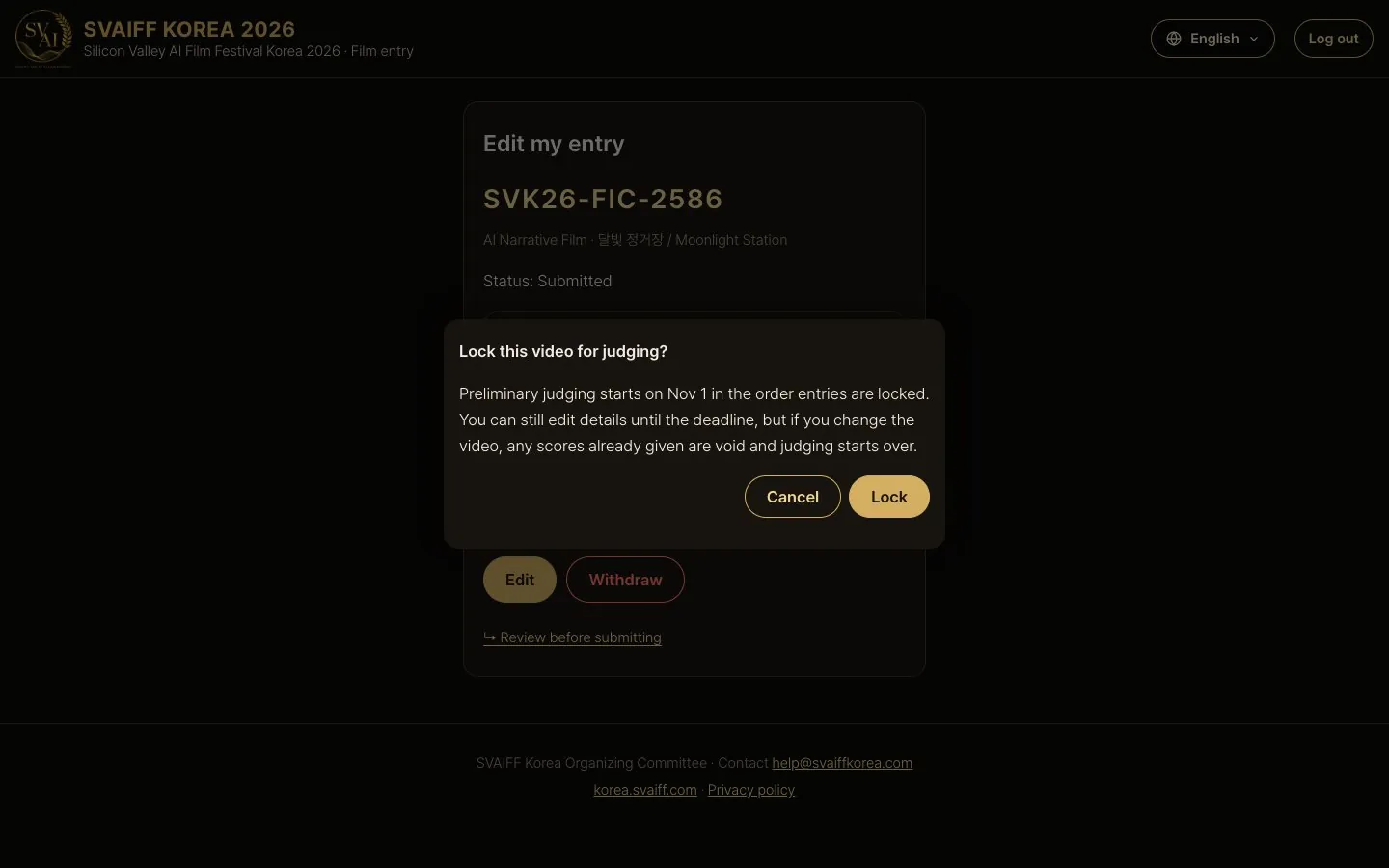
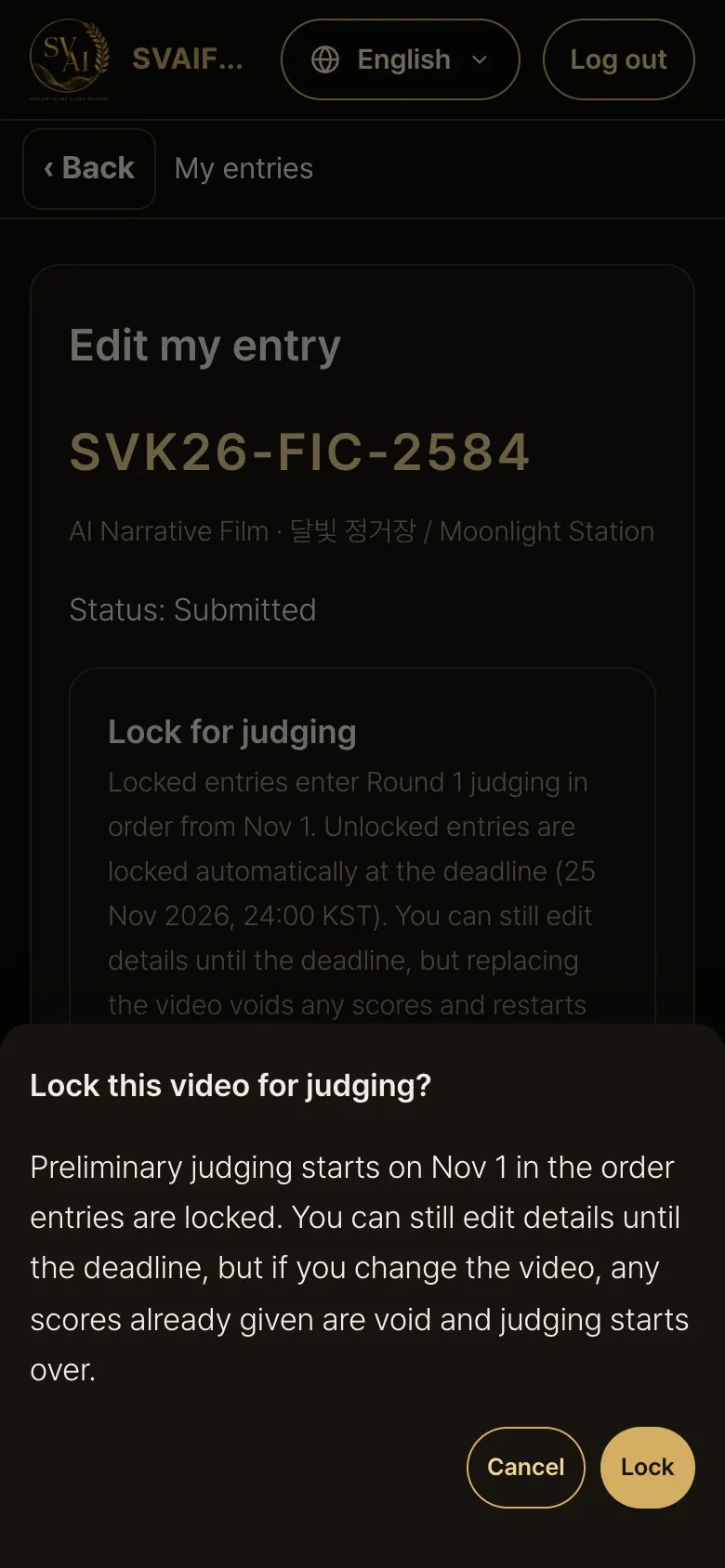
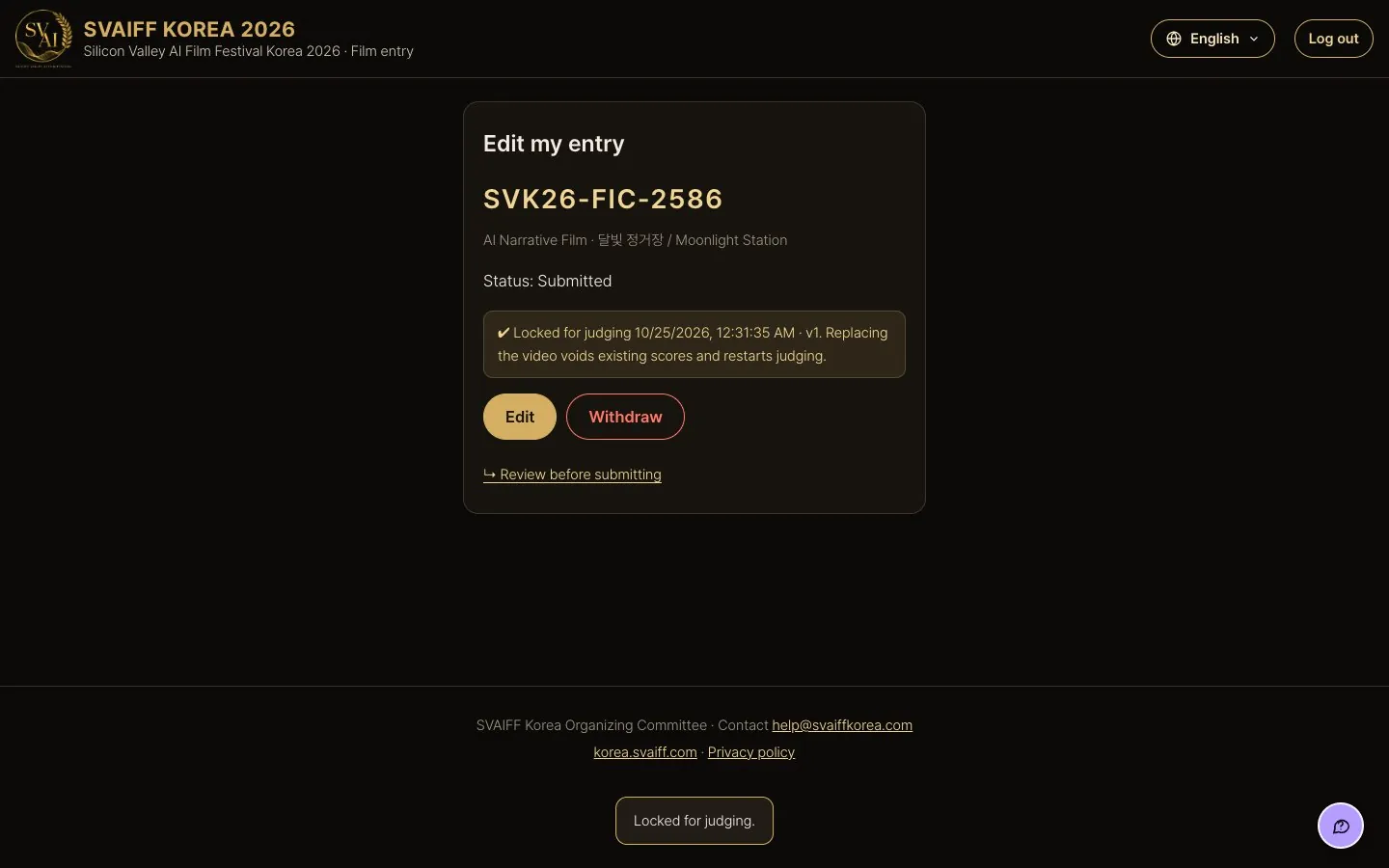
After locking
- You see “✔ Locked for judging · date · version”.
- You can still edit details until the deadline, but if you change the video, any scores already given are void and judging starts over.
6-4. Withdraw
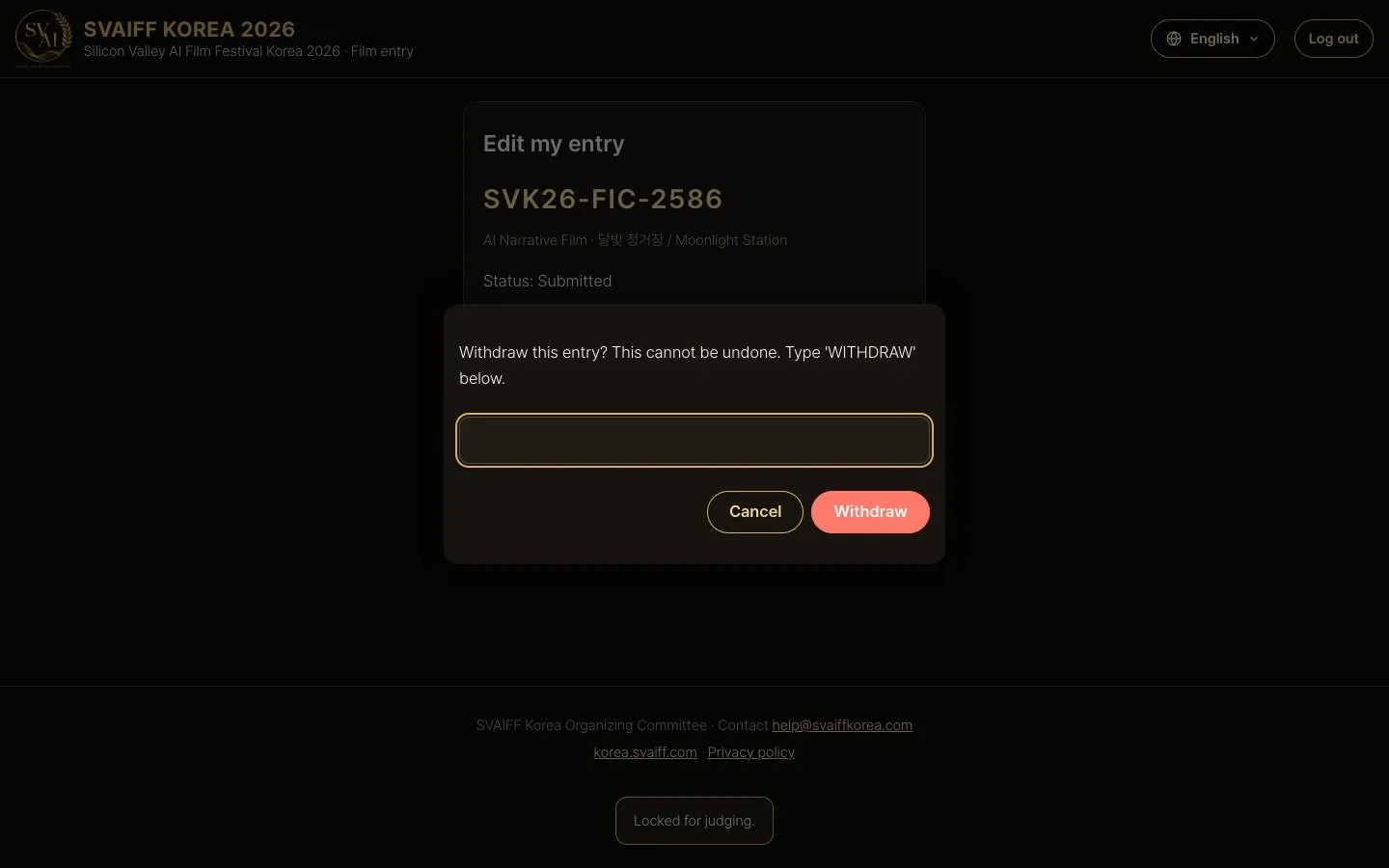
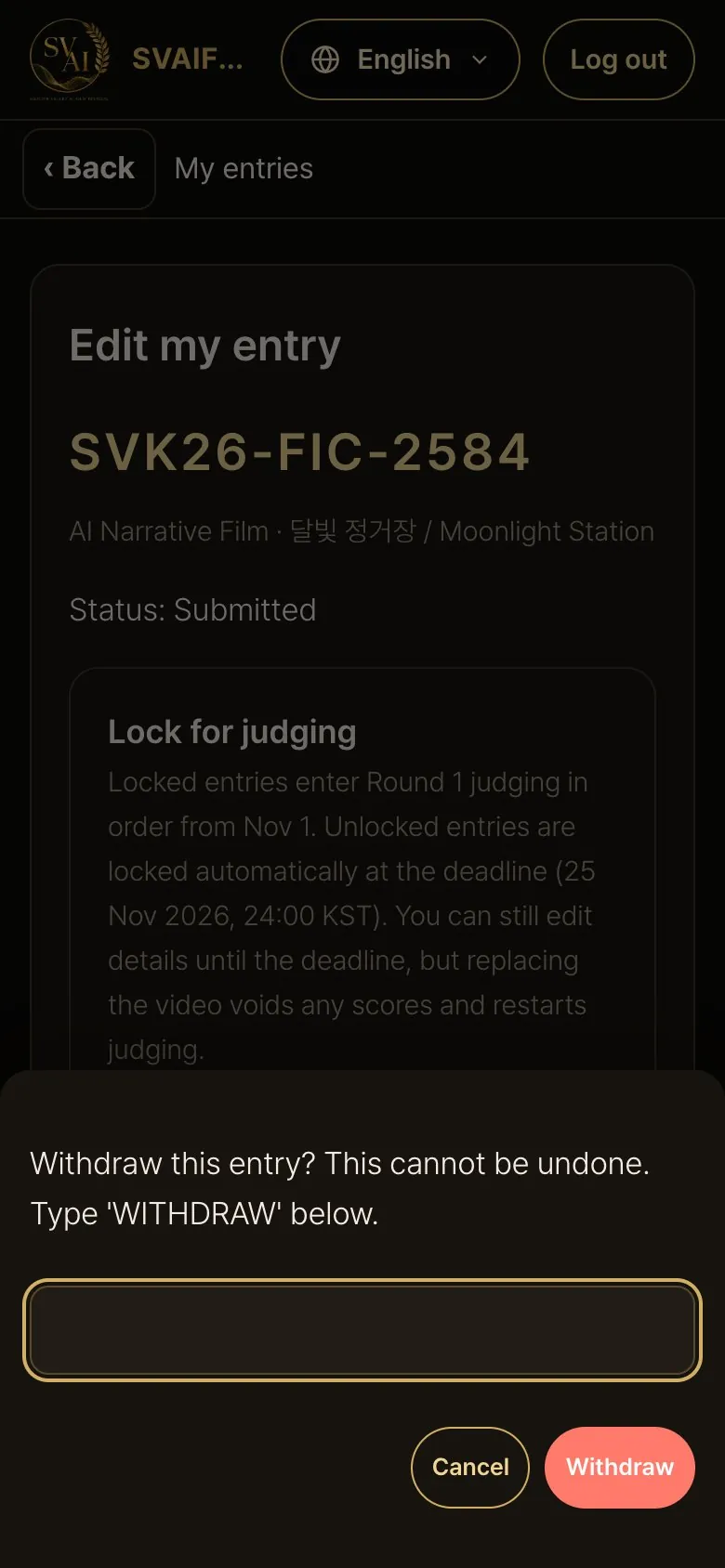
- Press Withdraw: a confirmation sheet opens. Type WITHDRAW and press the red button.
- Withdrawal cannot be undone. If unsure, press Cancel (on a phone, Back also closes it).
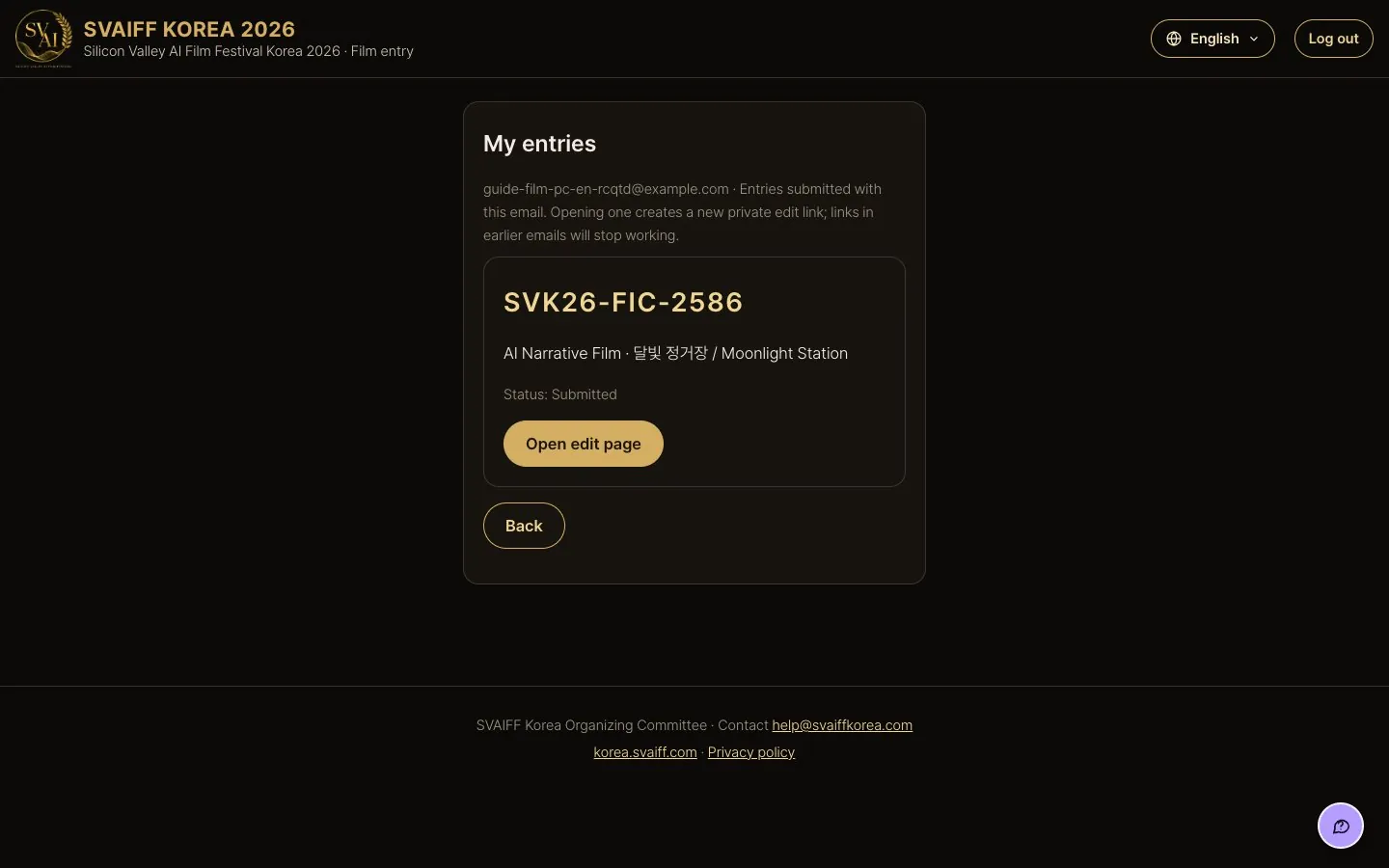
6-5. Lost the email? · My entries list
- Press My entries on the start page and verify the same email to see the works entered with it.
- Open edit page creates a new edit link; the link in the old email stops working.
7. Guardian consent (for minors)
The guardian receives a consent link at the email entered in step 1. No printing or signing is needed.
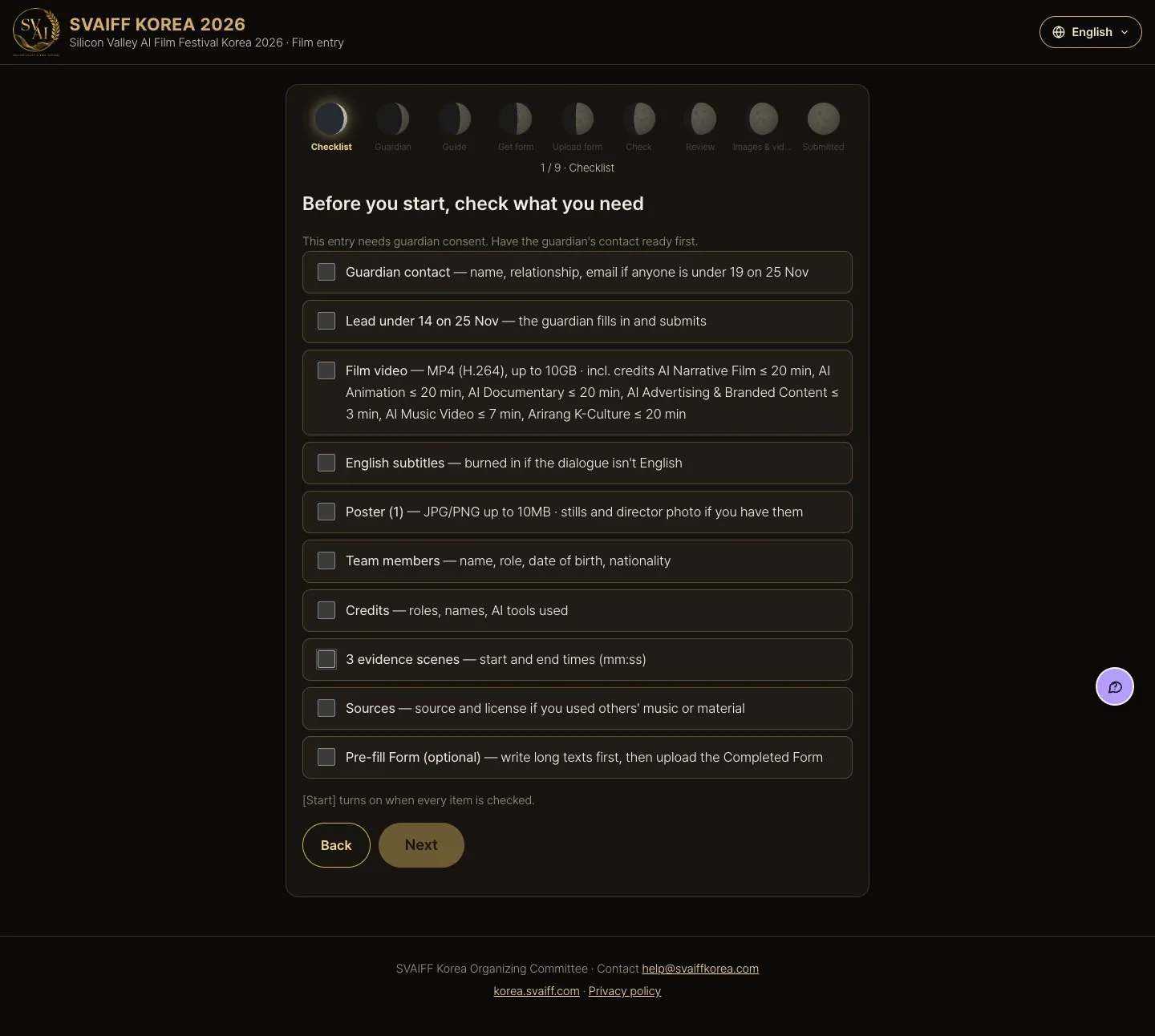
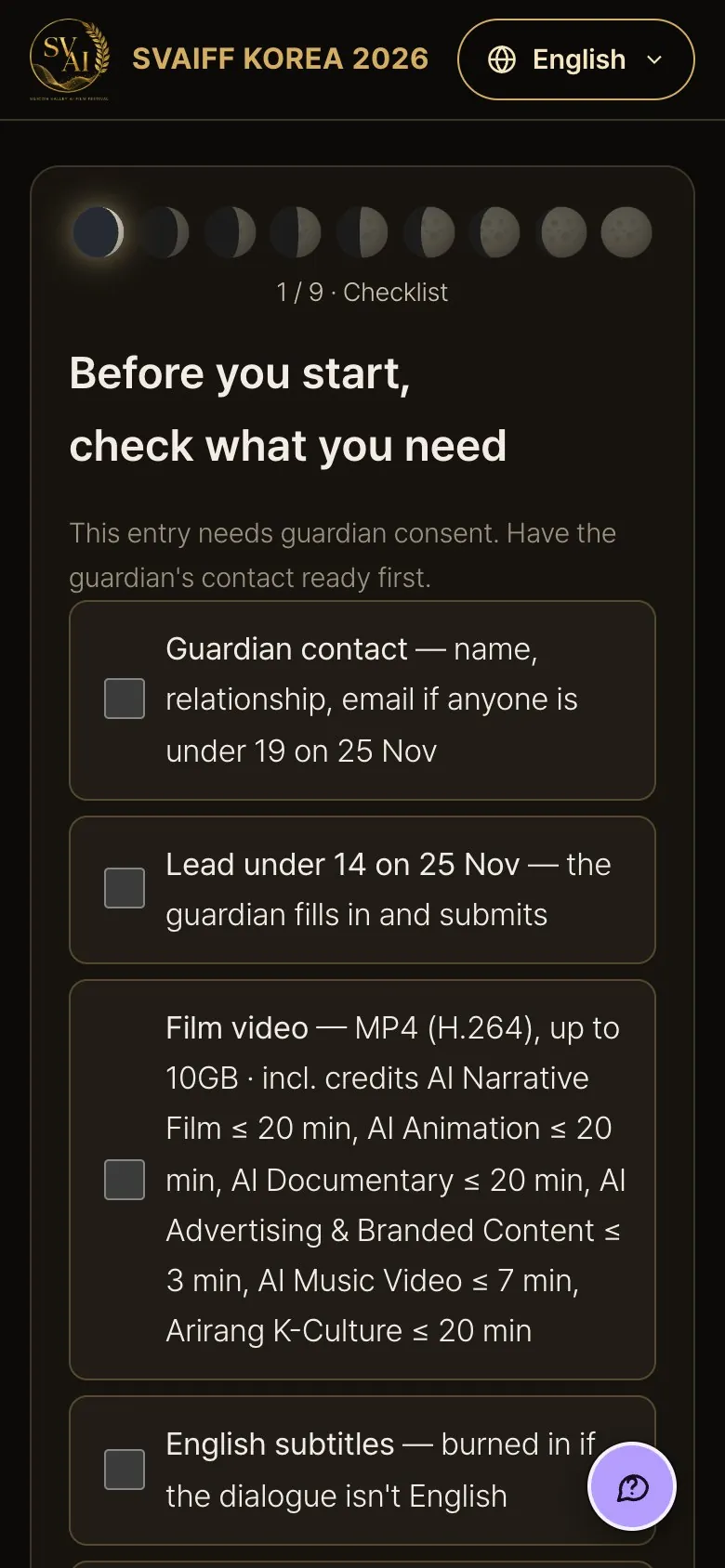
Choosing Entry by a minor
- The guardian items come first on the check page. Tick everything and verify your email.
Guardian details
- Enter the birth dates and, for each person under 19 as of the deadline (Nov 25, 2026), the guardian's name, relationship and email.
- Pressing Next sends the consent link to the guardian at once.
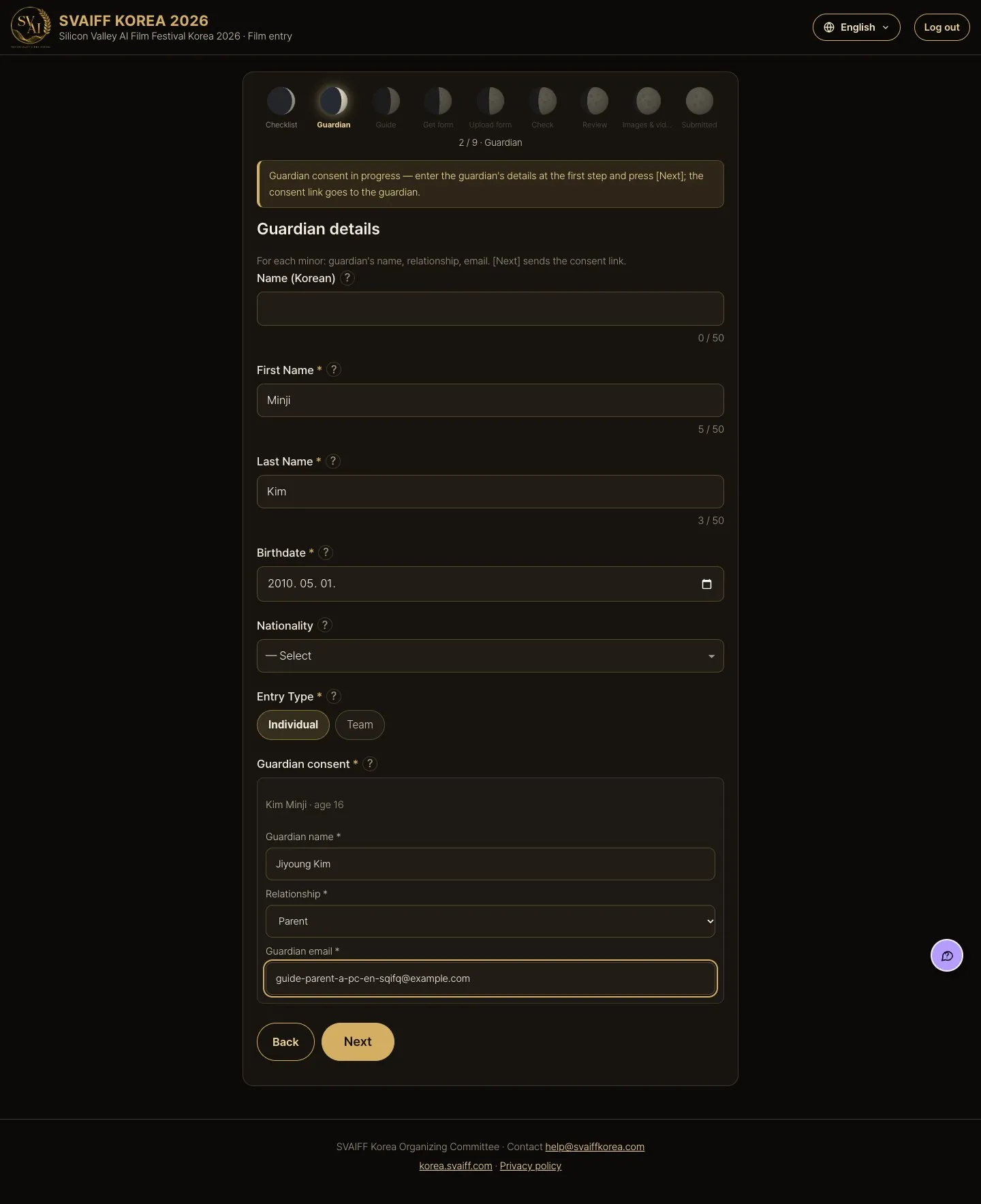
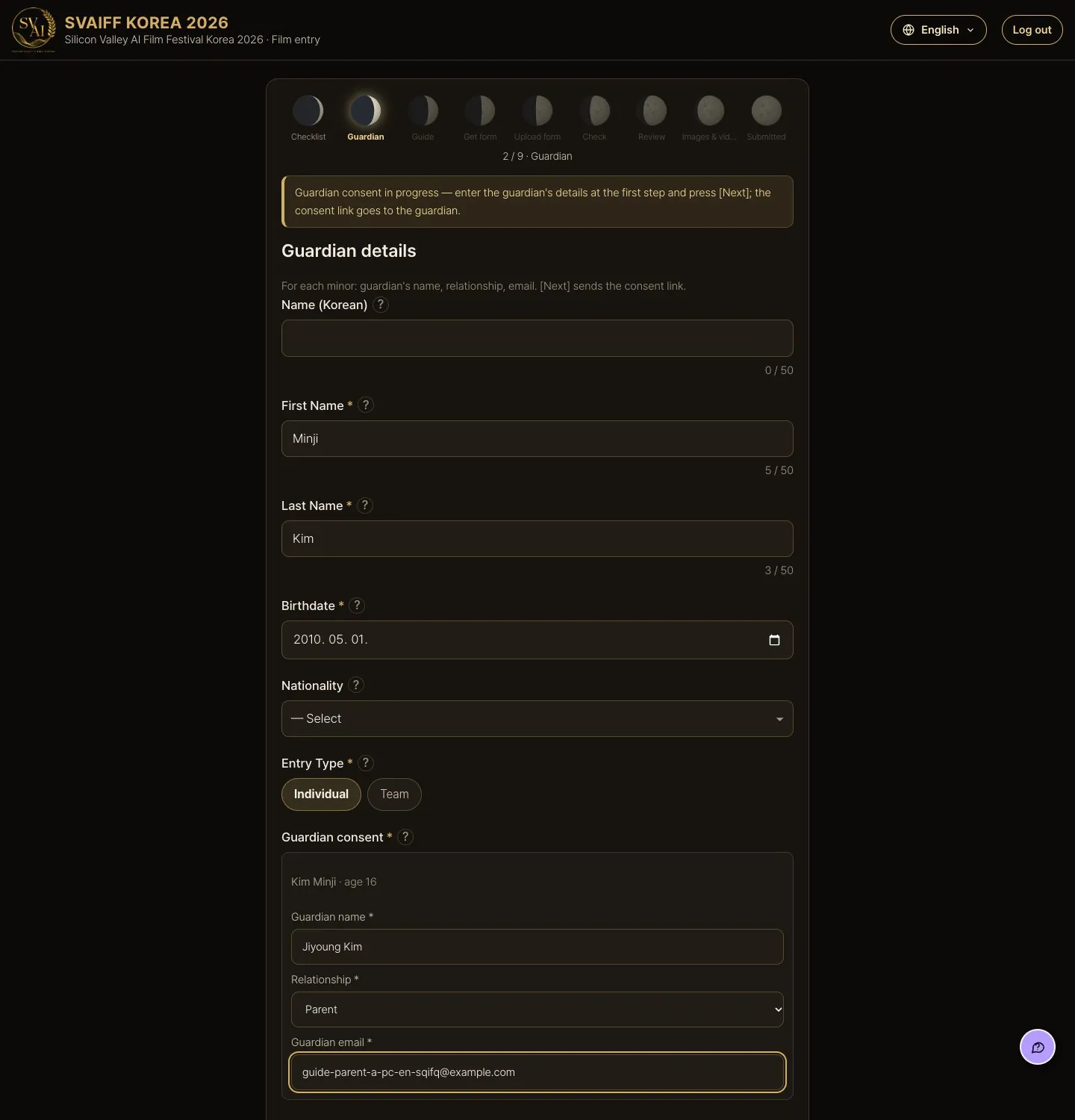

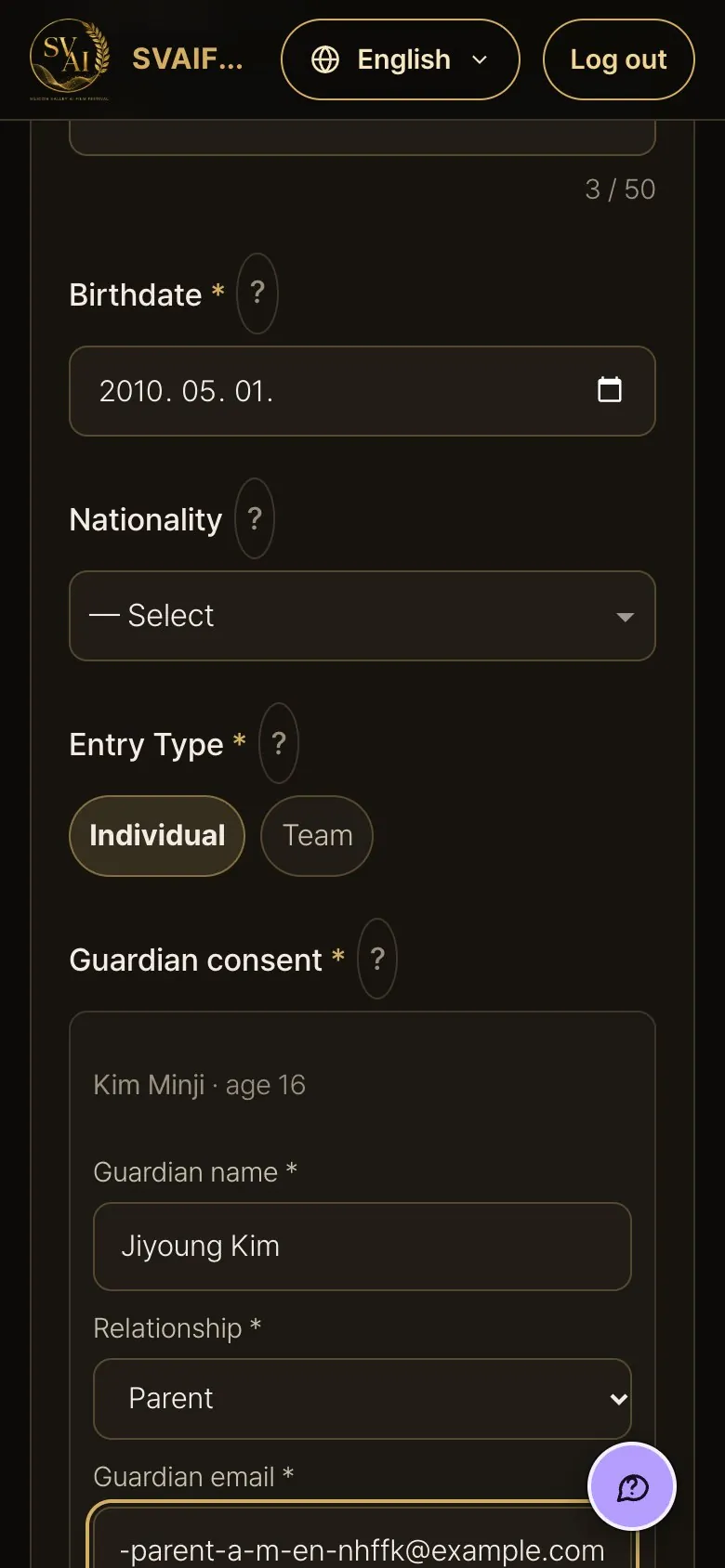
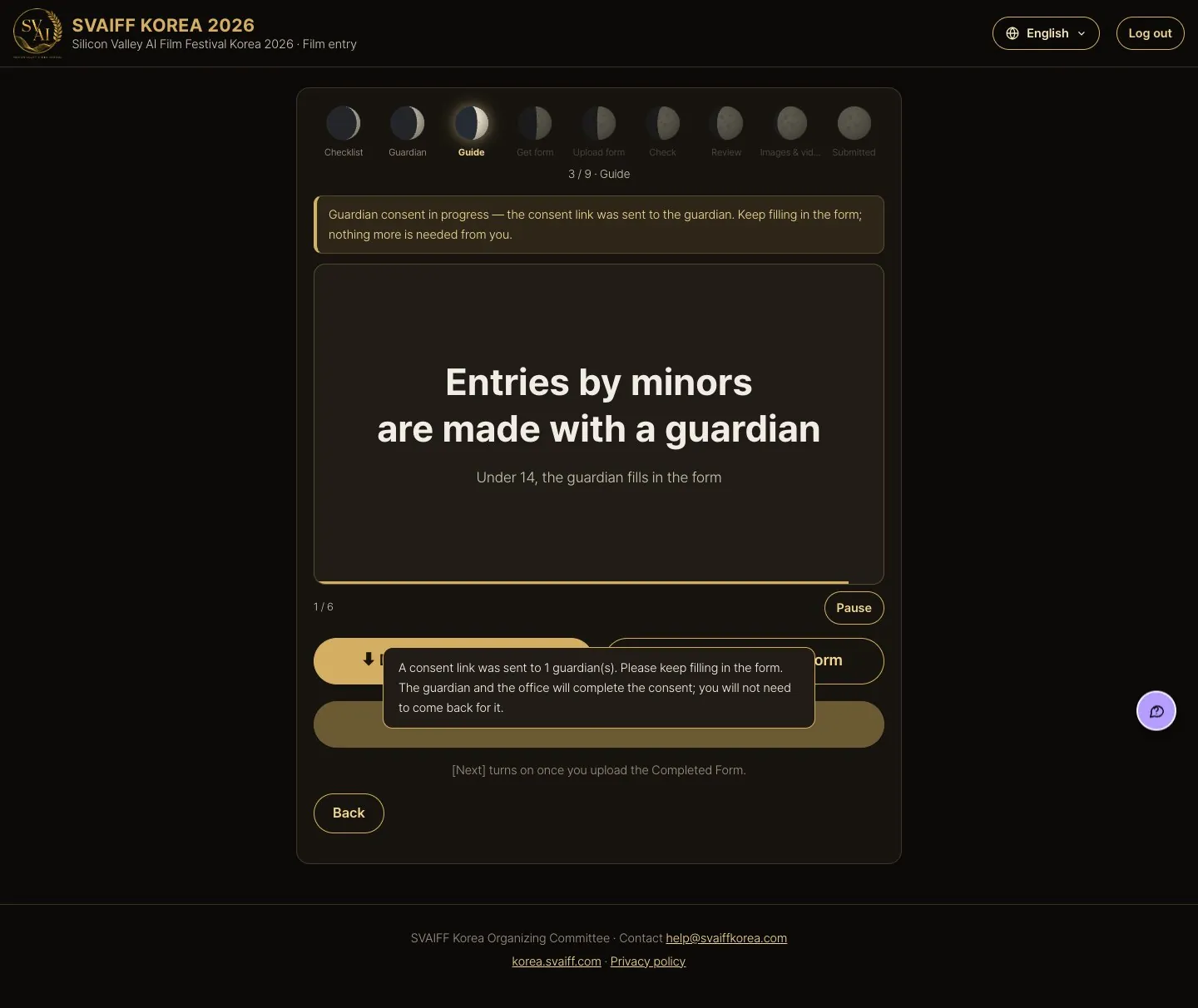
Form step · guardian consent in progress
- A “Guardian consent in progress” band appears at the top. From here it is the same as an adult entry: get the form → upload the Completed Form → images and video → consent and submit. You won't need to come back for the guardian consent.
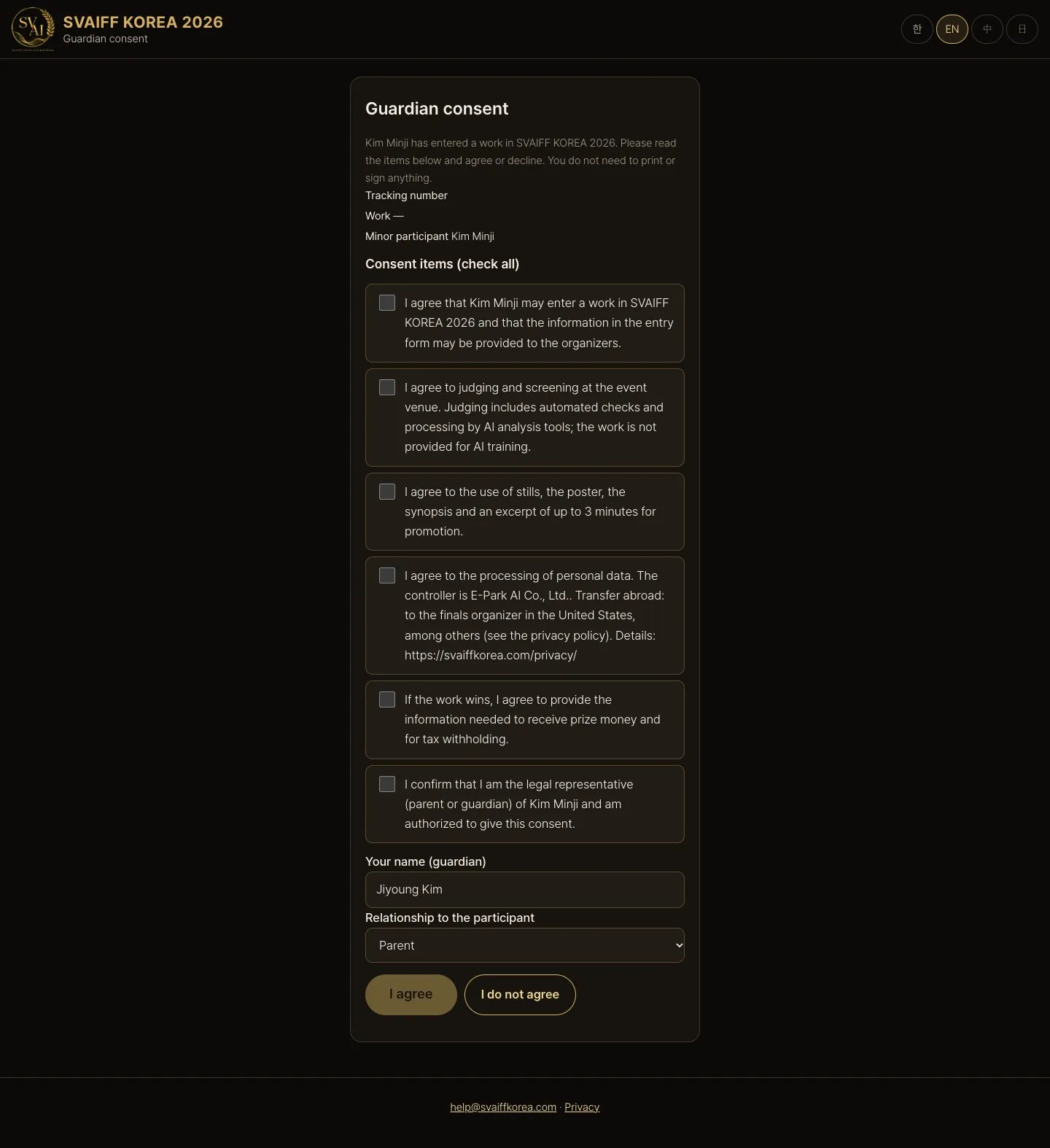
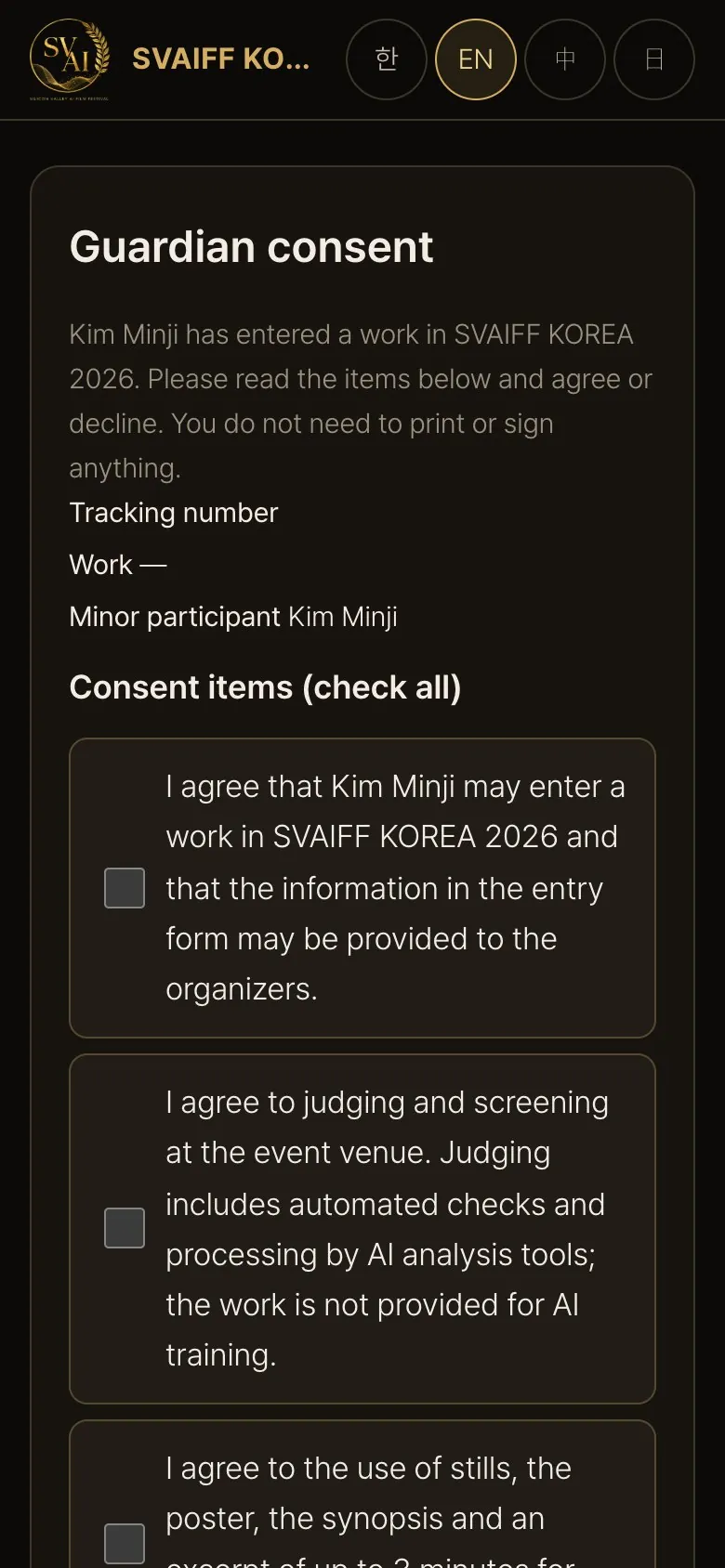
The guardian consent page
- This page opens from the link in the email (4 languages).
- The guardian ticks all 6 consent items, enters name and relationship, and presses I agree or I do not agree.
- If the guardian does not reply, reminders go to the guardian only. You get no email; My entry shows the guardian consent status (waiting, consent received, etc.).
8. What is different for AI IDOL
Applications for the Global AI IDOL Award 2026 pre-showcase are made at /idol (Dec 17, Seoul — same day and venue as SVAIFF KOREA 2026). Email verification, auto-save, review, confirmation, editing and withdrawal work the same as for films. Only the points below differ.
- 8 steps: Lead FAIMer → Idol IP → Song → Credits → Performance Video → Use of AI → Rights & Promises → Agree & Submit. There is no category step.
- One work per team: one email (team) can apply only once.
- The performance video must be 3 to 6 minutes (including credits), MP4 upload only.
- Also upload the audio file (MP3 or WAV, WAV recommended, up to 200 MB) and a character key image (JPG/PNG up to 10 MB).
- “What does it reflect”, “How does it grow” and “Voice source and permission” are used as references in judging. Character images 1–3 and the lead photo are optional.
- No entry fee, and the IP stays with the entrant (no right of first negotiation, exclusivity or assignment).
- There is no lock-for-judging step. The My entry page only has Edit and Withdraw.
- The same work may also be entered separately in a film category (e.g. AI Music Video).
- The check page, guardian consent and the Pre-fill Form work the same as for films.
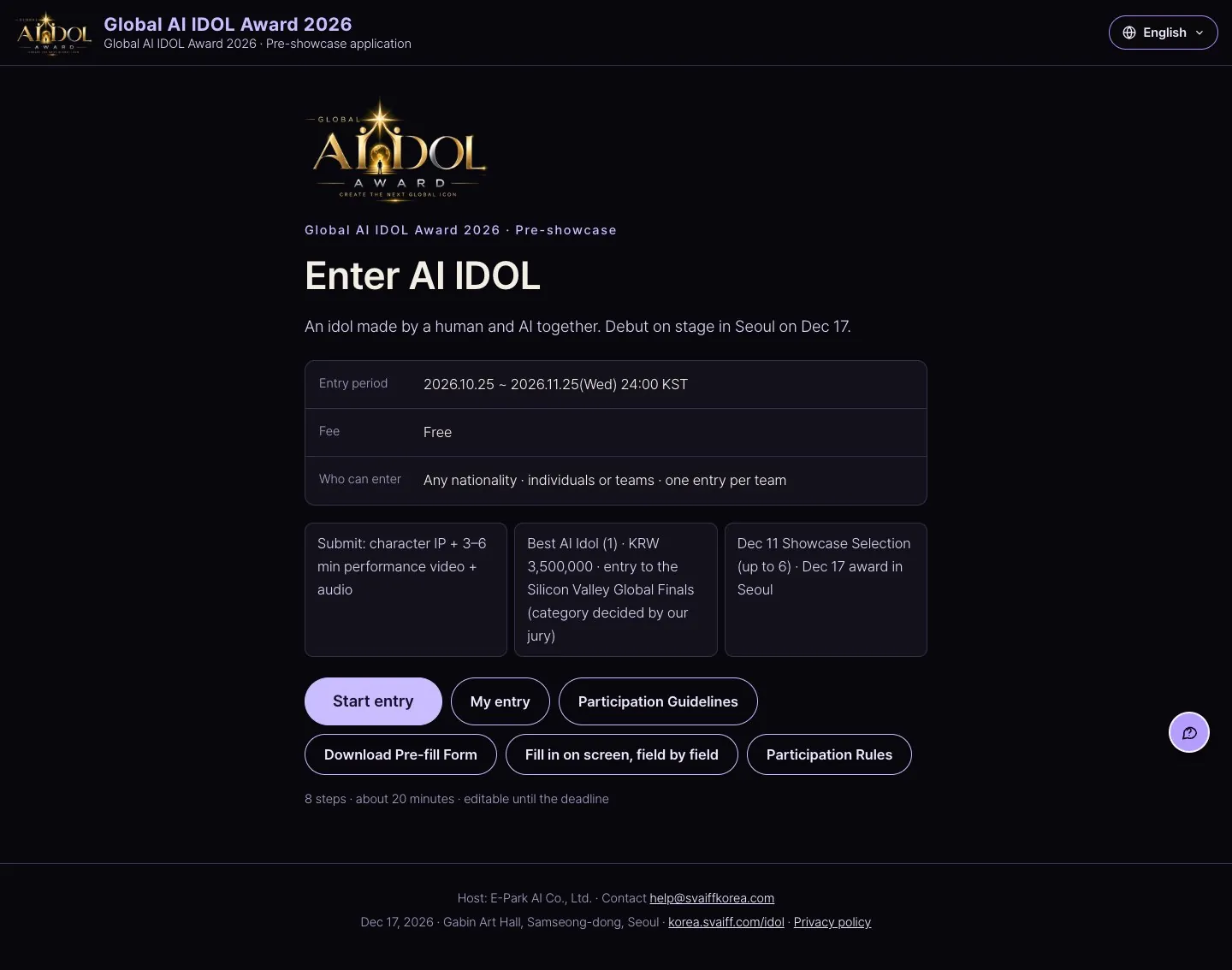
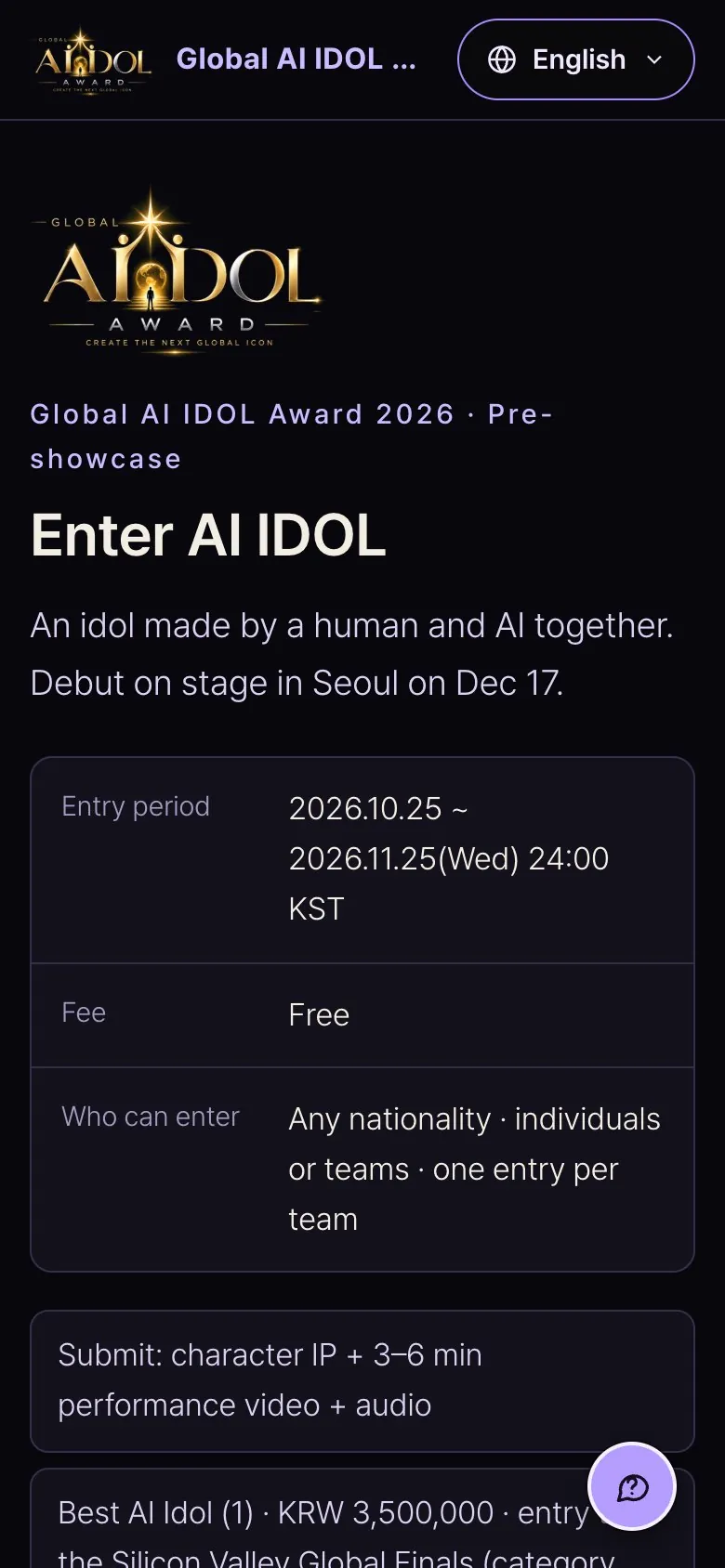
AI IDOL start page
- Press Start entry to choose adult or minor.
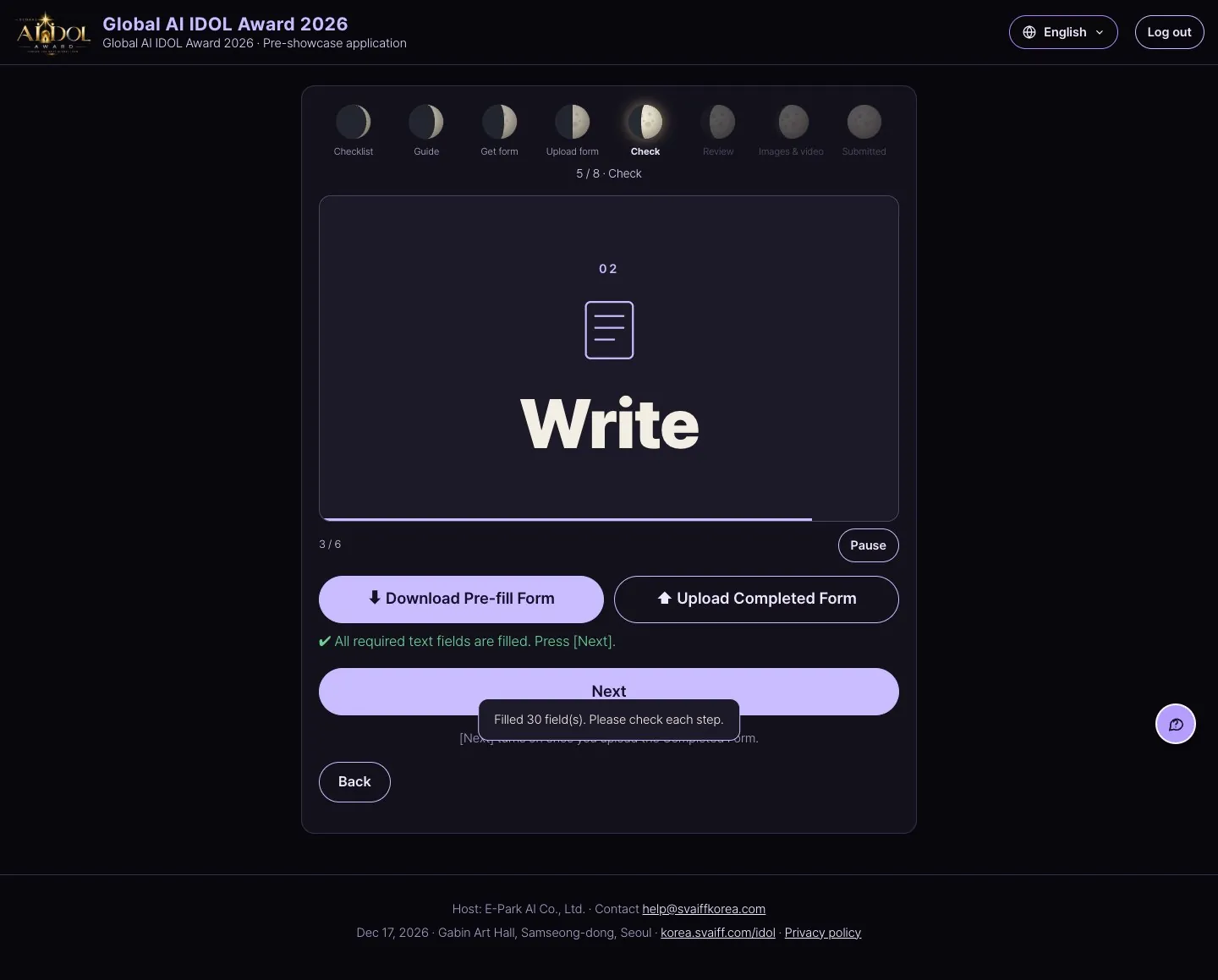
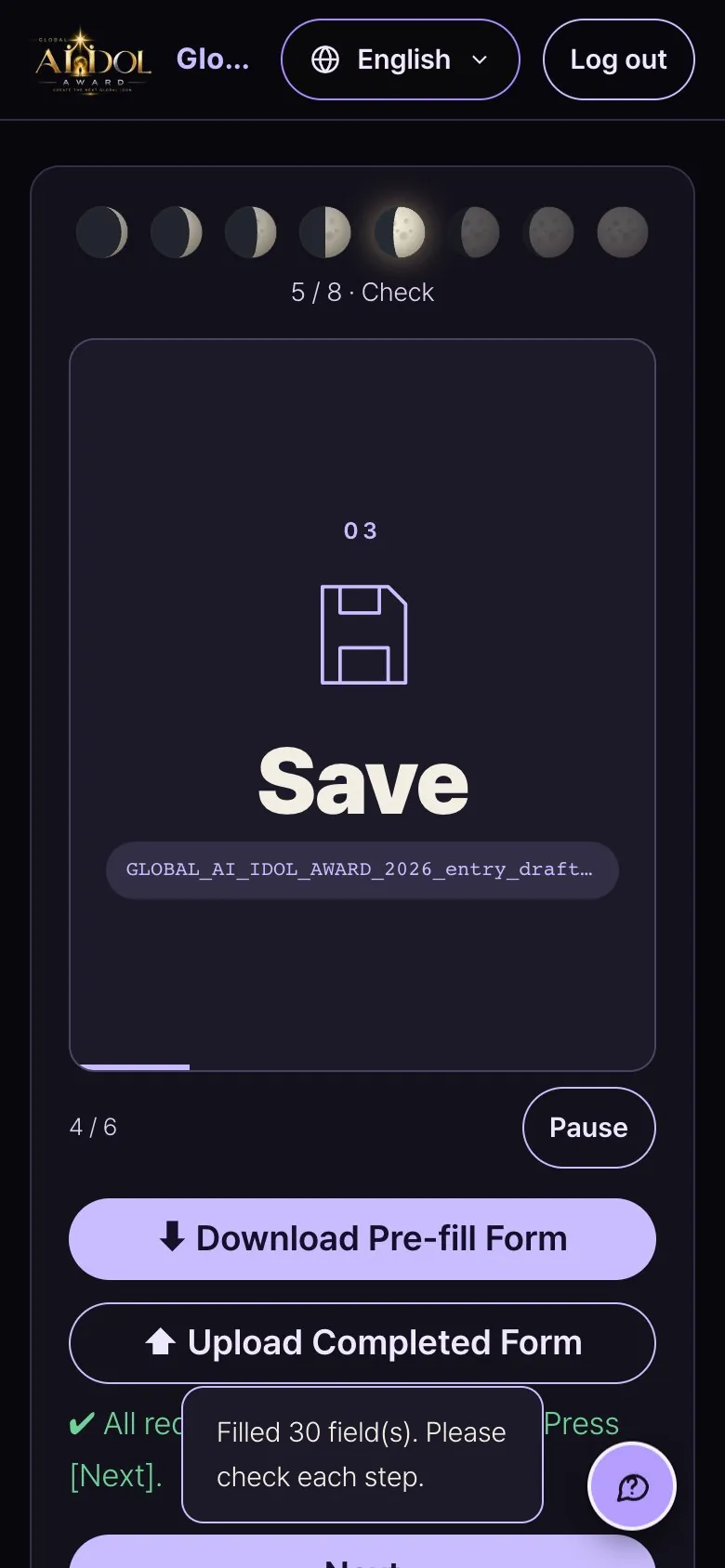
Applying with the form
- As for films, fill in the Pre-fill Form and upload the Completed Form to fill the text fields at once.
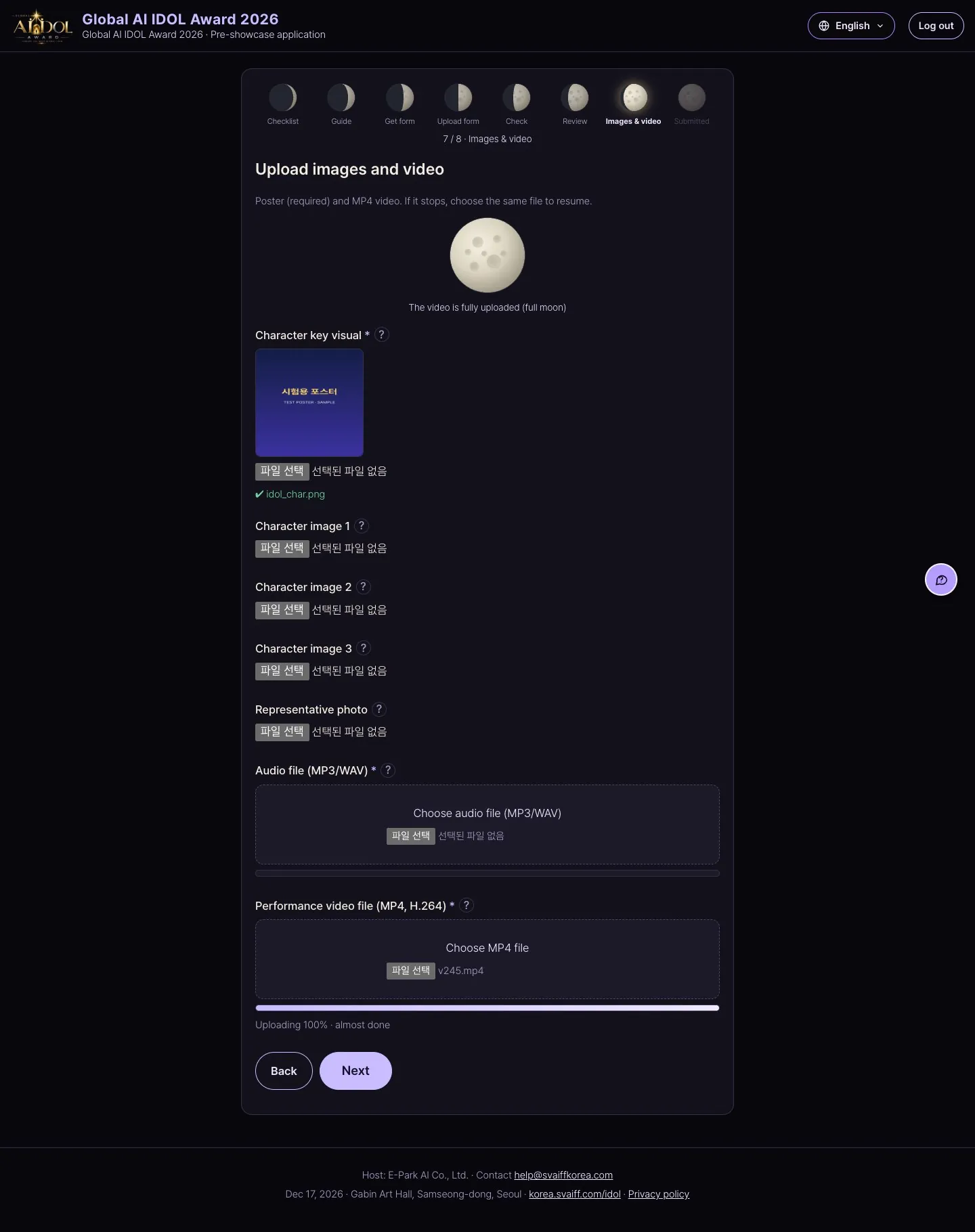
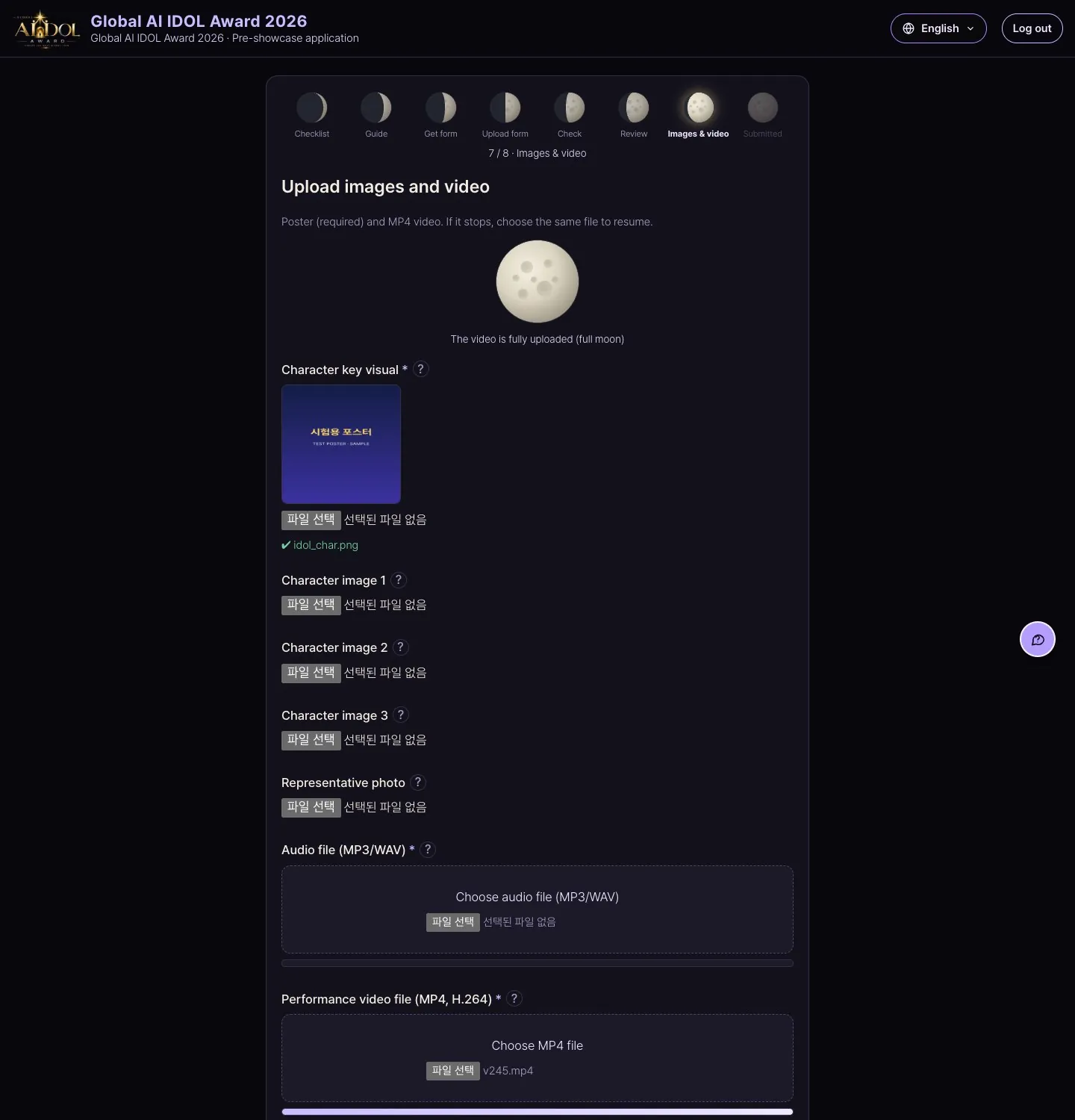
Upload images, video and audio
- Upload the character key image (required), the performance video (MP4, 3–6 min) and the audio (MP3/WAV).
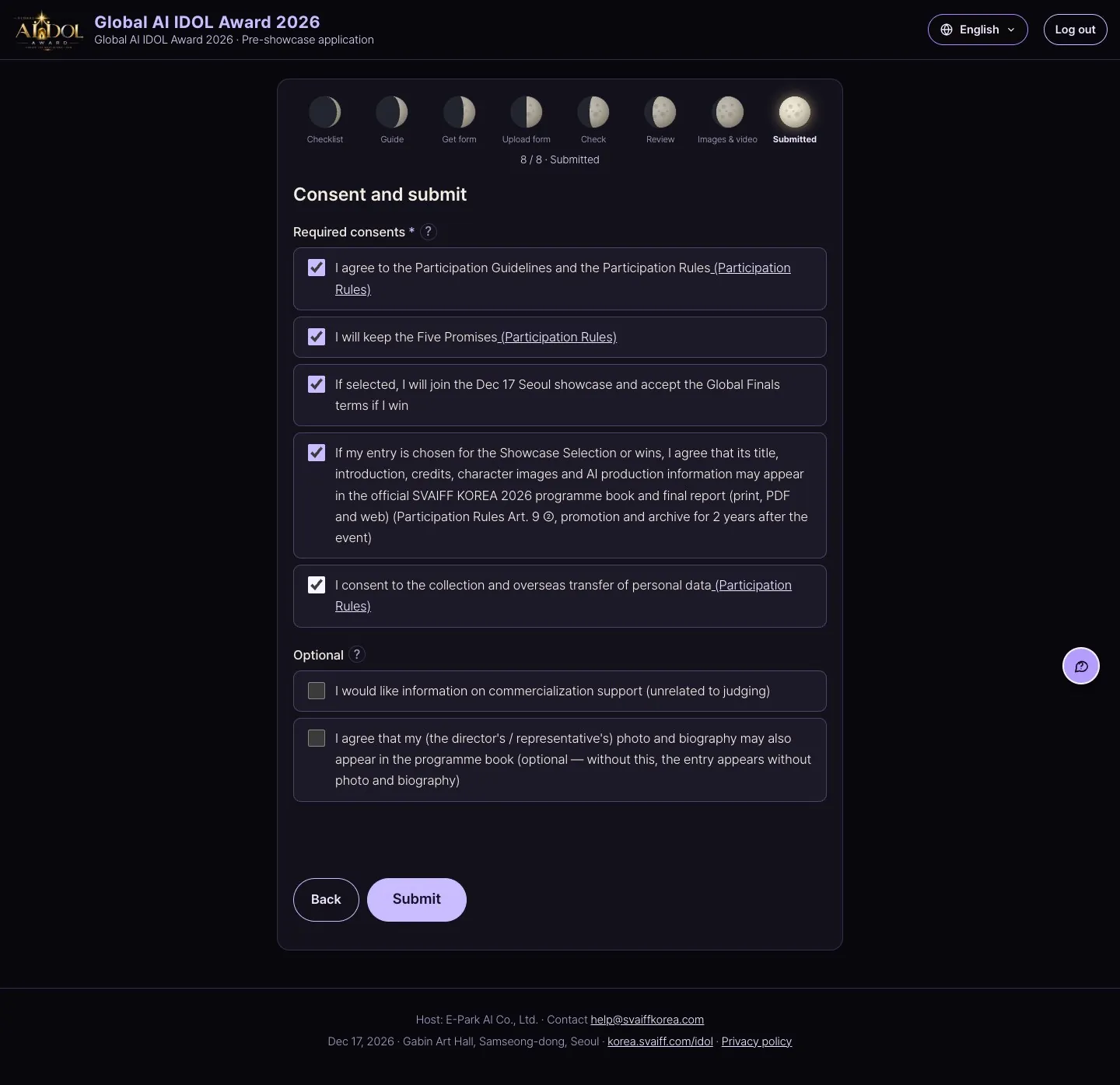
Consent and submit → received
- Tick the required consents (entry rules, five promises, showcase, programme book listing, privacy) and submit. The tracking number looks like AIDOL26-0000.
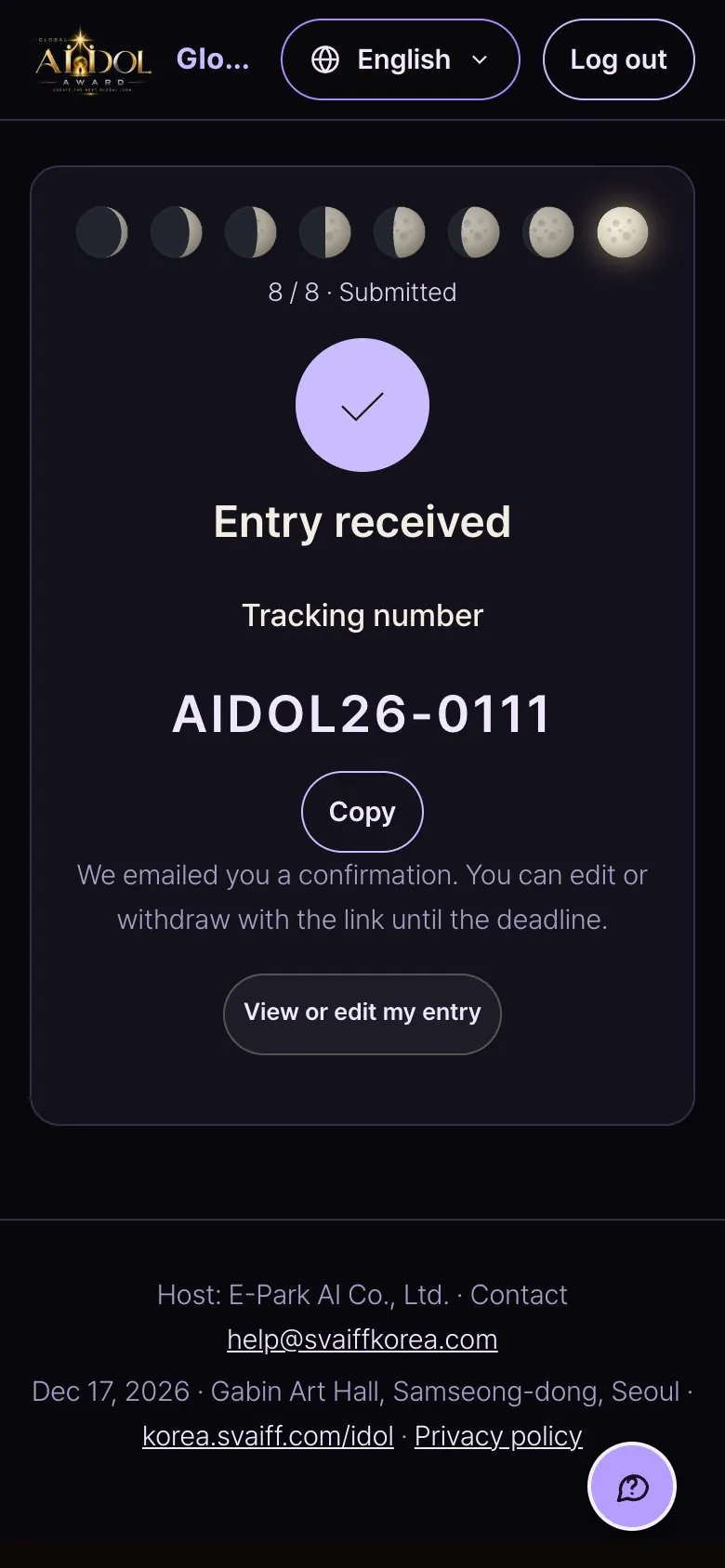
9. Entering on a phone
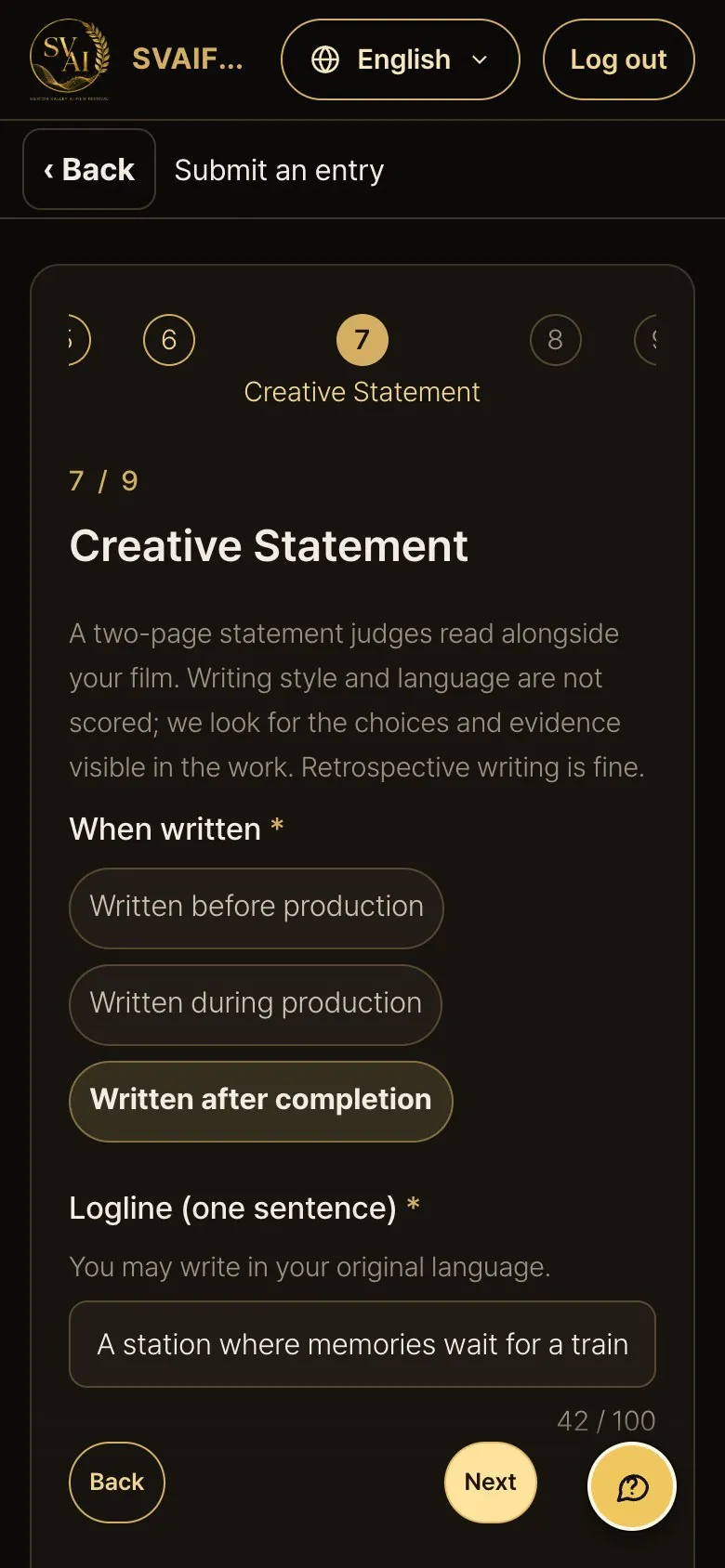
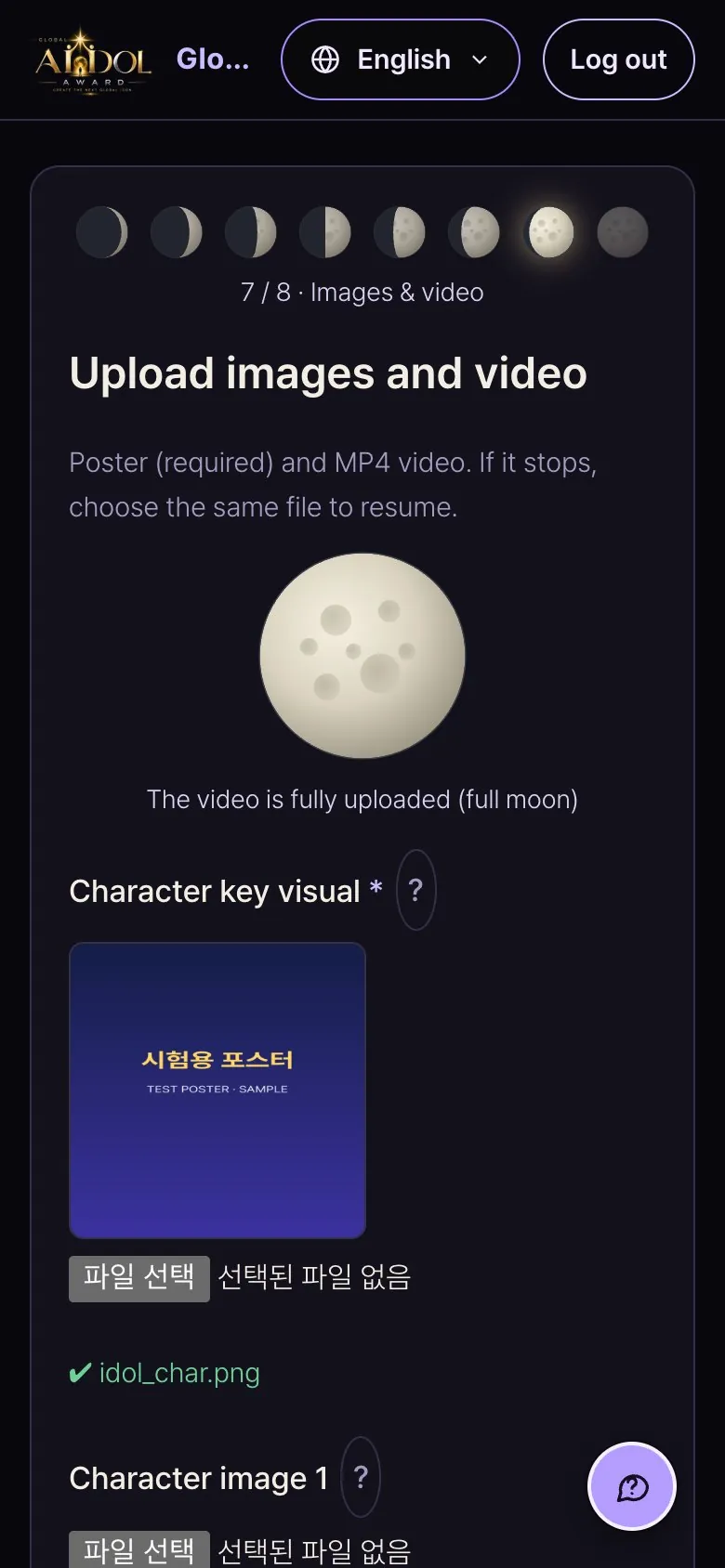
- Every step works on a phone. The ‹ Back button at the top and the phone's Back go to the previous step (input is kept).
- Only the step circles near the current one are shown; swipe sideways to see others.
- Upload large videos over Wi-Fi. If you turn off the screen or leave the browser for long, the upload may pause — choose the same file again to resume.
- The Back · Next buttons stay at the bottom of the screen. The round ? button at the bottom right opens help.
- At moments where people often get stuck (first visit, large or stalled uploads, Next failing repeatedly, missing items), a short note slides up from the bottom. Close it with Got it or the phone's Back.
10. Common problems · Contact
- What's the difference between the form and filling in on screen?
- The result is the same. To write long texts in advance and upload them at once, press Start (entering with the form); to type directly on screen, choose Fill in on screen, field by field.
- The code email doesn't arrive
- Check spam first, then press Send code again after 1–2 minutes. Also check the email address for typos.
- Next doesn't work or red text appears
- A required (*) field in that step is empty or in the wrong format. Fill in the field the red text points to.
- The video upload stopped
- Don't close the window; wait a moment. If it is still stuck, choose the same file again and it resumes. Only MP4 (H.264) is accepted.
- There's no field to type the running time
- The server measures it from the uploaded file. If it says the length could not be read, re-export as MP4 (H.264) and upload again.
- Can I submit a YouTube link?
- No. Videos are accepted only as MP4 file uploads.
- A category card is greyed out
- Your uploaded video is longer than that category's limit (e.g. Advertising 3 min, Music Video 7 min).
- My draft disappeared
- Drafts are saved in that device and browser. Open the page again in the same browser and the start button changes to Continue.
- I want to change the video after submitting
- Before the deadline: My entry → Edit → step 5 Change video. If the entry is already locked, existing scores become void and judging starts over.
- I lost the confirmation email / edit link
- Use My entries on the start page, verify the same email, and create a new edit link from the list.
- How does guardian consent work for a minor?
- Enter the guardian's name, relationship and email in step 1 and press Next; a consent link goes to the guardian at once. Once the guardian agrees on screen, it's done.
- Can I write the text fields in advance?
- Yes. Fill in the form from Download Pre-fill Form, save it, then use Upload Completed Form in step 1 to fill the fields at once.
Contact: help@svaiffkorea.com. Please include your tracking number.